How to Clean under Macbook Keyboard: Expert Tips
You love your MacBook, right? It’s sleek, powerful, and an essential part of your daily routine.
But have you noticed it’s been acting a bit sluggish lately or that some keys just aren’t as responsive as they used to be? It might be time to give your MacBook keyboard a good clean. You might be wondering how to tackle this delicate task without causing any harm.
Well, you’re in the right place. You’ll discover simple, effective steps to clean under your MacBook keyboard, ensuring it stays in top shape. Keep reading to unlock the secrets to a smoother typing experience and a longer-lasting device. Your MacBook deserves it, and so do you!
Credit: www.youtube.com
Preparation For Cleaning
Preparing to clean under your MacBook keyboard ensures better results. Start by turning off and unplugging the device. Use a small brush or compressed air to remove debris carefully. This approach helps maintain your MacBook’s performance and keeps your keyboard in top condition.
Gathering Necessary Tools
Collect the right tools for cleaning. You will need a soft brush. A can of compressed air is also helpful. A small screwdriver may be required. Have a microfiber cloth ready too. These tools help clean without damage. Avoid using liquid cleaners. They can harm your MacBook.
Powering Down The Macbook
Shut down your MacBook completely. This prevents any accidental actions. Unplug the charger for safety. Ensure the battery is not charging. This keeps your device safe. Wait until it is fully powered down. It is important to be cautious.
Creating A Safe Workspace
Find a clean table or desk. Remove any clutter from the area. Ensure the space is well-lit. Keep pets away from the workspace. Avoid areas with water or liquids. A safe workspace prevents accidental damage. It helps you focus on cleaning.
Credit: www.reddit.com
Understanding The Keyboard Layout
MacBook keyboards have a unique design. Each key sits on a butterfly mechanism. This mechanism allows for a thin keyboard. It also provides a stable key feel. Keys are sensitive to dust and crumbs. Cleaning is essential for smooth typing.
Some keys may feel sticky. Others might not press down well. Common problem areas include the edges of the keys. These spots often collect dust. Look closely at the space between keys. They tend to trap small particles. Cleaning these areas can improve keyboard function.
Dust And Debris Removal
Compressed air can blow away dirt. Hold the can upright. Spray air gently under the keys. Move the air across the keyboard. Do not spray too close. Keep a short distance. It helps remove small particles. Always use a can made for electronics.
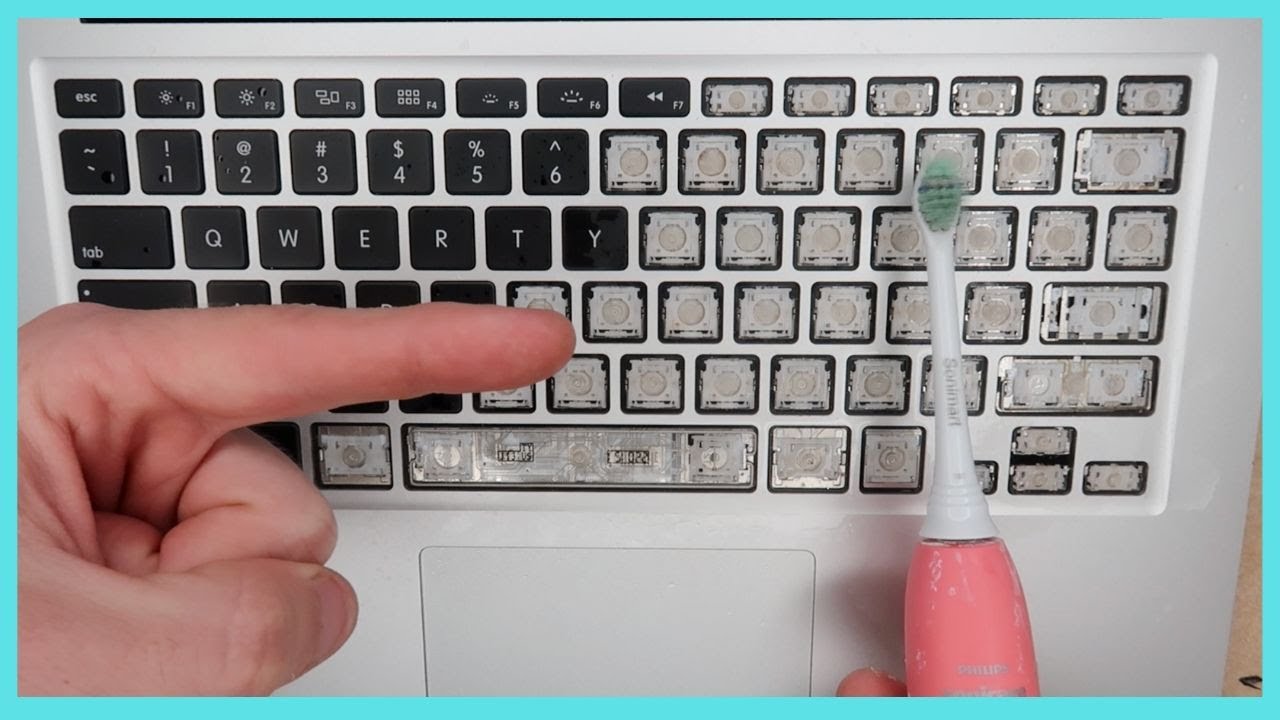
A soft brush is safe for keyboards. Gently sweep under the keys. Brush can reach between keys. It removes dust easily. Move the brush in small circles. This catches more dirt. Be gentle to avoid damage. Use a clean brush for best results.
Use a small vacuum cleaner. It should be made for electronics. Gently move the vacuum over the keyboard. It sucks up hidden dust. Make sure not to press hard. A light touch works best. Vacuuming is quick and effective. Always use with care to protect your MacBook.
Deep Cleaning Methods
Take off each key gently. Use a small tool to lift them up. Be careful not to break the keys. Once removed, you can clean the space under each key. This helps in keeping your keyboard free from dust and dirt. After cleaning, put each key back in its place.
Use isopropyl alcohol to clean sticky areas. Pour a small amount on a cotton swab. Gently rub the swab on the dirty parts. This removes grime and makes keys work better. Make sure not to pour alcohol directly on the keyboard.
A microfiber cloth is great for cleaning. Use it to wipe the keys and the keyboard surface. It picks up dust without scratching. You can dampen the cloth slightly for better results. Just make sure it is not too wet.
Reassembling The Keyboard
Ensuring Proper Key Placementis crucial for a smooth experience. Each key has its own spot. Start by placing larger keys first. Use a diagram if available. Smaller keys follow next. Pay attention to the shapes and sizes. Some keys have unique clips. Secure them gently in their slots. Double-check alignment with other keys. Ensure every key is secure and snug.
Testing Keyboard Functionalityis important after assembly. Press each key gently. Check for smooth movement. Listen for clicks or unusual noises. Make sure every key responds well. Open a text file for testing. Type each letter and number. Look for missed or repeated keystrokes. Adjust any misaligned keys. Verify all keys work properly.
Preventive Maintenance Tips
Cleaning under a MacBook keyboard involves carefully removing dust and debris to ensure smooth functionality. Use compressed air to gently blow away particles, preventing sticky keys. Regular maintenance keeps your keyboard clean and responsive, extending its lifespan.
Regular Cleaning Schedule
Dust settles on keyboards. It can hurt keys. Clean your Macbook often. Use a soft brush. Wipe with a damp cloth. Avoid harsh chemicals. They can damage the keys. A gentle approach is best.
Using Keyboard Covers
Keyboard covers keep dirt away. They are easy to use. Cover protects keys from dust. Buy a cover that fits well. Covers are washable. They keep your keyboard clean. Clean covers weekly. This ensures no dirt builds up.
Avoiding Spills And Contaminants
Spills can harm your Macbook. Keep liquids away. Never eat near your laptop. Crumbs fall between keys. They can block function. Avoid sticky fingers on keys. Clean hands first. This keeps the keyboard safe.

Credit: www.wikihow.com
Frequently Asked Questions
How Do I Safely Clean My Macbook Keyboard?
To safely clean your MacBook keyboard, first shut down the device. Use compressed air to gently remove debris. Avoid using liquids directly. A microfiber cloth lightly dampened with water can clean keys. Be cautious to prevent moisture from entering the device, as it can cause damage.
Can I Use Alcohol Wipes On Macbook Keyboard?
Yes, you can use alcohol wipes, but ensure they are damp, not wet. Lightly wipe the keys without pressing hard. Avoid alcohol contact with non-keyboard areas. Alcohol wipes effectively remove germs and dirt, enhancing keyboard cleanliness without damaging your device.
What’s The Best Tool For Cleaning Macbook Keyboard?
Compressed air cans are ideal for cleaning under MacBook keys. They efficiently remove dust and debris without liquid risk. For detailed cleaning, consider a soft brush or microfiber cloth. These tools help maintain your keyboard’s functionality and appearance.
How Often Should I Clean My Macbook Keyboard?
Cleaning your MacBook keyboard every month is recommended. Regular maintenance prevents dust buildup and ensures smooth functionality. If you frequently use your device, consider cleaning more often. Routine cleaning helps extend the lifespan of your keyboard.
Conclusion
Keeping your MacBook keyboard clean ensures it works efficiently. Regular cleaning prevents dust buildup and sticky keys. Use compressed air to blow away particles. A soft brush gently removes dirt from crevices. Avoid water or liquid cleaners to prevent damage.
Follow these steps to maintain your keyboard’s health. A clean keyboard makes typing smooth and enjoyable. Spend a few minutes on this task each month. Your MacBook will thank you for it. Enjoy a cleaner and more responsive typing experience!

Finnian Delaney is a seasoned writer and editor specializing in technology and electronics. At ElectroDoz, he covers a wide range of topics, with a focus on MacBooks, laptops, fitness trackers, keyboards, and computer hardware. With a knack for making complex tech accessible, Finnian helps readers stay informed and confident when choosing their next device or upgrade.