How Do You Print Screen on a Logitech Keyboard: Easy Guide
Have you ever found yourself needing to capture what’s on your screen quickly, only to be stumped by your Logitech keyboard? You’re not alone.
Many people struggle with this seemingly simple task, but the solution is easier than you might think. Imagine effortlessly sharing important information, capturing memorable moments, or documenting errors for tech support—all with just a press of a button. In this guide, you’ll discover how to print screen on a Logitech keyboard, making screen capturing as smooth as possible.
Stick around, and soon you’ll master this handy skill, saving you time and frustration.
Logitech Keyboard Features
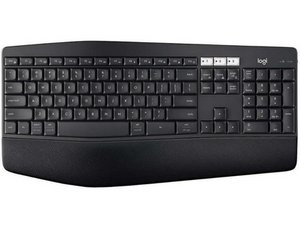
Logitech keyboards come with useful features. They are easy to use. Many models have a Print Screen key. This key helps capture your screen. Just press it to take a screenshot. It is that simple. Some keyboards have extra functions. They might have a Fn key. This key works with others to do more. It can change how the Print Screen works. Check your keyboard layout. Each model can be different. Read the manual if unsure. Logitech keyboards are user-friendly. They make typing and tasks easy. A great tool for daily use.
Locating The Print Screen Key
Many Logitech keyboards have a key labeled “PrtSc” or “Print Screen”. This key is often found in the top row. Sometimes, it can be near the Function keys. On some keyboards, it might be combined with another key. In such cases, look for a small icon or text on the key. You may need to press the “Fn” key along with the Print Screen key. This helps the keyboard know you want to take a screenshot. Always check the keyboard layout carefully. Each model might be different.
If you don’t find it easily, refer to the manual. The manual will show exact positions. Finding the correct key is the first step to capturing your screen.
Printing Screen On Windows
The Print Screen key helps to capture your screen. This key is usually labeled as PrtScn. It’s often found at the top of the keyboard. Press the key to take a screenshot. Your screen picture goes to the clipboard. You can paste it into a document or paint app. Use Ctrl + V to paste.
Want to save your screen as a file? Press Windows + PrtScn keys together. Your screen will dim for a moment. The picture goes to the Pictures folder. Look for the Screenshots folder inside. The file saves as a PNG image. This is a quick way to keep your screen capture.
Credit: www.ifixit.com
Printing Screen On Mac
Mac keyboards have different keys. Print Screen is not on them. You can use shortcuts. Press Command + Shift + 3. It takes a picture of the whole screen. To capture a part, use Command + Shift + 4. You get a crosshair. Drag it over the area you want. Release to capture.
Some tools help take screenshots. Snappy and Lightshot are popular. They are easy to use. Download and install them. Follow the instructions. Each tool has special features. You can edit and share images easily. They are great for beginners.
Troubleshooting Common Issues
Printing screen with a Logitech keyboard can be simple. Locate the “PrtScn” or “Print Screen” key. Press it to capture the entire screen. For specific windows, use “Alt + PrtScn. “
Unresponsive Print Screen Key
Sometimes the Print Screen keymight not work. First, check if the keyboard is connected. A loose cable can cause issues. Use another port to test the keyboard. Ensure your computer recognizes the keyboard.
Restarting your computer can solve many issues. Check if the Print Screen keyis disabled in keyboard settings. Some keyboards have a function lockthat can disable keys. Locate the function lock and toggle it.
Software Conflicts
Software conflicts can block the Print Screen keyfrom working. Check if any software is using the key. Some programs may override keyboard functions. Close applications one by one to find the culprit.
Update your keyboard driver. Old drivers can cause problems. Visit the Logitech website for the latest driver. Download and install it. Ensure other software is updated too. Software updates fix bugs and improve performance.
Customizing Keyboard Shortcuts
Logitech software helps in adjusting keyboard settings easily. Open the Logitech software on your computer. Select your keyboard model from the list. Go to the shortcut settings section. You can add or change shortcuts there. Choose the key you want to use for Print Screen. Save your changes. Now your keyboard shortcut is ready.
Macro commands let you automate tasks. Open the Logitech software again. Find the macro settings. Create a new macro by clicking the ‘Add Macro’ button. Choose the command for Print Screen. Assign it to a key. Test the macro by pressing the key. Adjust if needed. This way, you can print screen with one key press.
Tips For Efficient Use
Logitech keyboardsoffer handy shortcuts for quick tasks. These shortcuts can make work faster and easier. Knowing them saves time. Using the Print Screenbutton captures the screen. This is useful for sharing information quickly.
Quick Access Shortcuts
Many Logitech keyboards have special keys for shortcuts. These keys help with tasks like opening apps or adjusting sound. They are designed for easy access. Learning these shortcuts can improve workflow. It helps in managing tasks more smoothly.
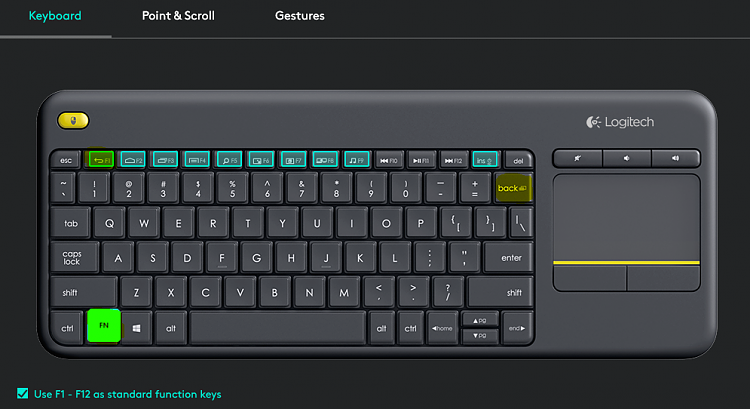
Some keyboards have a function keyto activate shortcuts. Pressing this with other keys performs special actions. Look for the key labeled “Fn” on the keyboard. This key can be combined with others for quick actions.
Enhancing Workflow
Using shortcuts reduces the need for a mouse. This speeds up tasks and keeps focus on work. It is important to practice using them daily. With practice, tasks become faster. This improves productivity and efficiency.
Remember to check the keyboard manual. The manual often lists all shortcuts. This helps in learning and using them effectively.
Credit: www.youtube.com
Credit: www.tenforums.com
Frequently Asked Questions
How To Take A Screenshot On Logitech Keyboard?
To take a screenshot, locate the “Print Screen” (PrtScn) key on your Logitech keyboard. Press it to capture the entire screen. You can paste the screenshot into an image editor to save or edit it further. Some Logitech keyboards also have a dedicated screenshot button for convenience.
Where Is The Print Screen Key Located?
The “Print Screen” (PrtScn) key is usually located in the upper-right area of Logitech keyboards. It is often found near the “Scroll Lock” and “Pause” keys. On some models, it might be labeled differently or combined with another function key.
Can I Customize Screenshot Shortcuts On Logitech Keyboards?
Yes, you can customize screenshot shortcuts using Logitech’s software, such as Logitech Options. This software allows you to assign specific actions or functions to different keys. By doing this, you can enhance your keyboard’s functionality and streamline your workflow.
Do Logitech Keyboards Have Dedicated Screenshot Keys?
Some Logitech keyboards feature dedicated screenshot keys, making capturing your screen easier. These keys are specially designed for quick access to the screenshot function. Check your keyboard’s manual or layout to see if it has this feature.
Conclusion
Printing screen on a Logitech keyboard is quite simple. Key combinations vary by model. Check your keyboard for a dedicated Print Screen key. It’s usually labeled “PrtSc”. Some models may use “Fn” with another key. Always explore your keyboard layout.
This ensures you find the right key quickly. Practice makes it easier over time. Knowing your keyboard shortcuts saves time. It also boosts productivity. Remember, each model might have slight differences. With patience, you’ll master it. Logitech keyboards offer user-friendly features.
Enjoy exploring them!

Finnian Delaney is a seasoned writer and editor specializing in technology and electronics. At ElectroDoz, he covers a wide range of topics, with a focus on MacBooks, laptops, fitness trackers, keyboards, and computer hardware. With a knack for making complex tech accessible, Finnian helps readers stay informed and confident when choosing their next device or upgrade.