How to Block a Number on Macbook: Quick & Easy Guide
Are unwanted calls disrupting your productivity on your Macbook? You’re not alone.
Many of us face this annoying issue, but the good news is, you can take control. Imagine the peace of mind you’ll have when you no longer have to deal with those pesky interruptions. By learning how to block a number on your Macbook, you can create a distraction-free environment that lets you focus on what truly matters.
This guide will show you simple, step-by-step instructions to regain your digital serenity. Ready to eliminate those disturbances for good? Let’s dive in and make your Macbook a more efficient and tranquil place.
:max_bytes(150000):strip_icc()/A1-BlockSomeoneonaMacBook-annotated-e78251266a854fb7971eb871a936ba99.jpg)
Credit: www.lifewire.com
Blocking Numbers In Facetime
Accessing FaceTimeis easy. Open the app on your MacBook. Find the FaceTime icon on your dock. Click on it to open.
Navigating to Blocked Listis the next step. Click “FaceTime” in the top menu. Select “Preferences” from the dropdown. A new window will appear. Click on the “Blocked” tab. This shows all blocked contacts.
Adding a Number to Blockis simple. In the blocked tab, click the plus sign. Choose a contact from the list. This blocks their number. They cannot call or message you on FaceTime. Blocking helps keep unwanted calls away.
Blocking Numbers In Messages
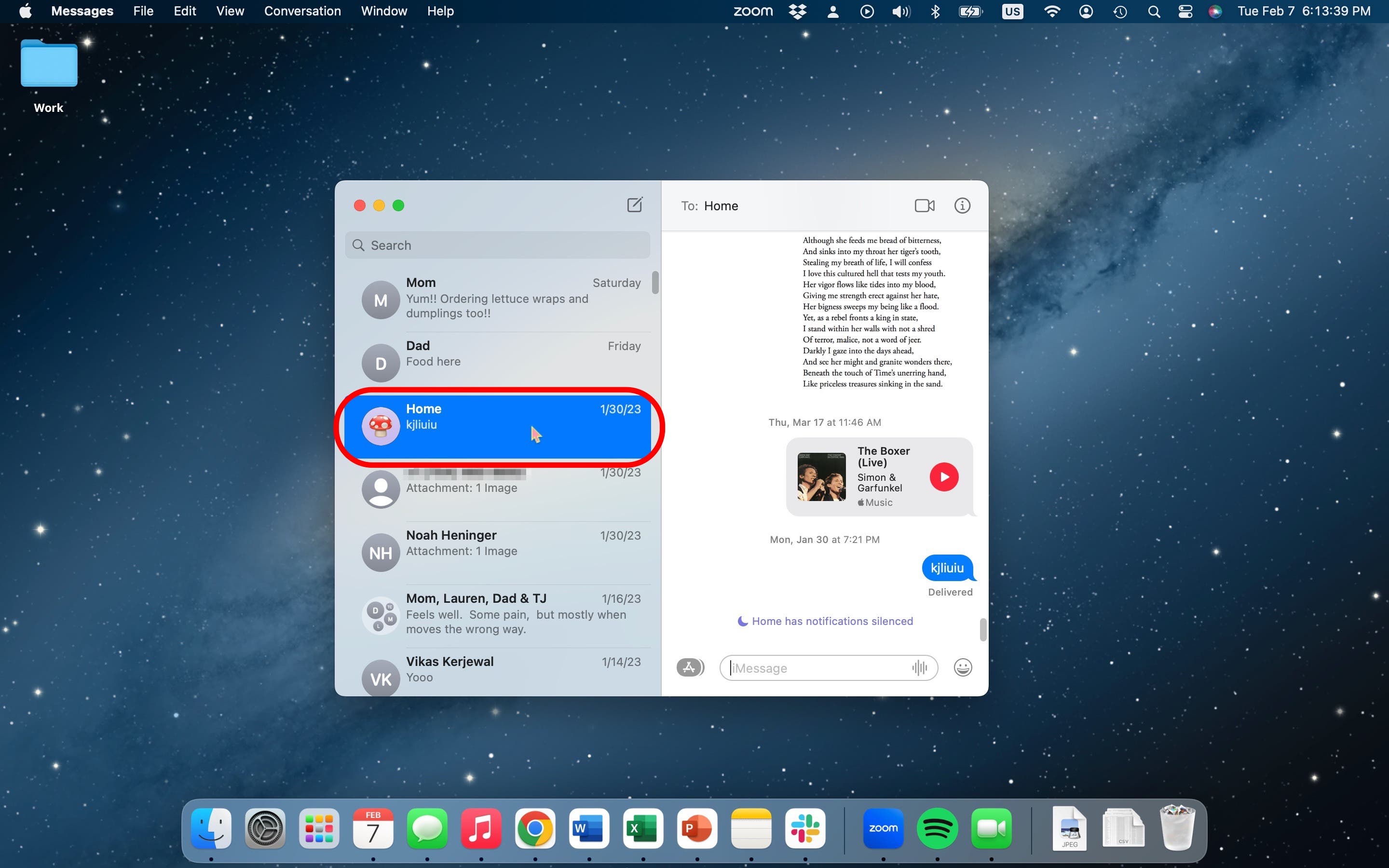
First, open the Messages appon your Macbook. You can find it in the Dock or in the Applications folder. Click on the icon to start the app.
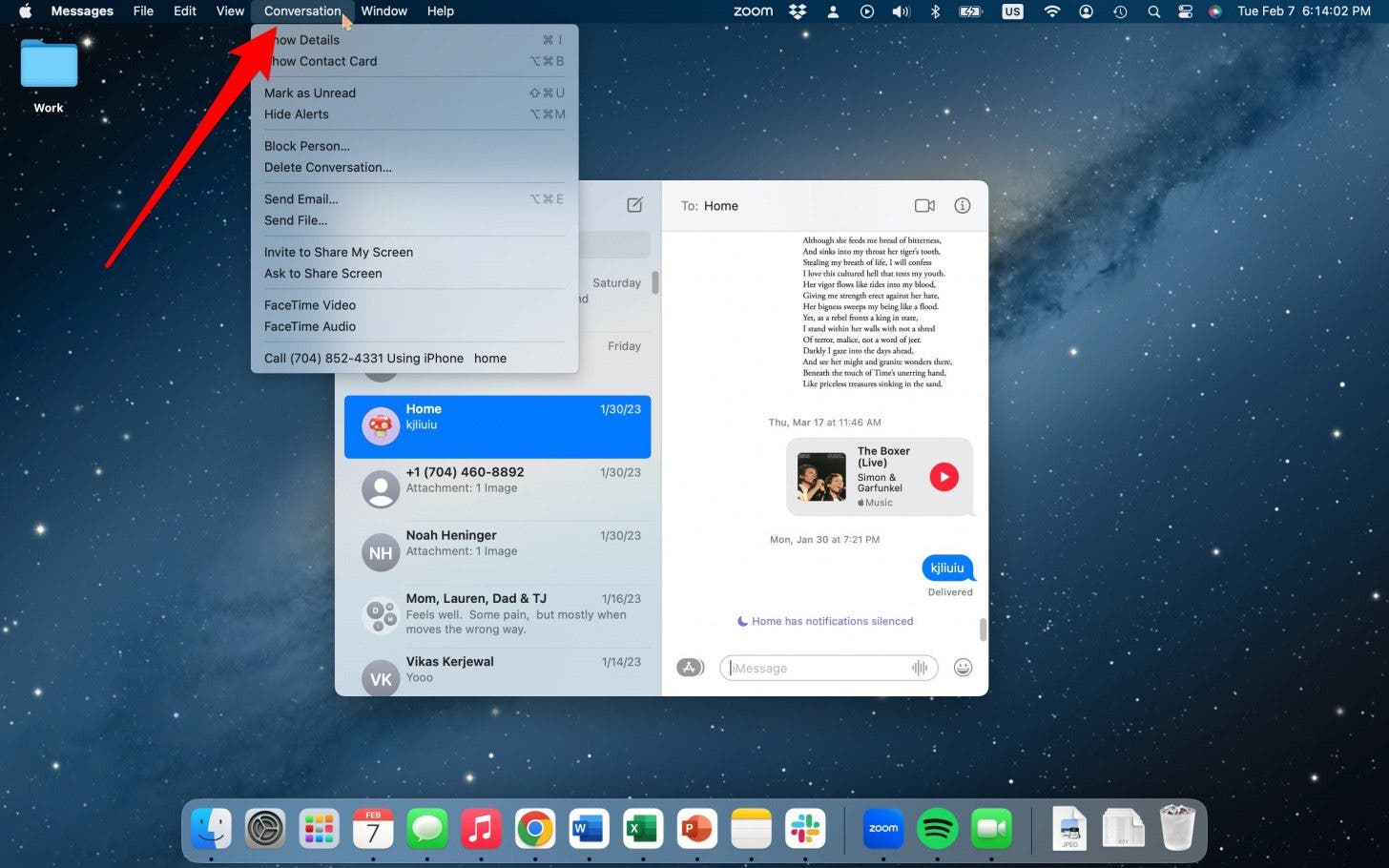
Look for the contact you want to block. Use the search bar to find them quickly. Click on their name or number to open the chat.
Click on the Detailsbutton in the chat. A menu will appear with options. Choose Block this Contactto stop messages from them.
Using Contacts App
Open the Contactsapp on your Macbook. Find the contact you want to block. Use the search bar to find them quickly. Click on their name to open their details. Make sure it’s the right person. Check their phone number and other details.
Look for the Editbutton on the contact’s page. Click it to start editing. Scroll to find the Blockoption. Click on it to block the contact. Confirm your choice if prompted. The contact is now blocked on your Macbook. You won’t receive calls or messages from them.
Credit: www.iphonelife.com
Managing Blocked Contacts
Blocked contacts are easy to find. Open the Messagesapp. Go to the Preferencesmenu. Click on the Blockedtab. Here you see all blocked numbers. Review them carefully. You can decide if some need unblocking. This list helps you manage who can contact you. It’s simple and useful.
To unblock, go to the Blockedlist. Find the contact you want to unblock. Click the minusbutton next to their name. Now, they can reach you again. It’s that easy. Always check your list. Make sure you only unblock the right contacts. This keeps your communication safe.
Troubleshooting Common Issues
Blocking a number on your MacBook can prevent unwanted calls. Go to Messages, click Preferences, then Blocked, and add the number. This simple process ensures peace from disturbances.
Syncing Across Devices
Macbook users can face problems when numbers do not sync. This happens because settings need checking. Make sure all devices use the same Apple ID. This helps in keeping numbers synced. Also, check if contacts are on iCloud. This allows numbers to move across devices easily. If syncing still fails, restart your device. Restarting can fix many small issues.
Updates And Compatibility
Older Macbooks might not support new updates. This can cause problems. Always check if your Macbook needs a software update. Keeping software updated ensures better compatibility. Check the App Store for updates regularly. This helps with blocking numbers. Compatibility issues can also arise if apps are outdated. Updating apps might solve some problems too. If issues persist, contact Apple Support.
Credit: www.iphonelife.com
Enhancing Macbook Privacy
Improving privacy on a Macbook is easy. Go to System Preferences. Find the Privacytab. Here, you can adjust settings. Choose what apps can access your data. Block apps you don’t trust. Keep your information safe.
Some apps help block numbers. They offer extra features. These apps can be found in the App Store. Download one with good reviews. Check its settings. Block numbers easily. Keep unwanted calls away.
Frequently Asked Questions
Can You Block A Number On Macbook?
Yes, you can block a number on your Macbook. Use the Messages app to block contacts. Open Messages, go to Preferences, and select Blocked. Add numbers to the list. This prevents unwanted messages and calls. Blocking numbers enhances your privacy and ensures a better user experience.
How Do I Block Messages On Macbook?
To block messages on Macbook, open the Messages app. Go to Preferences and select Blocked. Add the contact or number you want to block. This stops receiving messages from the blocked number. You can manage blocked contacts in the same section.
Is Blocking A Number On Macbook Permanent?
Blocking a number on Macbook is not permanent. You can unblock contacts anytime. Go to Messages, Preferences, then Blocked. Select the number you want to unblock. Blocking is reversible, providing flexibility in managing your contact list.
Can Blocked Numbers Still Call Me?
Blocked numbers cannot reach you through calls on Macbook. Once blocked, messages and FaceTime calls are stopped. This ensures you won’t receive unwanted communication. You can manage blocked numbers easily through the Messages app’s preferences.
Conclusion
Blocking a number on your MacBook is simple. Follow the steps outlined above. Your privacy and peace of mind matter. No more unwanted calls or messages. Feel confident using your MacBook without interruptions. It’s all about control. Enjoy a quieter digital experience.
Practice these steps regularly. Keep your inbox clean and manageable. Blocking numbers is easy once you know how. Stay focused on what truly matters. Your MacBook settings make it possible. Take charge of your digital space. Remember, every little step counts.
Stay informed and in control. Your MacBook, your rules.

Finnian Delaney is a seasoned writer and editor specializing in technology and electronics. At ElectroDoz, he covers a wide range of topics, with a focus on MacBooks, laptops, fitness trackers, keyboards, and computer hardware. With a knack for making complex tech accessible, Finnian helps readers stay informed and confident when choosing their next device or upgrade.