Why is My Keyboard Not Lighting Up? Discover Quick Fixes
Have you ever found yourself staring at your keyboard in frustration, wondering why those vibrant backlights suddenly stopped illuminating? You’re not alone.
Many people experience this issue, and it can be both puzzling and annoying. Your keyboard’s lighting isn’t just for show; it can significantly enhance your typing experience, especially in low-light environments. But when those lights go out, it’s like driving without headlights.
You’re left in the dark, literally. Before you consider replacing your keyboard or spending hours trying to fix it, let’s dive into some common reasons why this might be happening. Whether it’s a simple software glitch or something more complex, understanding the root cause can save you time and money. Read on to discover solutions and regain control over your keyboard’s lighting. Your fingers will thank you!
Common Causes
Sometimes, the keyboard software may have problems. Updates might be needed. Check if the keyboard drivers are up to date. Reinstall them if necessary. This can fix many issues. Try restarting your computer. It can help solve software glitches.
Hardware parts can break or fail. Loose connections are a common cause. Check if the keyboard is connected properly. Look for any visible damage on the keyboard. If a key is stuck, it might prevent lights from working. Clean the keyboard gently. This can solve minor hardware issues.
A keyboard needs power to light up. Check the power source first. Make sure the computer is turned on. Ensure the USB port is working. Try plugging the keyboard into a different port. If the keyboard has batteries, replace them. This might solve the problem.
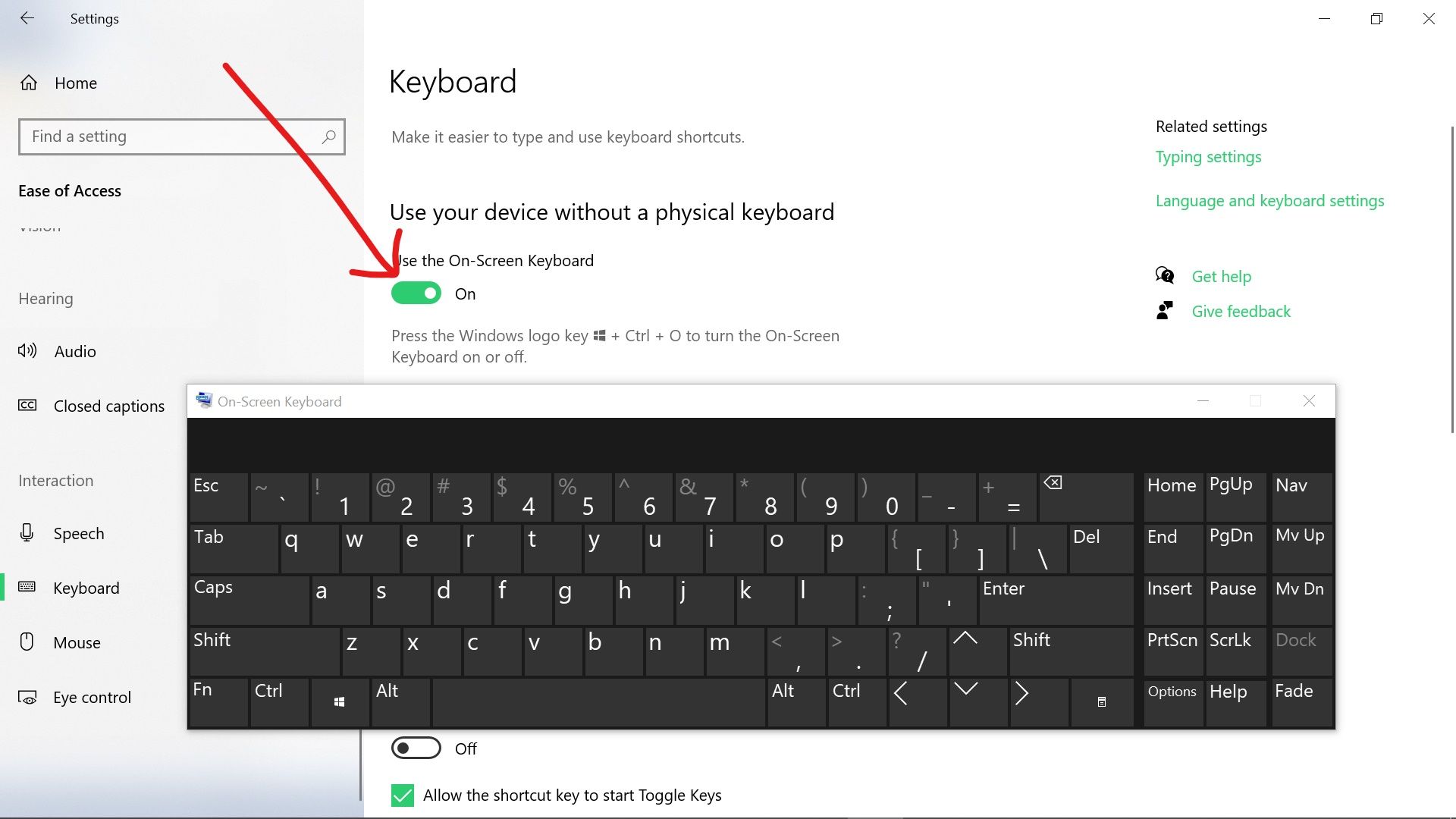
Sometimes, the settings are not right. Check the brightness settings of the keyboard. Increase the brightness if needed. Look for a special key or button. It may control the lights. Ensure the keyboard light settings are on. This can often fix lighting issues.
Credit: www.freecodecamp.org
Software Solutions
Is your keyboard not lighting up? Drivers might be the issue. They help your keyboard talk to the computer. Outdated drivers can cause problems. Check for the latest driver updates. Many keyboard brands offer driver downloads online. Visit their website and look for support. Follow the steps to update your drivers. Updating can fix lighting problems.
Operating systems matter for keyboard lights. Some keyboards work only with certain systems. Check if your keyboard is compatible. Read the box or manual for details. Some brands provide compatibility lists online. Make sure your system matches the list. If not, lighting issues might occur.
Keyboard software can control the lights. Many keyboards come with special software. This software allows you to change light settings. Open the software on your computer. Look for lighting options. Adjust the brightness or color settings. Sometimes, a simple setting change fixes the light. If unsure, check the software help section.
Hardware Checks
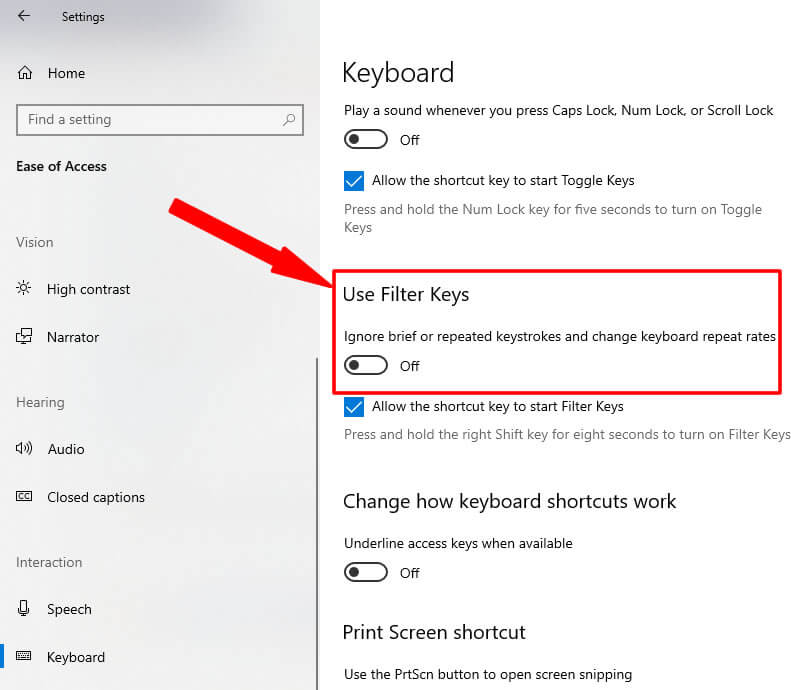
Check if the keyboard is plugged in. A loose connection can stop lights. Make sure the USB port works. Try another port to be sure. Ensure the cable is not damaged. Bent or broken cables won’t work well.
Some keyboards have a light switch. Find it on the keyboard. Toggle the switch to see if lights turn on. Use the keyboard software to test lights. Software can control light settings.
Check for broken keys. Broken keys might not light up. Replace any faulty keys. Look for damaged LEDs. Non-working LEDs need replacing. Find a repair shop for help. Professional help can fix hard issues.
Credit: www.myfixguide.com
Power Management
Is your keyboard not lighting up? The battery might be low. Check the battery levels. A low battery can stop the lights. Some keyboards have a battery icon. It shows the battery level. If it is low, the keyboard needs charging.
Make sure the keyboard is properly charged. Connect it to a power source. Ensure the connection is secure. Wait for some time. Check if the lights are back on. A full charge can solve the problem.
Use the correct power adapterfor your keyboard. A wrong adapter may not work. Check the adapter’s specifications. Match them with the keyboard’s needs. Using the right adapter ensures proper charging. This can help the lights come back on.
Adjusting Settings
Check the brightness settings on your keyboard. Some keyboards have a brightness button. Press it to increase or decrease light. If it’s too dim, try boosting the brightness. This might solve the lighting issue.
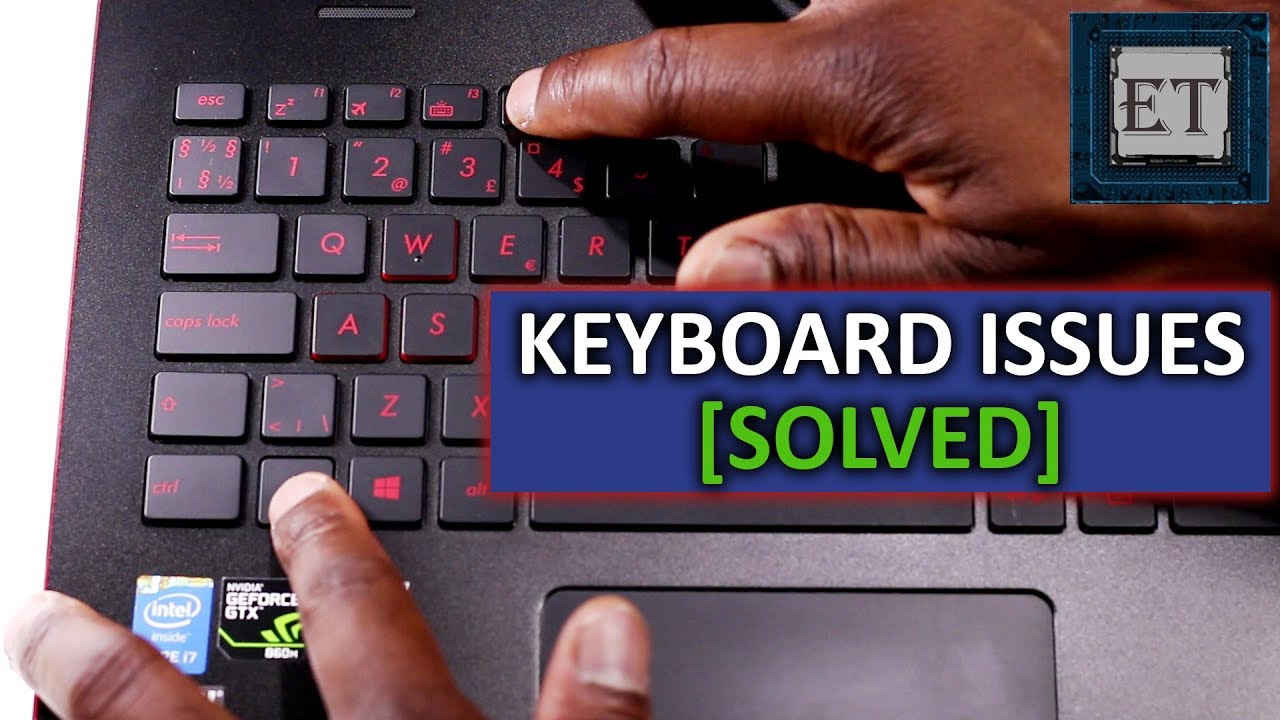
Many keyboards use shortcuts to control lights. Common keys are “Fn” with F keys. Try pressing “Fn” and F3 or F4. Look for keys with a sun symbol. This changes the light settings. Shortcuts can quickly fix your lighting problem.
Some keyboards have custom lighting profiles. These profiles adjust how lights appear. Open the keyboard software on your computer. Select a different lighting profile. This might change your keyboard light.
Credit: m.youtube.com
When To Seek Professional Help
Experiencing issues with keyboard lighting can be frustrating. It’s wise to seek professional help when basic troubleshooting fails. Experts can diagnose and fix technical problems that might be beyond simple solutions.
Persistent Issues
Sometimes, your keyboard might not light up. This can happen often. Lights might flicker or not work at all. Trying simple fixes may not help. If the problem continues, it might be time to ask an expert. They know how to fix things right.
Complex Repairs
Some keyboard issues need special tools. Internal parts might be broken. Fixing them is not easy. Professionals have the right tools. They can handle tough jobs. Trying to do it yourself might make things worse.
Warranty Considerations
Your keyboard might still have a warranty. Trying to fix it yourself can break the warranty. Contacting the company is a good idea. They can help without costing you money. This keeps your warranty safe.
Frequently Asked Questions
Why Isn’t My Keyboard Lighting Up?
Your keyboard may not light up due to disabled backlighting. Check your keyboard settings and enable the backlight function. Also, verify if your device supports backlighting. Sometimes, a software glitch or outdated driver can cause this issue. Update your keyboard drivers or perform a system restart to fix it.
How Do I Enable Keyboard Backlight?
To enable your keyboard’s backlight, press the designated function key, usually F5 or F6. Check your keyboard’s manual for specific instructions. Ensure your device supports backlighting. If the key combination doesn’t work, access your device’s settings and adjust the keyboard backlight settings there.
Can A Software Issue Cause Keyboard Lighting Problems?
Yes, a software issue can cause keyboard lighting problems. Outdated drivers or incorrect settings can affect keyboard functionality. Updating your operating system and keyboard drivers can help. Sometimes, reinstalling the keyboard software or performing a system restart resolves the issue.
Ensure your device’s software is up-to-date.
Is My Keyboard Faulty If It Won’t Light Up?
A non-lighting keyboard isn’t always faulty. First, check if backlighting is enabled in settings. Ensure your device supports backlighting. If the issue persists, it might be a hardware problem. Contact the manufacturer or a technician for further assistance. A professional can diagnose and fix the hardware issue.
Conclusion
Troubleshooting keyboard lighting issues can seem tricky. Start with simple checks. Ensure your keyboard is plugged in properly. Confirm settings allow lights. Update drivers if needed. Check for physical damage. Sometimes, a reset helps. Consider professional help if problems persist.
Remember, patience is key. Fixing these issues often requires trial and error. Keep your keyboard clean. Regular maintenance avoids future problems. With these steps, your keyboard should light up again. Enjoy bright and functional typing experiences. Feel free to share these tips with friends.
Bright keyboards make working and gaming more fun!

Finnian Delaney is a seasoned writer and editor specializing in technology and electronics. At ElectroDoz, he covers a wide range of topics, with a focus on MacBooks, laptops, fitness trackers, keyboards, and computer hardware. With a knack for making complex tech accessible, Finnian helps readers stay informed and confident when choosing their next device or upgrade.