
Why is My Keyboard Typing Random Letters: Solve Now!
Imagine sitting down to type an important document or send a quick message, and suddenly your keyboard starts spewing random letters. Frustrating, right?
You’re not alone. This puzzling issue can turn a simple task into a headache, leaving you wondering what on earth is going wrong. But worry not, because understanding why your keyboard is misbehaving can be the key to fixing it.
By the end of this article, you’ll have the answers you need to regain control over your typing experience, and you’ll discover the surprising reasons behind those chaotic keystrokes. Ready to solve the mystery? Let’s dive in and unravel the secrets together.
Common Causes Of Typing Errors
Keyboards can get dusty or dirty. This can cause keys to stick. Loose connections are another problem. Sometimes, the keyboard cable isn’t secure. This can lead to random letters appearing. A broken key can also cause typing errors. Check if all keys are working fine.
Software can act funny sometimes. Viruses or bugs might cause issues. They can make the keyboard act weird. A quick restart might help. Make sure to keep your software updated. Updates fix many glitches.
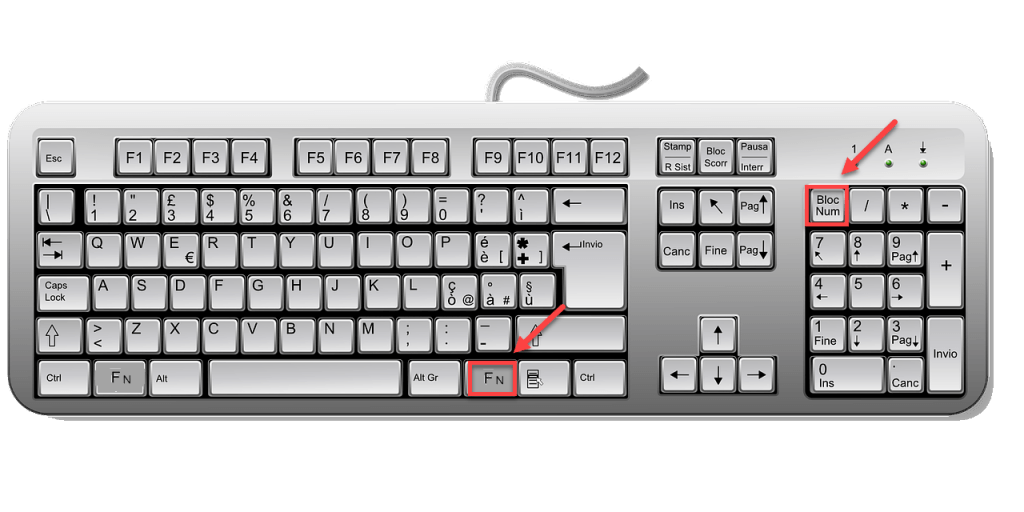
Drivers help the keyboard talk to the computer. Outdated drivers can cause problems. Sometimes, they don’t work right. It’s important to update drivers regularly. This can fix many typing errors. Look online for driver updates.
Credit: www.drivereasy.com
Hardware Troubleshooting Steps
Ensure the keyboard is plugged in properly. Check if the cable is loose or damaged. A loose connection can cause typing errors. Unplug the keyboard and plug it back in. This can fix the problem. Try using a different USB port if possible. Sometimes, the port might be faulty.
Look for broken keys or cracks. Physical damage can affect typing. Check if keys are stuck or wobbly. Clean the keyboard to remove dust. Use a soft cloth for cleaning. A clean keyboard works better. Avoid using too much liquid. It might damage the keyboard.
Connect the keyboard to another device. See if it types correctly. This helps in knowing if the issue is with the keyboard. If the problem continues, the keyboard might be faulty. Use another keyboard to test the computer. This can help find the real issue.
Software Troubleshooting Techniques
Experiencing a keyboard typing random letters can be frustrating. Check for stuck keys or dirt under the keyboard. Software glitches might also cause this issue, requiring a driver update or system reboot.
Update Keyboard Drivers
Keyboard drivers can sometimes cause problems. Updating them might help. Access your computer settings. Look for “Device Manager”. Find your keyboard in the list. Right-click on it. Choose “Update Driver”. Follow the steps. Your keyboard might work better.
Check For Malware Or Viruses
Viruses can affect keyboards. Scan your computer for malware. Use antivirus software. Open the program. Select a full scan. Wait for it to finish. Remove any threats found. This can fix typing issues.
Adjust Keyboard Settings
Sometimes settings change by mistake. Adjust them for better typing. Go to your computer settings. Find “Keyboard”. Check the options there. Look for “Repeat Rate”. Change it if needed. This might solve typing problems.
Advanced Solutions
Try a system restoreto fix keyboard issues. This helps reset your computer to a previous state. Choose a restore point before the problem started. Follow the steps on your computer to complete the restore. This process does not affect your files. It can solve many software-related problems.
Plug in an external keyboardto test if your laptop keyboard is faulty. This helps you know if it’s a hardware issue. If the external keyboard works fine, your laptop keyboard might need repair. Sometimes, using an external keyboard is an easy fix for typing problems.
Contact technical supportfor help if the issue persists. They have experts to assist you. Explain the problem in detail for better assistance. Sometimes, they might suggest sending your device for repair. Getting professional help ensures your keyboard gets fixed properly.
Preventing Future Issues
Troubleshooting keyboard issues helps prevent future problems. Dust or debris often causes random typing errors. Regular cleaning and checking keyboard settings can solve these issues effectively.
Regular Maintenance Tips
Keep your keyboard clean always. Dust and dirt can cause issues. Use a soft brush to clean the keys. Check for stuck keys regularly. Sticky keys make typing hard. Ensure no crumbs or spills. Wipe with a damp cloth often. Avoid harsh chemicals when cleaning. They may damage the keyboard.
Keep Software Updated
Update your keyboard drivers frequently. New updates fix bugs. An outdated driver might cause random typing. Check for updates monthly. Use the manufacturer’s website to find updates. A strong internet connection helps.
Use Protective Covers
A cover protects from dust. It keeps dirt away from keys. Covers are easy to find. They are affordable too. A cover keeps your keyboard safe. It also adds style to your setup.

Credit: bobmckay.com

Credit: www.youtube.com
Frequently Asked Questions
Why Is My Keyboard Typing Symbols Instead Of Letters?
Your keyboard may be typing symbols due to an incorrect keyboard layout setting. Check your computer’s language settings and ensure it’s set to the correct layout. Sometimes, pressing certain key combinations can accidentally change the layout. Adjust these settings to resolve the issue.
How Do I Fix My Keyboard Typing Wrong Characters?
To fix this, first check your keyboard’s language settings. Ensure it’s set to your preferred language. If the issue persists, restart your computer. You can also try updating the keyboard drivers. These steps usually resolve typing errors effectively.
What Causes Keyboard To Type Random Letters?
A keyboard typing random letters can result from software glitches or hardware issues. Check for driver updates and ensure no foreign objects are stuck beneath keys. If the problem continues, consider testing the keyboard on another device. This helps determine if the issue is with the keyboard itself.
Can Viruses Cause Keyboard To Type Incorrectly?
Yes, viruses or malware can cause keyboards to malfunction. They may alter system settings or corrupt drivers. It’s important to run a full antivirus scan regularly. Keep your system protected to prevent these issues and maintain optimal keyboard functionality.
Conclusion
Solving keyboard issues can be straightforward. Start by checking connections. Loose cables often cause random typing. Clean the keyboard regularly. Dust and debris impact performance. Try restarting the computer. A fresh start often resolves glitches. If the problem persists, consider updating drivers.
Outdated software can trigger typing errors. Remember, keyboards wear out over time. Replacement might be necessary. Always ensure your keyboard settings are correct. Simple adjustments can fix typing problems. Regular maintenance helps avoid future issues. Stay proactive in caring for your keyboard.
Keep it clean, updated, and correctly configured.

Finnian Delaney is a seasoned writer and editor specializing in technology and electronics. At ElectroDoz, he covers a wide range of topics, with a focus on MacBooks, laptops, fitness trackers, keyboards, and computer hardware. With a knack for making complex tech accessible, Finnian helps readers stay informed and confident when choosing their next device or upgrade.