How to Connect Sony Wireless Headphones: Step-by-Step Guide
Imagine the freedom of enjoying your favorite music without the hassle of tangled wires. With Sony wireless headphones, you can have just that.
But, how do you connect them to your devices seamlessly? You might think it’s a complicated process, but it’s simpler than you imagine. By mastering these easy steps, you can transform your listening experience into something exceptional. Why struggle when you can glide through the setup effortlessly?
Discover how to connect your Sony wireless headphones and unlock a world of immersive sound. Keep reading to ensure you get it right the first time and avoid any annoying interruptions.
Choosing The Right Model
Sony has many wireless headphones. Different models have different features. Sound quality varies by model. Battery life matters too. Some last longer than others. Comfort is also important. Some models have soft ear pads. Others may be tighter on the ears.
Connection options differ in models. Some use Bluetooth. Others may have NFC. Price can be a deciding factor. Higher price usually means better features. Color options can be fun. Choose a color you like.
Research before buying. Read reviews online. Ask friends for advice. Explore stores and try headphones. Get the model that fits your needs best. Choose wisely for the best listening experience.
Credit: www.sony.co.uk
Charging The Headphones
First, find the charging port on your Sony headphones. It is usually on the side. Use the USB cable that came with the headphones. Plug one end into the headphones. Connect the other end to a power source. This can be a computer or a wall charger. Make sure the power source is turned on.
A small light will show when the headphones are charging. This light is usually red. When the light turns green, the headphones are fully charged. Charging can take a few hours. Remember to unplug them after charging.
Activating Bluetooth Mode
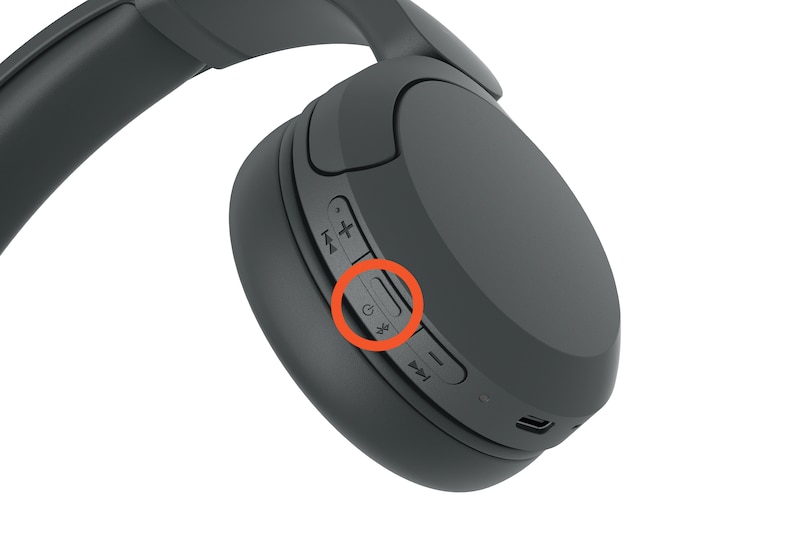
First, turn on your Sony headphones. Press the power button for a few seconds. Check if the light is blinking. A blinking light means your headphones are ready. Now, they are in Bluetooth mode. Look at your device’s settings. Find the Bluetooth option. Turn Bluetooth on. Your device will search for available devices.
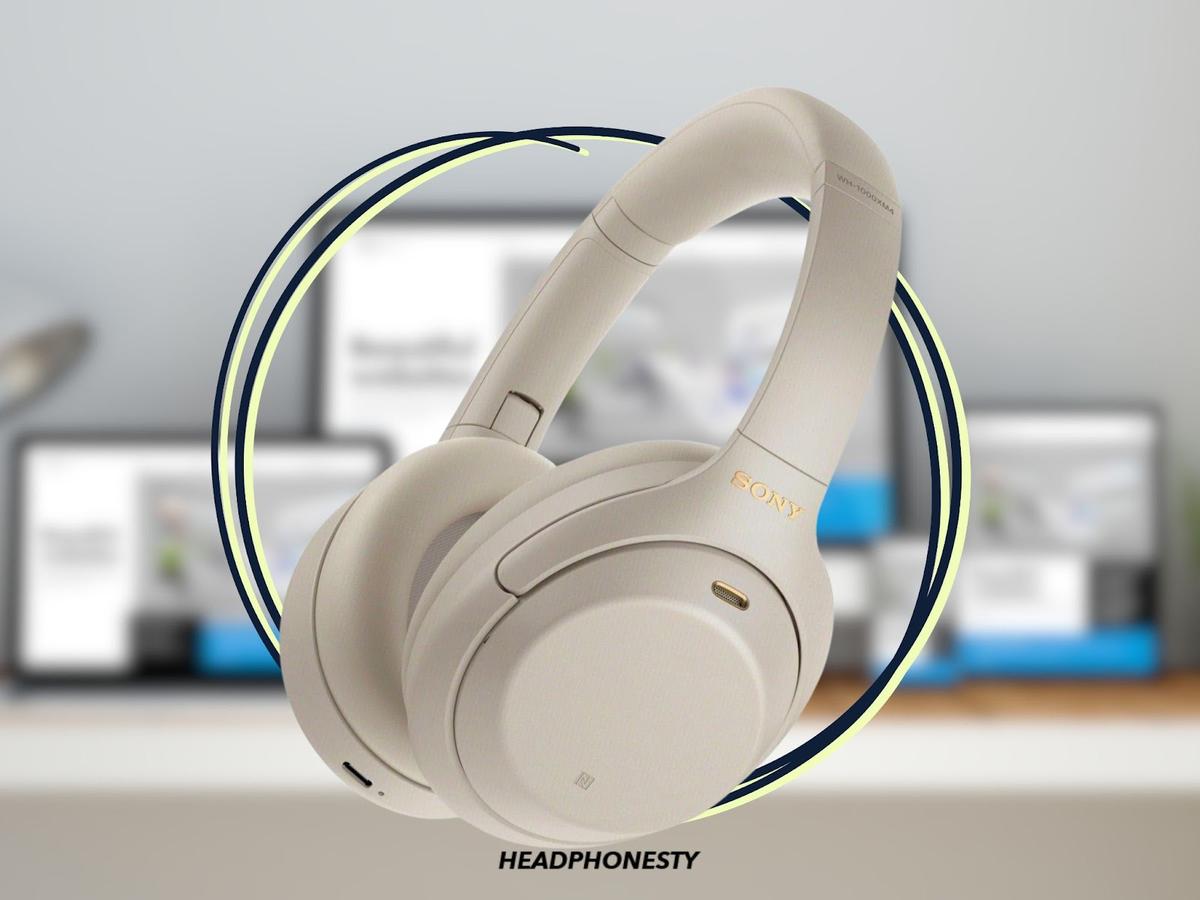
Choose your Sony headphonesfrom the list. Wait for a few seconds. A beep sound means you are connected. Now you can listen to music or watch videos. Enjoy your wireless experience.
Credit: www.headphonesty.com
Pairing With A Smartphone
Open your phone’s settingsapp. Find the Bluetoothsection. Tap to enter Bluetooth settings. Make sure Bluetooth is turned on. Your phone will search for devices.
Turn on your Sony headphones. Look for the power buttonon them. Hold it for a few seconds. This puts them in pairing mode. Check your phone’s screen. Your headphones should appear on the list. Tap to connect them.
Connecting To A Computer
First, turn on the Bluetoothon your Windows computer. Find the Bluetooth option in the settings menu. Make sure your Sony headphones are in pairing mode. You can press and hold the power button for a few seconds. Your headphones will blink a light. This means they are ready to connect. On your computer, choose the option “Add Bluetooth or other device.” Select your Sony headphones from the list. Click on them to connect. Wait for the connection to complete. You should hear a beep when connected. Now you can listen to music or watch videos.
Open the System Preferences on your Mac. Find and click on the Bluetooth icon. Ensure your Sony headphones are in pairing mode. Hold the power button until the light blinks. Your Mac will search for devices. When you see your Sony headphones, click on them. Wait for the connection. A sound may confirm the connection. Now your headphones are ready. You can enjoy your favorite songs or movies.

Credit: www.youtube.com
Troubleshooting Connection Issues
Connecting Sony wireless headphones can be tricky. Start by ensuring Bluetooth is active on your device. Pairing often requires holding the power button until the indicator light flashes.
Resetting Bluetooth
Resetting Bluetooth can help solve many issues. First, turn off the headphones. Hold the power button for 10 seconds. Lights will blink. This means the reset is done. Now, turn on the headphones again. Try connecting to your device. This often fixes the connection problems.
Updating Drivers
Drivers help your device talk to the headphones. Sometimes, they need updates. Go to the device settings. Find the Bluetooth section. Look for driver updates there. Install any new updates. This can solve many issues. After updating, try connecting again. This can make the connection work better.
Customizing Headphone Settings
The Sony Headphones Connect App is easy to use. It helps adjust settings on your headphones. Open the app on your phone. Connect your headphones. You can see many options on the screen.
Choose a sound profile that you like. There are different profiles. Each profile makes music sound different. Tap on the profile to select it. Try each to find your favorite. Save the changes in the app. This way, your music sounds better.
Maintaining Your Headphones
Keeping headphones clean is important. Use a soft, dry cloth to wipe them. Avoid using water. Liquid can damage them. Don’t use chemicals. They can harm the surface. Clean the ear pads gently. Dirt can make them uncomfortable. Check for dust in the charging port. Dust can affect charging. Be gentle with all parts. This keeps them working well.
Charge your headphones regularly. This keeps them ready to use. Avoid overcharging. It can harm the battery. Use the right charger. This helps the battery last longer. Store them properly. Keep them in a cool, dry place. Don’t leave them in the sun. Heat can damage the battery. Turn them off when not in use. This saves power and battery life.
Frequently Asked Questions
How Do I Pair Sony Wireless Headphones?
To pair Sony wireless headphones, turn on Bluetooth on your device. Then, press and hold the power button on the headphones until the LED indicator flashes. Select the headphones from the list of available devices on your device. Follow any on-screen prompts to complete the pairing process.
Can I Connect Sony Headphones To Multiple Devices?
Sony wireless headphones can connect to multiple devices, but they can only actively pair with one device at a time. To switch devices, disconnect the headphones from the current device and pair them with another. Repeat the pairing process for each new device you wish to connect.
Why Are My Sony Headphones Not Connecting?
If your Sony headphones are not connecting, ensure Bluetooth is enabled on your device. Check if the headphones are in pairing mode by looking for a flashing LED indicator. Restart both the headphones and your device. If issues persist, try resetting the headphones or consulting the user manual.
How To Reset Sony Wireless Headphones?
To reset Sony wireless headphones, press and hold the power button for 10 seconds. Release the button when the LED indicator flashes. This action restores factory settings and clears all paired devices. After resetting, you will need to pair the headphones with your devices again.
Conclusion
Connecting Sony wireless headphones is simple with the right steps. Follow instructions carefully to enjoy seamless audio experience. Troubleshooting tips help resolve common connection issues. Now, you can immerse yourself in music or calls. Feel confident using your headphones anywhere.
Remember to check battery life regularly. Keep headphones updated for optimal performance. Enjoy your wireless freedom with Sony! Whether listening to music or taking calls, your headphones deliver quality sound. With practice, connecting them becomes effortless. Share these tips with friends and family.
Enhance everyone’s listening experience. Happy listening with your Sony wireless headphones!

Everett Ashford is an electrical engineer and expert in electronics reviews, tips, and troubleshooting. Specializing in audio and sound devices, including earbuds, AirPods, and headphones, he brings in-depth knowledge and practical advice to help consumers make informed decisions.