How Do I Connect My Mini Camera to My Phone: Easy Steps
Imagine capturing life’s precious moments with your mini camera, but struggling to share them instantly. You’re not alone.
Many people face the challenge of connecting their mini cameras to their phones. The good news? It’s easier than you think. Whether you’re a tech novice or a gadget enthusiast, this guide will help you bridge the gap between your mini camera and phone.
You’ll soon be sharing photos and videos effortlessly, right from your device. Get ready to unlock the full potential of your mini camera, and discover the simple steps that will transform your photography experience. Your adventure in seamless connectivity starts here—let’s dive in!
Choose The Right Mini Camera
Compatibilityis key when picking a mini camera. Make sure the camera works with your phone. Check the camera’s instructions. Some cameras need special apps or software. These apps help connect the camera to the phone.
Consider the camera’s featurestoo. Some cameras have Wi-Fi or Bluetooth. These features make connecting easier. If the camera has these, it can link with your phone quickly. Look at the battery life as well. Long battery life means the camera works longer.
Install Necessary Apps
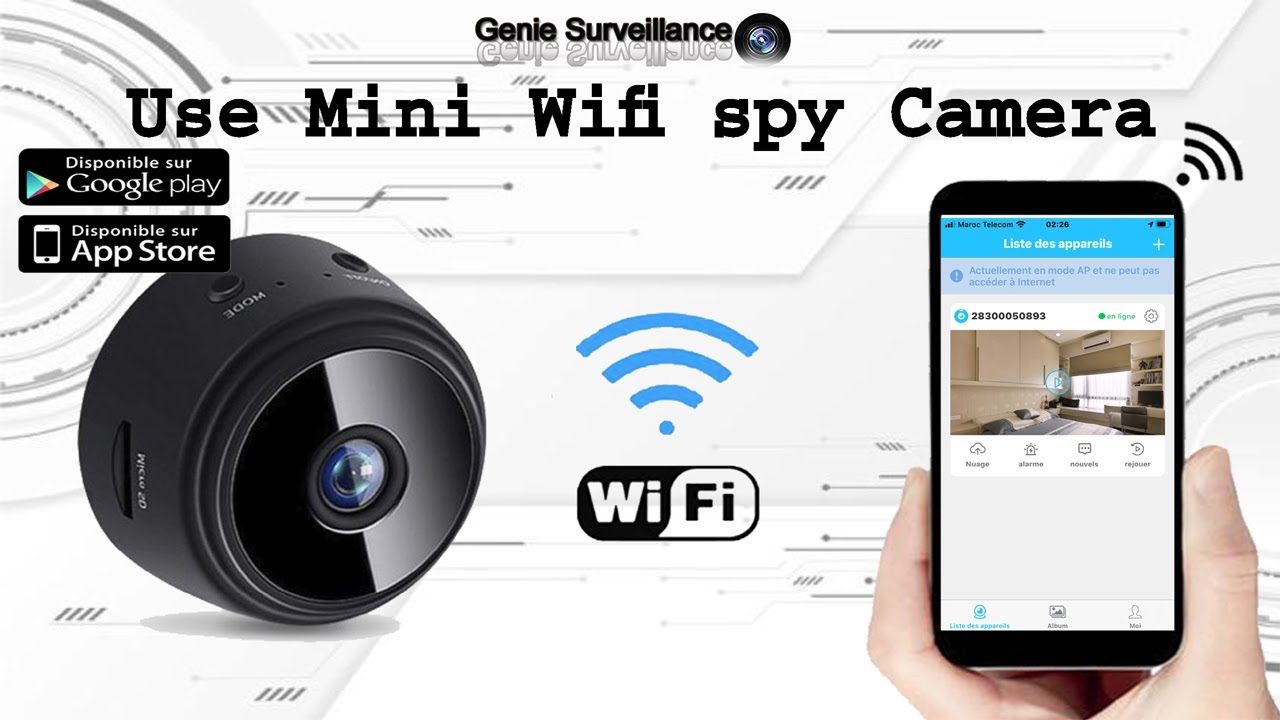
Get the official appfor your mini camera. Open your phone’s app store. Search for the camera brand name. Find the app. Tap download. Wait for it to install. Open the app. Follow the instructions. Connect your camera. This app will help you control the camera. It gives access to all features.
Some cameras work with third-party apps. Look in the app store. Find apps that support your camera. Read reviews. Check ratings. Download the app. Follow setup steps. Connect your camera. These apps may offer extra features. They can enhance your camera experience.
Connect Via Wi-fi
Turn on your mini camera. Look for the Wi-Fi button. It might have a signal symbol. Press this button. The camera will start to share its Wi-Fi. You will see a small light blink. This means Wi-Fi is on.
Open your phone’s settings. Find the Wi-Fi menu. Check the list of networks. Look for your camera’s name. It might say “Cam” followed by numbers. Tap on this network. Enter the password. This password is in the camera box. Now, your phone is linked to the camera. You can see what the camera sees.

Credit: www.reddit.com
Use Bluetooth Connection
First, make sure Bluetooth is enabled on your phone. Open settings and find the Bluetooth option. Then, turn Bluetooth on. Check your camera and make sure its Bluetooth is on too. This step is necessary for connection.
Once Bluetooth is on, go to your phone’s Bluetooth menu. Look for your camera name in the list. Tap on it to pair. Wait for the devices to connect. Sometimes, a prompt asks for a passcode. Enter the code shown on the camera screen. Successful pairing means the camera and phone are linked. Now, you can use your camera with the phone.
Set Up Camera For First-time Use
First, charge your mini camera fully. Then, turn it on. The camera may have a small button. Press it gently. Check the camera’s manual for details. Download the app specified by the camera maker. It’s often free. Open the app after downloading. Follow the instructions on the screen. Connect your camera to Wi-Fi. This step is crucial. Make sure your phone is on the same Wi-Fi network. Link the camera to your phone using Bluetooth or Wi-Fi. The app guides you through the process.
Open the camera app on your phone. Look for settings in the app. You can change video quality and sound settings. Adjust brightness if needed. Some cameras have night vision. Activate this if shooting in low light. Experiment with different modes. Each setting has its purpose. Remember to save changes before exiting the app. This ensures settings are stored.
Turn on the camera. Open the app again. Check if you see the camera’s view. Move the camera around. Watch the screen for changes. Ensure the video feed is smooth. If there’s a delay, check Wi-Fi strength. Try different angles. Test sound quality too. Speak near the camera. Listen from the phone. Adjust settings if needed.

Credit: www.tiktok.com
Troubleshoot Connection Issues
Always ensure your phone and mini camera have the latest software. Regular updates fix many connection problems. Check the settings menu on your phone. Look for updates under “software update” or “system update”. For the camera, refer to the manual for update instructions. Keeping devices updated helps with smoother connections.
Restart both devices if you encounter connectivity issues. This simple action often resolves many problems. Verify that Bluetooth or Wi-Fi is enabled on both the phone and camera. Make sure the camera is charged and the phone has enough battery. Interference from other electronic devices can affect connection. Move away from crowded electronic areas.
Enhance Camera Experience
Mini cameras are handy and small. They fit in pockets easily. Connecting them to your phone can be fun. Use camera features to take better pictures. Try different settings for better shots. Change the focus for clear images. Adjust the brightness in dark places. Turn on flash in low light. Experiment with filters for cool effects. Use zoom to see faraway objects.
Use camera features to take better pictures. Try different settings for better shots. Change the focus for clear images. Adjust the brightness in dark places. Turn on flash in low light. Experiment with filters for cool effects. Use zoom to see faraway objects.
Many accessories help improve your camera use. Tripods keep the camera steady. Cases protect it from scratches. Extra batteries mean longer usage. Memory cards save more pictures. Look for lens attachments for close-up shots. Cleaning kits keep the camera clean. Straps make carrying easy. These help you enjoy your camera more.
Credit: www.youtube.com
Frequently Asked Questions
How Can I Connect My Mini Camera Wirelessly?
To connect your mini camera wirelessly, enable Wi-Fi on both devices. Download the camera’s app from your app store. Open the app and follow the instructions to pair the camera with your phone. Ensure both devices are on the same network for seamless connectivity.
What App Do I Need For My Mini Camera?
Most mini cameras have dedicated apps available on app stores. Check the camera’s manual or packaging for app recommendations. Download and install the app on your phone. This app will facilitate connection, streaming, and control of the camera.
Why Won’t My Camera Connect To My Phone?
If your camera won’t connect, ensure both devices are on the same Wi-Fi network. Check for updates in the camera’s app. Restart both your phone and camera. If issues persist, consult the camera’s manual or contact customer support for further assistance.
Do I Need Bluetooth For Camera Connection?
Some mini cameras use Bluetooth for initial pairing. However, Wi-Fi is usually required for streaming and advanced features. Check your camera’s specifications and instructions to determine the required connection method. Both Bluetooth and Wi-Fi enhance connectivity and functionality.
Conclusion
Connecting your mini camera to your phone is simple. Follow the steps provided. Use the right app for your camera model. Ensure both devices have Bluetooth or Wi-Fi. Check your phone’s settings for connection options. Troubleshoot any issues with your camera guide.
Enjoy capturing moments with ease. Share photos quickly with friends and family. Practice makes perfect, so don’t hesitate to try again. Soon, you’ll connect like a pro. Keep your camera and phone updated for best performance. Happy snapping!

Callen Ridgeway is a senior writer at ElectroDoz, where he shares his expertise on the latest in drones, webcams, cameras, and a wide range of cutting-edge electronic devices. With a passion for exploring emerging tech and breaking it down into practical insights, Callen helps readers make smarter choices when it comes to gadgets and gear. When he’s not testing the newest electronics, he’s busy keeping up with the innovations shaping the future of consumer technology.