How Do You Set Up a Vizio Sound Bar: Easy Guide
Setting up a Vizio Sound Bar might seem like a daunting task, but it doesn’t have to be. Imagine transforming your living room into a personal theater, where every whisper, roar, and note is crystal clear.
This guide will walk you through the process step by step, making it simple and stress-free. Whether you’re a tech enthusiast or a complete beginner, you’ll find everything you need to unleash the full potential of your Vizio Sound Bar.
Ready to elevate your home audio experience? Let’s dive in and get you set up in no time!

Unpacking And Inspecting
Begin by opening the Vizio sound bar box. Carefully take out the sound bar and accessories. Ensure all parts are present. Look for the sound bar, remote control, power cable, and any other included items. Check the instruction manual as well. Inspect the sound bar for any damage. Look for scratches or dents. Ensure there are no missing pieces. Handle the sound bar gently to avoid damage. Arrange the components neatly. This makes setup easier. Avoid using force while unpacking. Check the power cable for damage. A damaged cable can be unsafe. If any item is missing or damaged, contact Vizio support promptly. Keep the packaging for future use. It can be useful for storage or moving. Organize the space where you will set up the sound bar.
Placement Options
Mounting the Vizio sound bar on the wall saves space. Use a mounting bracket for easy setup. First, find the best spot on your wall. Make sure it’s near the TV. Next, attach the bracket to the wall with screws. Ensure it’s secure. Finally, slide the sound bar onto the bracket. Check if everything is firm.
Placing the sound bar on a table is simple. Choose a sturdy surface. It should be near your TV. Align the sound bar with the TV’s base. This helps with sound quality. Ensure it doesn’t block the TV screen. Double-check all connections. Make sure they are tight. Your sound bar is now ready!
Connecting To The Tv
HDMI is the best way to connect. It gives great sound quality. Find the HDMI port on your TV. Plug one end of the cable into the TV. Plug the other end into the sound bar. Turn on the sound bar. Set the TV audio settings to HDMI. Enjoy the sound from your Vizio sound bar.
Optical cables also provide good sound. Locate the optical port on the TV. Connect one end of the cable to the TV. Attach the other end to the sound bar. Turn on the sound bar. Adjust TV settings for optical audio. Listen to clear sound from your Vizio sound bar.
Bluetooth is wireless and easy. Turn on Bluetooth on your TV. Set the sound bar to Bluetooth mode. Pair the TV with the sound bar. Play sound through Bluetooth. This setup offers convenient audio streaming. No cables are needed. Enjoy the wireless sound.
Powering On And Initial Setup
Plug the Vizio sound bar into a power outlet. Ensure the plug fits snugly. Press the power button. The light on the sound bar should glow. This means it’s on. Check that all cables are connected. Use the proper cables provided. Double-check connections if needed.
Grab the remote control. Point it at the sound bar. Press the pairing button. Wait for a beep or light flash. This confirms successful pairing. Test by adjusting the volume. The remote should work now. If not, repeat the steps. Make sure batteries are in the remote.
Configuring Audio Settings
Sound modeshelp your Vizio sound bar perform best. Each mode offers different sound effects. Movie mode makes voices clear. Music mode boosts bass and treble. Game mode enhances action sounds. Select the modethat fits your activity. It changes how you hear sound. Experimentwith different modes. Find the one you like most. Modes can change the whole experience.
Bass and treble make sound deeper or brighter. Adjust bassfor stronger beats. Boost treblefor sharper voices. Balance both for best sound. Use buttons on the remote. Try different levels. See what sounds best to you. Small changes can make a big difference. The right balance makes sound clear. Have fun adjusting!
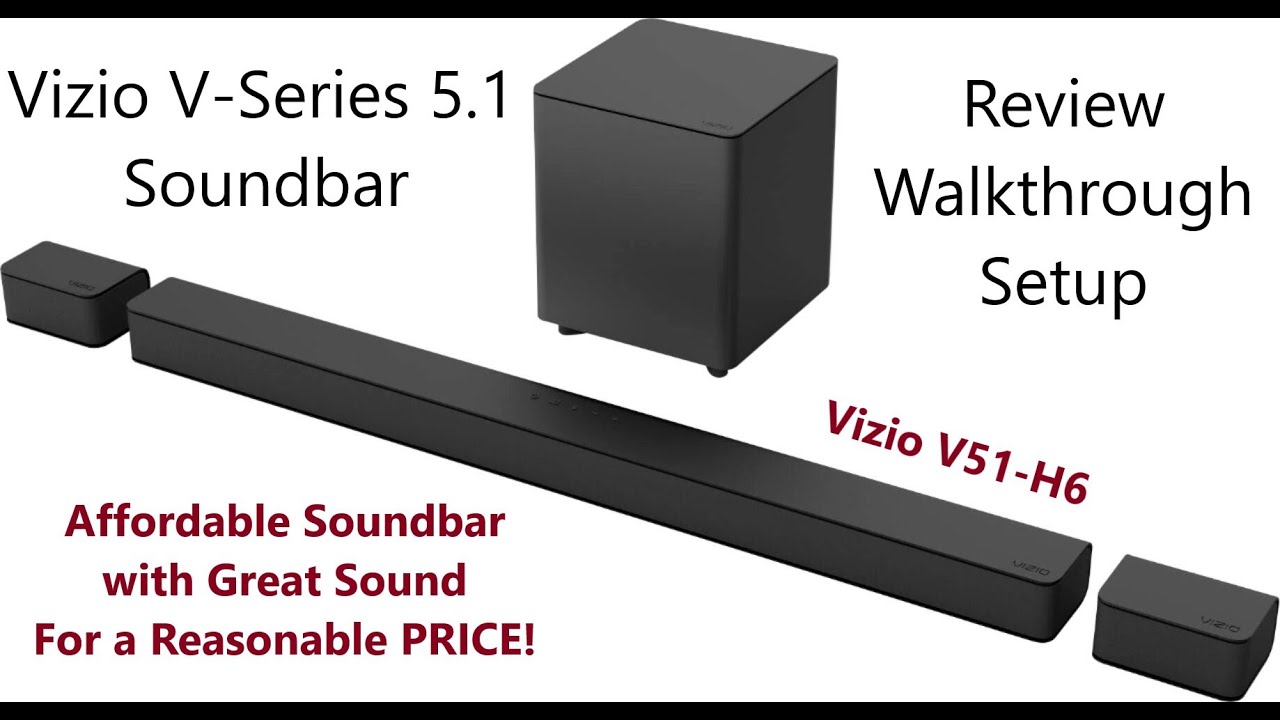
Credit: m.youtube.com
Troubleshooting Common Issues
Check if the sound bar is plugged in. Ensure the power light is on. Verify that the volume is not muted. Inspect the cable connections. They should be secure. Make sure the TV settings are correct. Choose the right audio output. Try using another audio cable. This helps in checking cable faults. Restart the sound bar and TV together. Often, this fixes minor issues.
Check if the batteries are in the remote. They might need replacing. Make sure the remote is pointed at the sound bar. Obstacles can block the signal. Try using the buttons on the sound bar. This checks if the remote is the problem. Clean the remote sensor area. Dust can interfere. If still not working, consider resetting the remote. Follow the manual for instructions.
Maintaining Your Sound Bar
Setting up a Vizio Sound Bar involves connecting it to your TV using an HDMI cable. Adjusting the sound settings can enhance audio quality. Regular cleaning prevents dust buildup, ensuring optimal performance and longevity.
Cleaning Tips
Dust and dirt can reduce sound quality. Use a soft, dry cloth for cleaning. Avoid using water or liquid cleaners. These can damage the electronics. Clean the sound bar every two weeks. This keeps it in good shape. Also, check the speaker grills. Make sure they are dust-free. Remove any dirt with gentle brushing. Use a small brush if needed. Keep the area around the sound bar tidy. This helps in maintaining good sound performance.
Software Updates
Software updates are crucial for sound quality. They fix bugs and improve features. Always connect your sound bar to the internet. Check for updates monthly. Use the Vizio SmartCast app for updates. Follow the instructions in the app. Never turn off the power during updates. This can cause problems. Keep your sound bar updated for the best experience.

Credit: www.techsolutions.support.com
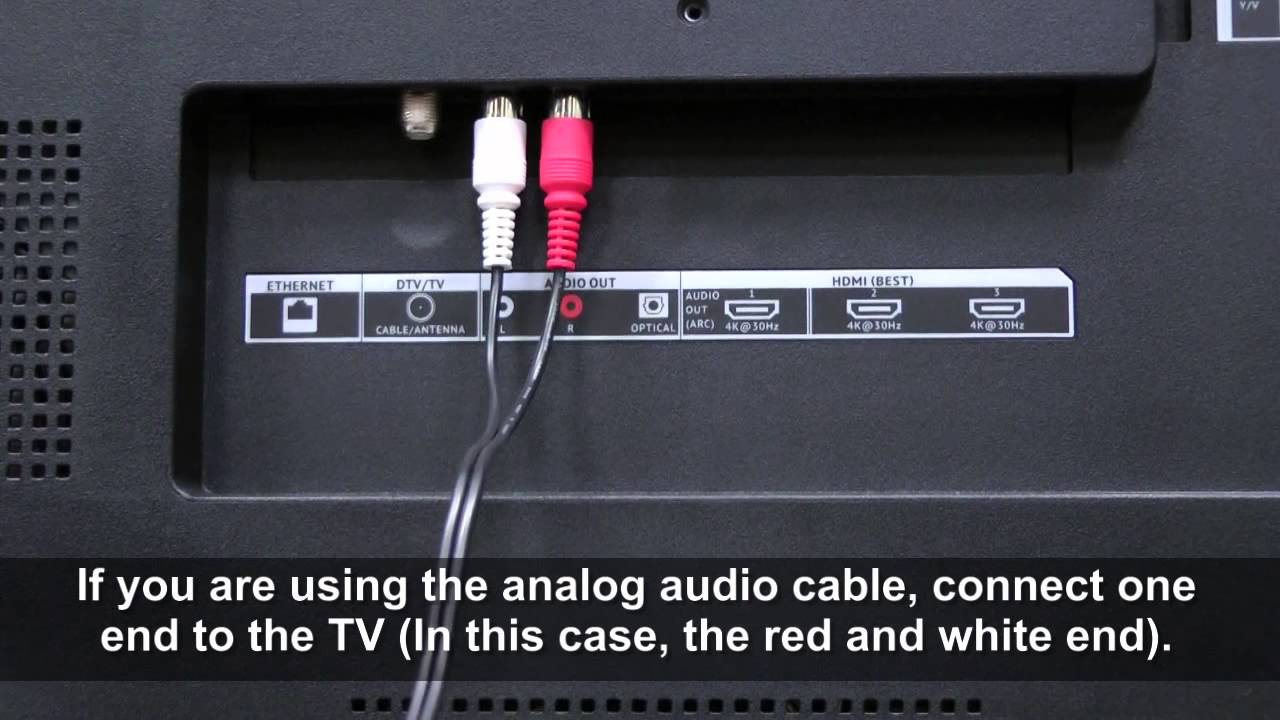
Credit: www.youtube.com
Frequently Asked Questions
How Do I Connect My Vizio Sound Bar?
To connect your Vizio sound bar, use an HDMI ARC or optical cable. Ensure both devices are powered off. Connect the cable from the sound bar to the TV’s corresponding port. Power on both devices and select the appropriate input on the TV settings.
What Are The Best Audio Settings For Vizio?
For optimal audio settings on a Vizio sound bar, use the “Movie” or “Surround” mode. Adjust bass and treble to your preference. Ensure the sound bar is placed in a central location for balanced sound distribution. Regularly update the sound bar’s firmware for the best performance.
Can I Use Bluetooth With My Vizio Sound Bar?
Yes, you can use Bluetooth with your Vizio sound bar. Activate Bluetooth pairing mode on the sound bar. On your device, search for available Bluetooth devices and select the sound bar. Once connected, you can stream audio wirelessly from your device to the sound bar.
Why Is There No Sound From My Vizio Sound Bar?
If there’s no sound from your Vizio sound bar, check all cable connections. Ensure the sound bar is set to the correct input. Verify the volume is not muted. Restart both the sound bar and the TV. If issues persist, consult the user manual or contact Vizio support.
Conclusion
Setting up a Vizio Sound Bar is simple and rewarding. Follow the steps carefully. Connect cables securely. Adjust settings to your liking. Enjoy enhanced sound quality. Troubleshoot if issues arise. Check connections and configurations. A sound bar improves your audio experience.
It makes movies and music more enjoyable. You can easily transform your home entertainment system. Experiment with different settings. Find what suits your space best. Invite friends over and impress them with clear sound. Sound bars are a great investment for any household.
Enhance your listening experience today.

Everett Ashford is an electrical engineer and expert in electronics reviews, tips, and troubleshooting. Specializing in audio and sound devices, including earbuds, AirPods, and headphones, he brings in-depth knowledge and practical advice to help consumers make informed decisions.