How to Factory Reset Samsung S23: Easy Step-by-Step Guide
Is your Samsung S23 acting up, running slower than usual, or cluttered with apps you no longer use? Sometimes, the best solution is a fresh start.
Factory resetting your Samsung S23 can breathe new life into your device, making it perform like it did when you first got it. But how do you do it without risking your precious data? You might feel a bit anxious at the thought of resetting your phone, but don’t worry—you’re not alone.
Many users find themselves in the same boat, and the process is simpler than you might think. In this guide, we’ll walk you through the steps to safely and effectively factory reset your Samsung S23, ensuring you can enjoy a smoother, more responsive smartphone experience. Stay with us to learn how to give your phone a clean slate while keeping your mind at ease.
Credit: www.androidauthority.com
Preparation Steps
Start by backing up your data to prevent loss. Charge your Samsung S23 battery fully. Ensure you know your Google account credentials.
Factory resetting your Samsung S23 can be a lifesaver when your phone is acting up, but preparing properly is key. Without the right prep, you risk losing important data or running into issues mid-reset. Before you take the plunge, let’s make sure you’re set up for success.Backup Important Data
Always safeguard your personal data. Imagine losing cherished photos, crucial contacts, or vital documents. Use Samsung Cloud or Google Drive to backup your files. It’s as simple as going to Settings, choosing Accounts and Backup, and following the prompts. Have you ever wished you could turn back time after losing something important? Backups are your safety net.Charge The Battery
Ensure your phone has at least 70% battery. A reset process can stall if the battery dies midway, causing unnecessary stress. Plug in your device and let it juice up. Think of it like prepping for a long journey—no one wants to run out of gas halfway through.Remove External Storage
Taking out your SD card can prevent data loss. If your photos or apps are stored externally, remove the card before the reset. Simply eject the card from the slot, and set it aside until the reset is complete. Have you ever considered how much data is stored on that tiny card? Keeping it safe ensures nothing gets wiped by mistake. These steps are crucial to a smooth factory reset experience. Have you double-checked these preparations? Taking a few minutes now can save a lot of hassle later.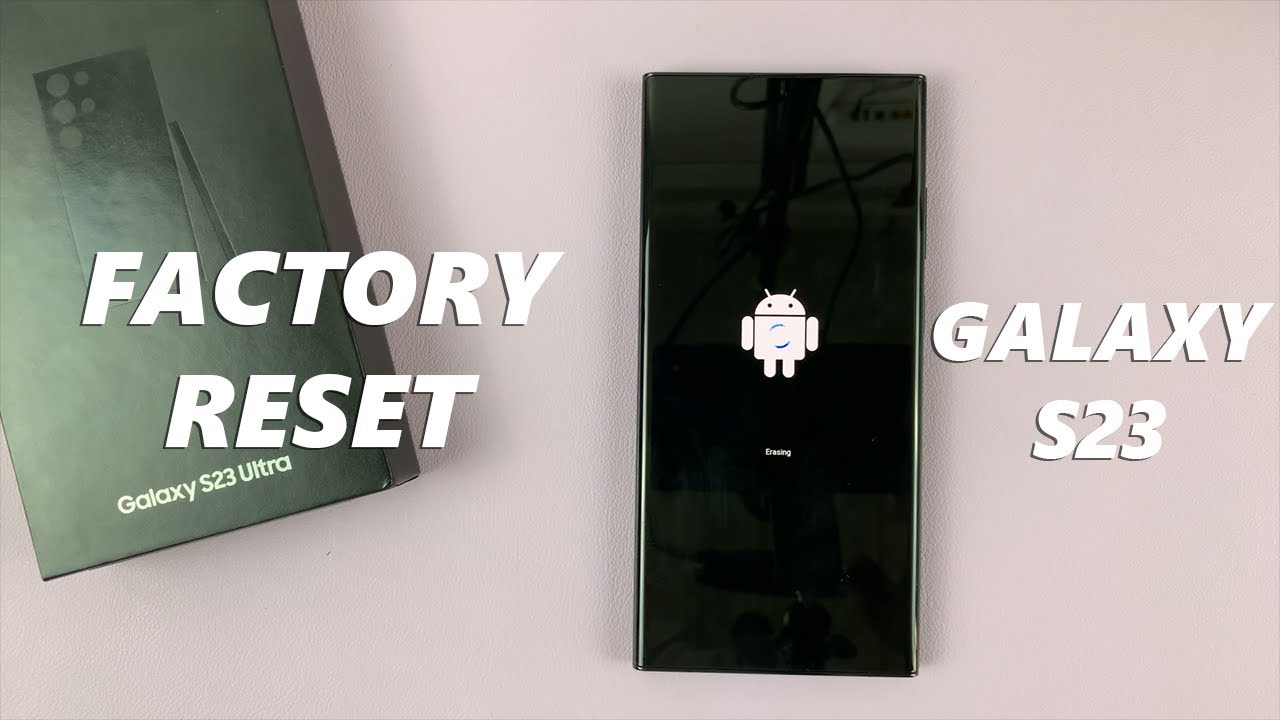
Credit: m.youtube.com
Accessing Settings Menu
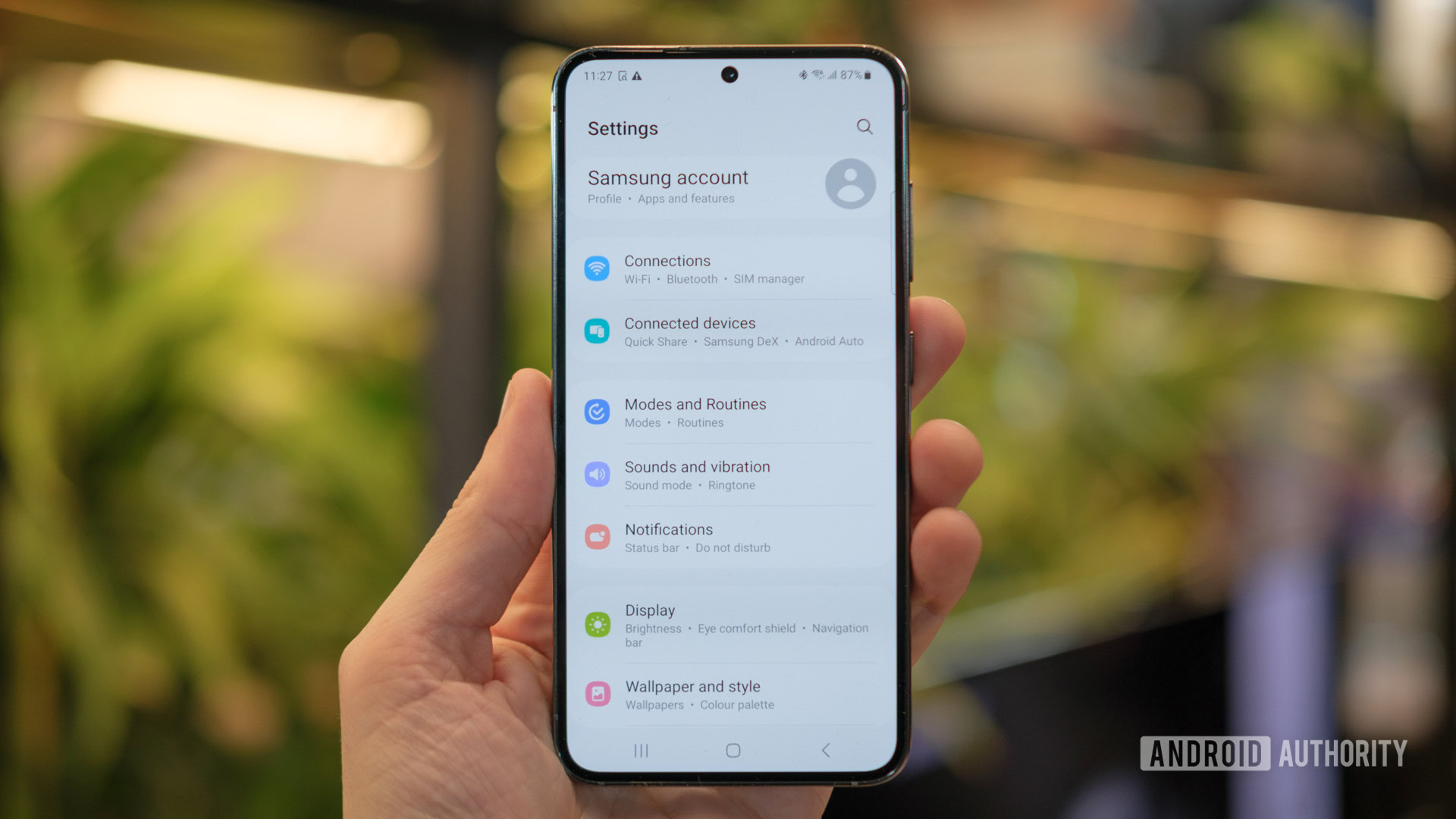
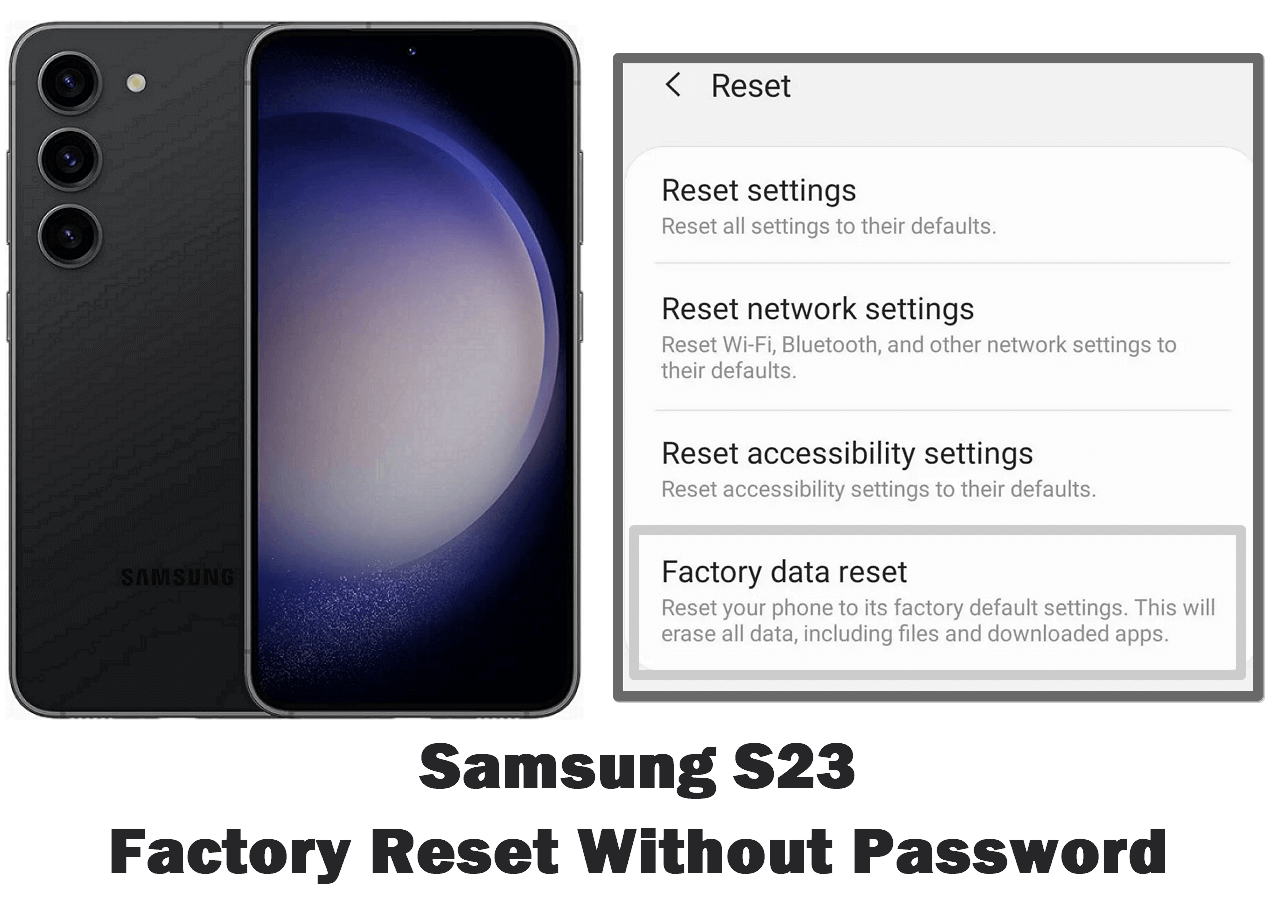
Navigate to the Settings menu on your Samsung S23 by swiping down the notification bar. Then, select ‘General Management’ and tap ‘Reset’. Choose ‘Factory Data Reset’ to erase all data and restore the device to its original settings.
Accessing the settings menu is the first step to reset your Samsung S23. This menu is where you control the phone’s features. Knowing how to navigate this is crucial. Let’s explore the steps to access the settings menu.Navigate To Settings
Unlock your Samsung S23. Look for the home screen. Find the app drawer icon. Tap it to open the app list. Scroll through the apps. Find the “Settings” icon. It looks like a gear. Tap it to enter the settings menu.Locate General Management
Inside the settings menu, find “General Management.” Scroll down the options list. Look for the “General Management” section. It contains reset options. Tap on “General Management” to proceed. Here, you will find the reset feature.Initiating Factory Reset
Discover the steps to factory reset your Samsung S23 effortlessly. Start by accessing the settings menu. Then, select ‘General Management’ and choose ‘Reset. ‘ Finally, tap ‘Factory Data Reset’ and confirm to restore your device to its original settings.
Initiating a factory reset on your Samsung S23 might seem daunting, but it can be straightforward if you follow the right steps. Whether you’re experiencing technical glitches or planning to sell your device, a factory reset can give your phone a fresh start. But before you jump in, ensure you’ve backed up your important data, as this process will erase everything on your phone. Ready to dive in?Select Reset Option
The first step in resetting your Samsung S23 is to navigate to the reset settings. Begin by unlocking your device and heading to the Settings menu. Scroll down and tap on General Management. Here, you’ll find a variety of options related to your phone’s system settings. Once you’re in the General Management menu, look for the Reset option. It’s usually nestled at the bottom of the list. Selecting this will bring up a menu with several reset options. Choose wisely!Choose Factory Data Reset
Now, let’s focus on the Factory Data Reset option. This is the one you need if you want to completely wipe your device. Tap on Factory Data Reset from the list. Your phone will display a list of accounts and apps that will be removed. Review this information carefully. You wouldn’t want to lose any account details or apps you might need later. After you’ve double-checked everything, scroll down and tap Reset. Your Samsung S23 will ask for confirmation. This is your last chance to back out. If you’re sure, confirm your choice, and the reset process will begin. Your phone will restart and start wiping all your data, restoring it to its original factory settings. Have you ever felt the relief of starting fresh? A factory reset can provide that same satisfaction for your device. It’s a chance to shed the baggage of cluttered apps and files, giving your phone a fresh lease on life.Confirming The Reset
After deciding to factory reset your Samsung S23, confirming the reset is crucial. This step ensures all data and settings will be erased. Before proceeding, it’s wise to review and acknowledge the implications of this action.
Review Information
Before confirming, check your phone’s backup status. Ensure all important data is saved. Photos, contacts, and apps can be stored safely. Double-check your Google account settings. Make sure automatic backup is enabled. Look for saved Wi-Fi passwords and app settings. These details are often overlooked. Reviewing them avoids future hassles.
Acknowledge Warnings
Factory reset removes all data permanently. The phone returns to its original state. You cannot recover lost information after the reset. Ensure you have backup copies of essential data. Confirm that your phone is fully charged. A reset can be interrupted by low battery. Follow the on-screen warnings carefully. Read each message before proceeding. Ignoring them might lead to unwanted outcomes.
Completing The Process
Completing the process of factory resetting your Samsung S23 might feel like a daunting task, but it’s simpler than you think. Once you’ve started the reset, you’re just a few steps away from having your device as good as new. This section will guide you through the final stages, ensuring you’re ready to set up your phone with ease.
Wait For Device To Reset
After you’ve initiated the reset, patience is key. Your Samsung S23 will take a few minutes to complete the process. During this time, it’s best to leave your device untouched. You might be tempted to check on its progress, but this could interrupt the reset and cause issues.
Consider this time as a brief break from digital distractions. Reflect on why you decided to reset your device—is it a fresh start, or maybe solving a pesky problem? Either way, the wait is worth it. Once the reset is done, your phone will restart and you’ll see the welcome screen.
Set Up As New Device
As your Samsung S23 boots up, you’ll be greeted by the setup wizard. Here’s where the fun begins! You can configure your device just how you like it. You’ll need to select your language, connect to Wi-Fi, and log into your Google account.
Take this opportunity to customize your settings. Maybe you want to try a new theme or adjust your notification preferences. Remember, a factory reset is a chance to make your device truly yours again.
As you set up, think about what you want from your phone. Do you need certain apps immediately, or can they wait until later? Make choices that align with how you plan to use your Samsung S23 moving forward.
Completing a factory reset isn’t just about erasing data. It’s about giving yourself a fresh start with your technology. What changes will you make this time around?
Credit: mobi.easeus.com
Troubleshooting Common Issues
Factory resetting your Samsung S23 can solve many device problems. But sometimes, users face issues during the reset process. Understanding common problems can help you resolve them quickly. This guide will walk you through troubleshooting strategies.
Addressing Reset Failures
If the reset process fails, check your phone’s battery level. Ensure it’s charged above 50%. A low battery can interrupt the reset. Also, verify that your software is up-to-date. Outdated software might cause reset issues.
Sometimes, third-party apps can block the reset process. Try uninstalling unnecessary apps before attempting the reset again. Disable security apps temporarily as they might interfere with the reset.
Contacting Support
If troubleshooting doesn’t solve the issue, reach out to Samsung Support. They offer guidance specific to your device model. Prepare your device information before contacting them. It helps speed up the assistance process.
Samsung Support can provide remote assistance. They might suggest visiting a service center if the issue persists. Seeking professional help ensures that your device gets the right care.
Frequently Asked Questions
How Do I Factory Reset Samsung S23?
To factory reset your Samsung S23, go to Settings > General Management > Reset. Choose ‘Factory data reset’ and confirm. This will erase all data, so back up important files first. Ensure your phone is charged and follow on-screen instructions.
Your device will restart with default settings.
Will Factory Reset Delete My Data?
Yes, a factory reset will delete all data on your Samsung S23. This includes apps, contacts, and personal files. Make sure to back up everything important. Use Samsung Cloud or Google Drive for backups. After reset, your device will have default settings only.
Can I Factory Reset Without Password?
Yes, you can factory reset without a password using recovery mode. Turn off your Samsung S23. Press and hold Volume Up + Power + Bixby buttons. Release when Samsung logo appears. Use Volume buttons to navigate to ‘Wipe data/factory reset’ and confirm with Power button.
How Long Does A Factory Reset Take?
A factory reset on Samsung S23 usually takes around 10 to 20 minutes. This depends on the device’s condition and amount of data. Ensure your phone is charged to avoid interruptions. Follow on-screen instructions patiently for a smooth process.
Conclusion
Resetting your Samsung S23 is a straightforward process. Follow the steps carefully. This ensures your device returns to its original state. Remember to back up important data first. A factory reset deletes all your personal files. It’s a fresh start for your phone.
Perfect for fixing issues or preparing for sale. If problems persist, contact Samsung support. They offer additional help and guidance. Keep your phone secure and updated regularly. This maintains smooth performance and longevity. Enjoy your refreshed Samsung S23 experience. Your device is ready for new adventures!

Marlowe Quinn is a technology writer at ElectroDoz, with expertise in smartphones, chargers, power banks, phone cases, selfie sticks, and other mobile accessories. Known for breaking down specs and features into easy-to-understand insights, Marlowe helps readers find the right gadgets to stay connected and powered up in their daily lives.