How to Pair Onn Earbuds: Easy Step-by-Step Guide
Have you ever found yourself excitedly unboxing your new Onn earbuds, only to feel puzzled about how to pair them with your device? You’re not alone.
This common dilemma can quickly turn excitement into frustration. But don’t worry—you’re about to discover how simple it is to connect your Onn earbuds and enjoy your favorite tunes without any hassle. Imagine the satisfaction of effortlessly syncing your earbuds and diving into a world of crystal-clear sound.
Keep reading to unlock this straightforward process and transform your listening experience.
Preparing Your Devices
Ensure your earbuds are charged before use. Locate the charging cable in the box. Connect the cable to the charging case. Then, plug the other end into a USB port or adapter. Watch the light on the case. It shows charging progress. Full charge takes around two hours. Keep the case closed during charging.
Confirm the earbuds work with your device. Bluetooth is essential. Most smartphones and tablets support Bluetooth. Check the settings menu on your device. Look for the Bluetooth option. Ensure it’s enabled. For older devices, check compatibility online. Some may not support Bluetooth version. Double-check your device’s manual if unsure.

Credit: www.youtube.com
Activating Pairing Mode
LED indicators help you know your earbuds’ status. The lights show different colors and patterns. A blinking blue light often means the earbuds are ready to pair. A solid light can mean they are connected. If the light is off, the earbuds might be off or need charging. Always check these lights to understand your earbuds’ mode. Keep an eye on the color changes.
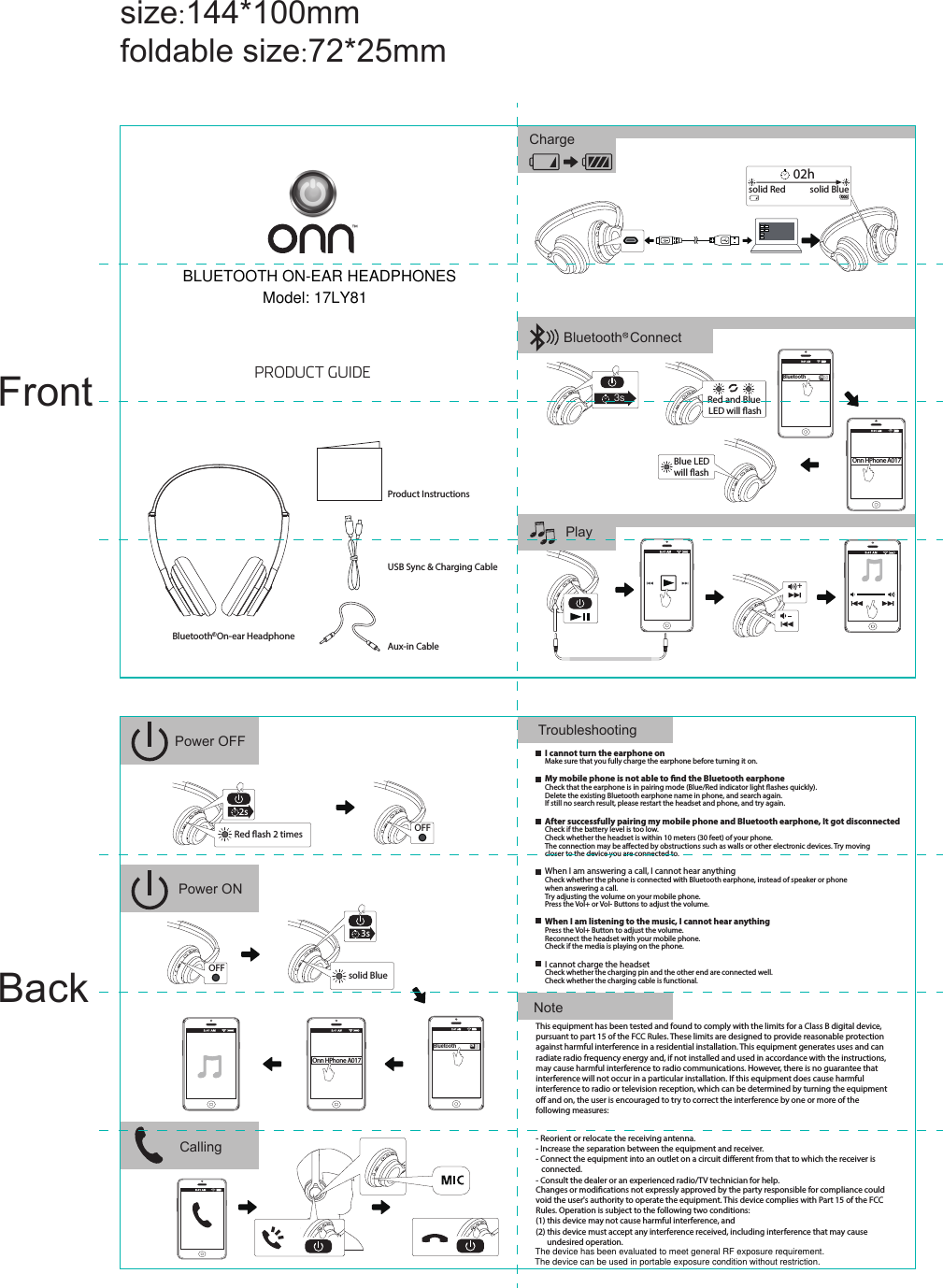
To pair your Onn earbuds, first turn them on. Press and hold the main button. This will start the pairing mode. You will see the LED light blinking. This means the earbuds are ready to connect. Use your phone or device to search for nearby Bluetooth devices. Select your Onn earbuds from the list. Now, they should connect and be ready for use.
Connecting To Your Device
Turn on your Onn earbuds. Keep them close to your smartphone. Go to your phone’s settings. Find Bluetooth settings. Make sure Bluetooth is on. Look for the name of your earbuds. Tap on the earbuds name. Wait for them to connect. You should hear a beep. Now, they are paired.
First, power on your Onn earbuds. Open your tablet or laptop. Access the Bluetooth settings. Ensure Bluetooth is activated. Locate the earbuds name on the list. Click to connect. Listen for a beep sound. This means they are connected. Enjoy your audio!
Troubleshooting Common Issues
Onn earbuds sometimes have connection issues. First, check if the Bluetooth is on. Restart both earbuds and your device. This often fixes the problem. If they still don’t connect, try pairing manually. Put the earbuds in pairing modeand search for them on your device. Select them and wait until they connect. If you still face issues, try resetting the earbuds. Hold the power button for 10 seconds. This resets them to factory settings. Ensure your device’s software is up-to-date. Updates can solve many problems.
Audio problems can be frustrating. First, check the volume level. Make sure it’s not too low. Clean the earbuds. Dirt can block sound. Check for any obstructions. Remove any covers or cases. Sometimes, the audio might cut out. This can be due to interference. Keep devices away from other electronics. If sound is still bad, try resetting the earbuds. This can solve many audio issues. Also, ensure the earbuds are fully charged. Low battery can cause poor sound.
Maintaining Your Earbuds
Keep your earbuds clean for better sound. Use a soft cloth. Clean the outside gently. Avoid water inside. Ear tips can be washed. Dry them completely before use. Remove ear wax with a tiny brush. Don’t use sharp objects. They might damage the earbuds. Store in a clean place.
Charge earbuds at 20% battery. Avoid using them till empty. This helps battery life. Keep away from extreme heat. This can harm the battery. Turn off when not in use. Saves power. Don’t overcharge. Remove from charger after full charge.
Credit: dedeso.sk

Credit: www.youtube.com
Frequently Asked Questions
How Do I Connect Onn Earbuds To My Phone?
To connect Onn earbuds, enable Bluetooth on your phone. Turn on the earbuds and they will enter pairing mode. Select “Onn earbuds” from the list of available devices on your phone. Once connected, you can enjoy your music or calls seamlessly.
Why Are My Onn Earbuds Not Pairing?
If your Onn earbuds aren’t pairing, ensure Bluetooth is enabled on your device. Make sure the earbuds are in pairing mode by turning them off and on again. Check if any other devices are already connected, as this might cause issues with pairing.
Can Onn Earbuds Connect To Multiple Devices?
Onn earbuds typically connect to one device at a time. Disconnect them from the current device before pairing with another. This ensures a stable connection. Always ensure the earbuds are in pairing mode before attempting a new connection.
How To Reset Onn Earbuds Pairing?
To reset Onn earbuds, turn them off completely. Hold the power button until they enter pairing mode. This clears previous connections and allows you to pair them afresh with your device. Resetting can resolve common connectivity issues.
Conclusion
Pairing Onn earbuds is simple and quick. Just follow the steps carefully. First, activate Bluetooth on your device. Then, turn on the earbuds. Next, find “Onn” in your device’s Bluetooth list. Tap to connect. Enjoy your music or calls instantly.
Remember to charge them regularly. This ensures better performance. Troubleshooting tips help if issues arise. Always consult the user manual for extra help. Now, with these easy steps, you can enjoy a seamless audio experience. Happy listening with your Onn earbuds!

Everett Ashford is an electrical engineer and expert in electronics reviews, tips, and troubleshooting. Specializing in audio and sound devices, including earbuds, AirPods, and headphones, he brings in-depth knowledge and practical advice to help consumers make informed decisions.