How to Re Enable Camera in Android Phone: Quick Guide
Have you ever tried to capture a perfect moment with your Android phone, only to find that your camera is mysteriously disabled? Frustrating, right?
You rely on your phone’s camera for everything from snapping quick selfies to documenting memorable events, and when it stops working, it feels like you’ve lost a vital tool. But don’t worry—you’re not alone, and there’s a simple solution waiting for you.
Imagine a world where your camera is always ready to capture every smile, every sunset, and every cherished memory. That’s what we’re here to help you achieve. In this guide, we’re going to walk you through the straightforward steps to re-enable your camera on your Android device. By the end, you’ll be back to snapping away without a hitch. Whether you’re tech-savvy or just looking for an easy fix, this article is designed with you in mind. It’s time to put the power back in your hands and get your camera rolling again. Dive in to discover how you can effortlessly bring your Android camera back to life!
Check App Permissions
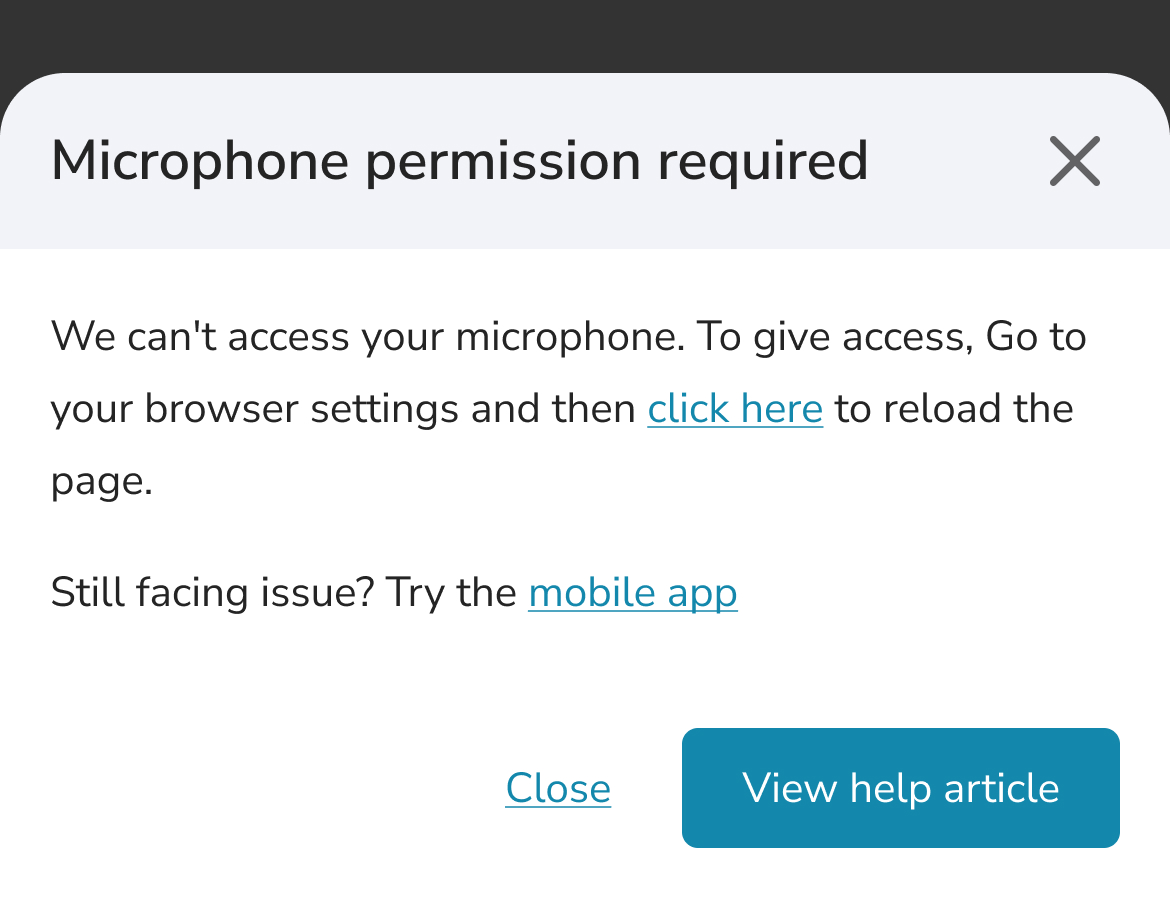
Access Settings Menuon your Android phone. Tap on the gear icon. This opens the settings.
Find the Apps sectionby scrolling down. Tap on it. You will see a list of apps.
Review Permissions for Camera. Select the app needing camera access. Tap on the app name.
Look for the Permissions option. Tap on it. Ensure the camera permission is enabled.
If the camera option is off, switch it on. Your app can now use the camera.
Credit: help.blitzz.co
Enable Camera Access
Open your phone settings. Find the Appssection. Tap on it. A list of apps will appear. Scroll down. Look for the Cameraapp. Tap to select it. You are now inside the app settings.
In app settings, find Permissions. Tap on it. A list of permissions will show. Look for Camera. Check if it’s turned off. If so, tap the switch. Turn it on. Now, your camera should work.
Clear Camera App Cache
Open the Settingson your phone. Find the section labeled Apps. Tap on it to see all installed apps. Look for the Camera appin the list. Tap on the Camera app to view its details. You will see options like Clear Cache. Tap on Clear Cache to remove temporary files. This can help fix camera problems. Clearing the cache doesn’t delete any photos or videos. It only removes unused files. Your camera might work better now. If not, try restarting your phone. Sometimes a simple restart can solve issues. Always keep your apps updated. Updates fix bugs and improve performance.

Credit: www.zdnet.com
Reset App Preferences
Identify App Preferences Option:Begin by opening your phone’s settings. Look for the section named “Apps” or “Applications”. Tap on it to open. Scroll down to find “App preferences”. This option might be hidden. You may need to tap on the three dots or “More” button. This is usually found in the top right corner. Once you find “App preferences”, tap to open.
Reset All App Preferences:Inside “App preferences”, look for “Reset app preferences”. This option resets all apps to default. It doesn’t delete apps. It only changes settings back to normal. Tap on “Reset app preferences”. A message will appear. It warns what changes will happen. Confirm the reset by tapping “OK”. Your camera settings are now back to normal. You can now use your camera again.
Update Operating System
Experiencing trouble with your camera on Android? Re-enabling it is simple. Navigate to settings, tap “Apps,” find “Camera,” and enable permissions. This straightforward process restores camera functionality, ensuring you capture moments effortlessly.
Check For Available Updates
Go to the phone’s settings. Find the Software Updateoption. Tap it to see if there are updates. Updates fix problems. They make the phone better. Always check for new updates.
Install Latest System Updates
Once updates are found, press Download and Install. Ensure the phone is connected to Wi-Fi. Updates need internet. Make sure the battery is charged. Updates can take time. Follow the steps shown on the screen. Keep the phone safe while updating. Restart the phone after updates. This helps the camera work well again.
Safe Mode Troubleshooting
Re-enable your Android phone’s camera in safe mode with ease. Access settings, navigate to apps, and find the camera app. Clear cache, disable, then re-enable to restore functionality.
Enter Safe Mode
First, turn off your Android phone. Press the power button to restart it. When the logo appears, press and hold the volume down button. Keep holding until it starts in Safe Mode. Safe Mode disables third-party apps. It helps you find app problems.
Test Camera Functionality
Open the camera app in Safe Mode. Check if it works properly. If it works, a third-party app might be causing issues. If not, your camera may need a fix. Safe Mode is a helpful tool to identify software problems. Remember, Safe Mode is temporary. Restart your phone to exit.
Factory Reset Option
To restore camera access on an Android phone, explore the factory reset option. This step can resolve software issues and bring back default settings. Always remember to back up important data before proceeding.
Backup Important Data
Saving your data is really important before a factory reset. Important files might be lost forever if not backed up. Use Google Drive or a USB cable to save photos, contacts, and other files. Make sure your internet connection is stable when using cloud services. Double-check your backup to ensure everything is saved. This step helps you keep your memories and important info safe.
Perform A Factory Reset
To reset your phone, go to ‘Settings’. Find ‘System’ and tap on ‘Reset options’. Choose ‘Erase all data (factory reset)’. Follow the on-screen steps to complete the process. Remember, this will delete all data on your phone. Backing up is important before proceeding. After the reset, your phone will be like new. Apps, settings, and saved data will be gone. This can fix camera issues and other problems.

Credit: help.blitzz.co
Frequently Asked Questions
How Can I Enable Camera Permissions?
To enable camera permissions, go to ‘Settings’ and select ‘Apps’. Choose the specific app and tap ‘Permissions’. Ensure ‘Camera’ is enabled.
Why Is My Android Camera Disabled?
Your camera might be disabled due to app restrictions or privacy settings. Check your app permissions and ensure camera access is granted.
What Steps To Fix Camera App Issues?
Start by restarting your phone and clearing the camera app cache. Check app permissions and update the app if necessary.
How Do I Troubleshoot Camera Not Working?
First, restart your device. Clear app cache and ensure camera permissions are enabled. Update software if needed and check for hardware issues.
Conclusion
Restoring your Android camera is straightforward with these steps. Just access your settings. Navigate to apps and permissions. Enable the camera option. If problems persist, restart your phone. This often resolves minor issues. Always keep your software updated. It helps with app functionality.
If still stuck, consider consulting a technician. They can offer professional assistance. Remember, a functioning camera enhances your phone’s value. Enjoy capturing moments without hassle. Stay informed and proactive with device care. Your Android camera should now work perfectly. Happy clicking!

Callen Ridgeway is a senior writer at ElectroDoz, where he shares his expertise on the latest in drones, webcams, cameras, and a wide range of cutting-edge electronic devices. With a passion for exploring emerging tech and breaking it down into practical insights, Callen helps readers make smarter choices when it comes to gadgets and gear. When he’s not testing the newest electronics, he’s busy keeping up with the innovations shaping the future of consumer technology.