How to Connect Sony Camera to Phone: Easy Guide
Imagine capturing stunning photos with your Sony camera and instantly sharing them with friends on your phone. Sounds perfect, right?
You might be wondering how to make this happen smoothly. Whether you’re a seasoned photographer or a hobbyist, connecting your Sony camera to your phone can unlock a world of possibilities. It’s not just about transferring pictures; it’s about enhancing your photography experience.
As you read on, you’ll discover simple steps to connect your devices, ensuring you never miss a moment to showcase your creativity. Get ready to transform the way you share your visual stories, making it effortless and exciting. Dive into the article to find out how easy it is to bridge the gap between your camera and phone, and take your photography skills to the next level.

Credit: www.youtube.com
Camera And Phone Compatibility
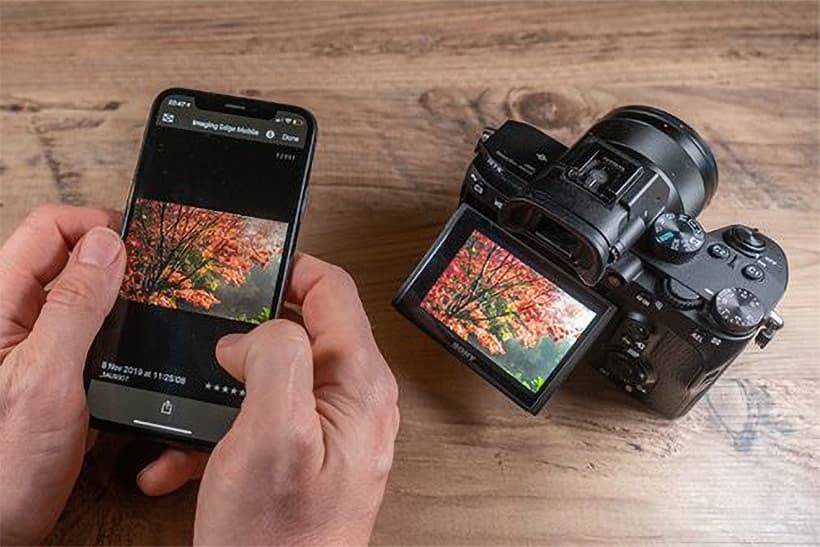
Check compatibilitybefore connecting your Sony camera to your phone. Some cameras only work with certain phones. Look at the camera manual. It tells you which phones are compatible. Your phone needs to have a specific app. Most Sony cameras use the Imaging Edge Mobile app. Download the app from the app store. Ensure your phone has enough storage space. Delete unwanted files if needed. A good internet connection helps. It makes the process smoother. Not all Sony cameras support phone connection. Older models might not work. Ensure your camera’s software is up-to-date. Updates improve compatibility. Follow instructions carefully. Always check for new updates. This keeps your devices working well together.
Credit: amateurphotographer.com
Necessary Equipment And Apps
Sony cameras often connect to phones using Wi-Fi. You need a Sony camera with Wi-Fi feature. Most modern Sony cameras have this. Check your camera’s manual to be sure.
A smartphone is also needed. It should be iOS or Android. You will need to download an app. The app is called Imaging Edge Mobile. It is available in the App Store or Google Play. This app helps connect the camera and phone.
Ensure your camera battery is charged. A full battery helps avoid interruptions. Keep your phone charged too. Open the app on your phone. Follow the instructions to connect. It is easy and quick.
Setting Up Wi-fi On Sony Camera
First, turn on your Sony camera. Make sure the battery is charged. Open the camera menu. Look for the Wi-Fi settings. This might be under “Network” or “Wireless.” Click on it. Enable the Wi-Fi function.
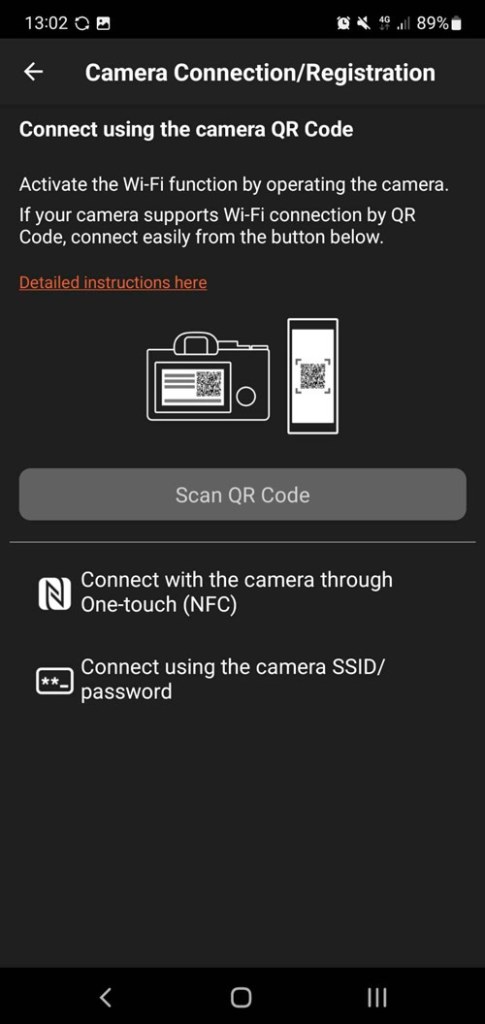
Next, find the camera’s Wi-Fi name. It may be called SSID. Write it down. Now, look for the passwordor key. You’ll need this later. Some cameras show a QR code. Scanning it can connect your phone.
If you see a QR code, use your phone’s camera app. Scan the code. It might automatically connect. If not, don’t worry. You can still connect by entering details manually.
Credit: amateurphotographer.com
Connecting Via Imaging Edge Mobile
Start by downloading the Imaging Edge Mobileapp. It’s free on app stores. Open the app on your phone. Turn on your Sony camera. Go to the camera menu. Find the Wi-Fi settings. Enable Wi-Fi on your camera. Next, look for the SSID and password. Your camera shows these details. Keep them handy.
Open the Wi-Fi settings on your phone. Connect to the camera’s network. Use the SSID and password. Once connected, open the Imaging Edge Mobile app again. Tap on “Connect”. The app finds your camera. Follow the instructions on the screen. Your phone and camera link together.
Now, you can transfer photoseasily. Use your phone as a remote control. Take pictures from a distance. Enjoy capturing great moments.
Troubleshooting Connection Issues
Connection issues can be frustrating. Make sure your camera’s Wi-Fi is on. Check if your phone’s Bluetooth is enabled. Sometimes, the app may need an update. Check your device’s settings. Restart the camera and phone. This might solve the problem. Ensure your camera’s firmware is up-to-date. Interference from other devices can cause trouble. Move away from crowded areas. Check if your password is correct. A simple typo can block the connection. If problems persist, try reinstalling the app. This often helps. Make sure both devices are fully charged. Low battery can disrupt connections. Double-check your network settings. Ensure everything is configured properly.
Transferring Photos And Videos
Sony cameras can share photos easily. First, download the Imaging Edge Mobile app. Open the app on your phone. Now, turn on Wi-Fi on your Sony camera. Connect your phone to the camera’s Wi-Fi. This step is important.
Once connected, open the app again. Select the photos you want. Tap to transfer them. It might take a few seconds. Videos can be transferred too. Just follow the same steps.
Remember to check your storage. Phones have limited space. Organize your photos often. Keeping your phone tidy helps. Avoid transferring all at once. Choose your best shots first. It saves time and space.
Tips For Seamless Connectivity
Make sure your Sony camera is fully charged. A low battery might stop the connection. Check if your phone’s Wi-Fiand Bluetoothare on. This helps in discovering the camera. Install the Imaging Edge Mobileapp on your phone. It helps in linking the devices. Follow the app instructions step by step. Keep your phone and camera closetogether. Distance can break the connection.
Turn off other devices’ Wi-Finearby. This reduces interference. Always update your camera’s firmware. New updates fix old bugs. Restart both devices if problems persist. A simple restart can solve many issues.
Frequently Asked Questions
How Do I Connect My Sony Camera To My Phone?
To connect your Sony camera to your phone, use the Imaging Edge Mobile app. First, enable Wi-Fi on your camera. Then, open the app on your phone and follow the on-screen instructions. This will allow you to transfer images and control the camera remotely.
Can I Use Bluetooth To Connect My Sony Camera?
Yes, many Sony cameras support Bluetooth connectivity. Ensure Bluetooth is enabled on both devices. Use the Imaging Edge Mobile app to establish a connection. Bluetooth allows for a stable and low-power connection, ideal for transferring images and controlling basic camera functions.
Which App Connects Sony Camera To A Smartphone?
The Imaging Edge Mobile app is the recommended choice. It’s available for both Android and iOS devices. This app facilitates easy transfer of photos and remote control of your camera. Simply download it from your app store and follow the setup instructions.
Why Won’t My Sony Camera Connect To My Phone?
If your Sony camera isn’t connecting, check the Wi-Fi or Bluetooth settings on both devices. Ensure the Imaging Edge Mobile app is updated. Restart both your camera and phone if needed. Connectivity issues can often be resolved by re-establishing the connection.
Conclusion
Connecting your Sony camera to your phone is simple. Follow these steps, and enjoy seamless sharing. First, download the correct app on your phone. Then, enable Wi-Fi on your camera and phone. Connect both devices through the app. You can transfer photos and videos easily.
This method saves time and enhances your photography experience. Remember, practice makes perfect. So, try it a few times to get comfortable. Soon, sharing your photos will be quick and easy. Enjoy capturing and sharing your moments effortlessly. Happy shooting!

Callen Ridgeway is a senior writer at ElectroDoz, where he shares his expertise on the latest in drones, webcams, cameras, and a wide range of cutting-edge electronic devices. With a passion for exploring emerging tech and breaking it down into practical insights, Callen helps readers make smarter choices when it comes to gadgets and gear. When he’s not testing the newest electronics, he’s busy keeping up with the innovations shaping the future of consumer technology.