How to Connect Phone Camera to Pc: Easy Step-by-Step Guide
Have you ever wanted to use your phone camera as a webcam for your PC? Whether it’s for streaming, video conferencing, or just capturing high-quality footage, connecting your phone camera to your computer can unlock new possibilities.
Imagine transforming your everyday calls into crystal-clear video chats or elevating your online presence with stunning visuals—all without investing in pricey equipment. You have the power to make it happen, and this guide is here to help. Discover simple steps and useful tips that will make the process seamless and straightforward.
Stick with us, and soon you’ll be harnessing the full potential of your phone camera, enhancing your digital experiences effortlessly.
Credit: blogs.windows.com
Why Connect Your Phone Camera To Pc
Connecting your phone camera to a PC can be very useful. You can take better pictures and videosusing a larger screen. It helps in editing photosmore easily. You can also save your photos to a PC to make more room on your phone.
Many people use their phone cameras for video calls. A PC screen is bigger and clearer for video chats. Sharing photos becomes easier with a PC connection. You can send them by email or post them online quickly.
Prerequisites
Smartphones and PCs should be compatible for connection. Many modern devices can connect easily. Android and iOS phones work well with Windows and Mac computers. Check your device’s manual for connection options. Not all devices have the same features. Ensure both devices support camera sharing. Older models might have limitations. Bluetooth or Wi-Fi can be used for wireless connections. Some devices may require cables. Always use devices with up-to-date software. Compatibility ensures smooth operation.
Software is crucial for connecting devices. Install required programs for the phone and PC. Many apps help connect the camera. Third-party applications are often used. Some apps are free, while others may cost money. Always choose trusted software. Reviews can help pick the best app. Security should not be ignored. Check for updates regularly. Updated software usually works better. Sometimes, built-in features may suffice. Explore options before downloading anything. USB drivers may be needed for cable connections.
Using Usb Connection
First, you need to enable USB debuggingon your phone. Go to the Settingsapp. Find Developer Options. If it’s hidden, tap About Phoneand then tap Build Numberseven times. Now, go back to the Settingsmenu. Open Developer Optionsand turn on USB debugging. This step is crucial. Without it, your computer won’t see your phone camera.
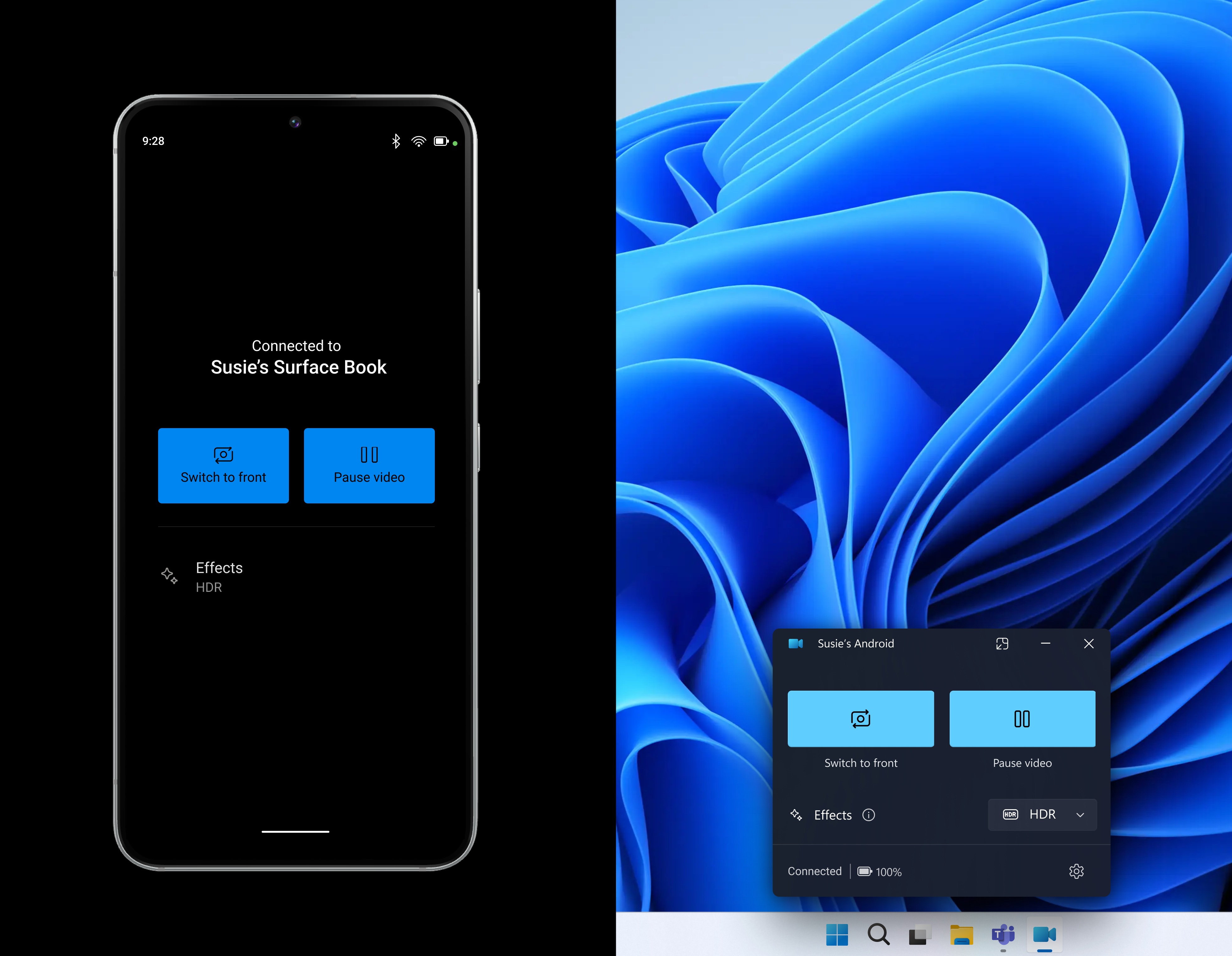
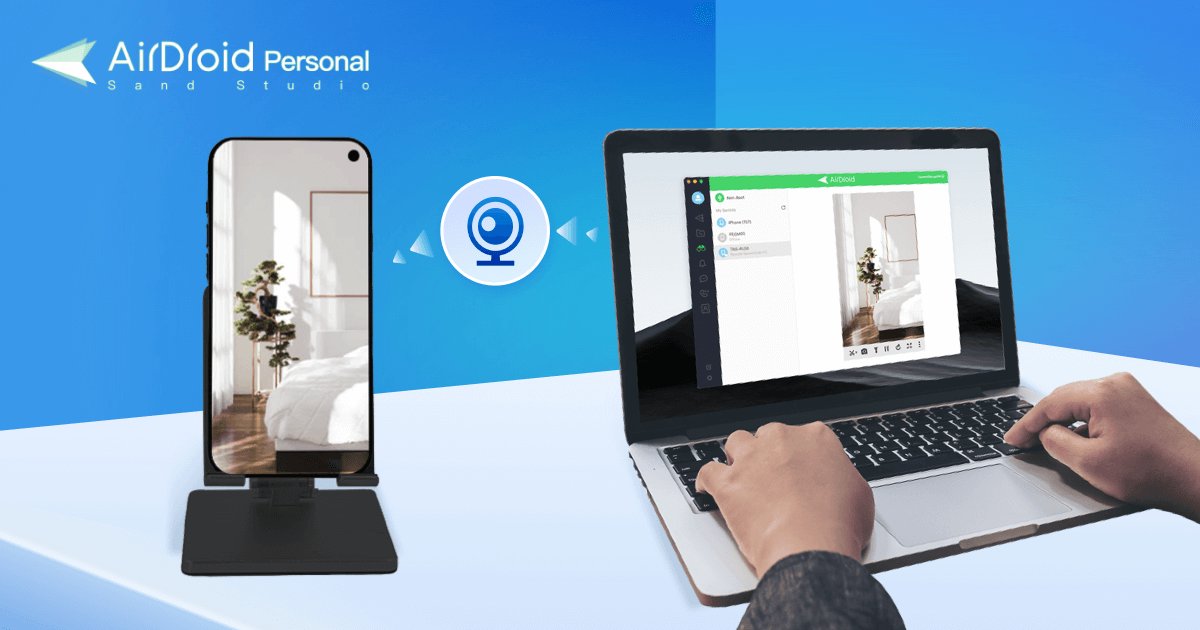
Connect your phone to the PC using a USB cable. Your computer may ask to install drivers. Allow it to install them. Open the application that supports phone cameras. Your phone will ask for permission. Tap Allowto proceed. Now, your phone camera should connect to the PC. You can use it for video calls or streaming.
Credit: www.airdroid.com
Connecting Via Wi-fi
First, download the app on your phone. Search for camera apps in the app store. Next, install the app on your PC. Look for compatible software. Follow the steps in the installation guide. Make sure both devices have the same app. This helps them connect easily. Always use trusted apps for safety.
Open your phone settings. Find Wi-Fi options. Connect to the same network as your PC. This is important. Now, go to your PC. Check if it is on the same network. Adjust network settings if needed. Ensure strong signal for smooth connection. Double-check all settings. This ensures everything works well.
Utilizing Third-party Software
There are many software options available. Some software are free, others need payment. It’s important to pick software that fits your needs. Look for software that is easy to use. Check reviews from other users. Make sure the software supports your phone model. Compatibility is key. Some popular options include DroidCam, Iriun, and EpocCam. These are trusted by many users. Always download from a safe source. Avoid any suspicious links or websites. This keeps your computer safe from harm.
First, download the software to your computer. Follow the instructions given by the software. Installation is usually quick and simple. Once installed, open the software. Connect your phone using a USB cable or Wi-Fi. Enable camera access on your phone. The software will detect your phone camera. Adjust settings as needed. Test the connection to ensure it works. If you face issues, check the software’s help section. Most provide troubleshooting tips. Make sure your phone and computer are on the same network if using Wi-Fi.
Troubleshooting Common Issues
Many people face connection problemswhen linking their phone camera to a PC. First, check the USB cable. It should be in good condition. Also, ensure it fits snugly into both devices. Try using a different cable if needed. Some phones need a special app to connect. Find the right app in your phone’s store. Make sure both devices are on the same network if using Wi-Fi. Restart both devices if the issue persists. This can sometimes fix the problem.
Software compatibility is key for a smooth connection. Ensure your PC has the latest updates. Older systems might not support new phone models. Check if your phone’s app is updated. Both your phone and PC should support the same communication protocols. If the software is old, update it. Sometimes, a simple update solves many issues. Ask a friend for help if you’re unsure about updates.
Enhancing Camera Performance
Connecting your phone camera to a PC can enhance photography skills. Use USB or Wi-Fi for seamless integration. Access photos and videos easily, improving editing and sharing capabilities.
Optimizing Settings
Adjusting your camera settings can improve picture quality. Set the resolution to the highest option. This ensures clear images. Turn off the flash in bright areas. It can make photos too bright. Use the auto-focus feature. It helps in capturing sharp images. Experiment with the white balance. It makes colors look right. Choose the right mode for different scenes. This helps in getting better photos.
Using Additional Features
Your phone camera has many features. Try the panorama mode for wide photos. Use HDR mode for better details. It works well in bright and dark areas. Explore the burst mode. It captures many photos quickly. This is great for moving subjects. Zoom in carefully. Too much zoom can make photos blurry. Try different filters for fun effects. They change the look of your photos.

Credit: www.youtube.com
Frequently Asked Questions
How To Connect Phone Camera To Pc Wirelessly?
To connect your phone camera to a PC wirelessly, use apps like DroidCam or EpocCam. Install the app on your phone and corresponding software on your PC. Ensure both devices are on the same Wi-Fi network. Follow app instructions to connect and start streaming your phone’s camera feed to the PC.
Can I Use Usb To Connect Phone Camera To Pc?
Yes, you can use a USB to connect your phone camera to a PC. Install an app like DroidCam on your phone and PC. Connect your phone to the PC using a USB cable. Follow the app’s instructions to select USB mode and start using your phone’s camera on your PC.
What Apps Connect Phone Camera To Pc?
Several apps can connect your phone camera to a PC, including DroidCam, EpocCam, and Iriun Webcam. These apps are available on Android and iOS platforms. Simply download the app on your phone and the corresponding software on your PC. Follow the installation instructions to begin using your phone camera.
Does Phone Camera Connection Affect Quality?
Using your phone camera as a webcam may affect quality. Video quality depends on the app and connection used. Wireless connections might cause slight delays or quality drops. For the best quality, use a stable USB connection. Choose apps that support high-definition video streaming for optimal results.
Conclusion
Connecting your phone camera to your PC is simple and useful. It enhances your photography experience by providing a larger screen view. Just follow the steps shared in this guide. Choose the method that suits your needs best. USB, Wi-Fi, or third-party apps all work well.
Each method has unique benefits. Experiment to find what feels right for you. With practice, you’ll get comfortable. Enjoy capturing and viewing photos in a new way. Your phone and PC can make a perfect team. Happy shooting!

Callen Ridgeway is a senior writer at ElectroDoz, where he shares his expertise on the latest in drones, webcams, cameras, and a wide range of cutting-edge electronic devices. With a passion for exploring emerging tech and breaking it down into practical insights, Callen helps readers make smarter choices when it comes to gadgets and gear. When he’s not testing the newest electronics, he’s busy keeping up with the innovations shaping the future of consumer technology.