How to Connect Doorbell Camera to Phone: Easy Guide
Imagine the convenience of knowing who’s at your door without even leaving your couch. Connecting your doorbell camera to your phone makes this possible, and it’s simpler than you might think.
With just a few steps, you can transform your home security and enhance your peace of mind. You’ll never miss a visitor, package delivery, or unexpected guest again. Whether you’re at home or on vacation, your phone becomes a powerful tool to monitor your doorstep.
Ready to unlock this potential? Let’s dive into how you can effortlessly connect your doorbell camera to your phone, ensuring you stay connected and secure at all times.

Credit: m.youtube.com
Choosing The Right Doorbell Camera
Check if the doorbell camera has night vision. It’s important for clear pictures in the dark. Look for a camera with a wide viewing angle. This helps see more of the area. A good doorbell camera should have a motion sensor. It alerts when someone is at the door. Make sure the camera has two-way audio. This lets you talk to visitors from your phone.
Ensure the camera works with your phone. Check if it supports Android or iOS. Some cameras need a special app. Download the app to connect the camera. Make sure your phone’s operating system is updated. An updated system ensures better compatibility. Always read the camera’s instructions carefully. This helps in easy setup and use.
Preparing For Installation
Start by collecting all the toolsyou need. Get a screwdriverand drill. You might also need a ladderif the doorbell is high. Check if you have the mounting kit. It usually comes with the camera. Make sure you have the instruction manual. It helps to understand the steps. Gather everything together before starting.
Make sure your Wi-Fiis working. The camera needs a strong signal. Check the signal near your door. If the signal is weak, consider a Wi-Fi extender. This can help boost the signal. Test the Wi-Fi with your phone. Open a video or website to check speed. Good Wi-Fi ensures smooth camera connection.
Installing The Doorbell Camera
First, find the best spot near your door. Height is important. Make sure it’s at eye level. This helps capture clear images. Use the screws and brackets in the package. Secure the camera tightly. A loose camera may not work well. Check the angle. Adjust it to cover the entrance.
Safety first. Make sure the power is off. Find the wires in your wall. Connect them to the camera. Follow the color codes. Red to red. Black to black. Use a screwdriver for this task. Tighten the screws. Check the connection. Turn the power back on. The camera should light up.
:strip_icc()/BHG-how-to-install-video-doorbell-6833360-part-02-step-05-418dcd0ead7b415181d36f311ff079be.jpg)
Credit: greensafaris.com
Downloading The App
Search for your doorbell camera brand in the app store. Look for apps with good reviews and high ratings. Ensure it matches your camera model. The right app helps you see and hear clearly.
Download the app and install it on your phone. Open the app and follow the instructions. Connect the camera to your Wi-Fi network. Make sure your phone is connected to the same network. This lets you see who is at the door.
Connecting The Camera To Wi-fi
First, open your phone’s Wi-Fi settings. Look for the list of available networks. Find your home Wi-Fi network. Tap to connect. Enter the Wi-Fi password if needed. Once connected, your phone will remember this network.
Sometimes the camera might not connect. Ensure the Wi-Fi password is correct. Check if the camera is within Wi-Fi range. Move closer if needed. Restart your camera and phone. This can solve many issues.
Still not working? Check if other devices connect to Wi-Fi. If they do, the issue might be with the camera. Consult the user manual or seek help online.
Pairing With Your Phone
First, make sure your doorbell camera is turned on. Next, go to your phone’s settings. Find the Bluetooth option and tap it. Your phone will start searching for devices. Wait for your doorbell camera to appear in the list. Tap the camera name to connect. If asked, enter the passcode provided with the camera. Once paired, you can see live video on your phone. Keep your phone and camera close to ensure a strong connection. This helps in quick pairing.
Check if your camera has a QR code. Open the camera app on your phone. Look for the option to scan QR code. Use your phone to scan the code on the camera. The app will guide you through the setup process. Follow the instructions on the screen. This method is fast and easy. It helps link your camera to the phone directly. Make sure the QR code is visible and clear when scanning.
Configuring Settings
Linking your doorbell camera to your phone enhances security. Begin by downloading the camera’s app. Follow instructions to sync and manage settings easily.
Adjusting Notifications
Notifications alert you when someone is at the door. Choose which alerts are important. Sound alerts can be loud. Vibration alerts are silent. Visual alerts show messages on screen. Change settings in the app. Find the notification menu. Tap to select your preferences. Save changes to keep settings.
Setting Up Motion Detection
Motion detection helps you know when there is movement. Adjust sensitivity to control what triggers alerts. High sensitivity detects small movements. Low sensitivity ignores minor movements. Access settings in the app. Look for motion detection options. Pick your preferred setting. Test to see how it works. Adjust if needed.
Testing The System
Connecting a doorbell camera to a phone enhances home security. Begin by downloading the camera’s app on your phone. Follow the app’s instructions to pair the devices and ensure a stable Wi-Fi connection. Now, receive alerts and monitor visitors directly from your phone, ensuring peace of mind.
Checking Video Feed
Open the app on your phone. Look for the video feed section. Tap to view the live video. Make sure the picture is clear and steady. If it’s blurry, check the camera lens. Wipe it gently with a clean cloth. Ensure your Wi-Fi signal is strong. Weak signals can cause video problems. Adjust the camera angle for a better view. Experiment with different positions. Find the best one for your needs.
Ensuring Audio Quality
Listen to the audio from the camera. Make sure it is clear and loud enough. If the sound is faint, check the app settings. Increase the volume if necessary. Test the microphone as well. Speak near the camera to check sound clarity. Ensure there is no background noise. Noise can disrupt the audio feed. Adjust the microphone settings if needed. Sometimes, resetting the device helps. A quick restart can fix audio issues.
Maintaining Your Doorbell Camera
Connecting your doorbell camera to your phone enhances security and convenience. Start by downloading the compatible app. Follow on-screen instructions to sync the devices, ensuring stable Wi-Fi. Test notifications and live view to verify successful connection.
Regular Software Updates
Keeping your doorbell camera up-to-date is vital. Always check for new software updates. New updates fix bugs and add new features. They keep your camera secure. Turn on automatic updates if possible. This way, your camera updates itself. Check the camera app for update alerts. Updates ensure your camera works well.
Cleaning And Care Tips
Clean your camera often. Use a soft, dry cloth. Avoid using water directly. Water can damage the camera. For dirt, use a gentle cleaner. Never spray cleaner on the camera. Spray it on the cloth first. Clean the lens carefully. A clear lens means better videos. Keep the area around the camera clear. Trim nearby plants or branches. This keeps the view open. Regular care keeps the camera working well.
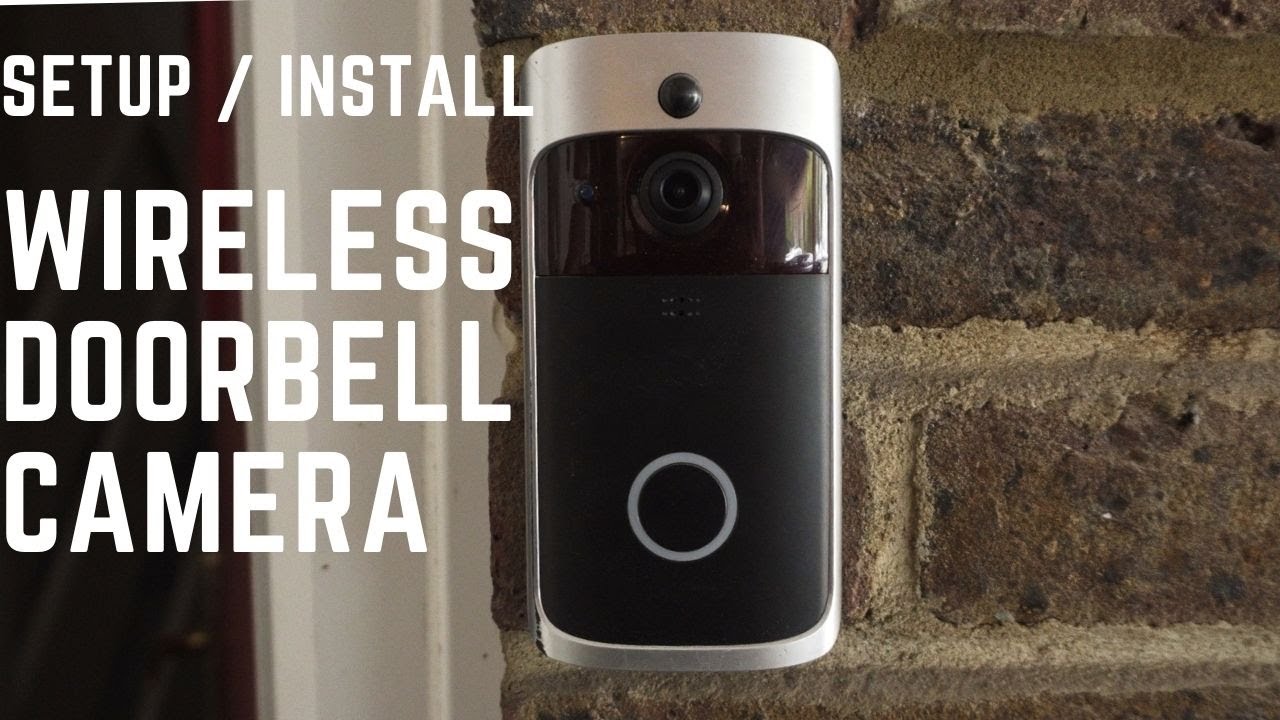
Credit: m.youtube.com
Frequently Asked Questions
How Do I Connect Doorbell Camera To My Phone?
To connect your doorbell camera, install its app on your phone. Follow the setup instructions provided in the app. Ensure your phone is connected to Wi-Fi. Pair the camera with your phone through the app, entering any required security codes.
Once connected, test the camera’s functionality.
Can I Use Any Doorbell Camera App?
Not all apps work with every doorbell camera. Manufacturers often provide specific apps tailored for their devices. Check your camera’s manual or website for app recommendations. Download the correct app from your phone’s app store. This ensures compatibility and access to all features.
What If My Camera Doesn’t Connect?
If your camera doesn’t connect, check your Wi-Fi connection first. Ensure the camera is within range of your router. Restart both your phone and camera. Review the app’s setup instructions again. If issues persist, consult the manufacturer’s support for troubleshooting steps.
Do I Need Wi-fi For Doorbell Camera?
Yes, Wi-Fi is essential for connecting your doorbell camera to your phone. Wi-Fi allows real-time video streaming and notifications. Ensure your network is reliable and has a strong signal. Some cameras may work with mobile data, but Wi-Fi is generally recommended for stable connections.
Conclusion
Connecting your doorbell camera to your phone is simple. Just follow the steps. Start by downloading the app for your camera. Then, create an account if needed. Pair the camera with your phone using Wi-Fi. Ensure both devices are on the same network.
Check the connection by testing the camera view. Now you can see who’s at your door anytime. Enjoy the convenience and security. Regularly update the app for new features. Troubleshoot any issues with the help section. Your smart home just got smarter with this setup.

Callen Ridgeway is a senior writer at ElectroDoz, where he shares his expertise on the latest in drones, webcams, cameras, and a wide range of cutting-edge electronic devices. With a passion for exploring emerging tech and breaking it down into practical insights, Callen helps readers make smarter choices when it comes to gadgets and gear. When he’s not testing the newest electronics, he’s busy keeping up with the innovations shaping the future of consumer technology.