How to Shutdown Macbook With Keyboard: Quick Guide
Are you looking for a faster, more efficient way to shut down your MacBook? Imagine being able to power off your device without even touching your trackpad or mouse.
Sounds convenient, right? You’ll discover how to shut down your MacBook using just your keyboard. This simple yet powerful trick not only saves you time but also makes your computing experience smoother. Stay with us as we walk you through the steps that will transform the way you interact with your MacBook.
Unlock the secret to effortless shutdowns and take charge of your device like never before. Ready to dive in? Let’s get started!

Credit: www.wikihow.com
Shutdown With Power Button
Press the power buttonon your MacBook. Hold it down for two seconds. A menu will appear on the screen. You will see the shutdown optionin that menu.
Select the shutdown option using your keyboard. Use the arrow keys to navigate. Press the Enter keyto choose shutdown. Your MacBook will now turn off safely.
Using Keyboard Shortcuts
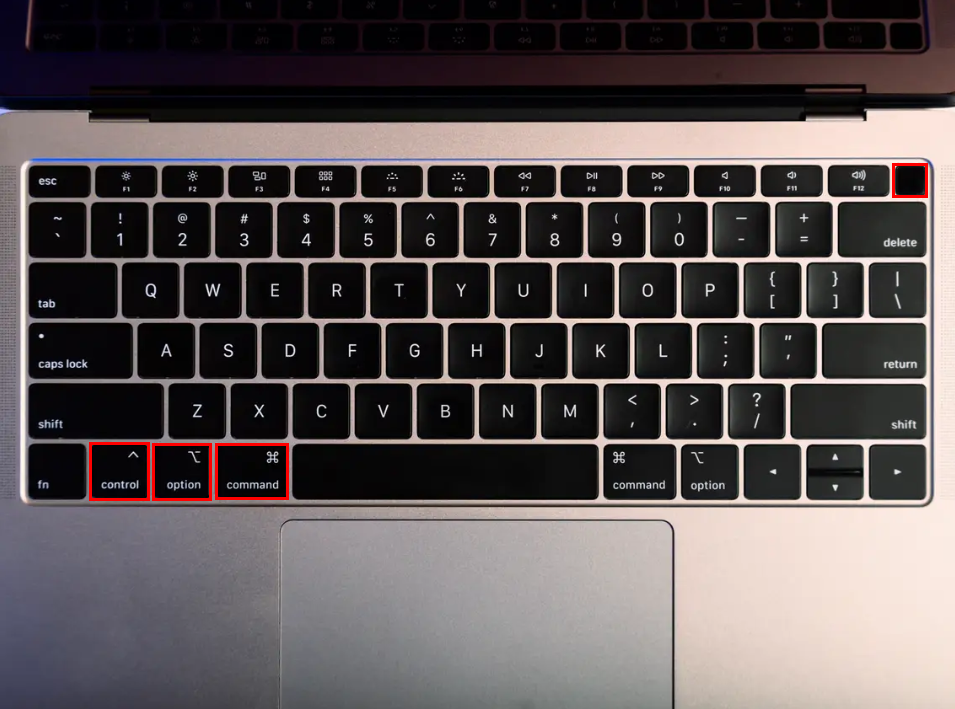
Shutting down your MacBook with the keyboard is easy. Press Control+ Option+ Command+ Power. This will close all apps first. Then your MacBook will turn off. Make sure to save your work. You don’t want to lose anything important. This shortcut is quick and simple. It’s great for when you are in a hurry.
Sometimes your MacBook may freeze. You can use a force shutdown. Press and hold the Powerbutton for 5 seconds. This will force it to turn off. But be careful. Use this only if nothing else works. You might lose unsaved work. It’s like a last resort. Always try to save your files first. Restart your MacBook once it’s off. It will work like new.
Terminal Command Method
Open the Spotlight Searchby pressing Commandand Spacekeys. Type “Terminal” in the search bar. Press the Enterkey to open the Terminal app. This tool lets you type commands to control your Mac.
In the Terminal, type sudo shutdown -h now. Press the Enterkey to execute the command. You may need to type your admin password. This command will safely shutdown your Macbook. Remember, save your work before doing this.

Credit: www.youtube.com
Automating Shutdown
Automator is a tool on your Mac. It helps you automate tasks. Start by opening the Automator appon your Mac. Choose “New Document” from the menu. Then, select “Application” and hit “Choose”. This creates a new project where you can add tasks.
In the search bar, type “Shut Down”. Drag the “Shut Down” action to the right area. This will create a shutdown task. Save your workflow by clicking “File” then “Save”. Name it something easy, like “Quick Shutdown”. Now, double-click your saved file to shutdown. It’s that simple!
Troubleshooting Shutdown Issues
Shutting down a MacBook using the keyboard is simple. Press and hold Control + Option + Command + Power. This combination safely turns off your device without needing a mouse.
Common Problems
MacBook might not shut down properly sometimes. Applications can freeze and stop the shutdown. Force quit stubborn apps using “Command + Option + Esc”. Check for updates regularly. An outdated system can cause problems. Ensure all cables are connected properly. Loose connections might create issues. Remove external devices before shutdown. Sometimes they block the process.
Resetting Smc And Pram
If problems continue, try resetting SMC and PRAM. SMC controls power and hardware. To reset, shut down the MacBook. Press “Shift + Control + Option” on the left side. Then press the power button. Hold for 10 seconds and release. PRAM stores system settings. To reset, restart your MacBook. Hold “Command + Option + P + R” keys together. Keep holding until the MacBook restarts again. These steps often fix many problems.
Credit: www.alphr.com
Frequently Asked Questions
How Do I Shutdown Macbook Using Keyboard?
To shutdown your MacBook with the keyboard, press Control + Option + Command + Power button. This shortcut will close all applications and shut down your MacBook safely. Ensure you save any open work beforehand, as unsaved data will be lost during the shutdown process.
Can I Shutdown Macbook Without Mouse?
Yes, you can shutdown your MacBook without a mouse by using keyboard shortcuts. Use Control + Option + Command + Power button to initiate the shutdown process. This method efficiently powers off your device without needing a mouse or trackpad.
Is There A Quick Way To Shutdown Macbook?
Yes, using Control + Option + Command + Power button is a quick way to shut down your MacBook. This shortcut bypasses manual navigation and closes the device swiftly. Make sure to save any ongoing tasks, as unsaved work will be lost during shutdown.
Does Keyboard Shutdown Affect Macbook Data?
No, shutting down your MacBook with the keyboard does not affect your data. Ensure all applications are closed and work is saved before using the shortcut. This method is safe and secure, maintaining the integrity of your stored data.
Conclusion
Using your keyboard to shut down your MacBook saves time. It’s quick. It’s easy. This method is perfect for busy users. No need to navigate menus. Just press and hold keys. Your MacBook will power off smoothly. Remember, practice makes perfect.
Try it a few times. Get comfortable with the process. Soon, you’ll do it without thinking. It’s a handy skill to have. Now, go ahead and shut down your MacBook with ease. Enjoy this efficient way to manage your device.

Finnian Delaney is a seasoned writer and editor specializing in technology and electronics. At ElectroDoz, he covers a wide range of topics, with a focus on MacBooks, laptops, fitness trackers, keyboards, and computer hardware. With a knack for making complex tech accessible, Finnian helps readers stay informed and confident when choosing their next device or upgrade.