How to See Hidden Photos on Macbook: Uncover Secrets
Have you ever wondered if there are hidden photos lurking somewhere on your MacBook? Perhaps you remember saving a special image but can’t seem to find it anywhere.
You’re not alone. Many MacBook users encounter this mystery, and the good news is—those photos aren’t lost forever. They’re just waiting to be found. Imagine the relief and satisfaction of finally uncovering those hidden gems. You’ll learn straightforward steps to reveal photos that might be tucked away, out of sight.
You’ll not only solve the puzzle but also ensure that no cherished memory stays hidden ever again. Ready to dive in? Let’s unlock those hidden memories together.
Credit: www.graphpad.com
Accessing Hidden Photos
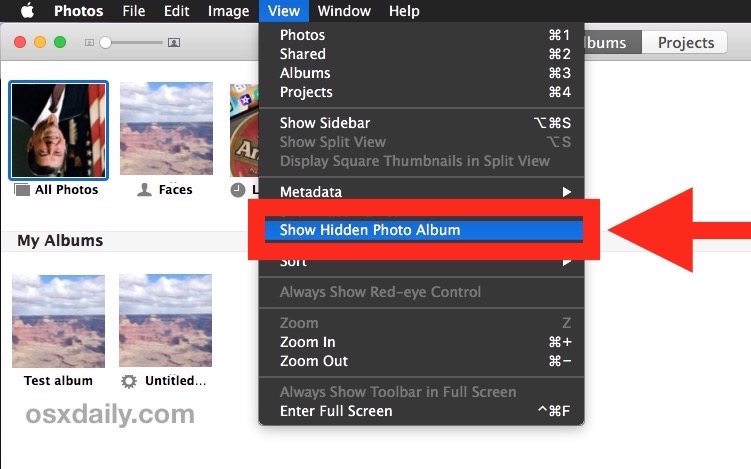
Open the Photos app on your Macbook. Click on the “View” menu at the top. Select “Show Hidden Photo Album” from the dropdown. The hidden album appears on the left. Click on it to see hidden photos. You can now view them easily. Remember to close the app when done.
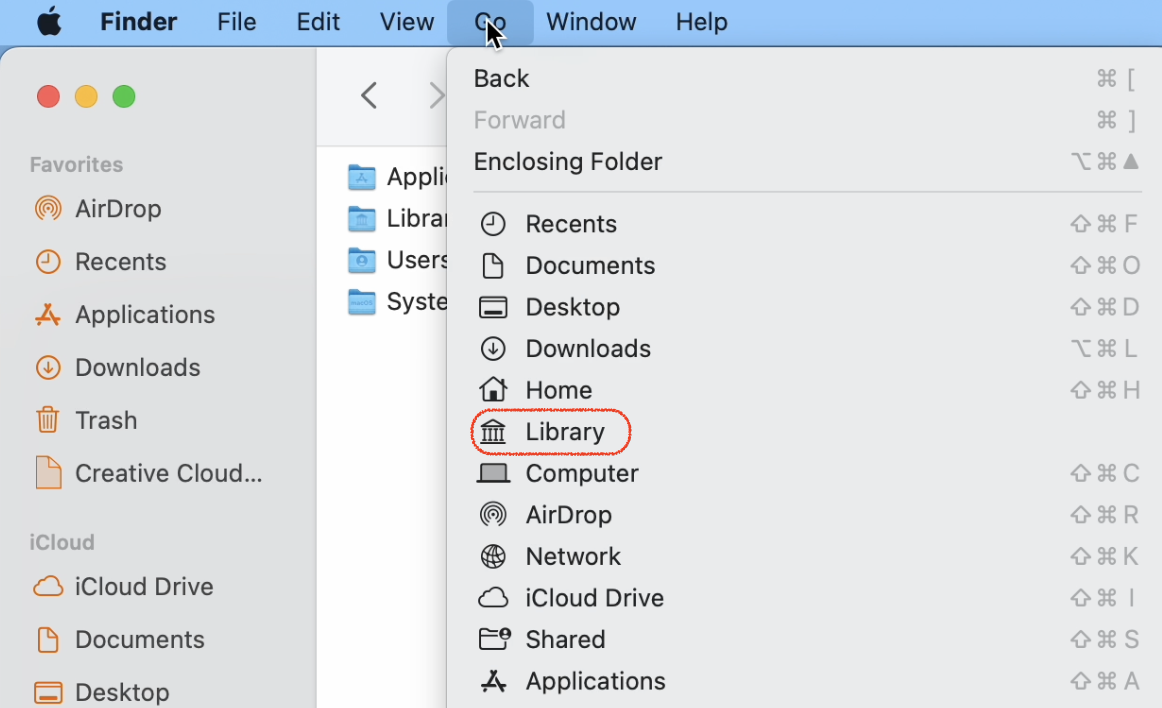
Open Finder from the dock. Press “Command + Shift + Period” keys. This will show hidden files on your Mac. Look for hidden photos in your folders. Check the “Pictures” folder first. You may find hidden treasures there.
Credit: osxdaily.com
Utilizing Terminal Commands
Terminal is an app on your MacBook. It lets you type commands. These commands can do many tasks. You can open Terminal from the Utilities folder. It’s like giving your computer special instructions.
Hidden files are not easy to see. You can make them visible with Terminal. Type the command: defaults write com.apple.finder AppleShowAllFiles YES. Press the Enterkey. Now, restart Finder by typing: killall Finder. Press Enteragain. Your hidden files will appear. To hide them again, change YESto NOin the command.
Third-party Software Solutions
Discovering hidden photos on a MacBook is simple with third-party software solutions. These tools help locate and view concealed images effortlessly. Enhance your photo management experience by utilizing these efficient applications.
Popular Applications
Many people use third-party software to find hidden photos on a Macbook. Gemini 2 is a well-known app. It helps in finding duplicate and hidden photos. Photosweeper is another popular choice. It is fast and easy to use. Duplicate Photos Fixer Pro is also used by many. This app is simple and works well.
Features And Benefits
These apps offer many useful features. They help in organizing photos quickly. They save you time by finding photos fast. User-friendly design makes them easy to use. Many have a free trial option. This lets you try before buying. They work well on all Macbooks. They keep your photos safe while sorting them. Regular updates ensure they stay current. This means they work with the latest MacOS.
Credit: www.idownloadblog.com
Privacy And Ethical Considerations
Privacy is very important. People should keep their photos safe. Hidden photos are often private. These photos might have personal memories. Always ask before seeing someone’s hidden photos. Respect their wishes. Think about how you would feel. Everyone deserves privacy. Treat others’ photos like your own. This shows respect and kindness. It builds trust among friends and family. Remember, privacy matters a lot.
Seeing hidden photos without permission is serious. It can have legal issues. Laws protect privacy rights. Breaking these laws can lead to trouble. It is important to be aware of rules. Always follow the law. Never share someone’s photos without asking. This can cause harm and legal problems. Understanding these rules is key. It helps in respecting others’ rights. Always think twice before acting. Remember, legal issues are not worth the risk.
Troubleshooting Common Issues
Sometimes, hidden photos are hard to find. Check the settings first. Photos may be hidden due to privacy settings. Permission issues can block access. Ensure you have the correct rights. Look in the Photos app. Use the Finder to locate files. If problems persist, restart your Macbook. This can solve many issues. Updates might also help. Keep your software current. Avoid third-party apps. They may cause problems.
Keep your photos organized. Use clear folders. Label them well. Regularly check your privacy settings. Ensure they allow access. Avoid hiding photos you need. Store them safely. Use backups. External drives work well. Always update your Macbook. This prevents future problems. Old software can cause hiding issues. Be careful with third-party apps. They might change settings. Stick to trusted sources.
Frequently Asked Questions
How To Find Hidden Photos On Macbook?
To find hidden photos, open Finder and navigate to the folder. Press Command+Shift+Period (. ) To reveal hidden files. If photos are hidden within the Photos app, go to the “Hidden” album under “View” in the menu bar.
Can You Unhide Photos In Photos App?
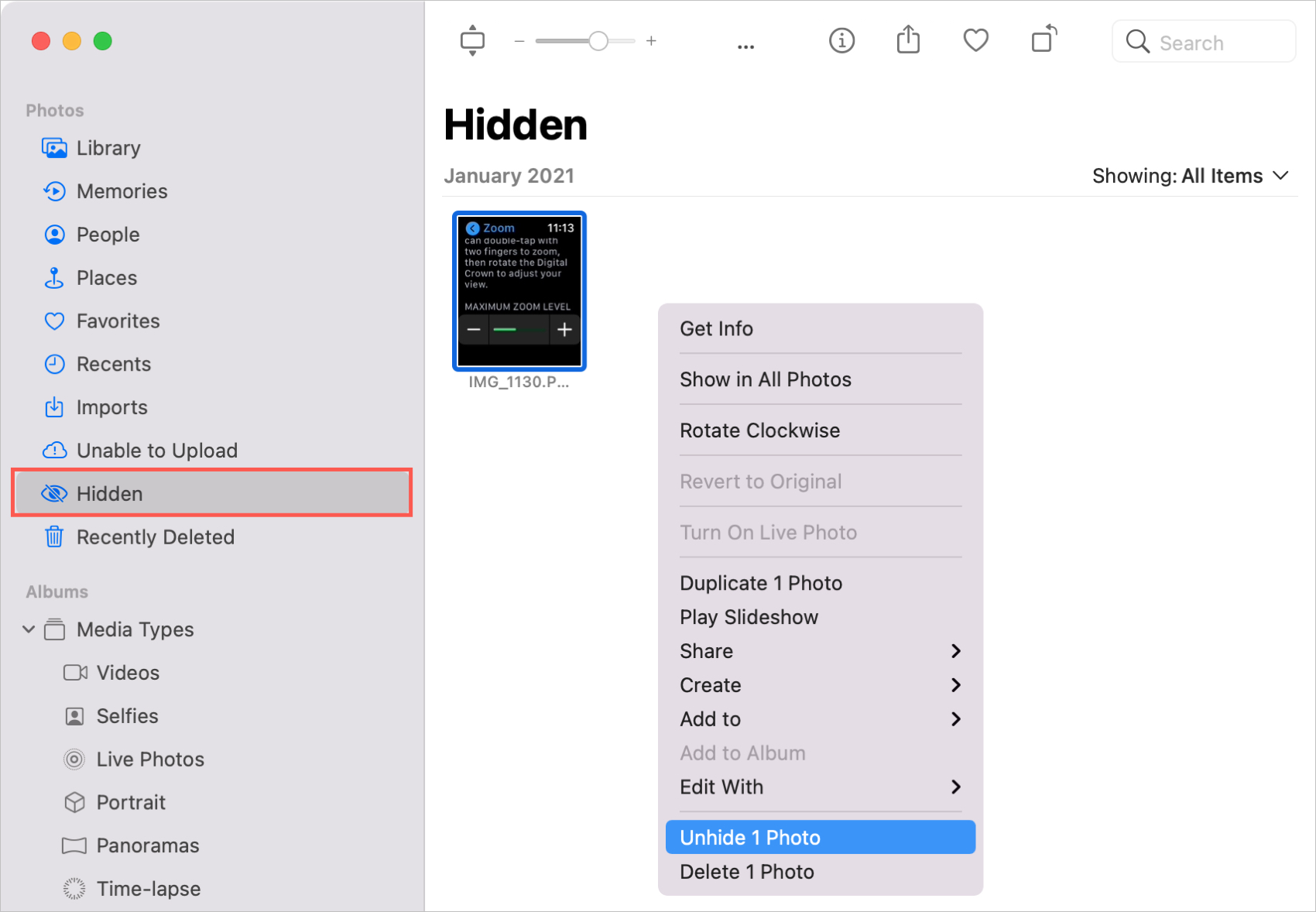
Yes, you can unhide photos in the Photos app. Open the Photos app, navigate to the “Hidden” album, select the photos, and choose “Unhide” from the menu. This will move them back to their original location.
Why Are My Photos Hidden On Macbook?
Photos can be hidden for privacy or organizational reasons. They might be in the “Hidden” album of Photos app or marked as hidden files in Finder. You can unhide them using Finder or the Photos app.
Is It Safe To Unhide Photos On Macbook?
Yes, it’s safe to unhide photos on Macbook. Unhiding simply changes their visibility. Ensure you have backups before making changes, especially for sensitive or important photos.
Conclusion
Discovering hidden photos on your MacBook is simple. These steps enhance your photo management. Regularly check your photo library. Stay organized and keep your files accessible. Hidden photos can surprise you. Remember to maintain privacy settings. Protect your personal images from unauthorized view.
Review and update photo settings. Ensure your memories are safe and easy to find. Exploring these features enriches your MacBook experience. Always back up important files. Avoid losing valuable pictures. Use these tips to manage your photo collection effectively. Enjoy the convenience of a well-organized library.

Finnian Delaney is a seasoned writer and editor specializing in technology and electronics. At ElectroDoz, he covers a wide range of topics, with a focus on MacBooks, laptops, fitness trackers, keyboards, and computer hardware. With a knack for making complex tech accessible, Finnian helps readers stay informed and confident when choosing their next device or upgrade.