How to Factory Reset Macbook 2015: Easy Step-by-Step Guide
Are you feeling overwhelmed by a sluggish Macbook 2015? Or perhaps you’re planning to sell it and need to clear your personal data?
Whatever the reason, a factory reset might just be the solution you’re looking for. It can breathe new life into your device, making it run smoother and faster. Plus, it ensures all your personal information is wiped clean, keeping it safe from prying eyes.
Imagine having your Macbook perform like it did the day you first unboxed it. Sounds enticing, right? In this guide, we’ll walk you through the simple steps to reset your Macbook 2015 to its factory settings. You don’t need to be a tech guru to follow along, and by the end, your Macbook could feel brand new. Ready to give it a go? Let’s dive in and explore how you can effortlessly reset your device.
Preparing For Reset
Always save your important filesbefore a reset. Use iCloudor an external drivefor backup. Check if all your data is backed up correctly. Make sure you can access your backup files. Photos, documents, and music are important. Don’t forget them!
Verify your Macbook meets reset requirements. Ensure it’s a 2015 model. Check the battery charge level. Keep it above 50%. Ensure your Macbook is connected to the Internet. An Internet connection is needed for some reset steps. Make sure you have the latest software updates.
Sign Out Of Accounts
Apple ID: Go to System Preferences. Click on Apple ID. Choose “Overview” on the left. Click “Sign Out” at the bottom. Follow the steps to confirm.
iCloud: Open System Preferences. Click on iCloud. You will see “Sign Out” at the bottom. Click it to log out. Confirm your choice by following prompts.
iTunes: Launch iTunes. Click “Account” at the top. Choose “Sign Out” from the menu. This will log you out of iTunes. Make sure your data is backed up.
Restart And Enter Recovery Mode
Access Recovery Modeby restarting your MacBook. First, click the Apple logo. It’s at the top left. Choose Restartfrom the menu. As your MacBook restarts, press and hold the Commandand Rkeys. Hold them down until you see the Apple logo. This takes a few seconds.
Next, a screen shows up. It’s called the macOS Utilitiesscreen. You are now in Recovery Mode. From here, you can fix your MacBook. You can also choose to do a factory reset. Follow the steps shown on the screen.
:max_bytes(150000):strip_icc()/TimeMachine-5bfd31b8c9e77c0026e46980.jpg)
Credit: www.lifewire.com
Erase Hard Drive
To start erasing your hard drive, first open Disk Utility. You will find it in the Utilities folder. This folder is inside Applications. Once there, look for your main drive, called Macintosh HD. Click on it to select it. Now, find the Erasebutton at the top.
Press the Erasebutton. A new window will pop up. It will ask for a name and format. Type in the name as Macintosh HD. Set the format to APFS. Then click on the Erasebutton again. The process will start. Wait for it to finish. Now, your drive is clean and ready.
Reinstall Macos
Choose Reinstall macOSfrom the options. This wipes out old files. Your Macbook gets a fresh start. It’s like a clean slate. After choosing, follow the steps.
Follow Installation Prompts. They guide you through the process. Each prompt is simple. Click next or agree when asked. You’ll see a progress bar. Wait for it to finish. Your Macbook might restart. This is normal. Once done, your Macbook is ready. It feels new again.
Setup New Macbook
Begin by turning on the Macbook. Follow the on-screen prompts. Choose your languageand region. Connect to a Wi-Fi network. Make sure the network is stable. Sign in with your Apple ID. If you do not have one, create it. Agree to the terms and conditions. Set up the touch ID for quick access. Enable Siriif you want voice help. Customize your settings as per your needs. Adjust the display brightness. Set the keyboard preferences.
Connect your external backup drive. Open the Migration Assistanttool. Follow the instructions to restore data. Choose to transfer from a Time Machinebackup. Select the backup drive from the list. Click continue and wait for the process to complete. Ensure the data is transferred securely. Check for any errors or missing files. Keep the drive connected until done. Restart the Macbook after the transfer. Verify all files are present. Enjoy your newly set up Macbook.
Troubleshooting Tips
Common Issuescan happen when resetting a MacBook. Sometimes, the screen may freeze. Other times, the keyboard might not work. It’s important to stay calm. Try restarting your MacBook. Hold the power button for 10 seconds. Wait a few seconds, then turn it on again. This can solve many problems. Check your internet connection too. A weak signal can cause trouble. If the Wi-Fi is off, turn it on. Make sure the router is working well.
Seek Professional Helpif problems do not go away. Visit an Apple store nearby. Talk to a technician. They know how to help. Explain what is wrong clearly. They can fix hardware or software issues. Sometimes, a deep check is needed. Professionals have special tools. They can make your MacBook work again. Trust their experience and skills. They are there to help you.
Credit: discussions.apple.com
Credit: www.youtube.com
Frequently Asked Questions
How Do I Factory Reset My Macbook 2015?
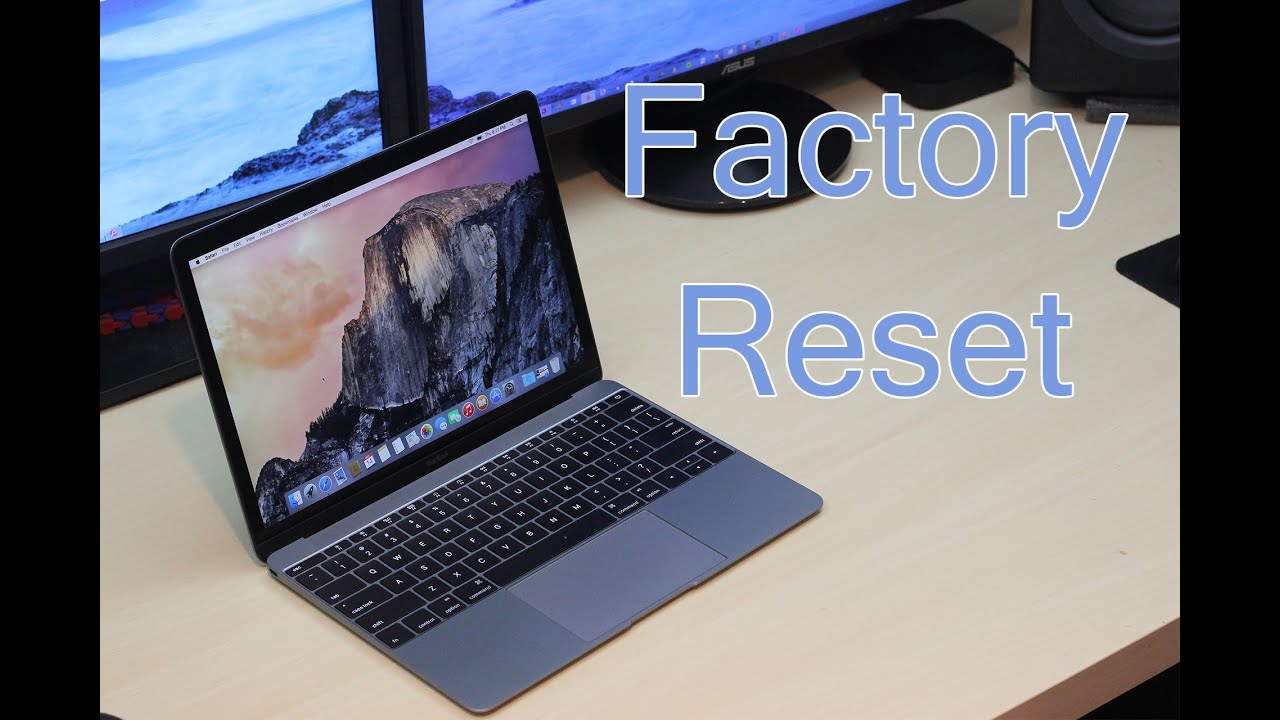
To factory reset your MacBook 2015, start by backing up your data. Restart your Mac and hold down Command + R. Select “Disk Utility” to erase your hard drive, then choose “Reinstall macOS” to complete the reset process. Follow the on-screen instructions for a successful reset.
Will Resetting My Macbook Delete Everything?
Yes, factory resetting your MacBook will delete all data and settings. Ensure you back up important files before proceeding. A reset restores your Mac to its original state, removing personal data, apps, and settings. Use Time Machine or external storage for backup before the reset.
Can I Reset Macbook 2015 Without Password?
Yes, you can reset your MacBook 2015 without a password using Recovery Mode. Restart your Mac and hold Command + R. Select “Disk Utility” to erase the disk. Then, reinstall macOS. This process bypasses the need for a password, but ensure you have backups of important data.
How Long Does A Macbook Reset Take?
A factory reset typically takes 30 to 60 minutes. The duration depends on your internet speed and MacBook condition. Erasing the disk and reinstalling macOS are the longest parts. After completion, set up your MacBook as if it’s new, following on-screen instructions.
Conclusion
Resetting your MacBook 2015 is simple. Follow the steps closely for success. This process clears data and settings. It gives your Mac a fresh start. Always back up important files first. A factory reset can resolve many issues. It enhances performance and solves software glitches.
Keep your device running smoothly. Rest assured, these steps are safe and easy. Your MacBook will feel brand new. Enjoy a cleaner, faster device. Stay informed and keep your tech in top shape. Remember, regular maintenance is key. Happy computing with your refreshed MacBook!

Finnian Delaney is a seasoned writer and editor specializing in technology and electronics. At ElectroDoz, he covers a wide range of topics, with a focus on MacBooks, laptops, fitness trackers, keyboards, and computer hardware. With a knack for making complex tech accessible, Finnian helps readers stay informed and confident when choosing their next device or upgrade.