

How to Set Time on Smartwatch Without Phone: Easy Steps
You just got a new smartwatch, and it’s packed with exciting features. But there’s one small hiccup: setting the time without using your phone.
Don’t worry! You’re not alone in facing this challenge. Many smartwatch users find themselves puzzled when trying to adjust the time independently. Fortunately, you don’t need to be a tech genius to figure this out. With a few simple steps, you can set the time on your smartwatch and have it ticking accurately without any hassle.
Ready to discover how? Keep reading to unlock the secrets to mastering your smartwatch settings like a pro!

Access Watch Settings
To set the time on your smartwatch, start by opening the settings. Look for the gear iconon your watch screen. Tap it. Once inside, find the option that says “Time”or “Clock”. This is where you can change the time. Be sure to select manual modeif it’s available. This lets you set the time by hand. Some watches may have a button for this. Press it if needed. Always check your changes. Ensure the time is correct before you exit the settings. Remember, this may vary with different smartwatch models.

Credit: www.youtube.com
Navigate To Time Settings
Find the settings iconon your smartwatch screen. It often looks like a gear. Tap the icon to open settings. Look for a section called Systemor General. Click to enter. Inside, there is a tab named Date and Time. Open this tab.
You will see options for setting the timeand date. Adjust the time using the plus and minus buttons. Make sure to choose AM or PM correctly. Once finished, confirm your changes. Your smartwatch time is now set. Repeat if needed.
Manual Time Adjustment
Choose the 12-hour or 24-hour format. Some smartwatches have this option in the settings. It’s usually under time settings. Look for a setting that says time format. Choose the one you like best. Kids might find the 12-hour format easier. Adults often prefer the 24-hour format.
Find the hour and minute settings on the watch. Sometimes there are buttons to press. Scroll or tap to change the numbers. Ensure the AM or PM is correct. Double-check the minutes. They can be tricky. Setting it right makes sure you’re always on time.
Sync With Local Time
Syncing your smartwatch with local time can be done without a phone. Access the watch settings directly. Adjust the time manually using the intuitive interface. Ensure the time zone matches your location for accurate display. This process helps maintain punctuality even when your phone isn’t available.
Enable Automatic Sync
Many smartwatches can sync time automatically. This feature makes sure your watch shows the correct time. To enable this, go to the settings menu on your watch. Look for an option called “Automatic Time Sync” or similar. Turn it on. Your watch will now adjust its time on its own. No phone needed. This is helpful if you travel often.
Set Time Zone Manually
Sometimes, automatic settings are not enough. You might need to set the time zone manually. Start by opening the settings on your smartwatch. Find the “Time Zone” option. Tap on it. A list of time zones will appear. Select the correct one for your location. This ensures your watch shows the right time. Always check twice after setting. This way, you know it is correct.
Confirm And Save Changes
Tap the confirmbutton on your smartwatch screen. This saves your time settings. Check the display to ensure your changes are correct. If the time is wrong, go back and adjust it. Remember to press save again after changes. Your watch may ask you to confirm one more time. This keeps your settings secure. Once you’re sure, exit the time settings menu. Your smartwatch should now show the right time. If the time keeps changing, consult your watch’s manual. Some watches update time automatically. You may need to turn this feature off.
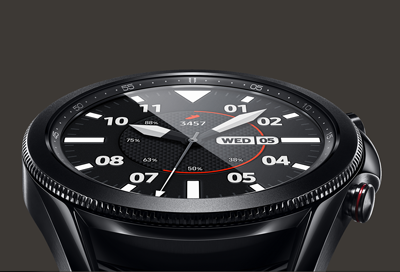
Credit: www.samsung.com
Troubleshooting Common Issues
Sometimes, the time on your smartwatch doesn’t update. Check the battery first. Low battery can cause this issue. Restart your watch to refresh its settings. Make sure your watch has the latest software. Outdated software can cause time issues. Go to settings and update if needed. Ensure auto-update is turned on in settings.
Errors can appear on your smartwatch. Restarting the watch often helps. Check if there are any software updates available. Install them to fix errors. Reset the watch if errors persist. This restores it to factory settings. Ensure any custom settings are saved. This way, you won’t lose them after resetting.
Additional Tips
Smartwatches use a lot of battery power. It’s best to charge them often. A low battery can make setting the time hard. Smartwatches may turn off when the battery is low. This can be frustrating. Charge your watch before changing settings. A full battery helps the watch work better.
Smartwatches need software updatesto work well. Updates can fix bugs and make new features available. It’s important to check for updates often. This can help your watch stay fast and accurate. You might need a phone for updates. Some watches can update directly. A well-updated watch can make time setting easier.
Frequently Asked Questions
How Do I Adjust Time On My Smartwatch?
To adjust the time on your smartwatch without a phone, navigate to the settings menu. Look for the ‘Date & Time’ option. From there, you can manually set the correct time and date. Ensure your smartwatch is not synced with your phone to prevent automatic time updates.
Can I Set Time On Smartwatch Manually?
Yes, you can set the time manually on your smartwatch. Access the settings menu and find the ‘Date & Time’ section. Disable any automatic syncing options. Then, manually adjust the time and date to your preference. This allows for complete control over your smartwatch’s time settings.
Why Is My Smartwatch Showing Wrong Time?
Your smartwatch might show the wrong time due to incorrect settings. Check if it’s synced with your phone and update the settings. If not synced, manually adjust the time in the settings menu. Ensure your smartwatch’s time zone matches your current location for accurate time display.
Does My Smartwatch Need To Sync With A Phone?
No, your smartwatch does not always need to sync with a phone. You can set the time manually through the settings menu. However, syncing with a phone can provide automatic updates and other features. Choose based on your preference for convenience or manual control.
Conclusion
Setting the time on a smartwatch without a phone is simple. First, navigate to your watch’s settings. Use the touch screen to find the time option. Select it. Adjust the hours and minutes as needed. Confirm your changes. Your watch will now display the correct time.
This process varies by model but generally follows these steps. No phone needed. Enjoy your smartwatch with accurate time. Now, you can rely on your watch anytime. Stay punctual and organized effortlessly.

Finnian Delaney is a seasoned writer and editor specializing in technology and electronics. At ElectroDoz, he covers a wide range of topics, with a focus on MacBooks, laptops, fitness trackers, keyboards, and computer hardware. With a knack for making complex tech accessible, Finnian helps readers stay informed and confident when choosing their next device or upgrade.


