

Best Laptop for Insta360 Studio: Enhance Video Editing Experience
Choosing the right laptop for Insta360 Studio is essential for seamless video editing. The right device ensures smooth processing and exceptional output.
Finding the Best Laptop for Insta360 Studio shouldn’t feel like a maze. I cut bike rides and city walks on both Mac and Windows, so I know what helps and what doesn’t. Studio runs on Windows and macOS, and Apple Silicon works great too.
I’ll share clear picks, simple checks, and fast setup tips—yes, the Apple MacBook Pro makes the list. Bring your clips, your AI note-taking app to organize digital notes and save web content, and let’s get you editing with zero fuss.
2) What Insta360 Studio needs?
OS (the basics)
Use Windows 7 SP1 or newer. On Mac, use macOS 10.13+ or 10.15+, as listed on different Insta360 pages. Both are fine.
Memory (where smooth lives)
Go with 16GB RAM at least. 32GB feels nicer when clips run long.
Storage (speed matters)
Edit on an SSD. 128GB is the bare floor. I suggest 1TB if you travel a lot.
Graphics (for Windows users)
Aim for an NVIDIA card equal to or above a GTX 1060 6GB. Macs lean on Apple Silicon for decode/encode.
Quick tip: Hardware Acceleration
If previews stutter or go green, toggle the hardware decoder/encoder in Preferences and test again. It’s a fast fix in many cases.
Note: Apple Silicon (M1/M2/M3) is supported on Mac, so you can edit on a MacBook Air or an Apple MacBook Pro with ease.
3) Buyer guide in one minute
Your edit style
Short trips for Reels? A light laptop is fine. Long 5.7K or 8K shoots? You’ll want more RAM and a stronger GPU.
Where you work?
On the go a lot? Pick thin, cool, and quiet. At a desk? Pick power first and plug in a fast SSD.
Budget tiers
Entry: 16GB RAM, mid CPU, 512GB–1TB SSD.
Mid: 32GB RAM, faster CPU, RTX mid-tier.
Pro: 64GB RAM, top CPU/GPU, 1–2TB SSD.
OS match
macOS plays nice if you like Apple gear and want great battery life. Windows is great if you want NVIDIA features and broad part choices.
Tiny helper: I keep a few productivity tips in an AI note-taking app and use a Chrome extension for notes to save web content like driver links and presets. It keeps my setup list tight before each trip.
4) Top picks (by use case)
4.1 Apple MacBook Pro (16-inch, 2021) — pro macOS choice

Why it shines
This thing is a calm workhorse. It stays quiet while you scrub big 360 clips and export long cuts. Battery holds up on travel days, so you can edit away from the wall. Apple rates it up to 21 hours of video playback.
Best use
Long reframes, color tweaks, and batch exports. I love it for day-long shoots where I dump cards, pick angles, and queue renders while I eat. It just keeps going.
Specs that help editors
The Liquid Retina XDR screen is bright and even, which makes grading feel safer on the road. ProMotion up to 120Hz keeps the UI smooth while you scrub. Ports are creator-friendly: SDXC for cards, HDMI for quick client screens, three Thunderbolt 4, plus MagSafe 3 for safe power.
Fit for Insta360 Studio
Apple Silicon support means M1 Pro or M1 Max runs Studio natively. You get Apple’s media engine for fast H.264/HEVC/ProRes work, which helps with exports and proxies. I suggest 32GB RAM if you stack long 5.7K+ timelines; 16GB is fine for short edits.
Real-world comfort
Wi-Fi 6 is solid in hotels and cafes, so cloud backups or quick uploads don’t crawl. And the SDXC slot saves you from dongle-hunting when you just want to offload and cut. Little things, big calm.
4.2 Lenovo Legion Pro 7i — pro Windows choice

Why it shines
It’s fast. You can spec it with Intel Core Ultra 9 275HX and new GeForce RTX 50-series GPUs with DLSS 4. The 16-inch 2560×1600 OLED at 240Hz looks crisp and smooth, which helps when you scrub and reframe.
Best use
Long 5.7K+ edits. Heavy denoise and effects. Weekend games after a shoot. It handles a lot without choking. Reviews note the screen is bright and color-true, which is handy for quick grades.
Specs that help editors
You can go up to 64GB RAM and big SSDs, so proxies and caches have room. The 16-inch WQXGA panel gives you space for the Studio UI and scopes. Thermals are strong, so clocks hold under load.
Fit for Insta360 Studio
Insta360 lists an NVIDIA GTX 1060 (6GB) as the Windows baseline. This laptop is well above that, so previews and exports feel snappy.
Small trade-offs
It’s not light, and battery life is short. Plan to plug in for long sessions. Multiple reviews report ~4–5 hours in light use and less when pushed.
4.3 MacBook Air (13.6-inch, M2) — best light travel pick

Why it shines
It’s thin, quiet, and only 2.7 lb, which is great on the road. Battery life can stretch up to 18 hours for video playback, so airport edits feel easy.
Best use
Short trips, field offloads, and social edits. I toss clips in, set keyframes, and post before the coffee cools.
Specs that help editors
The 13.6-inch Liquid Retina display hits 2560×1664 with 500 nits and P3 color, so your reframes look clean. You get MagSafe plus two Thunderbolt/USB 4 ports for fast drives.
Fit for Insta360 Studio
Apple Silicon support is official, so the M2 runs Studio natively. For small projects, 8GB works. For longer timelines, 16–24GB feels better.
Small trade-offs
It’s fanless, so it can throttle on huge, all-day renders. For marathon edits, step up to a Pro-class Mac—or use shorter export runs.
5) Recommended Specs (simple tiers)
Minimum (will run)
- 6-core modern CPU
- 16GB RAM
- SSD (128GB+)
- GTX 1060 6GB on Windows, or Apple Silicon on Mac
This meets the baseline Studio asks for and gets you through short edits.
Better (smooth)
- 8–12-core CPU
- 32GB RAM
- 1TB SSD
- RTX 4060/4070, or M1 Pro/M2 on Mac
Great for 5.7K timelines, denoise, and batch exports. It cuts wait time without killing your budget.
Best (heavy 8K)
- Top mobile CPU
- 64GB RAM
- 2TB SSD (fast NVMe)
- RTX 4080/4090-class, or M1 Max/M3 Max on Mac
Built for long shoots and big reframes. It stays fast even when you stack effects.
Quick notes
- Studio runs on Windows 7 SP1+ and macOS 10.13+ / 10.15+ (Insta360 lists both across pages).
- Apple Silicon (M1/M2) is supported on Mac. That’s why even a light Mac can cut small projects well.
6) Why these parts matter for Insta360 Studio
CPU — the timeline engine
The CPU drives previews, exports, and general snappiness. More cores help when you queue renders. Aim higher if you film long days.
GPU — the speed booster
On Windows, Studio recommends NVIDIA GTX 1060 (6GB) or better. Newer RTX cards speed up decode/encode and effects. If previews glitch or go green, toggle hardware decoder/encoder (and CUDA) in Preferences to test. It often fixes stutter in seconds.
RAM — room to breathe
16GB works for small jobs. 32GB keeps long 5.7K timelines smooth and reduces swapping. It’s the cheapest way to make your edits feel calm.
SSD — time saved every day
An SSD cuts import, cache, and export time. 128GB is the floor; 1TB feels right if you travel or shoot a lot. Fast NVMe drives help with proxies and scratch space.
Platform reminder
Both Windows and macOS builds are supported. On Mac, Studio runs well on Apple Silicon chips. Pick the system that fits your tools and budget.
Tip: keep drivers and Studio updated before big edits. Small updates can fix bugs and speed up exports.
7) Setup tips for faster edits (step-by-step)
1) Update the app first
Open Studio and check for updates. New builds add fixes and faster tools. It takes a minute and can save you hours later.
2) Flip on Hardware Acceleration (then test)
Go to Menu → Preferences → Codecs and toggle Hardware Acceleration. If you see green frames or stutter, switch it off and try again. This quick check solves many preview issues.
3) Work from an SSD
Copy your clips to an internal or fast NVMe drive before you edit. Studio itself recommends SSD storage, so let speed work for you.
4) Give Studio room to breathe
Close heavy apps while you edit. Keep the laptop cool and, for long exports, plug into power. Simple, but it prevents slowdowns.
5) Keep drivers current (Windows)
Update your GPU drivers before big jobs. Fresh drivers reduce crashes and odd preview bugs.
8) Workflow basics for beginners
Import your footage
Launch Studio and add your clips to a new project. Keep files on the SSD for smooth scrubbing.
Stabilize with FlowState
Turn on FlowState for a steady look. It cleans up bumps from bikes, boards, and city walks.
Reframe with keyframes
Set a few keyframes to point the view where you want. Start wide, then fine-tune moves. Small changes beat big swings for natural motion.
Export smart
For social, choose H.264 or HEVC and a bitrate that matches your platform. If you plan to grade later, export a higher-quality master first. Then make smaller copies for posts.
Save a simple preset
When a look works, save settings as a preset. Next time, you’ll move faster with one click.
9) Short comparisons (real-world choices)
Apple MacBook Pro (16-inch, 2021)
If you want the calm powerhouse, this is it. The screen is gorgeous for grading, and Apple Silicon keeps things fast without spinning up loud fans. I’ve done long reframes and batch exports on this machine, and it never flinched. It’s the best macOS pick for editors who want long battery life and a smooth creative flow.
Lenovo Legion Pro 7i
Think of this as the fast-and-furious option. With an NVIDIA RTX GPU, you get raw power that chews through 5.7K and 8K timelines. It’s heavier than a MacBook, but if you’re editing and gaming on the same laptop, the Legion is great value. Just plan to keep it plugged in during heavy sessions.
MacBook Air with M2
This is the travel buddy. It’s thin, quiet, and slips into a backpack without thought. I use it for quick cuts at the airport or in coffee shops. Sure, it won’t handle giant 8K edits without slowing down, but for short clips and social posts, it’s perfect. Apple Silicon support makes it a safe pick for light editing days.
10) FAQs
Does Insta360 Studio run on Macs with M1/M2/M3?
Yes, it runs natively. Apple Silicon support is official, so you’re covered whether you’re on a MacBook Air or a MacBook Pro.
Do I need a GPU on Windows?
Yes, if you want smooth previews and exports. The baseline is an NVIDIA GTX 1060 with 6GB VRAM, but newer RTX cards give you better speed and stability.
How much RAM is enough?
For short edits, 16GB will get you by. If you’re working with long clips or 8K footage, 32GB feels much smoother. It’s the simplest upgrade for a calmer editing experience.
11) Who should buy which laptop?
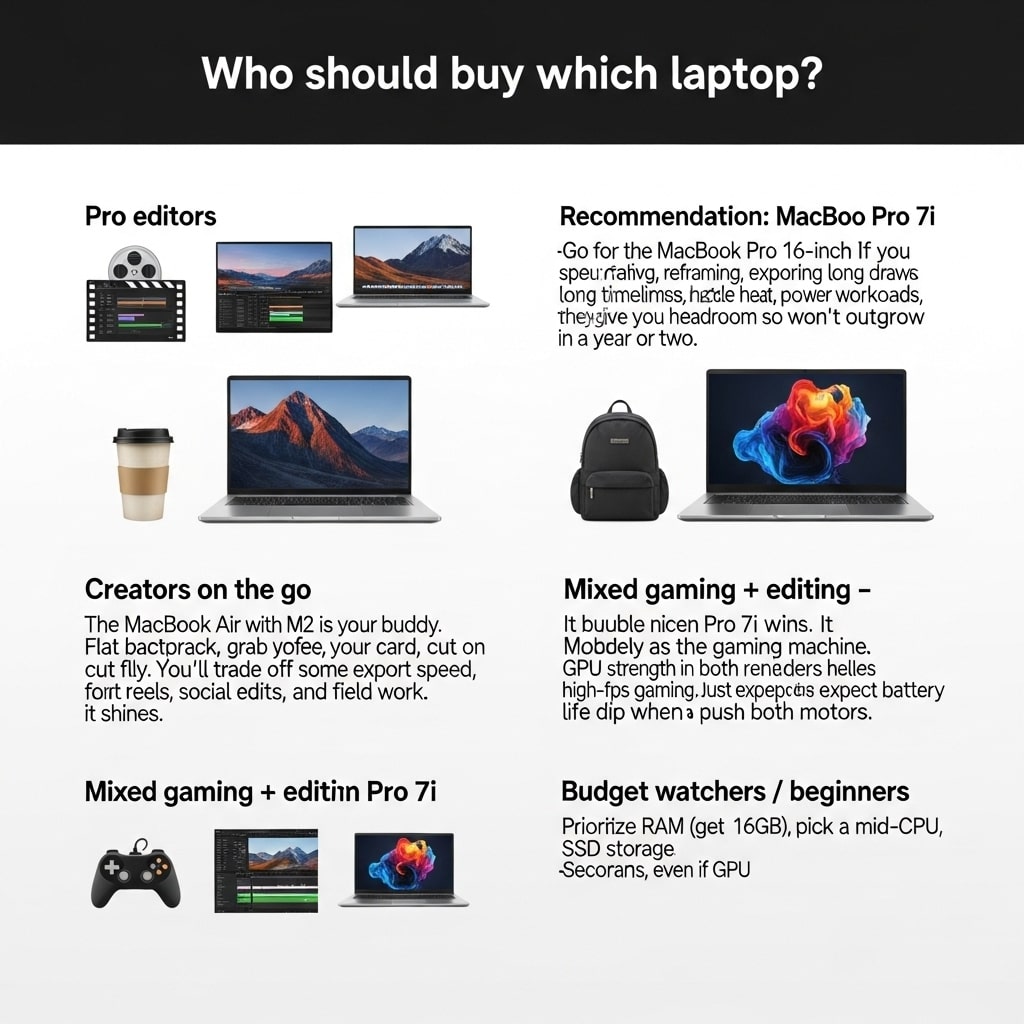
- Pro editors → Go for the MacBook Pro 16-inch or the Lenovo Legion Pro 7i.
If you spend your days reframing, color grading, exporting long timelines, these machines handle heat, power draw, and long workloads. They give you headroom so you won’t outgrow them in a year or two. - Creators on the go → The MacBook Air with M2 is your buddy. Flat backpack, grab coffee, drop your card, cut on the fly. You’ll trade off some export speed, but for short reels, social edits, and field work, it shines.
- Mixed gaming + editing → Legion Pro 7i wins. It doubles nicely as a gaming machine. The GPU strength helps in both renders and high-fps gaming. Just expect battery life to dip when you push both motors.
- Budget watchers / beginners → If you’re just starting, prioritize RAM (get 16GB), pick a mid-CPU, SSD storage, even if GPU isn’t top-tier. Later you can upgrade storage or added external drives. The focus should be less on bells, more on what lets your editing feel smooth from day one.
12) Glossary (keep it simple)
Reframing
Think of it like pointing a camera after you’ve already filmed. With 360 video, you capture everything around you. Reframing means you pick the angle later and turn it into a flat video. It’s like cropping a photo, but for moving clips.
Hardware acceleration
This is when your laptop lets the GPU (graphics card) help the CPU (processor). Imagine passing a heavy box to a friend instead of carrying it alone — the work gets done faster. In Insta360 Studio, you can turn this on or off in Preferences.
FlowState
This is Insta360’s built-in stabilization. It smooths out bumps from walking, biking, or filming on the go. Turn it on and shaky clips suddenly look like they were shot on a gimbal.
13) Sources
- Insta360 official download and platform support – where you can grab the latest version of Studio.
- Insta360 official system requirements (Windows/Mac) – baseline specs for running Studio.
- Official note on Apple Silicon support (Insta360 forums) – confirms M1/M2/M3 Macs run Studio natively.
- Latest Studio update – new timeline tools and media features that make editing smoother.

Finnian Delaney is a seasoned writer and editor specializing in technology and electronics. At ElectroDoz, he covers a wide range of topics, with a focus on MacBooks, laptops, fitness trackers, keyboards, and computer hardware. With a knack for making complex tech accessible, Finnian helps readers stay informed and confident when choosing their next device or upgrade.


