Can You Use A Smartphone As A Basic Phone: Easy Guide
Yes. You can use an iPhone or Android phone as a basic phone for calls, text messages, contacts, and emergencies. The easiest way is to remove distracting apps, silence most alerts, limit web access, and keep only the tools you need.
This works well in the United States if you already have a compatible smartphone and an active mobile plan. However, a smartphone will still have a larger screen, more settings, and internet features than a traditional basic phone. If you want a phone with almost no smart features, a true basic phone may be a better fit.

What Makes a Smartphone Act Like a Basic Phone?
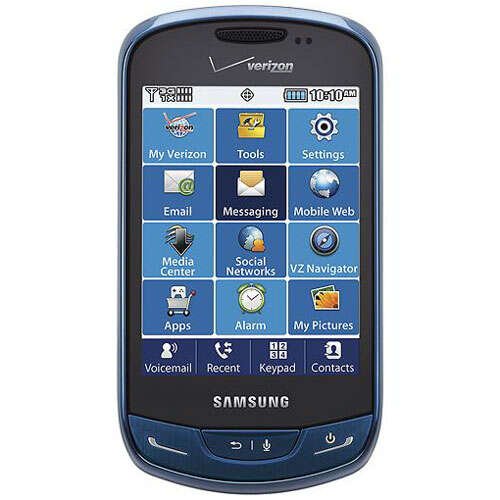
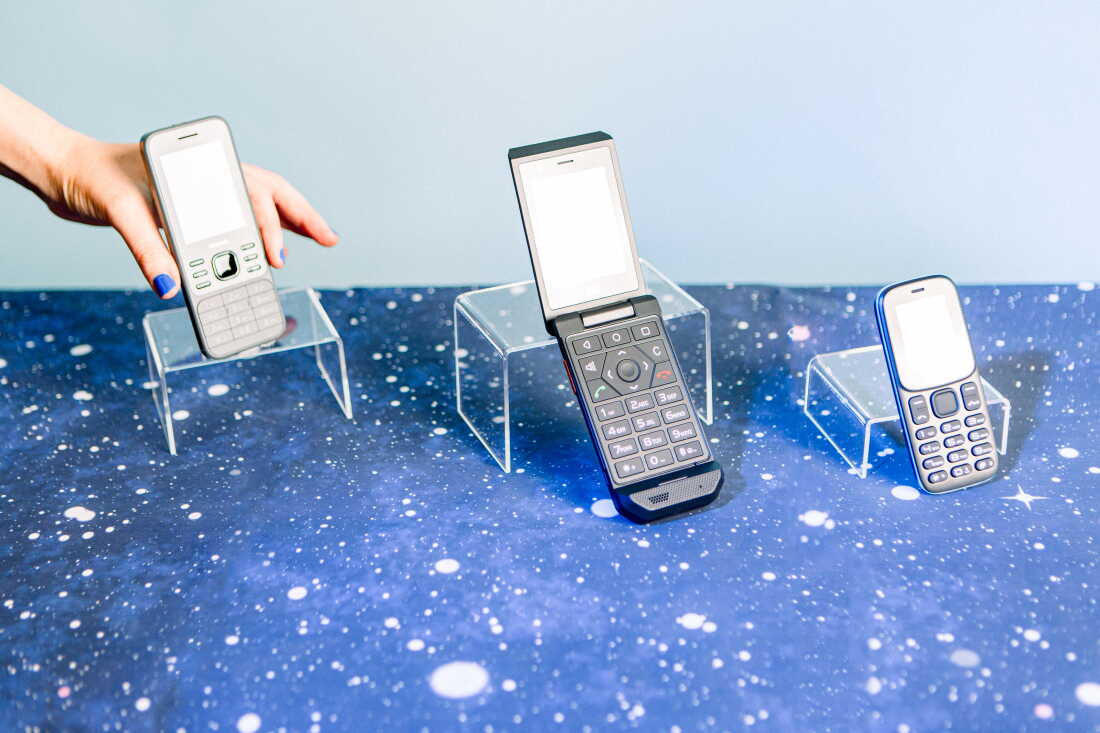
A basic phone usually focuses on voice calls, text messages, contacts, and sometimes a camera or alarm. It has fewer apps and fewer ways to browse the internet.
A smartphone can provide the same core functions. You control the difference through its settings, apps, and network access.
You can make a smartphone feel more like a basic phone by:
- Removing social media, games, shopping, and streaming apps
- Turning off nonessential notifications
- Using a simple home screen
- Blocking or limiting web browsers
- Keeping only trusted contacts
- Using grayscale to make the screen less appealing
- Setting daily app limits
- Using parental or family controls
- Keeping the phone in a case that makes it less comfortable to scroll
This approach is sometimes called a minimalist phone setup or a dumbphone-style smartphone setup. It gives you the useful parts of a smartphone without requiring you to buy another device.

How to Turn an iPhone Into a Basic Phone
An iPhone can be simplified with built-in features such as Screen Time, Focus, and Assistive Access. The exact menu names can vary by iOS version.
1. Back up the iPhone first
Before making major changes, back up the phone to iCloud or a computer. This gives you a way to restore apps and settings later.
You do not need to erase the phone to make it simpler. Removing an app from the Home Screen is also different from deleting it. If you want fewer distractions, delete apps you do not need.
2. Delete distracting apps
Remove apps that encourage frequent checking, such as:
- Social media
- Short-video apps
- Games
- Shopping apps
- News apps
- Streaming services
- Extra web browsers
You can reinstall them later if your needs change. Apple explains app deletion and offloading in its official iPhone support guide.
3. Limit the App Store and web access
Use Settings > Screen Time to limit or block selected features. Screen Time can restrict app categories, websites, purchases, and other functions.
For a stricter setup, ask a trusted person to create or hold the Screen Time passcode. If you know the code and want to bypass the limits, the system will not provide much protection.
You can also set content restrictions for:
- Installing or deleting apps
- In-app purchases
- Explicit websites
- Account changes
- Location changes
- Siri and other built-in tools
4. Use Assistive Access when appropriate
Apple’s Assistive Access mode is designed to make the iPhone easier to use. It can show larger controls and a simpler layout with only selected apps.
To find it, open Settings > Accessibility > Assistive Access. Review the available apps before enabling it. Some functions may work differently in this mode, so test calls, messages, and emergency features before relying on it.
Assistive Access can be useful for:
- Older adults
- People with limited vision
- People who want a much simpler interface
- Family members who need only a few phone functions
5. Simplify calls and messages
Keep important people in Favorites or another easy-to-find contact group. Remove duplicate contacts and outdated numbers.
Turn on Announce Calls only if spoken caller information helps you. Otherwise, keep the interface quiet and direct.
For messages, pin only the conversations that matter. You can also turn off alerts for group chats and promotional messages.
6. Reduce visual and sound distractions
Use Settings > Focus to create a simple Phone mode. Allow calls and messages from selected people, then silence other alerts.
You can also:
- Turn off notification badges
- Disable lock-screen previews
- Use a plain wallpaper
- Remove widgets
- Turn on grayscale through Accessibility settings
- Keep the Home Screen to one page
A simple iPhone setup should make the first screen show only Phone, Messages, Contacts, and perhaps Maps or Camera.

How to Turn an Android Phone Into a Basic Phone
Android phones vary by manufacturer. A Samsung Galaxy, Google Pixel, Motorola phone, and OnePlus phone may use different menus. The same basic plan still works: remove clutter, restrict apps, and simplify the home screen.
1. Remove apps you do not need
Uninstall apps that you want gone. If an app cannot be removed, you may be able to disable it or remove it from the Home Screen.
Common apps to remove or restrict include:
- Social media
- Games
- Video services
- Shopping apps
- Extra browsers
- Cryptocurrency apps
- News feeds
- Manufacturer apps you do not use
Do not disable an app unless you know what it does. Some system apps support calls, messages, security, updates, or accessibility features.
2. Use Digital Wellbeing
Most recent Android phones include Digital Wellbeing. You can find it by opening Settings > Digital Wellbeing & parental controls.
Useful tools include:
- App timers
- Focus mode
- Bedtime mode
- Notification controls
- Dashboard reports
- Website limits in supported browsers
App timers are useful, but they are not a complete lock. You may be able to change or remove the limit. For stronger control, use Android’s parental controls or a family member’s supervision account.
Google provides details about Digital Wellbeing on Android.
3. Use a simple launcher
A launcher controls the Android Home Screen. Some phones include an easy or simple mode. For example, Samsung devices may offer Easy mode under display or home-screen settings, depending on the model and software version.
A simple launcher can provide:
- Large icons
- Fewer Home Screen pages
- A short list of chosen apps
- Larger text
- A less crowded layout
If you install a third-party launcher, check its permissions and privacy policy. A launcher does not need access to your contacts, microphone, or text messages simply to display apps.
4. Pin or lock the apps you want
Place only essential apps on the Home Screen:
- Phone
- Messages
- Contacts
- Camera
- Maps
- Medical or transportation apps, if needed
Move everything else to a secondary screen or app drawer. If you want to prevent changes, Android’s screen-pinning feature can keep one app open, but it is mainly intended for temporary use rather than a complete basic-phone mode.
5. Control notifications
Open Settings > Notifications and turn off alerts from apps that do not need immediate attention.
Keep alerts for:
- Phone calls
- Text messages from important contacts
- Calendar reminders
- Medication reminders
- Security warnings
- Emergency alerts
The FCC regulates the Wireless Emergency Alert system in the United States. Do not disable alerts that could warn you about serious local or national emergencies unless you understand the safety trade-off.
6. Make the phone easier to read
Increase the font and display size if needed. A larger screen element is often more useful than a complicated accessibility app.
You may also use:
- High-contrast text
- Magnification
- TalkBack
- A louder ringtone
- Vibration for calls
- A simple wallpaper
- Grayscale
Test the phone after changing accessibility settings. A setting that helps one person may make navigation harder for another.
The Best Basic-Phone Setup for Most People
For most users, a basic-phone smartphone setup should keep four to six functions visible and hide everything else.
| Function | Keep it? | Reason |
|---|---|---|
| Phone | Yes | Main calling tool |
| Contacts | Yes | Easier access to saved numbers |
| Messages | Yes | Basic text communication |
| Camera | Optional | Useful without adding much distraction |
| Maps | Optional | Helpful for travel and emergencies |
| Browser | Usually hide or restrict | Main source of open internet access |
| Social media | Usually remove | Frequent alerts and scrolling |
| Games | Remove if distracting | Can undermine the basic-phone goal |
| Banking | Keep only if needed | Useful, but protect it with a lock |
| Weather | Optional | Helpful if alerts are limited |
A useful setup is not the one with the fewest apps. It is the one that supports your needs without creating constant temptation.
A practical example
Suppose you want a phone for calls, texts, directions, and emergencies. You could:
- Keep Phone, Messages, Contacts, Maps, Camera, and Settings.
- Delete social media, games, shopping, and video apps.
- Turn off nearly all notifications.
- Allow calls from family and trusted contacts.
- Set a screen lock.
- Keep emergency alerts enabled.
- Test navigation and calls before leaving home.
This creates a small set of useful tools while keeping the phone capable of handling modern networks and apps when necessary.

Can You Block the Internet Completely?
Sometimes, but not always without trade-offs.
You can restrict internet use by:
- Deleting or blocking the browser
- Turning off Wi-Fi
- Turning off mobile data
- Using Screen Time or parental controls
- Removing app-store access
- Asking a trusted person to manage the restrictions
- Using a carrier-level content filter where available
Turning off mobile data does not disable Wi-Fi. Turning off Wi-Fi does not disable mobile data. To block ordinary internet access, you may need to disable both.
Some functions may stop working without internet access. These can include:
- Maps and live directions
- Software updates
- Visual voicemail
- Cloud contacts
- Weather alerts from apps
- Two-factor authentication apps
- Internet-based calling
- Group messaging features that use data
Traditional SMS text messages usually use the cellular network. Some modern messaging services use Wi-Fi or mobile data instead. On an iPhone, iMessage uses data, while green-bubble SMS messages use the carrier’s text service. Android messaging behavior can vary based on the app and carrier.
For that reason, test important functions after restricting connectivity.

Will a Smartphone Still Work for 911 Calls?
A smartphone can generally support emergency calling when it has compatible cellular service, but you should not treat an old or disconnected phone as a guaranteed emergency device.
In the United States, wireless carriers must support certain emergency calls under FCC rules. However, an inactive phone may have limited functions. It may not provide your callback number or location in the same way as an active phone. It also may not connect if it is incompatible with available networks.
Before relying on a phone for emergencies:
- Keep the battery charged
- Confirm that it connects to your carrier
- Test the lock-screen emergency call option
- Know your exact address
- Keep emergency contacts updated
- Do not remove the phone app
- Do not block emergency alerts without a good reason
- Call 911 only for a real emergency
If you accidentally call 911, stay on the line and tell the dispatcher it was accidental. Do not simply hang up.
A simplified phone is not a substitute for a medical alert system, landline backup, or other specialized safety device when someone has a serious health or mobility need.
What Are the Main Benefits and Drawbacks?
Using a smartphone as a basic phone lets you keep modern network support and useful tools while reducing distractions. It is often cheaper and easier than buying a second device.
Benefits
- You can use your current phone.
- You may not need a new phone plan.
- You keep access to maps and cameras.
- You can restore apps when needed.
- You retain accessibility features.
- You can use modern cellular networks.
- You avoid learning a new device.
Drawbacks
- The internet may still be available.
- Restrictions can often be bypassed.
- App updates may change settings.
- Smartphones can be distracting even without many apps.
- A large touchscreen may be harder for some users.
- Battery life may be shorter than on a simple phone.
- Some features require an account or data connection.
- A software update can move a setting or change the layout.
A true basic phone has fewer features by design. A simplified smartphone has more features that you have chosen not to use. That distinction matters if you want strong limits rather than convenience.

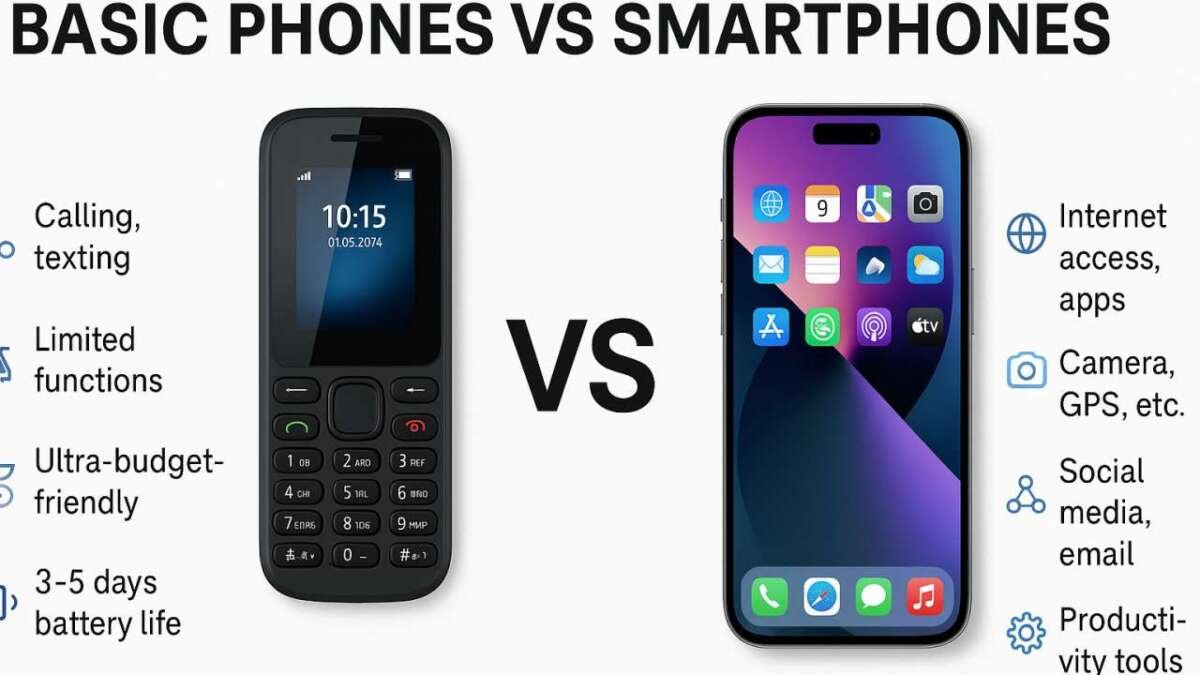
Smartphone Versus Basic Phone
The right choice depends on how much control and convenience you need.
| Need | Simplified smartphone | Traditional basic phone |
|---|---|---|
| Calls and texts | Strong | Strong |
| Internet access | Can be limited, but may remain | Usually limited |
| Maps | Usually available | Often limited or absent |
| Camera | Usually better | Often basic |
| Battery life | Moderate | Often longer |
| Distraction control | Depends on settings | Stronger by design |
| Accessibility tools | Usually more advanced | Varies |
| Setup time | Requires configuration | Usually simple |
| Emergency support | Depends on carrier and model | Depends on carrier and model |
| Cost | No new device if you own one | Requires buying another phone |
Choose a simplified smartphone if you need maps, accessibility tools, banking, authentication apps, or occasional internet access.
Choose a traditional basic phone if you want the fewest distractions and do not need smartphone apps.
Common Problems and How to Fix Them
Calls do not work
Check that:
- The phone has a working SIM or eSIM.
- Your mobile plan is active.
- Airplane mode is off.
- The phone supports your carrier’s current network.
- The phone has cellular signal.
- Call blocking or Focus mode is not hiding calls.
An older phone may not work on a modern US network. Before switching devices, check the carrier’s compatibility page using the exact model number.
Text messages are delayed
Text messages may fail because of weak signal, a carrier problem, blocked contacts, or a messaging setting. Restart the phone, check signal, and send a test message to someone nearby.
If you moved from an iPhone to Android, or from Android to iPhone, review iMessage or RCS settings. A previous messaging registration can affect delivery after a device change.
Important notifications disappear
Check Focus mode, Do Not Disturb, notification permissions, battery-saving settings, and app-specific alert controls. Add important contacts to the allowed list.
Do not assume that a loud ringtone means every message will appear. Calls, SMS, RCS, iMessage, and app alerts can have separate controls.
The phone is still too distracting
Reduce the number of visible apps again. Remove the browser, disable badges, use grayscale, and keep the phone away from your work or sleep area.
If you repeatedly bypass your own limits, a traditional basic phone may better match your goal. A setting cannot create a boundary that you are determined to remove.
You cannot find a setting
Search the Settings app for terms such as:
- Notifications
- Screen Time
- Digital Wellbeing
- Focus
- Accessibility
- App limits
- Parental controls
- Emergency alerts
Menu names differ between iPhone models, Android versions, and manufacturers. Use the support page for the exact phone model rather than following instructions for a different device.

Safety and Privacy Checklist
Before giving a simplified phone to a child, older adult, or person who may need help, check the following:
- Set a strong screen lock.
- Add emergency contacts.
- Test calling and texting.
- Confirm the phone’s battery condition.
- Keep software updates enabled when practical.
- Review location-sharing settings.
- Remove saved payment cards if they are not needed.
- Turn on Find My iPhone or Find My Device.
- Make sure the user knows how to call 911.
- Label the charger and keep it in a known place.
- Test the phone in the places where it will be used.
Do not share an Apple ID or Google Account password just to simplify setup. Account sharing can expose messages, photos, payment information, and location data.
If someone needs help managing the device, use built-in family or accessibility tools when possible. Give them only the access they need.
Frequently Asked Questions
Can I use an iPhone without a data plan?
You can use an iPhone on Wi-Fi without an active cellular plan for many tasks, such as taking photos, using downloaded apps, and making internet calls. You cannot rely on it for ordinary cellular calls and texts without compatible mobile service. Emergency calling behavior can vary, so do not treat a Wi-Fi-only iPhone as a full replacement for an active phone.
Can I turn an Android phone into a dumbphone?
Yes. Delete distracting apps, use a simple launcher or Easy mode when available, limit the browser, disable most notifications, and keep only essential apps on the Home Screen. Android menus differ by phone maker, so check the instructions for the exact model.
Can I use a smartphone only for calls and texts?
Yes. Keep the Phone, Contacts, and Messages apps, then remove or restrict other apps. You may also turn off Wi-Fi and mobile data, but this can affect emergency features, updates, maps, and some types of messaging.
Is a smartphone safer than a basic phone?
Neither type is automatically safer. A smartphone may offer better location tools, accessibility features, and emergency apps, but it also creates more privacy and distraction risks. The safer choice depends on the user, the carrier, the phone’s condition, and the settings.
Do I need to buy a new phone?
No. If your current phone works with your US carrier and has a healthy battery, you can usually simplify it without buying another device. Check carrier compatibility before using an older phone, especially if it was made for a different network or region.
Final Recommendation
You can use a smartphone as a basic phone by keeping calls, texts, contacts, and only the apps you truly need. Start by backing up the device, removing distractions, limiting notifications, and testing calls, messages, maps, and emergency access.
If you want occasional smartphone tools, this setup offers a practical middle ground. If you want a phone that resists browsing and app use by design, choose a traditional basic phone instead.

Everett Calloway is a consumer electronics writer and technology enthusiast at ElectroDoz. He enjoys exploring the latest gadgets, electronic devices, and innovative technologies that make everyday life easier. Everett focuses on creating helpful product reviews, detailed buying guides, practical how-to articles, and troubleshooting tips. His goal is to simplify complex technical information and help readers understand product features, compare their options, and make informed purchasing decisions. When he isn’t researching new electronics, he enjoys exploring emerging technology trends and discovering useful gadgets.