How to Activate Esim on Motorola Razr: Quick Guide
Unlocking the full potential of your Motorola Razr is just a few steps away. Imagine the convenience of ditching the physical SIM card and seamlessly switching networks with just a few taps.
That’s exactly what activating eSIM on your Motorola Razr can offer. But how do you do it, and why should you care? You’re about to discover the secret to making your mobile experience smoother and more flexible. Whether you’re a frequent traveler, a tech enthusiast, or someone who loves staying ahead of the curve, activating eSIM can be a game-changer.
This guide will walk you through the process, making it easy and straightforward. So, if you’re ready to enhance your smartphone experience and embrace the future of mobile technology, keep reading. Your Motorola Razr is about to get a major upgrade.
What Is Esim?
eSIM is a small chip inside your phone. It does not need a SIM card. It is already in the phone. You can use it to connect to mobile networks. eSIM is easy and fast. It helps you switch between networks. No need to change SIM cards. Motorola Razr supports eSIM. Many new phones have eSIM now. It is the future of mobile technology. eSIM is very helpful for travelers. You can use it in many countries. It saves space in the phone. It is safer than regular SIM cards.
Benefits Of Using Esim
eSIMs save spacein your phone. No need for physical SIM cards. They are built into your device. This means fewer parts to break. Switching carriers is easy. You can change plans without visiting a store. Just a few taps on your screen. Traveling abroad?Use an eSIM to get a local plan. Avoid high roaming charges. Keeping your main number active is possible with a second eSIM plan. Environmentally friendlytoo. Less plastic and waste from physical cards. This is a small step towards a greener planet.
Checking Esim Compatibility
The Motorola Razr must support eSIM technology. Check the device settings. Look for an eSIM option. Not all models have this feature. Ensure your phone is updated. Software updates can help. Sometimes features are added with updates.
Not all carriers support eSIM. Check with your carrier first. They must offer eSIM services. Some providers offer eSIM only in certain areas. Ask for details. Confirm if your plan is eligible. Some plans may not support eSIM.
Setting Up Esim On Motorola Razr
Find your phone’s settings icon. It looks like a gear. Tap on it. This opens the settings menu. Scroll down to find more options. Look for the network settings. You need this to set up eSIM.
Tap on Mobile Network. This opens network options. Choose SIM card settings. Look for eSIM option. Tap Add eSIM. Follow the instructions. Your phone guides you. Enter the eSIM details. These come from your provider.
Activating Esim
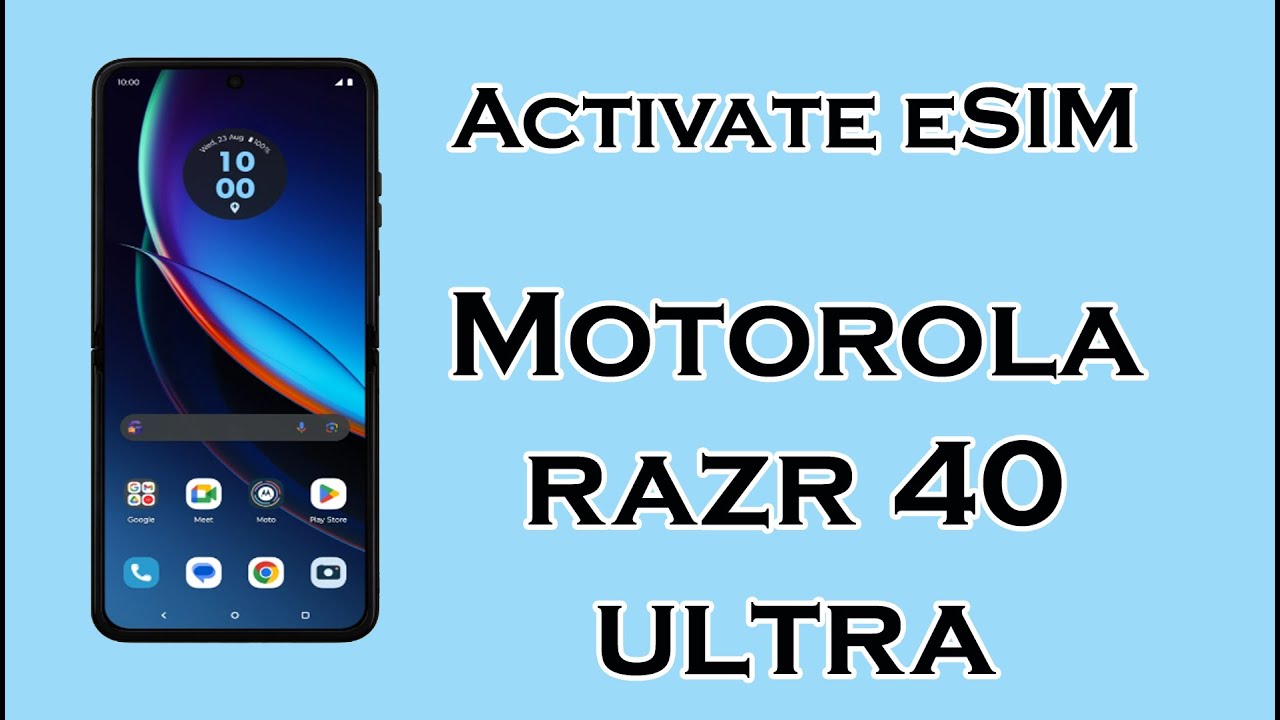
Find the QR codefrom your service provider. Open the Settingson your Motorola Razr. Tap on Network & Internet. Choose Mobile Network. Select Add Carrier. Scan the QR code using your phone’s camera. Wait for the system to read the code. Your eSIM will be added.
Go to Settingson your phone. Tap on Network & Internet. Select Mobile Network. Tap Add Carriermanually. Enter the activation codefrom your service provider. Follow the instructions on screen. Check your phone for a confirmation message. Your eSIM should now be active.
Credit: www.youtube.com
Troubleshooting Esim Activation
Common Issuescan happen during eSIM activation. Sometimes, the eSIM profile does not download. Check your internet connection first. A weak signal can stop downloads. Ensure the device has the latest software update. Updates fix many issues. Restarting the device often helps. A simple restart can solve many problems. If the eSIM still doesn’t work, try removing and reinstalling it. This process can refresh the connection. Make sure to enter correct information during setup. Incorrect details can lead to errors.
For further help, Contacting Supportis a good idea. Motorola support can assist with eSIM issues. They know the device well. Have your device details ready when calling. It helps the support team assist you quickly. They might ask for the IMEI number. The IMEI is on the box or in the phone settings. Be patient and follow their instructions. Support is there to help solve activation issues.
Switching Between Esim And Physical Sim
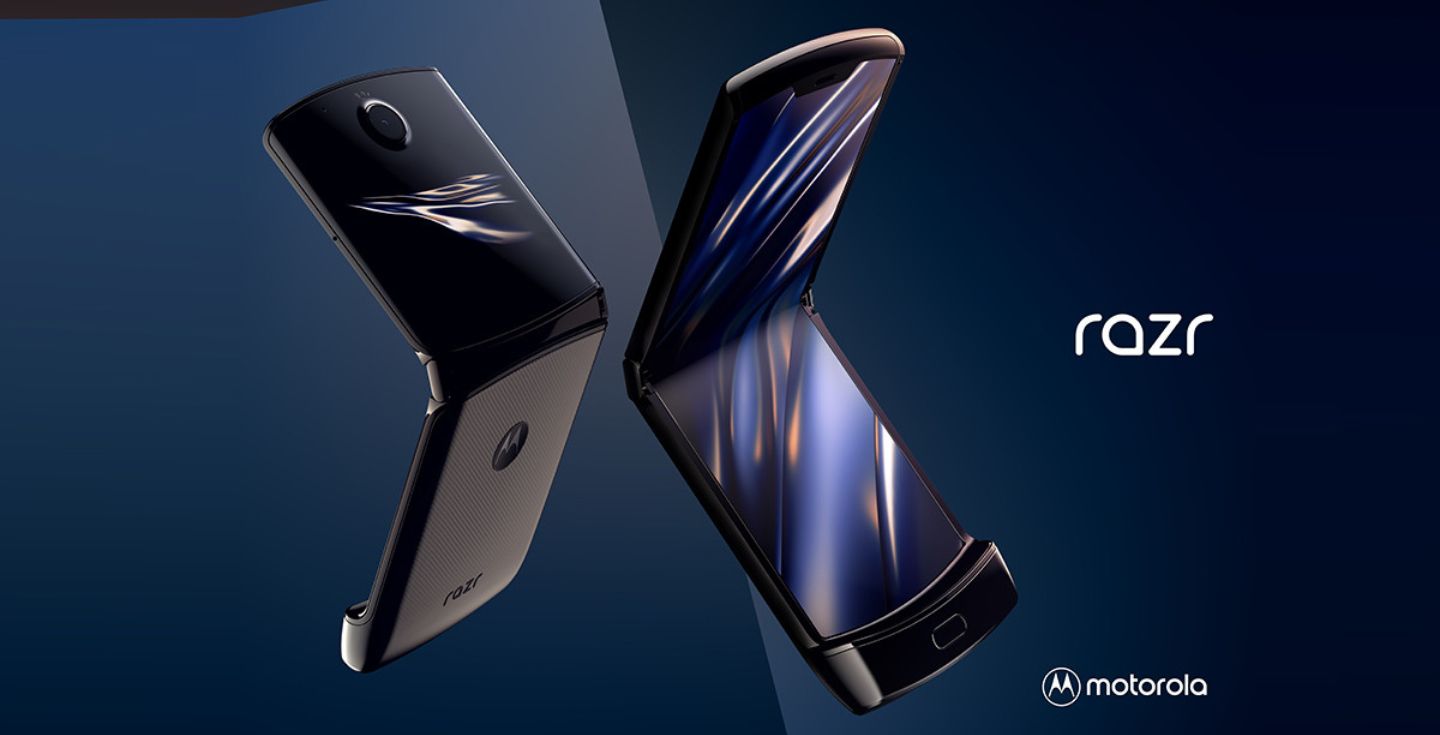
Motorola Razr makes switching SIMs easy. Users can choose between eSIM and physical SIM. Each type has its benefits. eSIM is digital and doesn’t need a card slot. Physical SIMs are traditional and fit into the phone’s slot. Switching is fast and simple.
Users go to settings. Tap on “Network & Internet.” Choose “Mobile Network.” Then tap “Advanced.” Select SIM type: eSIM or physical. Follow on-screen instructions. Switching takes seconds. It helps users stay connected.
Remember, eSIM offers flexibility. You can store multiple profiles. Physical SIMs provide reliability. They work without internet. Choose based on needs. Sometimes, eSIM is better. Other times, physical SIM is the choice.
Always check compatibility. Not all networks support eSIM. Some regions have restrictions. Confirm before switching. It ensures smooth usage.
Credit: esim.holafly.com
Managing Multiple Esim Profiles
Switch between different eSIM profileseasily. Choose your preferred profile in settings. Each profile has its own number. Useful for work and personal use. Keep contacts separate. Save time by having both profiles on one device.
Activate a new eSIM profile in minutes. Use the QR code provided by your carrier. Scan it with your phone’s camera. Follow simple on-screen instructions. Ensure your phone is connected to Wi-Fi. This allows quick activation.
| Step | Action |
|---|---|
| 1 | Open Settings |
| 2 | Select Mobile Network |
| 3 | Choose eSIM Profile |

Credit: www.youtube.com
Frequently Asked Questions
How Do I Set Up Esim On Motorola Razr?
To set up eSIM on your Motorola Razr, first ensure your device is unlocked. Go to Settings > Network & Internet > Mobile Network > Advanced > Carrier and tap Add Carrier. Scan the QR code provided by your carrier.
Follow the on-screen instructions to complete the activation process.
Can Motorola Razr Use Dual Sims With Esim?
Yes, Motorola Razr supports dual SIM functionality using eSIM and a physical SIM. You can manage both SIMs via the Mobile Network settings. This allows you to switch between two carriers or numbers easily, enhancing connectivity options and flexibility in usage.
What Carriers Support Esim On Motorola Razr?
Most major carriers support eSIM on Motorola Razr, including AT&T, T-Mobile, and Verizon. Ensure your carrier provides eSIM services and obtain a QR code for activation. Check compatibility with your specific Motorola Razr model and carrier plan before proceeding.
Is Esim Activation On Razr Free?
Activation of eSIM on Motorola Razr is generally free, but some carriers may charge a fee. Check with your carrier for any potential costs. Fees vary based on plan type and carrier policies. Always inquire about charges before proceeding with eSIM activation.
Conclusion
Activating eSIM on your Motorola Razr is straightforward. Follow the steps carefully. Ensure your device is compatible and connected to Wi-Fi. This process saves time and eliminates physical SIM hassle. Check your network provider’s instructions for specific details. Enjoy seamless connectivity without the need for a physical SIM card.
ESIM technology enhances flexibility and convenience. It suits travelers and tech enthusiasts alike. Keep exploring new features your Razr offers. Embrace the future of mobile technology with ease. Stay updated with the latest tech tips on eSIM usage. Your journey to digital connectivity starts here.

Marlowe Quinn is a technology writer at ElectroDoz, with expertise in smartphones, chargers, power banks, phone cases, selfie sticks, and other mobile accessories. Known for breaking down specs and features into easy-to-understand insights, Marlowe helps readers find the right gadgets to stay connected and powered up in their daily lives.