How to Transfer Videos from Camera to Phone: Quick Guide
Have you ever captured the perfect video on your camera, only to struggle with getting it onto your phone? Whether it’s a stunning sunset or a memorable event, you want to share these moments quickly and effortlessly.
Transferring videos from your camera to your phone shouldn’t be a hassle, and that’s exactly what we’re here to help you with. Imagine the ease of instantly accessing your videos right from your phone, ready to edit, share, or enjoy.
This guide will unlock the secrets to making video transfers a breeze, saving you time and frustration. Dive in to discover simple steps that will transform how you handle your cherished videos.
Credit: www.tiktok.com
Choosing The Right Tools
Cables are essential for connecting devices. You can use a USB cable to transfer videos. Check if your camera supports USB or HDMI outputs. Some phones need specific adapters. These adapters help connect different devices. Always choose the right adapter for your phone and camera. This makes video transfer easy.
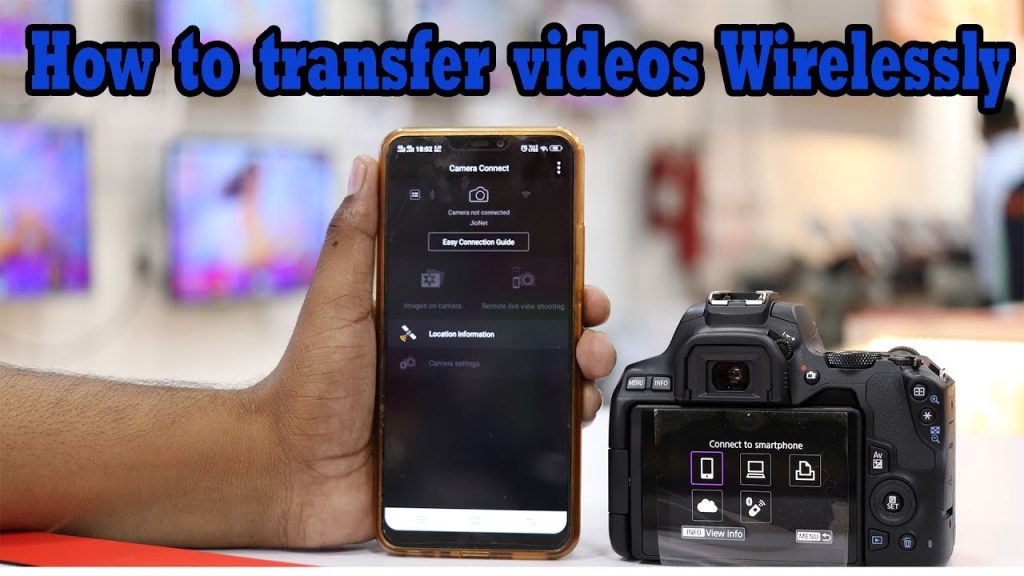
Some cameras have Bluetooth or Wi-Fi. These features help in wireless transfer. Install an app on your phone. This app connects with the camera. Follow app steps to send videos. Make sure both devices are on the same network. This ensures a smooth transfer. Wireless transfer is handy and quick.
Preparing Your Devices
Ensure your cameraand phone can connect easily. Check the types of portsavailable on both devices. Is there a USB or HDMI port? Some cameras use Wi-Fi or Bluetoothfor transferring videos. Make sure both devices support these connections. Always update your device softwarefor compatibility. This helps in smooth video transfer.
Check your phone’s storage spacebefore transferring videos. Videos can be large. They take up a lot of space. Delete old videos or apps you don’t need. This will free up space. Consider using an external storagelike a cloud service. It provides extra space for your videos. Keep your storage organized for easy access to new videos.
Using Usb Connections
First, find the correct USB cablefor your camera. Connect one end to the camera. Connect the other end to your phone. Your phone should show a message. It might say “USB connected” or similar. If not, check the cable. It might be broken.
Sometimes, the camera and phone don’t connect. This can be frustrating. Try a different cable. Or restart both devices. Still not working? Check the phone settings. Make sure USB options are set correctly. Also, look for updates. Both devices might need them.
Transferring Via Wi-fi
Wi-Fi makes video transfer easy. First, connect the camera to Wi-Fi. Check camera settings for Wi-Fi options. Follow the steps to connect. Use the camera screen to enter Wi-Fi password. Once connected, the camera is ready.
Camera apps help transfer videos. Download the app on your phone. Open the app and connect it to your camera. Follow instructions in the app. Choose videos you want to transfer. Tap the transfer button. Videos move from camera to phone.
Utilizing Cloud Services
Camera videos can be stored in the cloud. This keeps them safe. Find a cloud app on your camera. Open it and choose your video. Click the uploadbutton. Your video will upload to the cloud. Make sure your internet is strong. A weak connection can cause issues.
Videos in the cloud can be downloaded to your phone. Open the cloud app on your phone. Locate the video you want. Click the downloadbutton. The video will save on your phone. Check your phone’s storage space. Not enough space can stop downloads. Use Wi-Fi for faster downloads. It helps save data.
Credit: www.youtube.com
Exploring Third-party Apps
Many apps help move videos from camera to phone. Some apps are free, others need money. Google Photosis a popular choice. It saves videos in cloud. You can access them anytime.
Dropboxis another option. It makes sharing easy. Videos are safe and can be shared fast.
Send Anywhereworks well too. It sends videos quickly. You can use it on different devices.
Security is key when using apps. Strong passwords protect your videos. Always check app permissions. Some apps ask for too much access. Be careful with unknown apps.
Read reviews before downloading. Reviews tell if the app is safe. Secure apps keep your videos private.
Ensuring Video Quality
Keep video resolution high. Avoid changing settings during transfer. Use cables designed for video transfer. Wireless transfer can lower quality. Use apps that support original resolution.
Compression reduces quality. Select settings to avoid compression. Transfer directly from camera, not through third-party apps. Use storage with enough space. This keeps original quality intact.
Credit: www.reddit.com
Organizing Transferred Videos
Transferring videos from a camera to a phone can be simple with the right tools. Use a USB cable or wireless app to move files quickly. Organize transferred videos using folders on your phone for easy access and viewing.
Creating Folders
Organizing videos is fun. Create folders for different events. Name each folder clearly. For example, “Birthday Party” or “Vacation”. This helps find videos easily. Use dates for folder names too. It keeps everything in order. You can also delete unwanted videos. This saves space on your phone.
Using Tagging Systems
Tags are special labels. They help in finding videos fast. Use tags like “fun”, “family”, or “pets”. You can add many tags to a video. This makes searching easy. Tags keep everything neat. Remember to use simple words for tags. This way, everyone can understand.
Frequently Asked Questions
How Can I Transfer Videos Wirelessly?
You can transfer videos wirelessly using Wi-Fi Direct, Bluetooth, or specific apps like Google Photos. Ensure both devices are connected to the same network. Use the camera’s sharing feature or a compatible app on your phone. This method is convenient and eliminates the need for cables.
What Cables Are Needed For Video Transfer?
To transfer videos, you’ll need a USB or HDMI cable, depending on your camera model. Connect the camera to your phone using an adapter if necessary. Ensure compatibility with your devices. This wired method is reliable for quick transfers without the need for internet access.
Can I Use A Memory Card For Transfer?
Yes, you can transfer videos using a memory card. Remove the card from your camera and insert it into your phone using an adapter. Ensure your phone supports the card type. This method is efficient and doesn’t require any cables or internet connection.
Are There Apps For Video Transfer?
Yes, several apps facilitate video transfer from camera to phone. Apps like Google Photos, Dropbox, and Canon Camera Connect allow easy wireless transfer. Install the app on your phone and follow the instructions. These apps often offer additional features like cloud storage and editing.
Conclusion
Transferring videos to your phone doesn’t have to be difficult. With the right steps, it becomes straightforward. First, gather the necessary tools. Then, choose the best method for your needs. Options include using cables, Wi-Fi, or apps. Each method offers its own advantages.
After transferring, check the videos for quality. Ensure they play smoothly on your phone. Practice makes perfect. Repeat the process to become more confident. Soon, you’ll handle video transfers with ease. Enjoy watching your videos anytime, anywhere. Stay organized by labeling files clearly.
This keeps your phone tidy and efficient. Happy transferring!

Callen Ridgeway is a senior writer at ElectroDoz, where he shares his expertise on the latest in drones, webcams, cameras, and a wide range of cutting-edge electronic devices. With a passion for exploring emerging tech and breaking it down into practical insights, Callen helps readers make smarter choices when it comes to gadgets and gear. When he’s not testing the newest electronics, he’s busy keeping up with the innovations shaping the future of consumer technology.