How to Connect Phone to RCA Projector: Easy Guide
You just bought a brand-new RCA projector, and you can already imagine watching your favorite movies or giving that impressive presentation. But there’s one hurdle you need to overcome first: connecting your phone to your projector.
Imagine transforming your living room into a mini-theater or wowing your colleagues with a seamless slideshow. This isn’t just about connecting devices; it’s about unlocking endless possibilities right at your fingertips. In this guide, you’ll discover step-by-step instructions that will make the process easy and stress-free.
So, get ready to dive in and turn your phone’s content into a larger-than-life experience on your RCA projector. You won’t want to miss out on these simple yet powerful tips.

Credit: www.openaircinema.us
Understanding Rca Projectors
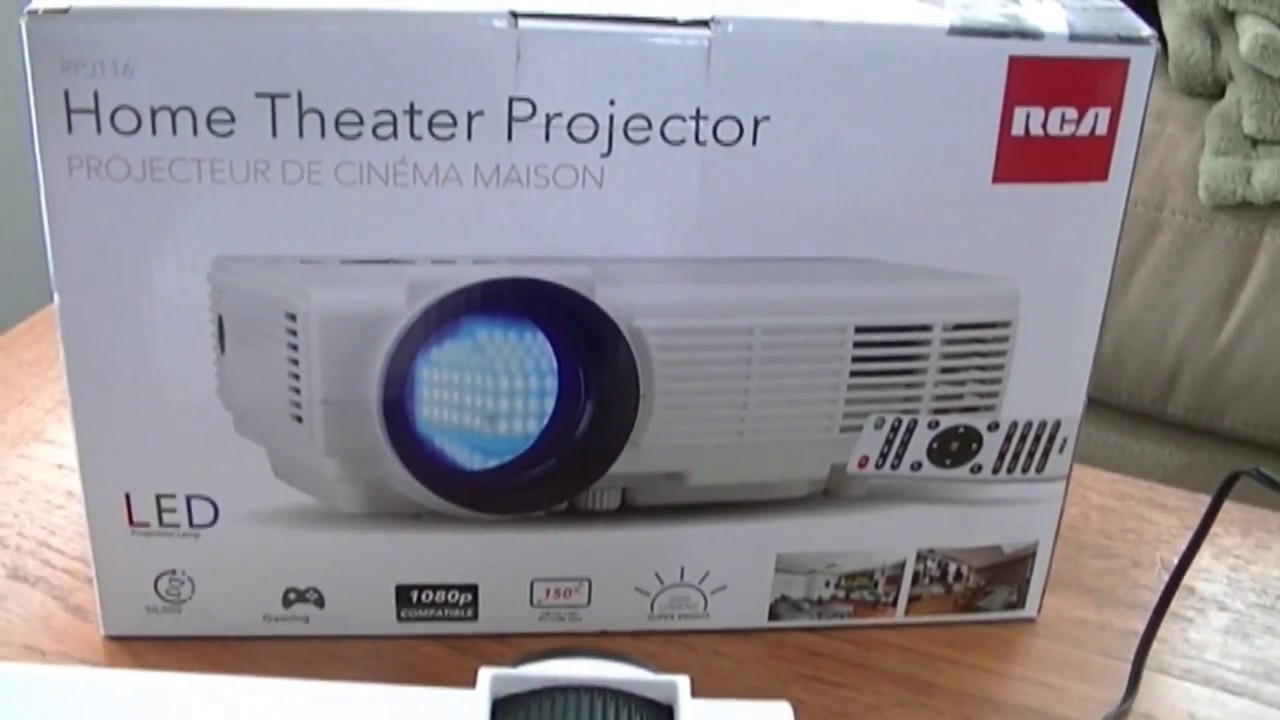
RCA projectors are known for their simple design. They often have multiple input options for easy connection. Common inputs include HDMI, VGA, and USB ports. These projectors offer clear picture quality. They also have adjustable settings for brightness and contrast. Many models are compact and lightweight. This makes them easy to move around. Some even have built-in speakers for sound.
People use RCA projectors for movie nights at home. They are great for presentations at school or work. Many enjoy them for gaming on a big screen. Projectors are also popular for outdoor events. They can display photos during family gatherings. Some use them for sports events with friends. Their versatility makes them a popular choice.
Choosing The Right Cables
To connect your phone, use an HDMI to RCA cable. This cable helps send video signals. You need an adapter to make it work. Adapters change HDMI signals to RCA. This is important for older projectors. Make sure your adapter matches your phone.
VGA to RCA cables are another choice. These cables send video from devices. They are good for computers. But phones need an extra adapter. Check if your phone can use VGA. Some phones might not support it.
RCA Composite cables have three colors: red, yellow, and white. Each color has a job. Yellow sends video. Red and white send sound. They are easy to use. Plug them into the right spots. Your phone may need an adapter too.
Connecting Via Wired Options
Many phones use HDMI adapters to connect. First, check your phone’s port. Some phones need a special adapter. Plug the adapter into your phone. Then, connect the HDMI cable to the projector. This way, your phone shows on a big screen. Always ensure the cables are tight. Loose cables can cause issues.
USB-C is common in newer phones. It can connect directly. First, find a USB-C to HDMI adapter. Plug it into your phone. Connect the HDMI end to the projector. This method is easy and quick. Make sure your phone supports video output. Some models may need extra apps.
AV cables are another way. These cables have three colors: red, white, and yellow. Plug them into the projector’s matching ports. Use an adapter for your phone. This option is good for older projectors. It sends both sound and video. Check connections twice for best results.

Credit: www.tiktok.com
Wireless Connection Methods
Connecting your phone to an RCA projector wirelessly involves using options like Bluetooth or Wi-Fi. Utilize screen mirroring features available on many smartphones for seamless projection. Ensure compatibility between devices for a smooth connection experience.
Using Screen Mirroring
Screen mirroring lets your phone show its screen on the projector. Most smartphones have this feature in settings. Find “screen mirroring” or “cast” options. Make sure your projector supports this feature. Connect both devices to the same Wi-Fi network. Follow the prompts on your phone to start mirroring. It’s simple and quick.
Bluetooth Connectivity
Bluetooth can connect your phone to the projector without wires. Ensure both devices have Bluetooth turned on. Pair your phone with the projector. Check the projector’s manual for exact steps. Bluetooth may not support video streaming. It’s great for audio connections. Verify compatibility for best results.
Wi-fi Projector Options
Wi-Fi projectors offer easy connection. They use your home network. Access the projector’s menu to connect it to Wi-Fi. Use your phone’s Wi-Fi settings to link it to the projector. Some projectors have apps for seamless connection. Apps enhance functionality. Check the app store for compatible ones.
Setting Up Phone For Projection
Ensure your phone is ready for projection. Go to settings and check display options. Enable screen sharing or mirroring feature. Your phone must have enough batteryfor the session. Avoid background apps that use too much power. Connect your phone to Wi-Fi for a stable connection.
Turn on the RCA projector. Make sure the input source matches your phone’s connection type. HDMI or USB is common. Adjust projector focus for a clear image. Set brightness to suitable levels. Use remote control for easy settings change. Check audio settings for good sound quality.
Connect your phone to the projector using the right cable. Check both devices for any connection errors. Display a test image or video from your phone. Ensure the image is visible and clear. Adjust settings if the image or sound is not right. Ask someone to help if needed.
Troubleshooting Common Issues
Connecting your phone to an RCA projector can sometimes be tricky. Ensure your phone supports HDMI or USB connection, then use a compatible adapter. Check projector settings for correct input source to display your phone’s screen effectively.
No Signal Detected
Ensure the phone and projector are properly connected. Check all cables and adapters. They should be tightly plugged in. Also, verify the correct input source on the projector. Some projectors have many input options. Switch through them to find the right one. Restart both devices to refresh connections. This often solves the problem.
Audio Playback Problems
First, check the volume on both devices. Ensure neither is muted. Try using external speakers if audio is still an issue. Connect them directly to the projector. Sometimes, the phone’s audio settings need adjustments. Look into the audio output settings on the phone. Select the right output option.
Image Quality Concerns
Adjust the focus ring on the projector. This helps sharpen the image. Make sure the projector is at the right distance from the screen. Too close or too far affects clarity. Also, clean the projector lens. Dust can blur the image. Finally, check the phone’s video quality settings. Higher quality improves image clarity.
Tips For Optimal Performance
Use a clean, white wall or screen. This helps the image look clear. Adjust the focus on the projector. Make sure it’s sharp. Keep the room dark. Bright rooms make images hard to see. Place the projector at the right distance. Check the manual for help.
Connect external speakers. They make sound better. Check the volume settings on your phone and projector. Keep them balanced. Use good quality cables. Cheap ones might break. Place speakers near the audience. This helps everyone hear well.
Dust the projector often. Dust can block the lens. Store it in a cool, dry place. Heat can damage parts. Use a case when moving. This keeps it safe. Check cables for wear. Replace if they look old. Always switch off when not in use.
Credit: www.youtube.com
Frequently Asked Questions
How Do I Connect My Phone To An Rca Projector?
To connect your phone to an RCA projector, use an HDMI adapter. Connect the adapter to your phone and the projector. Ensure both devices are powered on. Switch the projector input to HDMI. Your phone’s screen should now be mirrored on the projector.
Can I Use Bluetooth To Connect To Rca Projector?
Most RCA projectors do not support Bluetooth connections for video. You can use Bluetooth for audio with compatible speakers. For video, use HDMI, USB-C, or a wireless screen mirroring option like Chromecast. Check your projector’s manual for specific compatibility.
What Cables Do I Need For Rca Projector?
For an RCA projector, you typically need an HDMI or USB-C cable. These cables connect your phone to the projector. Alternatively, you can use a Lightning to HDMI adapter for iPhones. Ensure the cables are compatible with both your phone and the projector.
Is There An App For Rca Projector Connection?
RCA projectors do not usually have a dedicated app. Use screen mirroring apps like Chromecast or AirPlay for wireless connections. Check your projector’s manual for compatible apps. These apps help in connecting your phone wirelessly, enhancing user experience.
Conclusion
Connecting your phone to an RCA projector is simple. Follow the steps carefully. Ensure compatibility with cables and ports. Check your phone settings for display options. Adjust projector settings for optimal viewing. Enjoy your favorite content on the big screen.
Troubleshoot if needed by checking connections. Make sure devices are charged and ready. Use the projector’s manual for guidance. Experiment with different apps for streaming. Remember, practice makes perfect. Soon, you’ll be a pro at this setup. Share this knowledge with friends and family.
Happy projecting!

Everett Ashford is an electrical engineer and expert in electronics reviews, tips, and troubleshooting. Specializing in audio and sound devices, including earbuds, AirPods, and headphones, he brings in-depth knowledge and practical advice to help consumers make informed decisions.