How to Download Apps to Fire Tv Stick: Quick Guide
If you own a Fire TV Stick, you know how amazing it is to have your favorite shows and movies just a click away. But did you know you can unlock even more potential by downloading apps directly onto your device?
Imagine transforming your TV into a hub of entertainment, productivity, and fun, tailored just for you. Whether you’re looking to stream, game, or explore new services, downloading apps can elevate your viewing experience to the next level. You might be wondering how to get started, and the good news is—it’s easier than you think.
In this guide, we’ll walk you through every step, ensuring you can quickly and confidently load your Fire TV Stick with the apps you love. Don’t miss out on the opportunity to make your streaming device truly your own!
Setting Up Your Fire Tv Stick
Plug the Fire TV Stick into your TV’s HDMI port. Use the power adapter to connect the stick to a power source. Turn on your TV and select the right HDMI input. A welcome screen will appear.
Select your Wi-Fi network from the list. Enter the password using the on-screen keyboard. Make sure you type it correctly. Wait for the Fire TV Stick to connect.
Enter your Amazon account details. Type your email and password carefully. If you don’t have an account, create one now. Follow the on-screen steps to finish the sign-in process.
Credit: www.androidauthority.com
Accessing The App Store
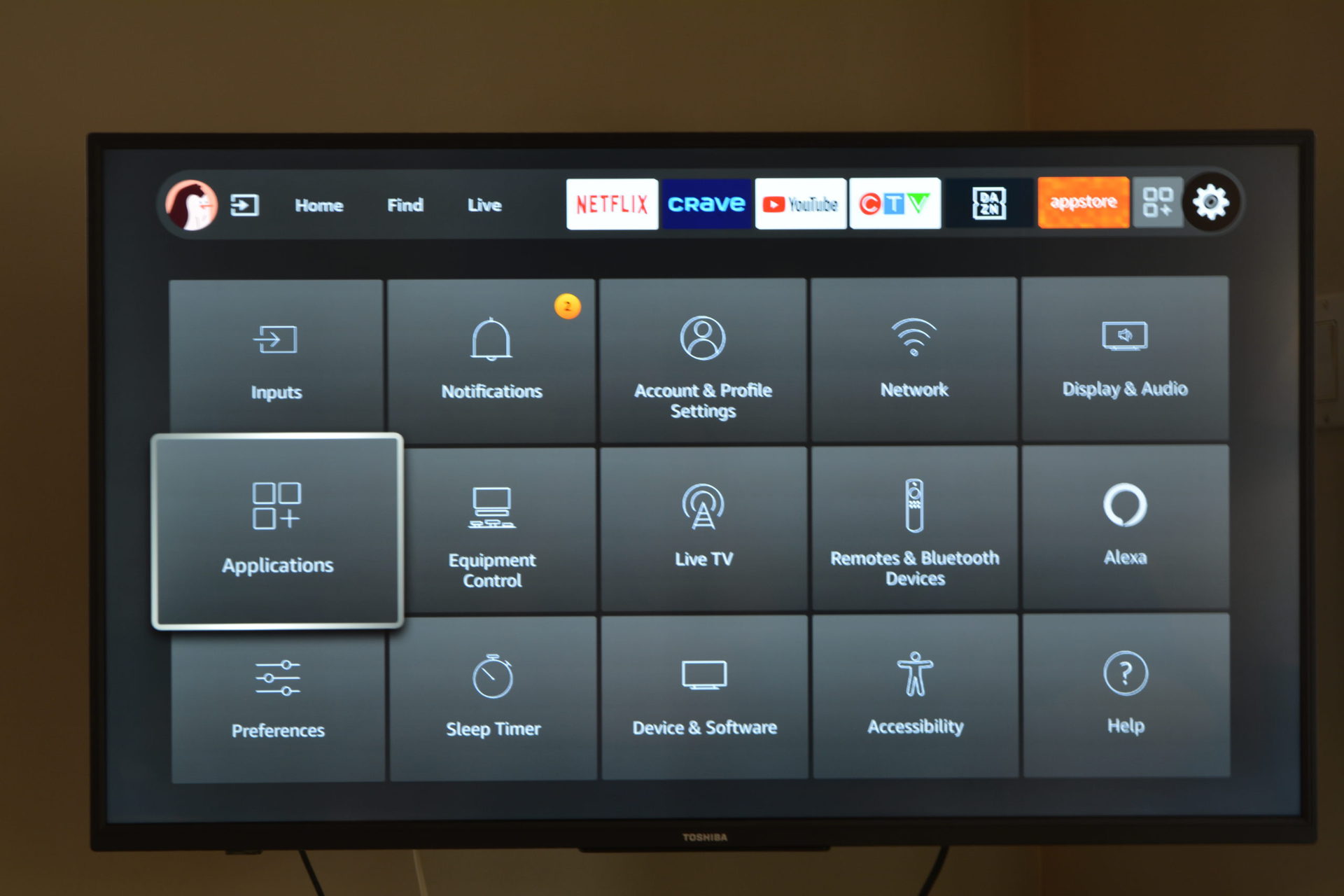
Start by turning on your Fire TV Stick. The Home Screen appears first. Use the remote to go through the options. Find the Apps icon. It looks like a square with a plus. This icon leads you to the App Store.
Click the Apps icon to open the App Store. This is where you find many apps. Use the remote to browse. You can see categories like games, movies, and music. Each category has different apps. Pick a category to see more choices. If you know the app name, use the search function. Type the app name to find it fast.
Searching For Apps
Press the Home button on your Fire TV remote. Find the magnifying glass icon. This is the search function. Type the name of the app you want. The screen will show results. Select the app you need. Click the Download button. Wait for the app to install. After installation, open the app. Use the app on your Fire TV Stick.
Navigate to the Apps section on the home screen. Browse through different categories. Look for categories like Movies, Games, Music. Select a category to see apps. View apps in that category. Choose an app you like. Press the Download button. Wait while the app installs. Open the app once installed. Enjoy using the app on your Fire TV Stick.
:max_bytes(150000):strip_icc()/vlcsnap-2018-11-19-12h36m06s339-5bf30349c9e77c005147d6b2.png)
Credit: www.lifewire.com
Downloading Apps
Begin by accessing the main menu on your Fire TV Stick. Use the remote to navigate to the App Store. Here, you can find many apps. Look for the search barat the top. Type the name of the app you want. Suggestions will appear instantly. Choose your app from the list. Ensure your app is compatible with Fire TV Stick.
Once you select the app, find the Downloadbutton. Click on it to start the installation. Wait patiently as the app downloads. Installation begins automatically after downloading. You will see a progress bar during this time. When complete, the app is ready to use. Check your apps sectionfor the newly installed app. Open it and enjoy your new features.
Managing Installed Apps
Discover how to easily download apps to your Fire TV Stick. Start by accessing the Amazon Appstore on your device. Then, search for your desired app and select “Get” to install it instantly. Enjoy seamless streaming and entertainment with your favorite applications.
Viewing Your Apps
To see all your apps, press the home button on the remote. Navigate to the “Apps” section. Here, you can view every app installed. Scroll through the list to find your apps. Use the search option for faster access. Some apps might be hidden. These can be found under “Hidden Apps” in settings. Make sure to check if updates are available. Updated apps perform better and fix bugs. Regular checks ensure you do not miss new features.
Uninstalling Unwanted Apps
Removing apps is easy. First, go to the “Settings” menu. Select “Applications” from the list. Choose “Manage Installed Applications.” Find the app you want to remove. Click on the app and select “Uninstall.” Confirm your choice. This will free up space on the device. Uninstalling unused apps helps in better performance. You can always reinstall them later if needed. Ensure to uninstall apps you no longer use. This keeps your device clean and fast.
Troubleshooting Common Issues
Sometimes, apps fail to download. This can be frustrating. First, check the internet connection. A weak signal can cause problems. Restart the router if needed. Ensure the Fire TV Stick is connected properly. Also, check if there is enough storage space. Clear some space if necessary. Finally, restart the device. This can fix many issues.
Installation issues can happen. First, ensure the app is compatible. Not all apps work on all devices. Next, clear the cache on the Fire TV Stick. This can help with glitches. Go to settings and find the app. Select clear cache to do this. Also, try reinstalling the app. This can solve many problems. If all fails, contact customer support. They can offer more help.

Credit: www.amazon.com
Frequently Asked Questions
How Do I Install Apps On Fire Tv Stick?
To install apps, use the Fire TV Stick remote. Navigate to the home screen and select “Apps. ” Browse or search for the app you want. Click “Download” or “Get” and the app will automatically install. Access it through the “Your Apps & Channels” section.
Can I Download Apps Without Amazon Account?
An Amazon account is required to download apps on Fire TV Stick. Sign in with your Amazon credentials to access and download apps. Without an account, you won’t be able to utilize the Appstore or manage app installations effectively.
Are All Apps Free On Fire Tv Stick?
Not all apps are free on Fire TV Stick. While many apps are free, some require a purchase or subscription. Check the app details in the Amazon Appstore for pricing and subscription options before downloading.
How Do I Update Apps On Fire Tv Stick?
To update apps, go to the home screen and select “Settings. ” Click on “Applications” and then “Manage Installed Applications. ” Select the app you want to update and click “Update. ” Ensure your Fire TV Stick is connected to the internet.
Conclusion
Downloading apps to your Fire TV Stick is simple. Follow the steps outlined above to enhance your streaming experience. The Amazon Appstore provides a vast selection of applications. Explore different categories to find apps that suit your needs. Remember to keep your device updated for the best performance.
Enjoy your favorite shows and movies with ease. A well-managed Fire TV Stick offers endless entertainment options. Make the most of your device by installing useful apps. With a few clicks, you can access a world of content. Your streaming adventure awaits!

Everett Ashford is an electrical engineer and expert in electronics reviews, tips, and troubleshooting. Specializing in audio and sound devices, including earbuds, AirPods, and headphones, he brings in-depth knowledge and practical advice to help consumers make informed decisions.