How to Connect Fire Stick Remote to TV: Easy Guide
Struggling to connect your Fire Stick remote to your TV? You’re not alone.
Many users find this process confusing, but it doesn’t have to be. Imagine the ease and convenience of navigating your favorite shows and apps with just a few simple clicks. Sounds great, right? The good news is, getting your remote connected is easier than you think.
In this guide, we’re going to simplify the process for you, step by step. Picture yourself sitting back, remote in hand, ready to dive into your favorite content without a hitch. Stick around, because by the end of this article, you’ll have all the knowledge you need to connect your Fire Stick remote quickly and effortlessly.

Credit: www.youtube.com
Checking Compatibility
Make sure the Fire Stick remote works with your TV. Most TVs with HDMI ports are compatible. Check if your TV has an available HDMI slot. If your TV is older, it might not have HDMI. In that case, consider using an adapter. The adapter can connect HDMI to other types of ports. Also, ensure the remote is paired with the Fire Stick. If not, follow the pairing steps. This helps ensure the remote can control the TV. Batteries in the remote should be fresh. Weak batteries can cause the remote to not work. Always check these points before proceeding. Proper compatibility is key for a smooth setup.
Credit: kb.nex-tech.com
Installing Batteries
First, find the back cover of your remote. Slide it open gently. You will see two slots for batteries. Use AAA batteries. These are the right size for your remote. Place the batteries in the slots. Make sure the plus (+) and minus (-)signs match. This is important for the remote to work. Once done, slide the cover back until it clicks. Now your remote is ready to connect to the TV.
If the remote doesn’t work, check the batteries again. They might be low on power. Replace them with new ones if needed. Always keep extra batteries at home. This ensures your remote works smoothly.
Powering On The Fire Stick
First, connect the Fire Stick to the TV’s HDMI port. Use the TV remote to switch to the correct HDMI input. Plug the power cable into the Fire Stick. Connect the other end to a power outlet. Look for a small light on the Fire Stick. This tells you it is on. The TV screen will show the Fire Stick logo. Wait for it to load. The process takes a few minutes. If the screen stays blank, check the connections. Make sure everything is plugged in tightly.
Pairing The Remote
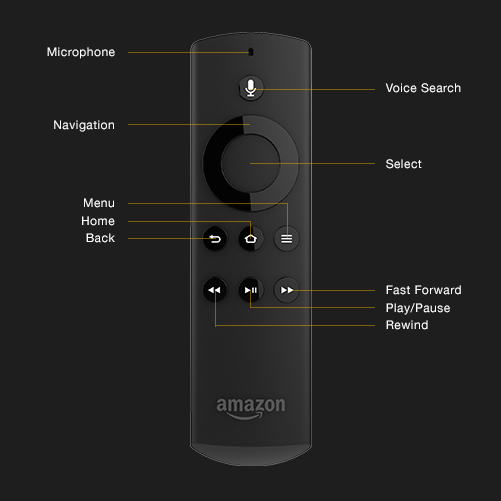
Fire Stick remotes often pair automatically. First, plug in the Fire Stick. Then, turn on the TV. Wait for the home screen to appear. Hold the Home button on the remote. Keep holding for ten seconds. The remote should connect. If not, repeat these steps. Sometimes, batteries are weak. Replace them if needed. This might solve the problem. Automatic pairing is simple. It saves time.
Manual pairing is easy. Start with turning on the TV. Plug in the Fire Stick. Go to the settings menu. Select Controllers and Bluetooth Devices. Then, choose Amazon Fire TV Remotes. Click Add New Remote. Press the Home button. Hold it for ten seconds. The TV should detect the remote. Follow the screen instructions. Sometimes, it takes a few tries.
Troubleshooting Connectivity Issues
First, check the batteries in your remote. They might be dead. Replace them with new ones. Ensure they are inserted correctly. Sometimes, a quick reboot of your Fire Stick helps. Unplug it from the power, then plug it back. Wait a few seconds. Try using the remote again.
If still not working, try pairing the remote again. Press the Home button for 10 seconds. Your remote should connect now. If not, there might be other issues.
Other devices can cause interference with your remote. Move any electronics away from your TV. Even walls can block the signal. Keep the path clear. Your remote needs a clear line to the Fire Stick. Wi-Fi routers might also cause trouble. Try moving the router away. This helps the remote work better.

Credit: www.wikihow.com
Using The Fire Tv App As An Alternative
The Fire TV app can be a great choice. It works just like a remote. First, download the app on your phone. Use the app store for this. Then open the app and sign in. Make sure your phone and TV use the same Wi-Fi. This is very important. The app will search for your Fire TV. Tap on your device’s name once you see it. Now, you can use your phone as a remote. Easy, right? This method is good if your remote is lost or broken.
Updating The Fire Stick
Make sure your Fire Stick is connected to the internet. Go to the settings menuon the home screen. Choose “My Fire TV” from the list. Look for the “About” option and click on it. Select “Check for Updates” to see if updates are available. Always keep your device updated for the best performance.
If an update is available, select “Install Update”. Your device will start downloading the update. This process might take a few minutes. Once downloaded, the installation will begin automatically. During this time, do not turn off the device. Your Fire Stick will restart after the update is complete. Enjoy your updated device!
Additional Tips For Smooth Operation
Keep your remote clean and safe. Dust can block buttons. Use a soft cloth to wipe it. Change batteries when needed. This ensures the remote works well. Store it in a safe spot. Avoid dropping or hitting it. Protect it from water and heat. These actions keep your remote strong and reliable. Always handle it with care.
Restart your Fire Stick often. This keeps it running smoothly. Check for updates regularly. Updates fix bugs and add features. Use a good Wi-Fi connection. A strong signal helps streaming. Clear cache sometimes. This frees up space and speeds up your device. Avoid too many apps. They slow down your Fire Stick. Keep things simple for best performance.
Frequently Asked Questions
How Do I Pair My Fire Stick Remote?
To pair your Fire Stick remote, insert batteries and press the Home button for 10 seconds. Your TV should display a message confirming the pairing. If it doesn’t work, try restarting the Fire Stick and repeat the process.
Why Isn’t My Fire Stick Remote Working?
Your Fire Stick remote might not work due to dead batteries, interference, or pairing issues. Replace the batteries and ensure no obstructions between the remote and TV. If it still doesn’t work, try re-pairing the remote or resetting the Fire Stick.
Can I Use A Fire Stick Without A Remote?
Yes, you can use a Fire Stick without a remote. Download the Amazon Fire TV app on your smartphone. Connect your phone and Fire Stick to the same Wi-Fi network. Use the app to control your Fire Stick.
How To Reset Fire Stick Remote?
To reset the Fire Stick remote, remove the batteries and unplug the Fire Stick. Wait for 60 seconds, then plug it back in. Insert the batteries and hold the Home button for 10 seconds to re-pair.
Conclusion
Connecting your Fire Stick remote to your TV is simple. Just follow the steps. Start by checking battery life. Ensure your remote is powered. Next, use the pairing button. Press and hold to connect. Wait for the TV screen confirmation.
If issues arise, restart devices. That often solves problems. Remember, keep your remote updated. Regular updates improve performance. With these tips, enjoy smooth streaming. No more remote troubles. Now, relax and explore endless entertainment options. Your Fire Stick remote is ready.
Enjoy the convenience and ease of use. Happy streaming!

Everett Ashford is an electrical engineer and expert in electronics reviews, tips, and troubleshooting. Specializing in audio and sound devices, including earbuds, AirPods, and headphones, he brings in-depth knowledge and practical advice to help consumers make informed decisions.