How to Restore a Fitbit to Factory Settings: Easy Guide
Imagine your Fitbit as a trusty companion, always there to track your steps, heart rate, and more. But what happens when it starts acting up or you simply want a fresh start?
That’s where restoring your Fitbit to factory settings comes in. By doing this, you can clear out any glitches and return your device to its original state. This process is surprisingly simple, and with just a few easy steps, you can have your Fitbit working like new again.
But why should you care? Because getting your Fitbit back on track means a smoother, more reliable experience in achieving your fitness goals. Whether you’re troubleshooting issues or preparing to pass your device on to someone else, understanding how to reset it can save you time and frustration. Dive into the rest of this article to discover the step-by-step guide that will empower you to take control of your Fitbit, ensuring it serves you well on your health journey. Don’t miss out on the tips and insights that can make all the difference!
Reasons To Reset Your Fitbit
A reset can fix many problems with your Fitbit. It helps when the device isn’t working right. Sometimes the Fitbit stops tracking steps. Or maybe it won’t sync with your phone. A reset can solve these issues.
Resetting is also good when selling your Fitbit. This clears all your personal data. It makes the device safe for a new owner. Finally, a reset is useful if your Fitbit is slow. It can help the device run smoothly again.

Credit: www.youtube.com
Preparing For Factory Reset
Always keep your Fitbit data safe. Use the Fitbit app to backup your steps and health info. Sync your Fitbit with the app regularly. This will save your data in the cloud. You won’t lose important data after a reset. Backup is easy and quick.
A fully charged Fitbit is ready for reset. Plug your Fitbit into its charger. Ensure it has enough battery power. A reset needs battery to complete. Without charge, it might stop halfway. Charging takes a short time. The device will work better after reset.
Factory Reset Methods
Open your Fitbit device settings. Find the reset option. Click on it. Your Fitbit will start the reset process. This will erase all data. Your device will be like new. Make sure to back up your data first. You don’t want to lose important info.
Open the Fitbit app on your phone. Go to the account section. Choose your device. Look for the factory reset option. Click to start the reset. All device data will be erased. Your Fitbit will return to factory settings. You might need to set up your device again.
Visit the Fitbit website. Log into your account. Find your device settings. Look for the reset option. Click to restore your device. This deletes all data. Your Fitbit will be reset to original settings. Backup your information to avoid losing it.

Credit: community.fitbit.com
Troubleshooting Common Issues
Sometimes, a Fitbit won’t work. First, try to restart the device. Hold the button until the screen turns off. Release the button and wait. If the screen stays blank, connect the charger. Check if the device turns on. If not, try again after a few minutes. This simple step often fixes the problem. If it doesn’t, contact Fitbit support.
Data might not erase. Make sure you follow the steps. Go to settings. Select Factory Reset. Confirm your choice. If data remains, try again. Ensure the device is charged. Sometimes, a low battery can cause issues. If problems continue, seek help from Fitbit support. They can guide you further.
Post-reset Steps
Open the Fitbit app on your phone. Make sure Bluetooth is on. Tap Set Up a Device. Choose your Fitbit model. Follow the steps on screen. It will connect. Very easy!
Check your phone’s Wi-Fi and data settings. Open the Fitbit app. Tap Sync Now. Wait a few seconds. Data will sync from Fitbit to app. Keep phone close to Fitbit.
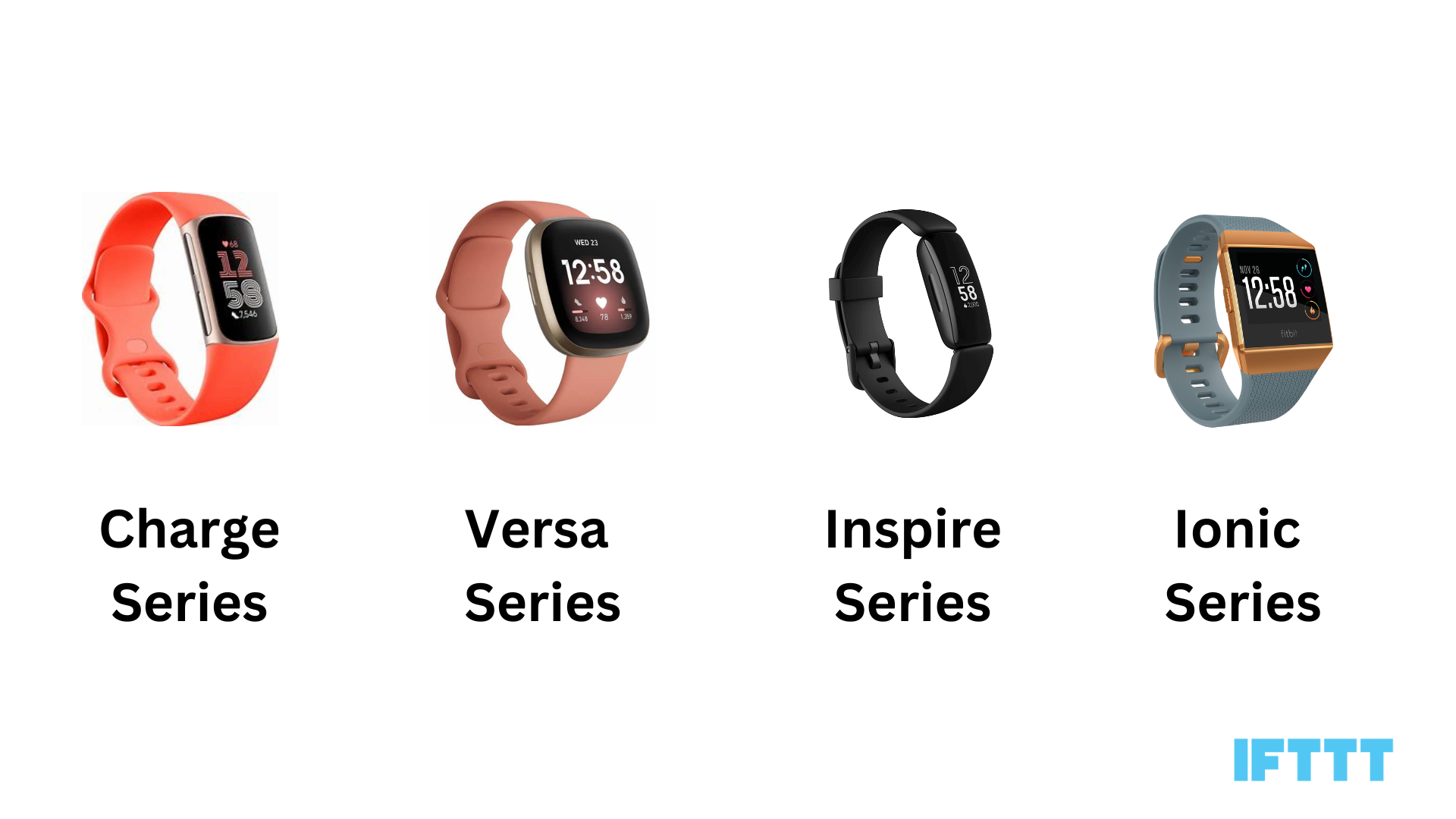
Tap the gear icon in the app. Find settings for notifications. Change clock face and alarms. Choose fitness goals. Personalize your Fitbit to match your needs. Save changes!
Credit: ifttt.com
Frequently Asked Questions
How Do I Factory Reset My Fitbit?
To factory reset your Fitbit, go to the Settings app on your device. Scroll down to “About” and select “Factory Reset. ” Confirm your choice. This will erase all your data and return the Fitbit to its original state, making it like new again.
Will Factory Resetting My Fitbit Delete Everything?
Yes, a factory reset will delete all your data, including apps and settings. It returns your Fitbit to its original state. Make sure to sync your data with your Fitbit account before proceeding. This ensures you have a backup of your important information.
Can I Reset My Fitbit Without The App?
Yes, you can reset your Fitbit without using the app. Go to the Settings on your Fitbit device. Navigate to “About” and select “Factory Reset. ” Confirm the reset to erase all data and settings. This process is done directly on the device.
Why Is My Fitbit Not Resetting?
If your Fitbit isn’t resetting, ensure it’s charged and functioning correctly. Try restarting your device by holding the button for 10 seconds. If issues persist, consult Fitbit support or the user manual for further troubleshooting steps and assistance.
Conclusion
Restoring your Fitbit to factory settings is simple and effective. It helps solve many performance issues. Follow the steps carefully for a smooth reset process. Always back up important data before resetting. This ensures no loss of valuable information. A factory reset can breathe new life into your Fitbit.
Your device will function like new again. These tips can help keep your Fitbit running smoothly. Enjoy a refreshed and efficient fitness tracker experience. Stay active and enjoy your health journey with a reliable Fitbit.

Finnian Delaney is a seasoned writer and editor specializing in technology and electronics. At ElectroDoz, he covers a wide range of topics, with a focus on MacBooks, laptops, fitness trackers, keyboards, and computer hardware. With a knack for making complex tech accessible, Finnian helps readers stay informed and confident when choosing their next device or upgrade.