How to Split Screen on Google Pixel: Master Multitasking
Ever found yourself juggling between multiple apps on your Google Pixel and wished there was an easier way to multitask? The good news is, you can boost your productivity and save time by using the split screen feature on your device.
Imagine watching a video on YouTube while replying to an urgent email or keeping an eye on your social media feed without missing a beat on that important Zoom call. Sounds appealing, right? This simple yet powerful tool can transform the way you use your smartphone, and it’s easier than you think to set up.
Stick around to discover how you can effortlessly split your screen and master multitasking on your Google Pixel. Don’t miss out on this game-changing tip that could redefine your smartphone experience!
Setting Up Split Screen
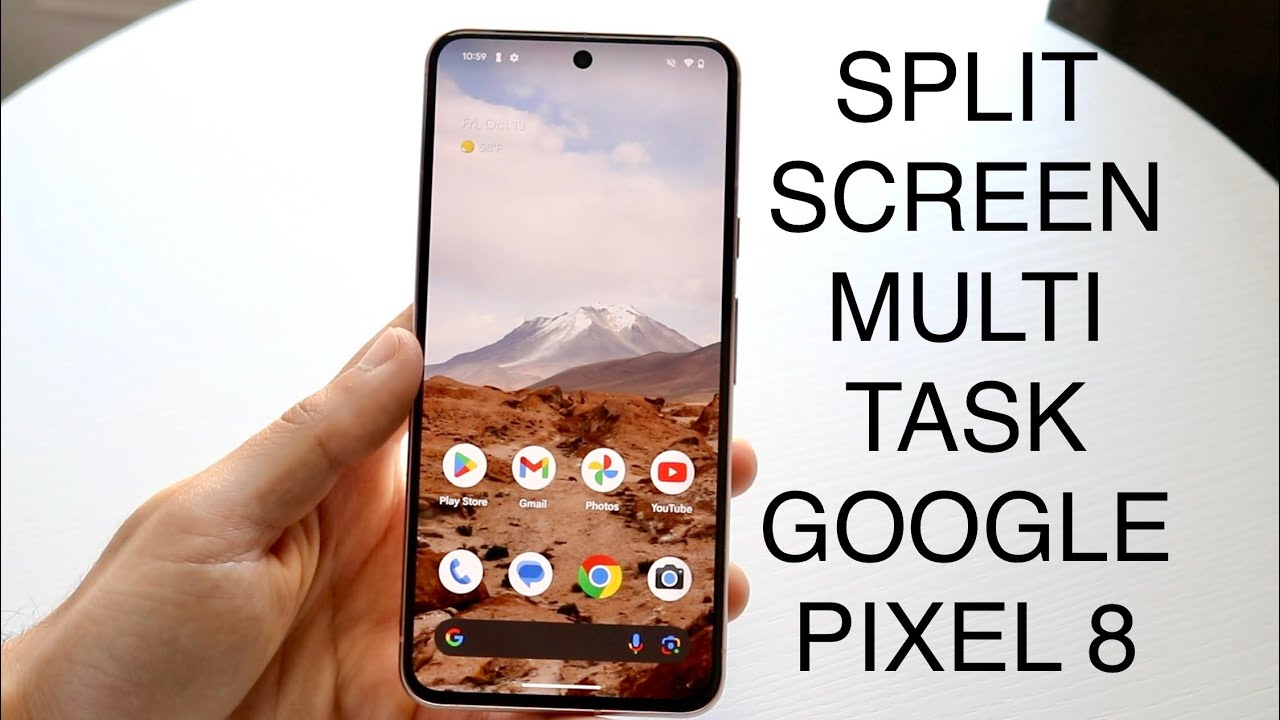
Split screen on a Google Pixel enhances multitasking. You can use two apps at once. It’s perfect for comparing information or watching videos while texting. Setting it up is straightforward. Follow these steps for a smooth experience.
Accessing Recent Apps
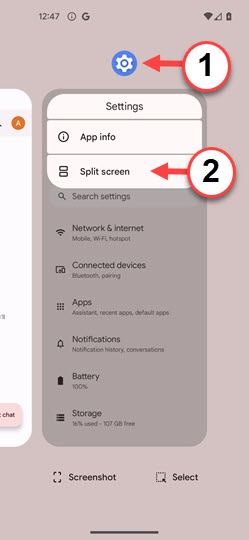
First, open the Recent Apps screen. Tap the square icon at the bottom. This shows all your recently used apps. Swipe through to see all your open apps. Make sure the apps you want are open and visible here.
Choosing Apps For Split Screen
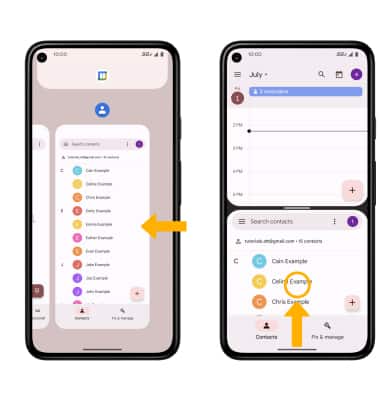
To choose an app for split screen, tap and hold its icon. A menu will appear. Select “Split screen” from this menu. The app moves to the top half of the screen. Now, choose the second app from the Recent Apps list. Tap it, and it will open in the bottom half.
Adjust the divider between apps by dragging it. This allows you to resize each app. Remember, not all apps support split screen. If an app doesn’t work, try another one. Now enjoy multitasking on your Google Pixel!
Credit: www.youtube.com
Navigating Split Screen Mode
Getting the hang of split screen mode on your Google Pixel can enhance your multitasking game. Imagine browsing a recipe while following a cooking video, or reading emails while checking your calendar. Navigating split screen mode is straightforward once you understand the basics. This guide will help you adjust screen sizes and switch between apps effortlessly.
Adjusting Screen Size
Once you initiate split screen, you have control over how much space each app takes. Drag the divider to adjust the size to your liking. Want to prioritize one app over the other? Just slide the divider up or down until the app you need more fills the screen. Finding the perfect balance between apps can transform your productivity.
Experiment with different screen sizes. You might find that a larger email screen with a smaller calendar view works best for you. Each adjustment is a chance to tailor your phone to your needs. Try different configurations and see what enhances your tasks.
Switching Between Apps
Switching apps within split screen mode is a breeze. Tap on the app switcher and choose the app you wish to replace. It’s like having a remote control for your phone – quick and efficient. If you find yourself frequently swapping apps, consider which combinations suit your routine best.
Perhaps you’re flipping between messages and a web browser. Once you master the art of switching, it’s easy to keep up with conversations while researching online. What’s your favorite app combo? Try pairing apps that complement each other to boost your workflow.
Split screen mode is a powerful feature that can transform your Google Pixel experience. Have you tried it yet? What tasks could you tackle with two apps at your fingertips? Dive into the possibilities and discover how it can make your day-to-day interactions more efficient.
Exiting Split Screen
Exiting split screen mode on your Google Pixel is simple. It lets you regain full control of your device. You can easily close one app or switch back to a single app view. Let’s explore how to exit split screen mode with ease.
Closing One App
To close one app, tap and hold the divider between the apps. Drag it to the top or bottom of the screen. The app in the direction you drag will close. The remaining app will take over the full screen. This method is quick and effective.
Returning To Full Screen
If you want to return to full screen, you can do this quickly. Tap and hold the divider between the apps. Drag it all the way to the edge of the screen. The app you leave behind will become full screen. This allows you to focus on a single task.
Exiting split screen mode is straightforward. It helps you manage tasks efficiently. Enjoy your Google Pixel with these easy steps.
Credit: www.att.com
Benefits Of Split Screen
Splitting the screen on a Google Pixel enhances multitasking by allowing users to run two apps simultaneously. This feature boosts productivity, enabling seamless navigation between tasks without switching apps. Enjoy the convenience of comparing documents, browsing the web, and messaging at the same time.
Splitting your screen on a Google Pixel can transform how you use your smartphone. Imagine being able to chat with a friend while browsing your favorite website, or taking notes while watching a tutorial. This feature is not just a gimmick; it brings tangible benefits that can enhance your daily smartphone interactions. Let’s explore some of these advantages.
Enhanced Productivity
With split screen, multitasking becomes a breeze. You can handle multiple tasks simultaneously without the need to switch between apps constantly. For example, you could be working on a document while referencing data from another app. This setup minimizes distractions and keeps your workflow smooth. Ever tried jotting down a recipe while watching a cooking video? Split screen makes it seamless.
Improved User Experience
Split screen optimizes your interaction with the Google Pixel. It allows you to tailor your screen space according to your needs, making navigation more intuitive. Picture yourself planning a trip: you can have a map open on one side and your itinerary on the other. This side-by-side view reduces cognitive load, helping you focus better. How often have you wished you could compare products without flipping back and forth between tabs? Split screen delivers that convenience right at your fingertips. Unlock the full potential of your Google Pixel by mastering the split screen feature. It’s not just about doing more—it’s about doing it smarter and with ease. What will you accomplish with your newfound multitasking prowess?
Troubleshooting Common Issues
Learn to split screen on Google Pixel with ease. Open two apps simultaneously by swiping up, holding, and dragging. Enjoy multitasking without any hassle.
Splitting the screen on your Google Pixel can enhance your multitasking experience, but what happens when things don’t go as planned? Troubleshooting common issues can be a lifesaver. Whether your apps aren’t playing nice or your device seems to be dragging its feet, it’s important to know how to address these hiccups. Let’s dive into some solutions for these common roadblocks.
Apps Not Compatible
Not all apps are designed to support split-screen mode. If you find an app refusing to cooperate, it might simply be incompatible. Check if the app has been updated recently or if there’s an alternative app that does support split-screen. Sometimes, restarting your phone can nudge an app into working. It’s a simple step, but surprisingly effective at times. Imagine trying to multitask between a chat app and a video player, only to find the video player doesn’t support split-screen. Switching to a different video app might solve the problem instantly.
Performance Lag
Experiencing a performance lag when using split-screen? It might be your phone struggling to juggle too much at once. Closing background apps can free up resources and speed things up. Ensure your Pixel’s software is up to date; updates often include performance improvements. Are you trying to run two heavy apps simultaneously? Consider replacing one with a lighter alternative to ease the load. Have you ever been in the middle of an important task, only to be slowed down by lag? Next time, try adjusting your phone’s settings to prioritize performance. It can make your multitasking much smoother and more enjoyable. When you encounter these issues, don’t just settle for frustration. How can you make your multitasking experience seamless and efficient? With a few tweaks and adjustments, you can enhance your productivity on your Google Pixel.
Tips For Effective Multitasking
Google Pixel’s split-screen feature can boost your productivity. By using two apps simultaneously, you can easily manage tasks. Knowing how to split your screen is just the start. Effective multitasking requires planning and focus. Follow these tips for a smoother experience.
Prioritizing Tasks
Identify the most important tasks first. Focus on what needs your attention now. Organize your apps based on urgency. Make a list of tasks in order of importance. This helps you avoid distractions. Stay focused on completing one task before moving to the next. Keeping priorities clear is key to effective multitasking.
Optimizing App Usage
Choose apps that work well together. For example, use a browser and notes app side by side. This makes it easy to research and jot down ideas. Check app compatibility for seamless integration. Adjust app settings for optimal performance. Keep apps updated for the best experience. Using compatible apps enhances multitasking efficiency.
Credit: www.verizon.com
Frequently Asked Questions
How To Activate Split Screen Mode?
To activate split screen mode on a Google Pixel, open the desired app. Tap the app’s icon at the top and select “Split screen. ” Choose a second app to display alongside. This feature allows multitasking, enhancing productivity and convenience for users.
Can I Use Split Screen With Any App?
Not all apps support split screen mode on Google Pixel. Most popular apps are compatible, but some may not allow it. To check, attempt to activate split screen with the app. If unavailable, consider alternatives or updating the app.
Does Split Screen Affect Phone Performance?
Split screen mode may slightly affect performance, especially with resource-intensive apps. It uses more system resources, potentially slowing down operations. However, Google Pixel devices are optimized for multitasking, minimizing noticeable impact for most users during everyday tasks.
How To Exit Split Screen Mode?
To exit split screen mode, drag the divider bar to the top or bottom of the screen. This closes one of the apps, returning the device to single app view. Alternatively, tap the home button to close both apps simultaneously.
Conclusion
Splitting the screen on a Google Pixel is simple and useful. It boosts productivity by allowing multitasking. You can chat and watch videos simultaneously. Just follow the steps outlined above. Practice makes it easier each time. Try different app combinations to see what works best.
Remember, not all apps support split screen. Experiment and find your favorites. This feature can enhance your phone experience. Adjust your screen for better visibility. Enjoy a seamless multitasking experience with your Google Pixel. Happy multitasking!

Marlowe Quinn is a technology writer at ElectroDoz, with expertise in smartphones, chargers, power banks, phone cases, selfie sticks, and other mobile accessories. Known for breaking down specs and features into easy-to-understand insights, Marlowe helps readers find the right gadgets to stay connected and powered up in their daily lives.