How to Unlock Chromebook Keyboard: Easy Step-by-Step Guide
Are you having trouble with your Chromebook keyboard being locked? You’re not alone.
This common issue can be incredibly frustrating, especially when you’re in the middle of important tasks or simply trying to browse the web. But don’t worry; you’ve come to the right place. In this guide, you’ll discover simple steps to quickly unlock your Chromebook keyboard and get back to your activities without the headache.
We’ll break down the process so even if you’re not tech-savvy, you can follow along with ease. Keep reading, because by the end of this article, you’ll have the solution you need right at your fingertips. Say goodbye to keyboard woes and hello to seamless typing!
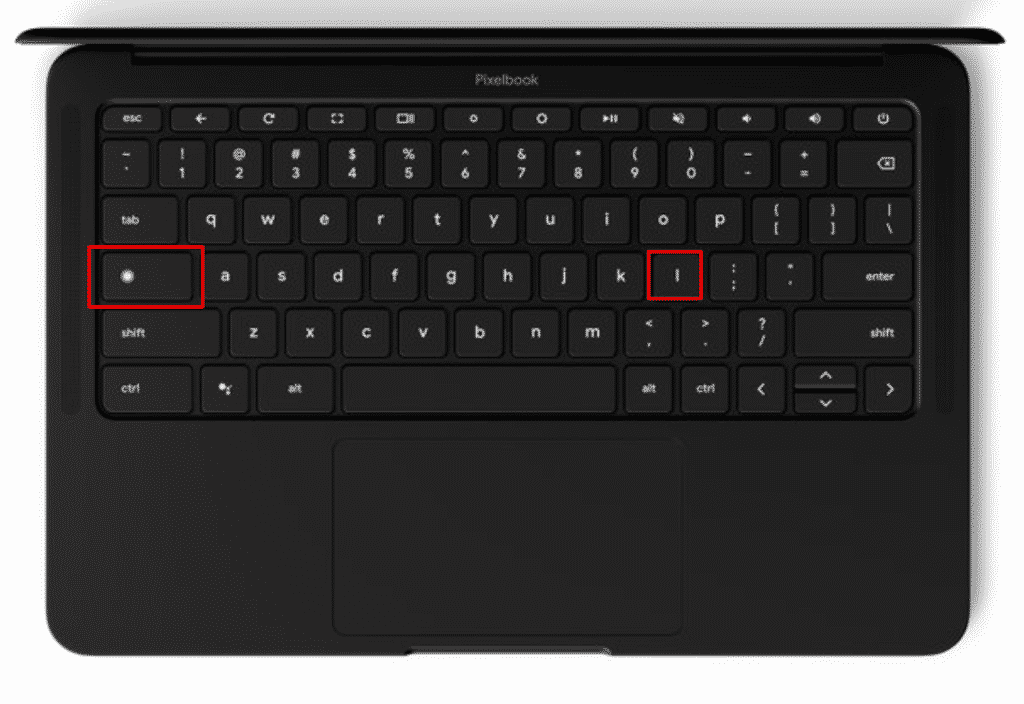
Credit: chromestory.com
Preparing Your Chromebook
First, plug your Chromebook into a power source. A charged device works best. Check if your Wi-Fi is on. This helps with settings changes. A strong connection makes tasks smoother. Look for the Wi-Fi icon on the screen. It should show full bars.
Click on the bottom-right corner of the screen. This area shows time and battery. A menu will pop up with options. Choose the gear icon for settings. This opens the settings menu. From here, you can change many things. The keyboard is one of them.
Identifying Keyboard Lock Issues
Many users notice keys not responding on their Chromebooks. This can be frustrating. Sometimes, the whole keyboard stops working. Other times, only some keys act up. Stuck keys are another issue. These make typing difficult. Often, the Caps Lock light stays on without pressing it. Unusual shortcuts might activate by themselves. These symptoms suggest the keyboard is locked.
A software glitch might cause the keyboard to lock. Settings changes can also lead to this problem. Accidentally pressing the wrong keys can lock the keyboard. Outdated drivers are another reason. They make the keyboard act strange. Some users find dust and debris under the keys cause trouble. Cleaning can help solve this. Knowing these causes can help fix the issue.
Basic Troubleshooting Steps
Restarting can fix many issues. Turn off your Chromebook. Wait a few seconds. Then turn it back on. This simple step might help reset any temporary glitches in the system. Make sure your Chromebook is charged or plugged in before restarting.
Sometimes, settings can change by accident. Go to your Chromebook’s settings. Find the Keyboardsection. Check if any keys are remapped. Reset to default if needed. Look for any special keyboard shortcuts. They can affect how your keys work.
Credit: alvarotrigo.com
Advanced Solutions
A hard reset can help with keyboard issues. First, turn off the Chromebook. Next, press the Refreshbutton and Powerbutton together. Hold them for a few seconds. Release the buttons when you see the screen flicker. The Chromebook will restart. Check the keyboard now. It should work better.
Sometimes, an update can fix problems. Make sure the Chromebook is connected to Wi-Fi. Click the timein the corner. Go to Settingsand then About Chrome OS. Click Check for Updates. If there is an update, it will start downloading. Once done, restart the Chromebook. This can help the keyboard work well.
Using External Keyboard
Plug the USB keyboard into the Chromebook. The Chromebook will recognize it right away. Start typing instantly without any setup. It’s easy and fast. Make sure the keyboard is working. Check if all keys respond. If not, try reconnecting the USB cable.
Turn on the Bluetooth keyboard. Go to the Chromebook settings. Find Bluetooth and click it. See available devices. Choose the keyboard from the list. Click to connect. The keyboard will pair with the Chromebook. Test typing to ensure it works. If there are problems, check the battery of the keyboard. Ensure Bluetooth is enabled on the Chromebook.
Preventing Future Keyboard Lock Issues
Keeping software updated is very important. Updates fix bugs and improve performance. Regular updates prevent many keyboard problems. Check for updates weekly. This keeps your Chromebook running smoothly.
Clean your keyboard often. Dust can cause keys to stick. Use a soft brush to remove dirt. Avoid eating near the keyboard. Crumbs can fall between keys. Press keys gently. Hard presses can damage them. Check for stuck keys regularly. This prevents long-term damage. Simple care keeps the keyboard working well.
Seeking Professional Help
Contacting supportcan be very useful. They know a lot about Chromebooks. Always have your device details ready. This helps them help you faster. You can reach them through phone or chat. Most companies offer these options. Sometimes, they may guide you step by step. Other times, they might fix it for you.
Think about warranty considerationstoo. Check if your Chromebook is still under warranty. If yes, you might get free repairs. Always read the warranty terms. They tell you what is covered. Sometimes, only certain issues are covered. If it’s not covered, you might pay for repairs. Knowing this helps you make the best choice.

Credit: chromestory.com
Frequently Asked Questions
How Do I Unlock A Locked Chromebook Keyboard?
To unlock your Chromebook keyboard, first, check if the keyboard lock feature is enabled. This can be done through the settings menu. You might need to restart your device or perform a hard reset. Additionally, ensure no key is physically stuck, and inspect the keyboard for dust or debris.
Why Is My Chromebook Keyboard Not Responding?
If your Chromebook keyboard isn’t responding, it could be due to software glitches or hardware issues. Try restarting the device or performing a hard reset. Check for updates, and ensure no physical obstructions are affecting the keys. If the problem persists, consider contacting support for further assistance.
Can I Disable Keyboard Shortcuts On Chromebook?
Yes, you can disable keyboard shortcuts on a Chromebook. Go to settings and navigate to the keyboard section. There, you can customize or disable specific shortcuts. This feature allows you to tailor your Chromebook experience and prevent accidental shortcut activations during regular use.
How To Perform A Hard Reset On Chromebook?
To perform a hard reset on your Chromebook, turn off the device. Press and hold the Refresh key, then tap the Power button. Release the Refresh key once the Chromebook starts up. This process helps resolve minor software issues and refreshes the system settings without losing data.
Conclusion
Unlocking your Chromebook keyboard is easier than you think. Follow the steps outlined, and you’ll be typing again soon. Troubleshoot using the tips provided if issues persist. Remember to check settings and ensure your keyboard is properly connected. Regular maintenance can prevent future problems.
Stay calm, and try each solution patiently. Your Chromebook keyboard can work efficiently with a little care. Happy typing! Feel free to explore other Chromebook features. Discover more ways to enhance your digital experience. Your Chromebook is a powerful tool.
Make the most of it every day!

Finnian Delaney is a seasoned writer and editor specializing in technology and electronics. At ElectroDoz, he covers a wide range of topics, with a focus on MacBooks, laptops, fitness trackers, keyboards, and computer hardware. With a knack for making complex tech accessible, Finnian helps readers stay informed and confident when choosing their next device or upgrade.