How to Connect Mac Keyboard to Mac: Quick & Easy Guide
Have you just bought a sleek new Mac keyboard and are eager to start using it with your Mac? Or perhaps you’re looking to switch keyboards but are unsure how to connect it?
Either way, you’re in the right place. Connecting your Mac keyboard to your Mac is easier than you might think. However, a simple misstep can lead to frustration. Imagine typing away seamlessly, enjoying that perfect keystroke sound without any interruptions.
In this guide, we’ll walk you through the steps to ensure a smooth connection, so you can get back to what really matters—your work, your creativity, or just plain fun. Stick with us to discover how effortless it can be to set up your Mac keyboard, and unlock the full potential of your Mac experience.
Mac Keyboard Compatibility
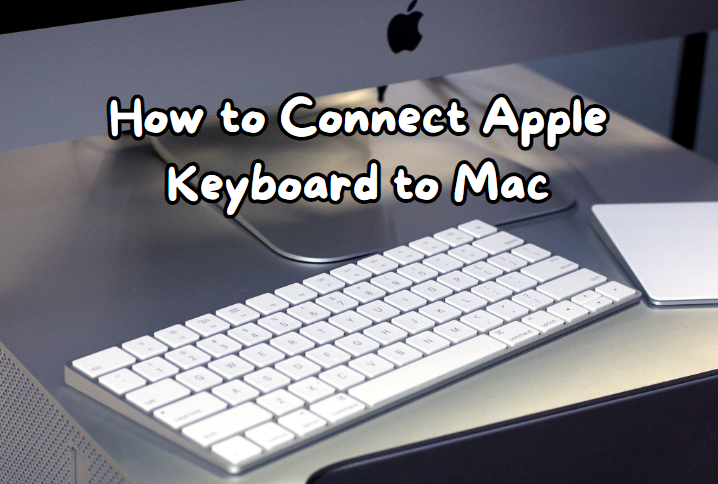
Mac keyboards work well with most Mac computers. They connect using Bluetooth or a USB cable. Ensure your keyboard supports these features. Most Mac keyboards are wireless today. Make sure your Mac has Bluetooth turned on. For wired keyboards, plug the USB into your Mac.
Check if your Mac version supports your keyboard model. Older Mac versions might not support new keyboards. Software updates can help. Always use the latest version of macOS. This keeps your keyboard working smoothly.
Not all keyboards are compatible. Some keyboards are for specific Mac models only. Always check before buying. This saves time and money. Using a compatible keyboard ensures a better experience.
Credit: roobotech.com.au
Preparing Your Mac
Always keep your Mac up-to-date. Click on the Apple menu. Then, select System Preferences. Choose Software Update. Install any new updates. Updates help your Mac run smoothly. They fix bugs and add features. An updated Mac connects better with devices.
Turn on Bluetooth on your Mac. Open System Preferencesagain. Click on Bluetooth. Make sure Bluetooth is turned on. Your Mac should be discoverable. This means other devices can find it. If not, click on the Turn Bluetooth Onbutton. A blue icon shows when Bluetooth is on.
Connecting Via Bluetooth
Make sure Bluetooth is turned onon your Mac. Open System Preferences. Find the Bluetoothicon. Click on it. You will see Bluetooth settings. Check that Bluetooth is enabled. If not, click the button to turn it on.
Find the power button on your keyboard. Press it to turn the keyboard on. Your keyboard should be discoverablenow. Go back to Bluetooth settings on the Mac. Look for the keyboard name in the device list. Click the keyboard name. A prompt may ask to pairthe devices. Click pair and wait a moment. The keyboard should now be connected.
Using A Usb Connection
Find the USB portson your Mac. They are usually on the side or back. Check for a small rectangle hole. That’s the USB port. Look for the right size.
Connect the keyboard to the USB port. Wait for a moment. The Mac should detect it. You might see a small icon appear. If everything is good, you are ready to type. No extra steps needed. The Mac knows what to do.
Troubleshooting Connection Issues
Connecting a Mac keyboard to your computer can be easy. First, ensure Bluetooth is on. Then, go to System Preferences and select “Bluetooth. ” Locate your keyboard in the list and click “Connect. ” If issues arise, restart both devices and try again.
Bluetooth Connectivity Problems
Mac keyboard not connecting? Check if Bluetooth is on. Make sure your Mac keyboard has enough battery. Sometimes, turning Bluetooth off and on helps. Your Mac might need a restart. Move closer to your Mac. Too far can cause issues. Other devices may interfere. Disconnect them. Pairing problems? Forget the keyboard and reconnect. Reset the Bluetooth module if needed. Follow these steps for a better connection.
Usb Connection Errors
Having trouble with the USB connection? Ensure the cable is not damaged. Try another USB port. Ports sometimes fail. Check if your keyboard is compatible with your Mac. Not all are. Software updates may fix issues. Keep your Mac updated. Test the cable with another device. Swap the cable if needed. Clean the USB port gently. Dust can cause problems. Use a keyboard with a working USB cable.

Credit: www.youtube.com
Customizing Keyboard Settings
Connecting your Mac keyboard to your Mac is simple. Start by turning on Bluetooth in System Preferences. Then, pair your keyboard by selecting it from the list of available devices.
Key Remapping
Key remapping helps change keyboard functions. Open System Preferences. Click on Keyboard. Select Modifier Keys. You can choose different keys for different actions. For example, make the Caps Lock key work as Control. Try different settings. Experimenting is fun. Find what works best for you. Everyone has their favorite setup. Make typing easy and fun. Personalize your keyboard.
Shortcut Preferences
Shortcuts save time. Open System Preferences again. Click on Keyboard then Shortcuts. You can create your own shortcuts. Or change existing ones. Find shortcuts for Finder or Safari. Shortcuts make work faster. Less clicking. More doing. Try new shortcuts. Discover new ways to work. Make your Mac easy to use. Customize it for your needs.
Maintaining Keyboard Performance
Keep your Mac keyboard clean for best performance. Use a soft, damp cloth. Wipe keys gently to remove dust and dirt. Do not use too much water. It can damage the keyboard. Avoid eating near your keyboard. Crumbs can get stuck under the keys. Clean it once a week to maintain it.
Always check for new software updates. Updates help your keyboard work better. Open System Preferences on your Mac. Click on “Software Update.” Install any available updates. This keeps your keyboard compatible and efficient. Updates can fix bugs and improve performance. Make it a habit to check regularly.

Credit: www.wikihow.com
Frequently Asked Questions
How Do I Pair A Mac Keyboard?
To pair a Mac keyboard, enable Bluetooth on your Mac. Turn on the keyboard and wait for it to appear in the Bluetooth settings. Click “Connect” next to your keyboard’s name. Your Mac will confirm once the keyboard is successfully paired.
Can I Connect My Mac Keyboard Wirelessly?
Yes, you can connect your Mac keyboard wirelessly using Bluetooth. Ensure Bluetooth is enabled on your Mac and the keyboard is turned on. It should appear in your Mac’s Bluetooth settings. Click “Connect” to establish the wireless connection.
Why Isn’t My Mac Keyboard Connecting?
If your Mac keyboard isn’t connecting, check its batteries or charging status. Ensure Bluetooth is enabled on your Mac. Try turning the keyboard off and on again. You may also want to restart your Mac to refresh the Bluetooth connection.
How To Troubleshoot Mac Keyboard Connectivity Issues?
To troubleshoot connectivity issues, first check the keyboard’s batteries or charge. Ensure Bluetooth is enabled on your Mac. Restart both devices if necessary. If issues persist, remove the keyboard from Bluetooth settings and reconnect it.
Conclusion
Connecting your Mac keyboard is simple. Follow the steps, and you’re ready. First, ensure your keyboard is charged. Next, use Bluetooth or USB connection. Bluetooth offers wireless freedom. USB provides a stable link. Choose what suits your setup best. Troubleshooting issues?
Check for updates and restart devices. Connectivity issues often resolve quickly. Practice these steps regularly. It becomes second nature in no time. Enjoy seamless typing on your Mac. Your workflow will thank you. Now, you’re set to boost productivity with ease.
Keep exploring new Mac features. Happy typing!

Finnian Delaney is a seasoned writer and editor specializing in technology and electronics. At ElectroDoz, he covers a wide range of topics, with a focus on MacBooks, laptops, fitness trackers, keyboards, and computer hardware. With a knack for making complex tech accessible, Finnian helps readers stay informed and confident when choosing their next device or upgrade.