How to Copy And Paste on Ipad With Keyboard: Easy Steps
Have you ever found yourself stuck trying to copy and paste text on your iPad using a keyboard? You’re not alone.
Many iPad users struggle with this seemingly simple task. But don’t worry, mastering this skill is easier than you think. Imagine the time and frustration you’ll save by knowing exactly how to transfer text with just a few keystrokes. In this guide, you’ll discover a step-by-step approach to seamlessly copying and pasting on your iPad.
Unlock the full potential of your device and transform the way you work and play. Ready to become an iPad pro? Let’s dive in!

Credit: www.youtube.com
Setting Up Your Keyboard
First, make sure your keyboard is chargedand turned on. Open your iPad’s Settingsapp. Tap on Bluetoothand turn it on if it’s off. Your iPad will search for nearby devices.
Find your keyboard’s name under Devices. Tap on it to connect. If asked for a code, type the code on your keyboard and press Enter. Your keyboard should now be connected.
Not all keyboards work with iPads. Check if your keyboard is compatible. Look at the box or the manual. It should say if it works with iPads.
Some keyboards need an adapterto connect. Make sure you have one if needed. Use a keyboard that is designed for your iPad. This ensures smooth use.
Copying Text On Ipad
Using your iPad keyboard to select text is easy. First, place the cursor at the start of the text. Then, press and hold the Shift key. Use the arrow keys to select the text you want. This method is simple and quick. You can select words or sentences.
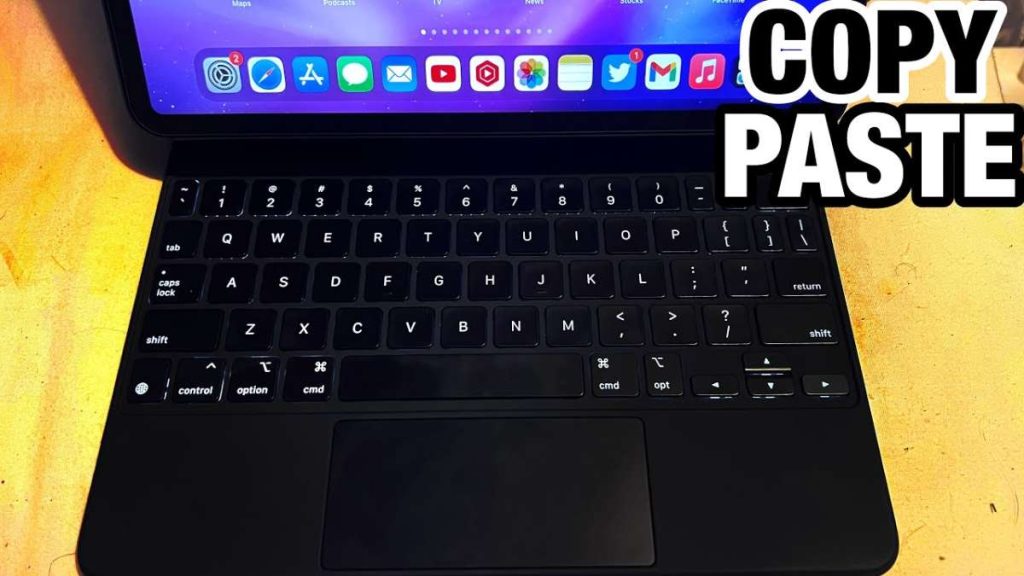
Keyboard shortcuts make copying fast. Press Command + C to copy the selected text. To paste, use Command + V. These shortcuts are handy for quick actions. They save time and effort. Remember to select the text before copying. Always check if the text is correct.
Pasting Text On Ipad
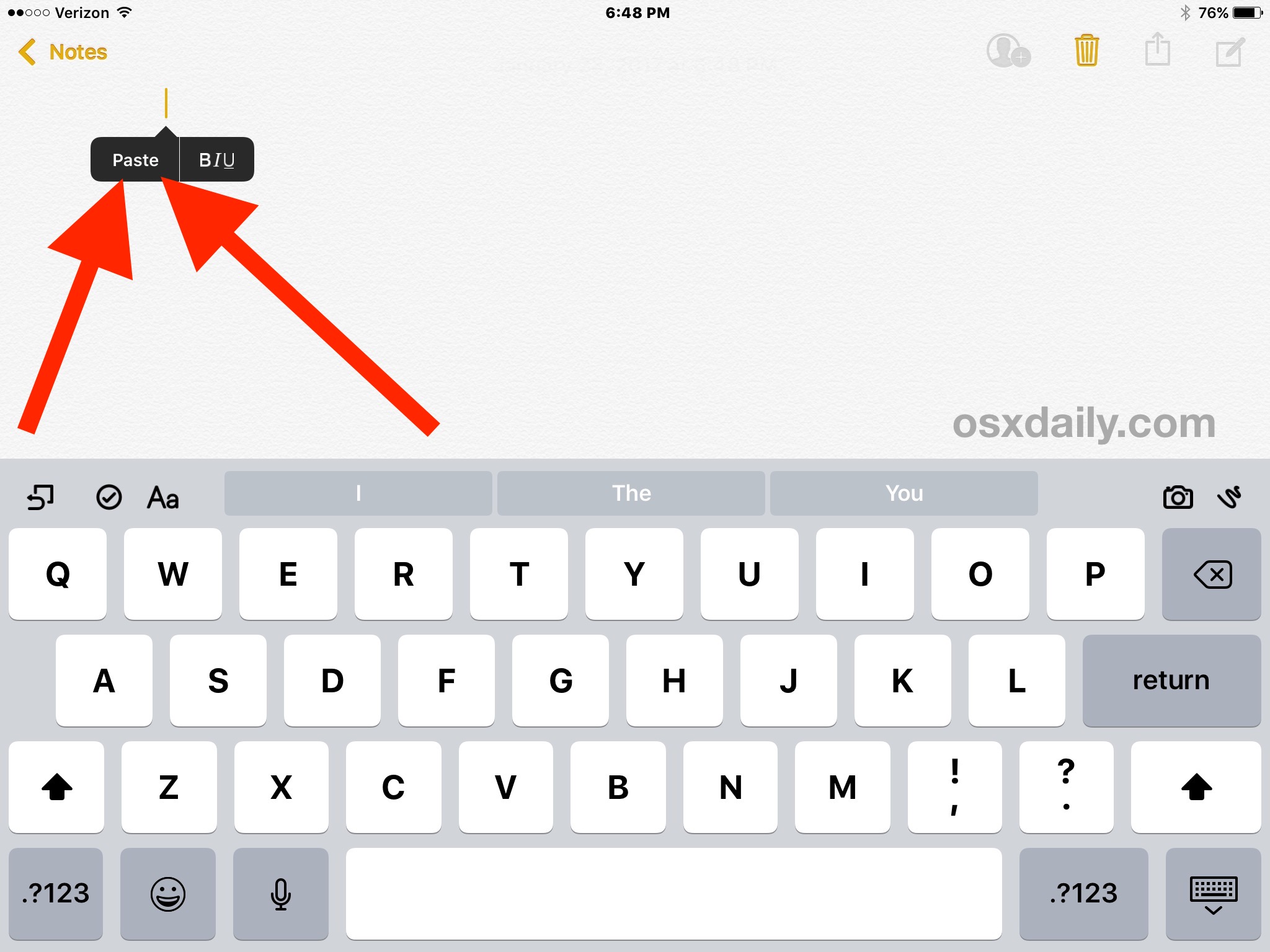
Choosing a destinationis simple on your iPad. First, open the app where you want to paste. It could be a note, email, or document. Tap the screen where you want the text to go. A blinking cursor will appear. This is where your text will land.
To use the keyboard shortcut for paste, press Command (⌘) and V at the same time. Your copied text will show up right where the cursor is. It’s quick and easy! If the shortcut doesn’t work, check your keyboard connection. Make sure it is paired with your iPad.
Credit: www.youtube.com
Troubleshooting Common Issues
Sometimes, the keyboard might not work. First, make sure it’s connected. Check the battery if it’s wireless. Turn the keyboard off and on. This can help reset it. If it’s still not working, restart the iPad. This can fix many issues. Software updates might also help. Make sure your iPad is up-to-date. A dirty keyboard can also cause problems. Clean it gently with a soft cloth. Check the connection settings on your iPad. Sometimes, settings need adjustment. A different keyboard might be needed if these steps don’t work.
Text selection can be tricky. Start by tapping the screen where you want to select. Hold your finger there. This will highlight the text. If it doesn’t, try again. Use the arrow keys on your keyboard to move the selection. If the text still won’t select, check the iPad’s settings. Make sure the touch screen is clean. A dirty screen can cause issues. Restarting the iPad can also help. If problems persist, it might be a software issue. A software update could solve it. Keep your iPad up-to-date for best results.
Additional Tips For Efficient Use
Explore keyboard shortcuts for faster copying and pasting on iPad. Customize settings to suit your workflow. Regular practice enhances efficiency and boosts productivity effortlessly.
Using Advanced Keyboard Shortcuts
Copying and pasting on an iPad can be faster with shortcuts. The Commandkey helps you do tasks quickly. To copy, press Command + C. To paste, press Command + V. Want to cut something? Use Command + X. These shortcuts save time and help you work better.
Learning a few more shortcuts can boost your productivity. To select all text, press Command + A. To undo an action, use Command + Z. Redo it with Command + Shift + Z. Practice these steps. You’ll get faster with time.
Credit: osxdaily.com
Frequently Asked Questions
How Do I Copy Text On Ipad Keyboard?
To copy text using an iPad keyboard, select the text first. Then press “Command + C” on your keyboard. This shortcut quickly copies the selected content, making it easy to paste elsewhere on your iPad.
Can I Paste Using Ipad Keyboard Shortcuts?
Yes, you can paste using shortcuts. After copying, simply use “Command + V” to paste the copied text. This efficient method works across apps, allowing seamless text transfer on your iPad.
What Keys Enable Copy-paste On Ipad?
The “Command” key is crucial for copy-paste functions. Press “Command + C” to copy and “Command + V” to paste. These keys facilitate swift text manipulation on iPad, enhancing productivity.
Is Copy-pasting Different On Ipad Apps?
Copy-pasting is consistent across most iPad apps. The shortcuts “Command + C” and “Command + V” work universally. However, some apps might have unique features but basic copy-paste remains unchanged.
Conclusion
Mastering copy and paste on an iPad with a keyboard is simple. These steps make your tasks quicker and easier. You can edit documents or move text swiftly. Remember, practice helps you get faster. Using a keyboard saves time. It also boosts productivity.
Stay patient as you learn this skill. Soon, you’ll feel comfortable with the process. Enjoy the ease of copying and pasting efficiently. A small change with big effects. Keep exploring more tips to enhance your iPad experience. Happy typing and editing!

Finnian Delaney is a seasoned writer and editor specializing in technology and electronics. At ElectroDoz, he covers a wide range of topics, with a focus on MacBooks, laptops, fitness trackers, keyboards, and computer hardware. With a knack for making complex tech accessible, Finnian helps readers stay informed and confident when choosing their next device or upgrade.