
How to Type Registered Trademark Symbol on Laptop?
Imagine you’re meticulously crafting a brand identity or working on a crucial business document, and you need to include a registered trademark symbol. It’s a small detail, but it speaks volumes about professionalism and attention to detail.
You might be wondering, “How do I type the registered trademark symbol on my laptop without breaking my flow? ” Don’t worry; you’re not alone. Many find themselves puzzled by this seemingly simple task. But what if I told you that mastering this skill is easier than you think?
Dive into this article, and you’ll discover quick and effective methods to seamlessly insert the registered trademark symbol, saving you time and keeping your work polished. Your laptop is a powerful tool, and with the right shortcuts, you can enhance your productivity and elevate your content. Ready to unlock this secret and boost your efficiency? Let’s get started.

Credit: www.wikihow.com
Understanding Trademark Symbols
Trademark symbols show ownership of a name or logo. They protect brands from copying. Companies use them to stand out. A trademark shows that a name or logo is official. It is a sign of trust and quality. Trademarks are important for business success. They help customers know what to expect. Without trademarks, anyone could steal ideas.
There are three main symbols. The TM symbol shows a common law trademark. The SM symbol is for service marks. The R symbol in a circle means registered trademark. Each symbol has a special meaning. Using the right symbol is very important. It shows the trademark’s status. These symbols help in legal protection.
Typing The Registered Trademark Symbol On Windows
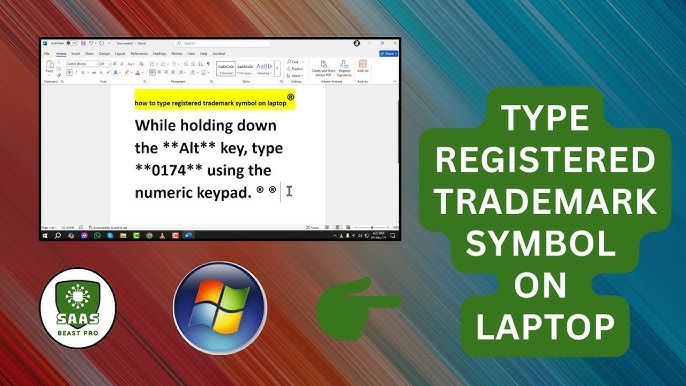
Typing the registered trademark symbolis easy. Use keyboard shortcuts. Press Altand type 0174on the number pad. The symbol appears. It’s quick. Make sure Num Lock is on. Use the number pad only. This won’t work with number keys above letters. Now, you can type the symbol anytime.
Open the Character Maptool. Click on the Windows start button. Type “Character Map” in the search box. Select the tool when it appears. Find the registered trademark symbol in the list. Click it. Press “Select,” then “Copy.” Paste it where needed. The character map has many symbols. Explore it for more symbols.
Typing The Registered Trademark Symbol On Mac
Mac keyboards make it easy to type special symbols. To type the registered trademark symbol (®), use a simple shortcut. Press and hold the “Option” key. Then, press the “R” key. This will show the symbol on your screen. The symbol is useful in many documents. It shows ownership of a brand or product. This shortcut works in most Mac applications. It’s quick and easy.
Another way to type the symbol is through Character Viewer. First, click on the top-right corner of your screen. Select the “Show Emoji & Symbols” option. A new window will appear. In the search box, type “registered”. The symbol will appear. Click on it to insert in your document. This method is helpful if you forget shortcuts. It’s also good for finding other symbols.
Typing The Registered Trademark Symbol On Linux
Linux offers easy shortcuts. Press Ctrl + Shift + U. Then type 00AE. Finally, press Enter. The symbol appears. Simple and quick. Works on most Linux setups.
Another way is through character maps. Open the character map application. Search for the registered trademark symbol. Copy and paste it into your document. This method is also effective. Useful if you forget shortcuts. Some text editors also offer this feature. Check your editor’s help section. Look for symbols or special characters.
Using Word Processors
To type the registered trademark symbolin Microsoft Word, press Ctrland Altand Ron your keyboard. This is a quick way. You can also use the Inserttab. Click on Symboland then choose More Symbols. Find the registered trademark symbol and click Insert. It’s easy and fast.
In Google Docs, click on the Inserttab. Then select Special Characters. A box will appear. Type “registered” in the search box. You will see the registered trademark symbol. Click on it to add it to your document. Simple and effective!
Credit: www.youtube.com
Typing On Web Applications
Using HTML Codes: HTML makes it easy to type symbols. To type the registered trademark symbol, use ®in your HTML code. This will show as ® on the web page. HTML codes are very helpful when you need symbols in web text.
Copy and Paste Method: The copy and paste method is simple. First, find the registered trademark symbol online. Highlight the symbol with your mouse. Right-click to copy it. Go to your text area and right-click to paste it. This method works in most applications.
Common Challenges And Solutions
Many laptops have different keyboard layouts. This can cause confusion. Sometimes, the registered trademark symbol is hard to find. Check your keyboard settings first. Make sure the language is set to English. This helps the keys work right. If the symbol still doesn’t appear, try using the Character Map tool. This tool lets you copy and paste symbols. You can also try using Alt codes. Hold the “Alt” key and type “0174” on the number pad. This will type the registered trademark symbol. Always test your keyboard after making changes.
The registered trademark symbol might be too small. It can be hard to see on some screens. Make sure your font size is big enough. This helps in making the symbol clear. If it still looks small, try changing the font style. Some fonts show symbols better. Always preview your document. Ensure the symbol is clear before sharing it. If you use a special program, check its settings. Adjustments there can also help. Visibility is key for clear communication.

Credit: www.shutterstock.com
Frequently Asked Questions
How Do I Type The Trademark Symbol?
To type the trademark symbol (™) on a laptop, press “Alt” + “0153” on the numeric keypad. Ensure the Num Lock is activated. Alternatively, use “Ctrl” + “Alt” + “T” for some software applications. This symbol is used to indicate trademark rights.
Can I Use Shortcuts For Registered Trademark Symbol?
Yes, you can use shortcuts to type the registered trademark symbol (®). On Windows, press “Alt” + “0174”. On Mac, press “Option” + “R”. These shortcuts make typing symbols quick and easy, enhancing efficiency in document creation.
What Is The Registered Trademark Symbol Shortcut?
The registered trademark symbol shortcut is “Alt” + “0174” on Windows. On Mac, use “Option” + “R”. These shortcuts help you quickly insert the registered trademark symbol into documents, saving time and ensuring proper trademark representation.
Is There A Keyboard Shortcut For ® Symbol?
Yes, there is a keyboard shortcut for the ® symbol. On Windows, use “Alt” + “0174” and on Mac, “Option” + “R”. This makes it easy to insert the registered trademark symbol into documents without navigating through menus.
Conclusion
Typing the registered trademark symbol is simple. Practice helps you remember the steps. Use keyboard shortcuts for quick access. This makes your work look professional. Your documents will be clear and legally sound. Every detail counts in business. Consistency builds trust with clients.
Keep this guide handy. Refer back when needed. Share this tip with friends and colleagues. They will appreciate the help. Stay confident while typing symbols. It’s a small skill with big benefits. Happy typing!

Finnian Delaney is a seasoned writer and editor specializing in technology and electronics. At ElectroDoz, he covers a wide range of topics, with a focus on MacBooks, laptops, fitness trackers, keyboards, and computer hardware. With a knack for making complex tech accessible, Finnian helps readers stay informed and confident when choosing their next device or upgrade.