How to Connect Bluetooth Keyboard to Mac: Quick Guide
Have you ever struggled with connecting your Bluetooth keyboard to your Mac? Imagine the frustration melting away as your fingers glide effortlessly over the keys, each tap bringing you closer to a more productive day.
You’re not alone; many people find this task daunting. But what if I told you that by the end of this article, you’ll master the process with ease and confidence? You’ll learn the simple steps to connect your Bluetooth keyboard seamlessly, transforming your work setup into a comfortable and efficient workspace.
Ready to dive in and discover how you can make this happen? Keep reading, and let’s turn the complex into the simple together.

Credit: www.youtube.com
Preparing Your Bluetooth Keyboard
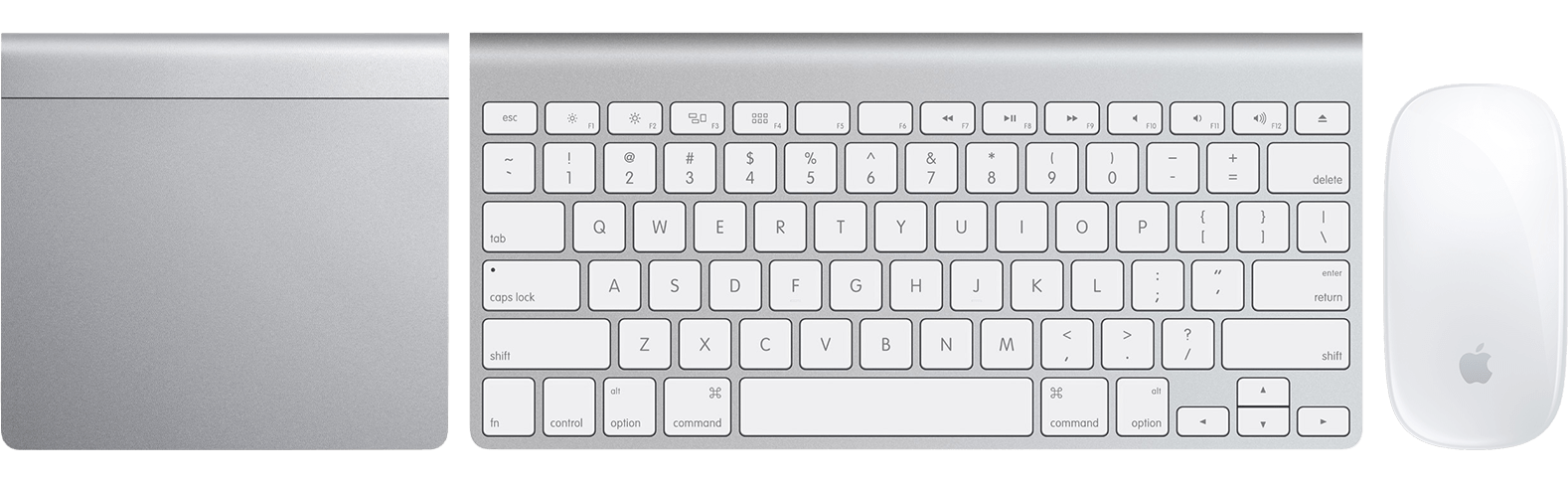
Easily connect your Bluetooth keyboard to a Mac by turning on Bluetooth in system preferences. Press the keyboard’s pairing button. Then, select your device from the available list on your Mac. Follow any on-screen instructions to complete the process. Enjoy a seamless typing experience.
Check Battery Levels
Ensure your keyboard has enough power. Check the battery levels first. Most keyboards have a battery indicator light. If the light is dim, replace the batteries. Rechargeable keyboards need charging when low.
Power On The Keyboard
Find the power button on your keyboard. Turn it on by pressing the button. A light might flash to show it’s on. Make sure the keyboard is near your Mac. Bluetooth works best when devices are close. Now, your keyboard is ready for pairing.
Credit: mackeeper.com
Accessing Mac Bluetooth Settings
Begin by clicking the small apple icon at the top left. This opens a menu. Find and click on System Preferences. It’s like a toolbox for your Mac. Look for a blue tooth icon. It helps you connect devices. Clicking on it takes you to Bluetooth options.
Ensure Bluetooth is turned on. A button at the top right lets you do this. Your Mac will start looking for devices. Make sure your keyboard is turned on too. It should appear on the list. Click on it to connect. If asked, enter a passcode. Your Mac and keyboard will now talk to each other.
Pairing The Keyboard
Open the Bluetooth settings on your Mac. You can find it in System Preferences. Click on Bluetoothto open it. Make sure it is turned on. If it is off, click the switch to enable it. Your Mac is now ready to connect.
Your Mac will start searching for nearby devices. You will see a list of available devices. Wait for your keyboard to appear. This might take a few seconds. Make sure your keyboard is turned on and in pairing mode. Check the instructions if you need help.
Once your keyboard appears on the list, click on it. Your Mac will try to connect. You might see a code on the screen. Type this code using your keyboard. Press Enter to confirm. Your keyboard should now be connected.
Credit: support.apple.com
Troubleshooting Connection Issues
Ensure Keyboard Visibility: Make sure the keyboard is on. Check that it is in pairing mode. Look for a blinking light. This light shows it is ready to connect.
Restart Bluetooth Services: Turn off Bluetooth on your Mac. Wait a few seconds. Then, turn it back on. This can help fix many problems.
Check for Software Updates: Go to the Apple menu. Click on “About This Mac.” Then, select “Software Update.” Install any available updates. Updated software can solve connectivity issues.
Optimizing Keyboard Performance
Connecting a Bluetooth keyboard to a Mac enhances productivity. Start by turning on the keyboard and enabling Bluetooth on your Mac. Select the keyboard from available devices in Bluetooth settings for seamless connectivity.
Adjust Keyboard Settings
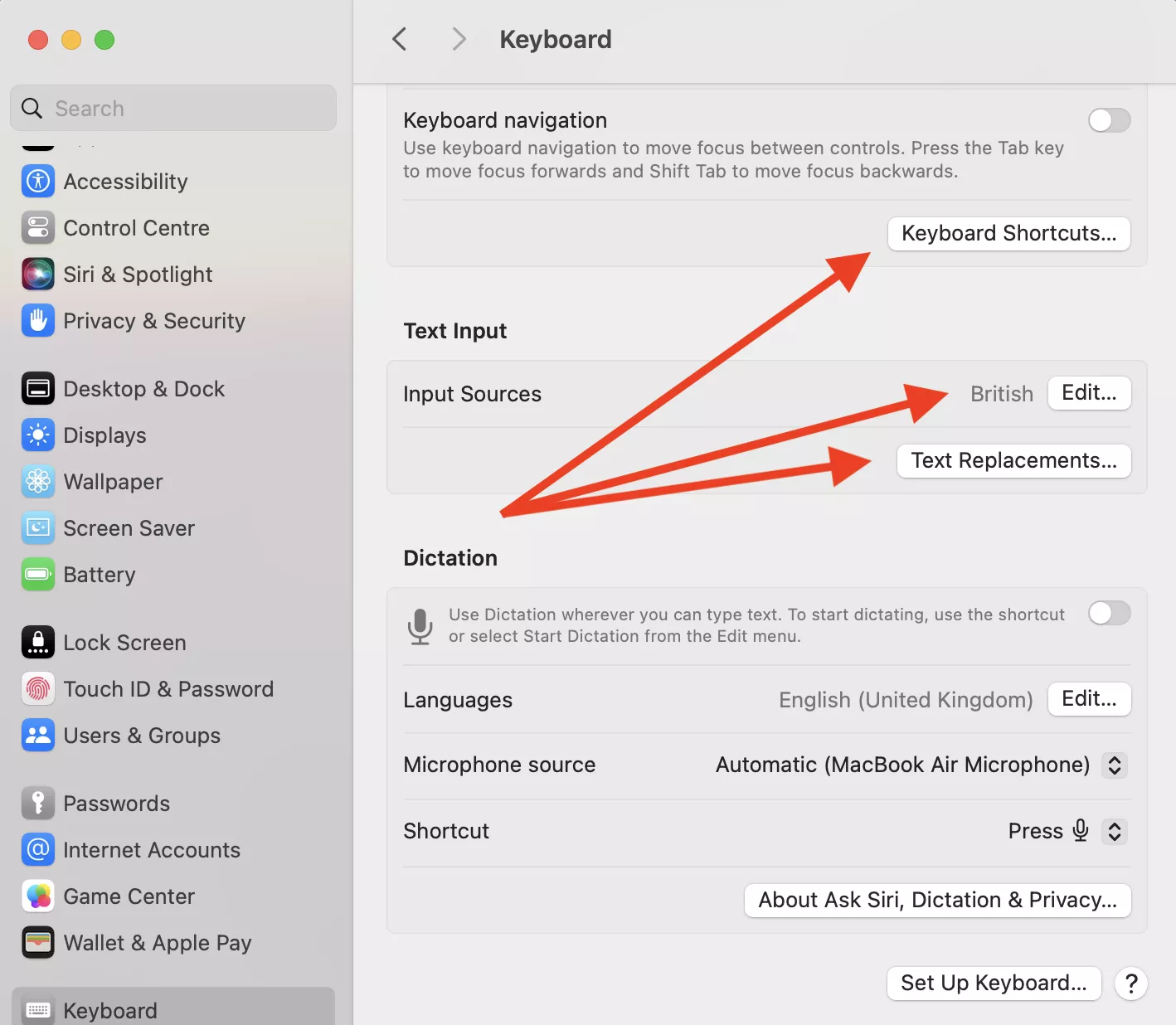
Changing your keyboard settings can improve performance. Go to System Preferences. Select Keyboard. You can adjust key repeat speed. This helps with typing speed. Delay until repeatis also adjustable. Choose what feels best. Make sure Bluetooth is on. This ensures your keyboard connects well.
Maintain Connection Stability
Keeping the Bluetooth connection steady is key. Place your keyboard close to the Mac. Avoid barriers like walls. Check for interference from other devices. Turn off unused Bluetooth devices. This reduces connection issues. Always keep your Mac’s software updated. Updates fix bugs that affect Bluetooth.
Exploring Additional Features
Customizing your keyboard shortcutscan make typing faster. You can change keys to do special things. This helps in doing tasks quickly. Make sure to remember your new shortcuts. It will save time later.
Function keys have special uses too. They can change volume or brightness. You can set them to open apps or do tasks. This makes using your Mac easier. Learn what each key does. It helps in doing things fast and easy.
Frequently Asked Questions
How Do I Turn On Bluetooth On My Mac?
To turn on Bluetooth, click on the Apple menu, select System Settings, then Bluetooth. Ensure the toggle is switched to “On. ” This allows your Mac to discover and pair with Bluetooth devices. Make sure your keyboard is in pairing mode before connecting.
Can I Connect Any Bluetooth Keyboard To My Mac?
Yes, most Bluetooth keyboards are compatible with Mac. Ensure your keyboard is in pairing mode and Bluetooth is enabled on your Mac. Follow the on-screen instructions in the Bluetooth settings to connect. Compatibility depends on keyboard specifications, but generally, most will work seamlessly.
Why Won’t My Keyboard Connect To Mac?
Check if Bluetooth is turned on and if your keyboard is in pairing mode. Restart your Mac and try connecting again. Ensure no other devices are connected to the keyboard. If issues persist, refer to the keyboard’s manual for troubleshooting steps.
How Do I Disconnect A Bluetooth Keyboard?
To disconnect, go to System Settings, select Bluetooth, and find your keyboard in the list. Click the “X” next to the device name to remove it. This will unpair the device, allowing you to connect it to another device if needed.
Conclusion
Connecting a Bluetooth keyboard to a Mac is simple. Start with turning on your keyboard. Make sure Bluetooth is activated on your Mac. Follow the pairing steps, and you’re ready. Enjoy typing with ease. No more tangled wires. Your workspace looks neat and tidy.
Productivity feels smoother. Remember to keep your devices charged. A Bluetooth connection is convenient for everyone. Troubleshoot if needed. Your Mac and keyboard will work well together. Experience the freedom of wireless typing. Now, your setup is complete. Enjoy your enhanced Mac experience.

Finnian Delaney is a seasoned writer and editor specializing in technology and electronics. At ElectroDoz, he covers a wide range of topics, with a focus on MacBooks, laptops, fitness trackers, keyboards, and computer hardware. With a knack for making complex tech accessible, Finnian helps readers stay informed and confident when choosing their next device or upgrade.