

How to Type Ñ in Laptop Windows 10 Without Numpad: Easy Tips
Have you ever found yourself trying to type the letter Ñ on your Windows 10 laptop, only to realize that your device doesn’t have a numpad? This small but essential character can be tricky to input without the usual numeric keys.
But don’t worry, you’re not alone in this struggle. Whether you’re writing in Spanish, preparing a document, or simply messaging a friend, knowing how to type Ñ can save you time and frustration. Imagine no longer having to resort to copy-pasting or searching for alternatives online.
Instead, picture yourself typing effortlessly, with the ability to express yourself fully in any language. By the end of this article, you’ll have a simple and practical solution at your fingertips, making your typing tasks smoother and more efficient. Ready to take control of your keyboard? Let’s dive in and unlock the secret to typing Ñ without a numpad!
Credit: www.youtube.com
Keyboard Shortcuts For Ñ
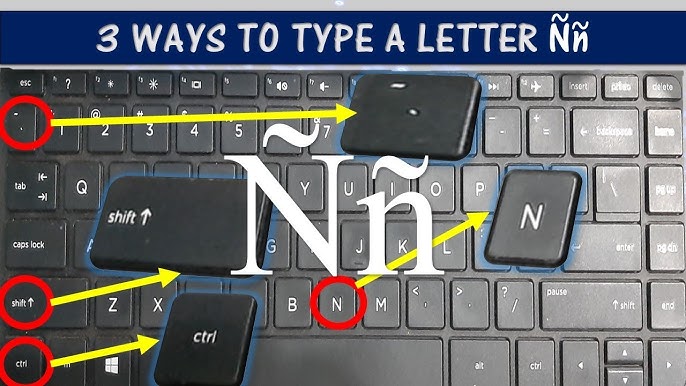
To type the letter Ñ on a laptop without a numpad, use Alt codes. First, ensure the Num Lockis on. Press and hold the Fnkey and the Altkey. Then, type 164for lowercase ñ or 165for uppercase Ñ. Release the keys and the letter appears.
Another way is using the Character Map. Open the Start menuand search for it. Once open, find Ñ and copy it. Paste it where needed. Also, you can set up a custom keyboardshortcut. This makes typing Ñ faster and easier. Check your laptop’s manual for more options.
Character Map Utility
Find the Character Map in your Windows 10. Click on the Start Menu. Type Character Map in the search box. Click on the Character Map app. A window opens. You will see many symbols and letters.
Locate the Ñ letter in the Character Map. Click on it. Click Select. The letter Ñ appears in the box below. Click Copy to copy it. Now you can paste Ñ anywhere you like. Use Ctrl+V to paste. It’s easy and helpful.
Language Settings
To type Ñwithout a numpad, try adding a Spanish keyboard layout. First, open Settings. Then, click on Time & Language. Choose Language. Click Add a language. Search for Spanish. Add it. Now, Spanish keyboard is available.
Switch keyboard layouts easily. Press Windows key+ Spacebar. This changes the layout. Find the Spanish layout. Type Ñusing the semicolon key. Switch back using the same keys. Practice this often. It will become easy.

Credit: www.youtube.com
Third-party Software
Key remapping tools help type special letters. These tools change how keys work. You can type Ñwithout a numpad. First, find a trusted tool online. Download and install the software. Follow the instructions. Open the tool after installing. Set a key to type Ñ. Save your changes. Now, you can type Ñeasily. It’s simple and quick. Many people use these tools. They are safe if downloaded from a trusted site. Always check reviews before downloading.
On-screen keyboards help type special letters. Open the on-screen keyboard on your laptop. Look for the Ñkey. Click on it to type. This method is easy. No need for extra tools. The keyboard shows on your screen. Use your mouse to type. It’s good for typing special letters. Many people find this helpful. It works on most laptops. You can type Ñwith a few clicks. No special skills needed.
Tips For Frequent Use
Creating Keyboard Shortcutscan make typing Ñ easier. Go to Settings. Find “Keyboard” options. Select “Text Shortcuts”. Create a new shortcut. Type Ñ in the “Phrase” box. Pick a simple shortcut key in the “Shortcut” box. Save your settings. Now, every time you type the shortcut, Ñ will appear. This trick helps if you type Ñ often.
Saving Ñ in Clipboard Managersis another good idea. Use clipboard manager software. Copy Ñ once. Keep it in the manager. When you need Ñ, paste it from the manager. This saves time. No need to remember codes or shortcuts. Clipboard managers can store many items. Choose one that works well with your laptop. This method is fast and easy.

Credit: softwareg.com.au
Frequently Asked Questions
How Can I Type Ñ Without Numpad?
You can use the on-screen keyboard to type Ñ. Press the Windows key, search for “On-Screen Keyboard,” and open it. Click the “Alt” key and then type 164 using the on-screen numpad. This method helps in situations where you don’t have a physical numpad.
Is There A Shortcut For Ñ On Windows 10?
Yes, there is a shortcut for Ñ in Windows 10. Hold down the “Alt” key and type 0241 on the on-screen numpad for ñ. For Ñ, use Alt + 0209. This shortcut works best when your laptop lacks a physical numpad.
Can I Use Character Map For Ñ?
Yes, you can use the Character Map. Search for “Character Map” in the Windows search bar. Open it and find Ñ or ñ in the list. Select the character, click “Copy,” and then paste it where needed.
What Is The Alt Code For Ñ On Laptops?
For laptops without a numpad, use the on-screen keyboard. Hold “Alt” and type 0241 for ñ. For Ñ, use 0209. This method is effective and easy to use when a physical numpad is unavailable.
Conclusion
Typing the “Ñ” on a Windows 10 laptop without a numpad is easy. Use shortcuts and methods discussed here. Try the on-screen keyboard for quick access. Remember, practice makes perfect. Familiarize yourself with these methods. Enhance your typing efficiency. Now, you can confidently type in Spanish.
Share this knowledge with friends. Help others overcome this challenge too. Typing special characters shouldn’t be hard. Make your typing experience smoother. Happy typing!

Finnian Delaney is a seasoned writer and editor specializing in technology and electronics. At ElectroDoz, he covers a wide range of topics, with a focus on MacBooks, laptops, fitness trackers, keyboards, and computer hardware. With a knack for making complex tech accessible, Finnian helps readers stay informed and confident when choosing their next device or upgrade.


