Why Won’t My Fitbit Sync: Expert Troubleshooting Tips
Is your Fitbit acting up again? You’ve been eager to check your progress, but for some reason, it just won’t sync.
Frustrating, isn’t it? You’re not alone. Many Fitbit users face this issue, and it can be a real hurdle in keeping track of your fitness goals. But don’t worry—you’re about to uncover the secrets to fixing this problem once and for all.
Imagine the satisfaction you’ll feel as your Fitbit syncs perfectly, just like it used to. Curious about what might be causing the glitch and how you can resolve it quickly? Stick around, because by the end of this article, you’ll be equipped with simple, actionable steps to get your Fitbit back on track.

Common Syncing Issues
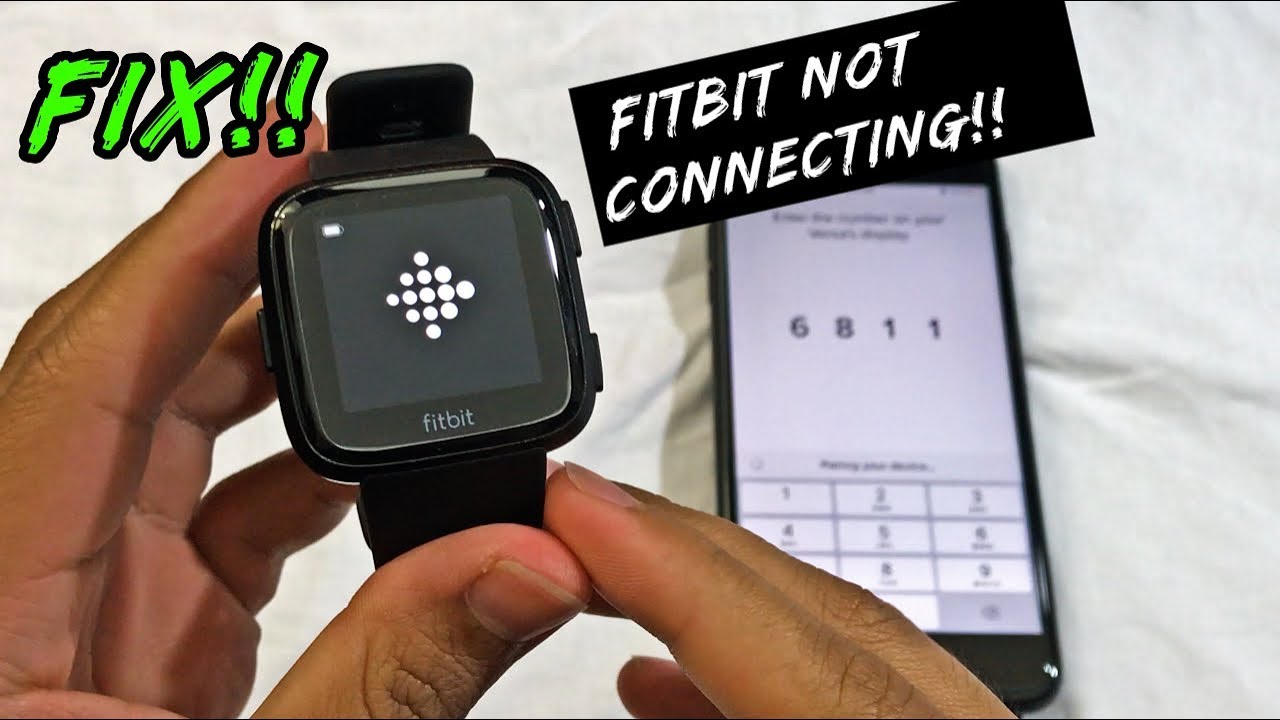
Bluetooth often causes syncing troubles. Ensure Bluetooth is enabled on your phone. Keep your Fitbit close to your device. Restart both devices if needed. Check for interference from other Bluetooth devices. This can block your Fitbit’s signal.
A mismatch in app versions may stop syncing. Always use the latest Fitbit app. Check the app store for updates. Outdated apps can have bugs. These bugs may break the connection. Updating the app often fixes issues.
A low battery can halt syncing. Charge your Fitbit fully before syncing. Check your phone’s battery too. Low phone battery might cause problems. Full batteries ensure a smooth connection.
Credit: www.youtube.com
Quick Fixes
Restarting can solve many issues. Turn off your phone. Turn off the Fitbit. Wait for a few seconds. Then, turn them back on. This often helps with syncing problems. Devices sometimes need a fresh start. A simple restart can be effective.
Permissions are important for syncing. Check your app permissions. Ensure the Fitbit app has access. It needs access to Bluetooth. It also needs access to location. Without these, syncing might fail. Permissions help the app work properly.
Bluetooth plays a key role in syncing. Turn off Bluetooth on your phone. Wait for a few seconds. Turn it back on. This refreshes the connection. Sometimes, Bluetooth gets stuck. Refreshing helps it connect again.
Advanced Troubleshooting
Reinstalling the Fitbit Appcan fix syncing problems. Delete the app first. Then, go to the app store. Download the app again. Open the app and log in. This simple action may resolve the issue.
Updating Device Firmwareis important. Check if your device’s firmware is up-to-date. Go to settings on the Fitbit app. Look for firmware updates. Install any available updates. Updated firmware ensures better performance.
Factory Reset Proceduresmay help. This option clears all data. Use it as a last resort. Press and hold the buttons on your Fitbit. Follow the reset instructions. After reset, set up the device again. This might solve syncing troubles.
Credit: www.androidauthority.com
Preventive Measures
Ensure your Fitbit app is always updated. New updates fix bugs and enhance performance. Check the app store regularly for updates. Keeping the app updated is crucial. It ensures smooth syncing with your device.
Keep your Fitbit charged. Low battery can stop syncing. Charge the device fully for best results. A fully charged Fitbit syncs better. Avoid letting the battery drain completely.
Turn on Bluetooth for syncing. Ensure Bluetooth is enabled on your phone. Keep the Fitbit near your phone. This helps with connection. Check for any Bluetooth issues. Fix them to ensure smooth syncing.
Seeking Professional Help
Struggling with Fitbit syncing issues? Consider reaching out to a professional for guidance. They can help identify the problem and provide solutions to get your device back on track.
Contacting Customer Support
Fitbit not syncing? Customer supportcan help. Reach out to them. They know the products well. Explain your problem clearly. Provide all needed details. Include your device model. Ask specific questions. This helps get answers faster. They might offer simple solutions. Sometimes, they suggest advanced troubleshooting steps. Follow their advice carefully. This may fix the issue.
Warranty And Repair Options
Devices under warranty may get free repairs. Check your warranty status first. This is important. If your device is covered, contact Fitbit. Ask about repair options. They might replace the device. Sometimes, they fix it instead. This depends on the problem. Always keep your warranty documents safe. You may need them later. They are useful for proof.
Frequently Asked Questions
Why Is My Fitbit Not Syncing?
Your Fitbit may not sync due to Bluetooth issues or outdated software. Ensure Bluetooth is on and restart both devices. Check for software updates on your Fitbit app. If problems persist, try logging out of the app and back in.
How Do I Fix Fitbit Sync Issues?
To fix Fitbit sync issues, restart your Fitbit and phone. Ensure Bluetooth is enabled and the devices are close. Clear cache in the Fitbit app and check for updates. If problems continue, reinstall the app or try syncing with another device.
Does Fitbit Require Internet To Sync?
Yes, Fitbit requires an internet connection to sync data to your account. Ensure your phone or tablet has a stable Wi-Fi or mobile data connection. Without internet, your Fitbit can’t upload data to the Fitbit app or cloud.
Can Low Battery Affect Fitbit Syncing?
Yes, a low battery can prevent your Fitbit from syncing. Charge your device fully before attempting to sync. Low power mode might restrict Bluetooth functionality. Keeping your Fitbit charged ensures proper data transfer to your phone or tablet.
Conclusion
Struggling with Fitbit syncing issues can be frustrating. But solutions exist. Check Bluetooth connection first. Make sure your Fitbit is charged. Restart your device if needed. Always update your Fitbit app to the latest version. Clear app cache regularly. Try resetting your Fitbit.
If problems persist, consider contacting Fitbit support. They offer personalized help. Remember, technology sometimes needs patience. And a little troubleshooting. Stay active and keep your Fitbit happy.

Finnian Delaney is a seasoned writer and editor specializing in technology and electronics. At ElectroDoz, he covers a wide range of topics, with a focus on MacBooks, laptops, fitness trackers, keyboards, and computer hardware. With a knack for making complex tech accessible, Finnian helps readers stay informed and confident when choosing their next device or upgrade.