
How to Download Apps on a Smartwatch: Quick Guide
Imagine having all your favorite apps right on your wrist, ready to make your life easier and more connected. Your smartwatch can do so much more than just tell time and track steps.
But how do you unlock its full potential? It all starts with downloading apps that suit your lifestyle. You might think it’s a complex task, but don’t worry—it’s simpler than you imagine. This guide will show you exactly how to download apps on your smartwatch.
By the end, you’ll feel empowered to customize your device just the way you want it. Keep reading to transform your smartwatch into a personalized tech hub that fits seamlessly into your everyday routine.
Choosing Compatible Apps
Smartwatchesrun on different platforms like Wear OS or watchOS. Each platform has its own app store. It’s important to identify the platformyour smartwatch uses. This helps in finding the right apps. Some apps only work on specific platforms. Always check the app’s platform before downloading. This ensures the app will work on your device.
Look at your smartwatch’s settings to find the platform. Check the user manual if unsure. Most smartwatches display this information on the screen. Knowing the platform helps in choosing compatible apps.
Apps have specific requirements. Some need a certain version of the platform. Others may require additional features like GPS or Bluetooth. Always check these requirements first. This ensures the app will work smoothly on your smartwatch. Reading app details can save you from future issues.
Preparing Your Smartwatch
Make sure your smartwatch is connected to Wi-Fi. Check the settings menu on your watch. Find Wi-Fi options there. Choose your home network. Enter the password if needed. Connection is crucial for app downloads.
Keep your smartwatch battery strong. Charge it fully before starting. A weak battery can stop downloads. Look at your watch’s battery level. If it’s low, plug it in. Strong battery means smooth app installation.
Using The App Store
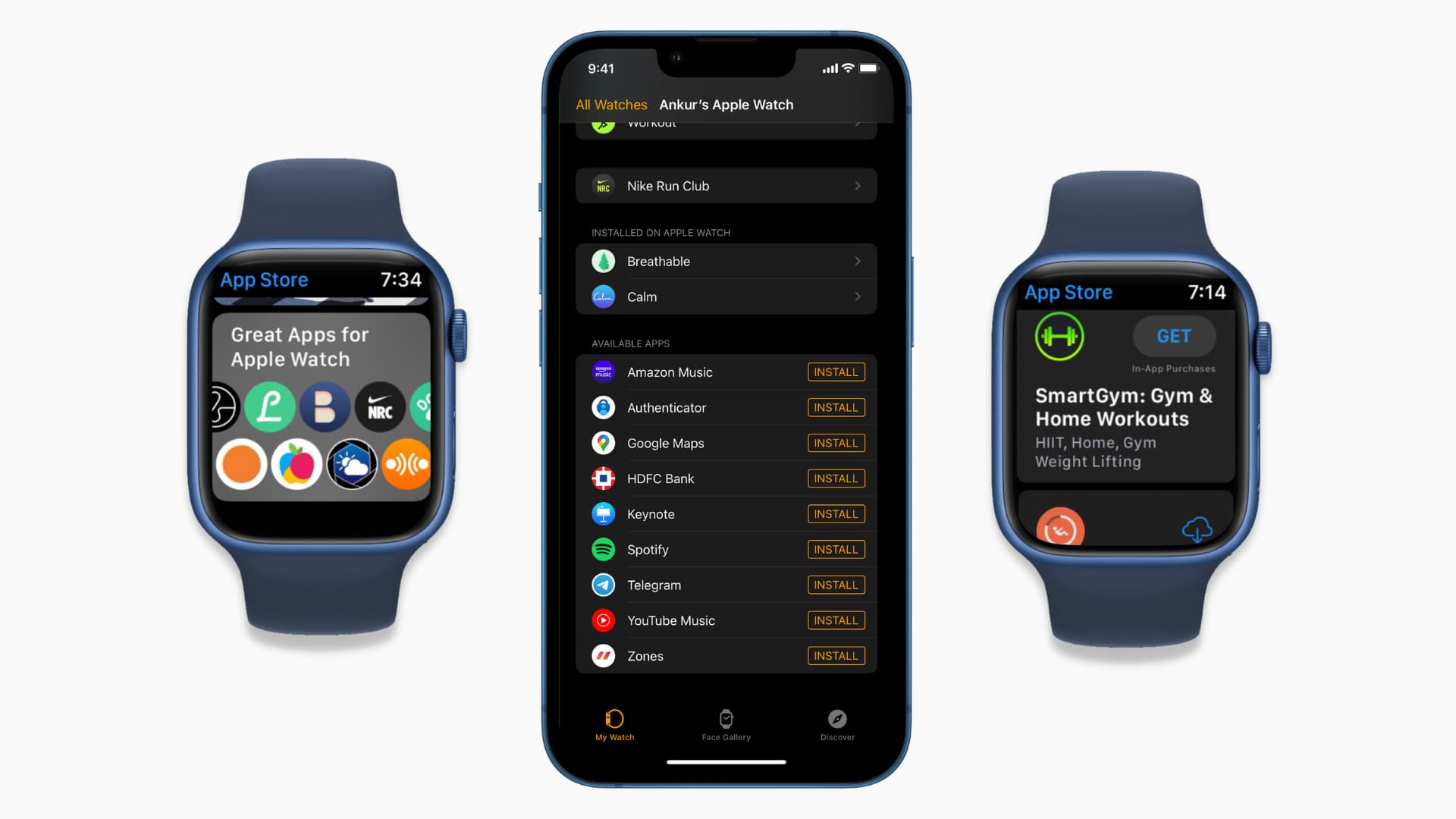
First, wake up your smartwatch by tapping the screen. Locate the App Store icon. It’s usually a small, colorful square. Tap it to open. You’ll see many app options and categories. Use your finger to scroll up and down. Explore different sections to find interesting apps. If you see an app you like, tap it. This opens the app’s page. Here, you can read more about it.
Find the search bar at the top. Tap it to start typing. Type the app’s name you want. Suggestions will appear as you type. Choose the correct app from the list. Tap the app to see more details. If you want it, tap the Download button. Wait for it to install. Now, you can enjoy your new app!

Credit: www.tiktok.com
Downloading Apps
Choosing the right app is important. First, open the smartwatch app store. You will see many apps. Look for the app you want. Use the search bar to find it quickly. Make sure the app is compatible with your smartwatch. Read the app description carefully. Check the app’s ratings and reviews. This helps in making a good choice.
Ready to download? Tap the app icon. You will see a download button. Click it to start. Ensure your smartwatch is connected to Wi-Fi. This makes the download faster. Wait for the download to finish. Once done, the app installs automatically. You can now use the app on your smartwatch. Enjoy exploring new apps!
Installing Apps
Smartwatches make downloading apps easy. Open the app store on your watch. Browse or search for desired apps. Select and tap to install. Enjoy new features directly on your wrist.
Automatic Installation Process
Smartwatches can install apps automatically. Connect your watch to your phone. Make sure Bluetooth is on. Open the watch app on your phone. Find the app you want. Tap “Install” or “Download.” Wait a few minutes. The app installs itself. Ensure your watch has enough space. Some apps need more room. Keep the watch charged during installation. If the watch is low on battery, apps might not install. After installation, open the app on your watch. Check if it works properly. If not, try restarting the watch. Sometimes, this fixes problems.
Manual Installation Steps
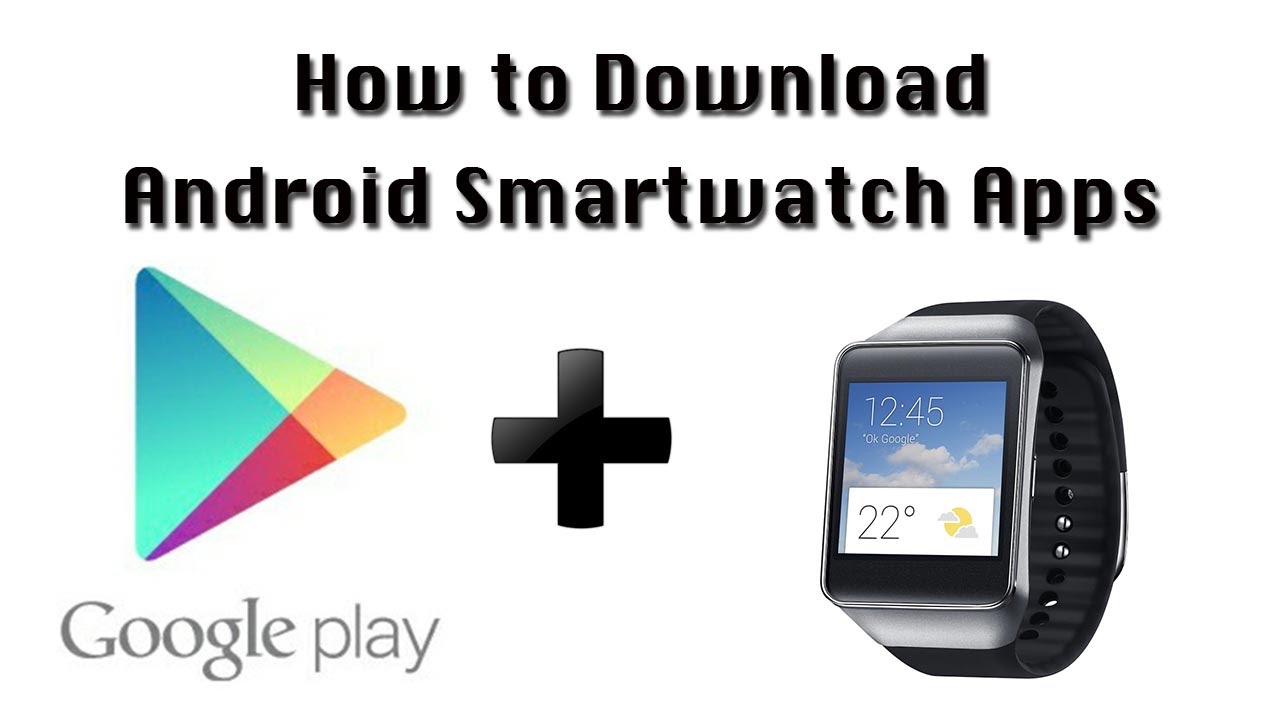
Manual app installation is easy. First, go to your smartwatch store. Find the app you want. Tap the app icon. Look for the “Download” button. Tap “Download.” Wait for the app to download. Once downloaded, tap “Install.” Follow any prompts. Some apps need permissions. Give permissions if asked. Keep watch connected to Wi-Fi. This speeds up the process. Check app settings after installation. Make sure everything is set correctly. Enjoy using your new app. If issues arise, reinstall the app. This often solves problems.
Credit: www.youtube.com
Managing Apps
Smartwatches have many apps. It’s important to keep them organized. Organizing apps helps you find them quickly. Arrange apps by usefulness or frequency. You can also create folders. This makes the screen less crowded. Folders help group similar apps. It’s easy to move apps. Just tap and hold, then drag them. Place them where you like. Keep your favorite apps at the top. This saves time when you need them.
Organizing Apps
Updating apps is important. New updates fix bugs. They also add new features. Always check for updates. Go to the app store on your smartwatch. Look for an update button. Tap it to start updating. Some watches update apps automatically. Check your settings. Make sure auto-update is on. This keeps your apps fresh and working well. Regular updates help your smartwatch run smoothly.
Troubleshooting Common Issues
A failed download can be very frustrating. Check your internet connection first. Ensure it is strong and stable. Sometimes, restarting your smartwatch helps. Try this if the download fails. Also, check your storage space. If full, free up some space by deleting old apps or files.
Some apps might not work on your smartwatch. This is a compatibility issue. Always check the app requirements. Make sure your watch software is up to date. Update it if needed. This can solve many compatibility problems. It also helps your watch run smoothly.
Credit: www.idownloadblog.com
Frequently Asked Questions
How To Install Apps On A Smartwatch?
To install apps on a smartwatch, first, connect it to your smartphone. Open the smartwatch’s companion app on your phone. Browse the available apps and select the ones you want. Tap “Install” to download and install them directly on your smartwatch.
Ensure Bluetooth is enabled for a seamless connection.
Can I Download Apps Without A Smartphone?
Downloading apps without a smartphone is possible on some smartwatches. Ensure your smartwatch has Wi-Fi capabilities. Access the watch’s app store directly from its interface. Browse and select apps to download. Follow on-screen instructions to complete installation. This method is ideal for standalone smartwatches with built-in app stores.
Why Can’t I Find Apps For My Smartwatch?
Not all apps are compatible with every smartwatch. Compatibility depends on the watch’s operating system. Ensure your watch’s software is updated. Check the official app store for availability. Some apps might only be available for specific smartwatch models. Consult the manufacturer’s support for more guidance.
Is There A Cost To Download Smartwatch Apps?
Many smartwatch apps are free, but some require payment. Costs depend on the app’s features and developers. Check the app store for pricing details. Some apps offer in-app purchases for additional features. Always read user reviews before purchasing to ensure quality and functionality.
Conclusion
Downloading apps on your smartwatch is easy and straightforward. Start with ensuring your smartwatch is compatible with the app you want. Use the app store on your watch or phone to find apps. Follow simple steps to install them. Enjoy new features and tools on your wrist.
Technology makes life convenient and fun. Explore various apps to enhance your daily routine. Stay updated with new releases and upgrades. Always check compatibility and reviews before downloading. Embrace the digital world on your wrist today. Feel free to try different apps and enjoy the experience.

Finnian Delaney is a seasoned writer and editor specializing in technology and electronics. At ElectroDoz, he covers a wide range of topics, with a focus on MacBooks, laptops, fitness trackers, keyboards, and computer hardware. With a knack for making complex tech accessible, Finnian helps readers stay informed and confident when choosing their next device or upgrade.


