

How to Set the Time on a Smartwatch: Easy Guide
Is your smartwatch showing the wrong time? It can be frustrating when your sleek digital companion isn’t keeping pace with your busy schedule.
But don’t worry, setting the time on your smartwatch is easier than you might think. Whether you’re heading out for a run or syncing up with your calendar, knowing the correct time is crucial. In this guide, you’ll discover simple steps to adjust your smartwatch’s time settings effortlessly.
Imagine the satisfaction of glancing at your wrist and knowing you’re perfectly in sync with your day. Let’s dive in and make sure your smartwatch is as punctual as you are!
Smartwatch Basics
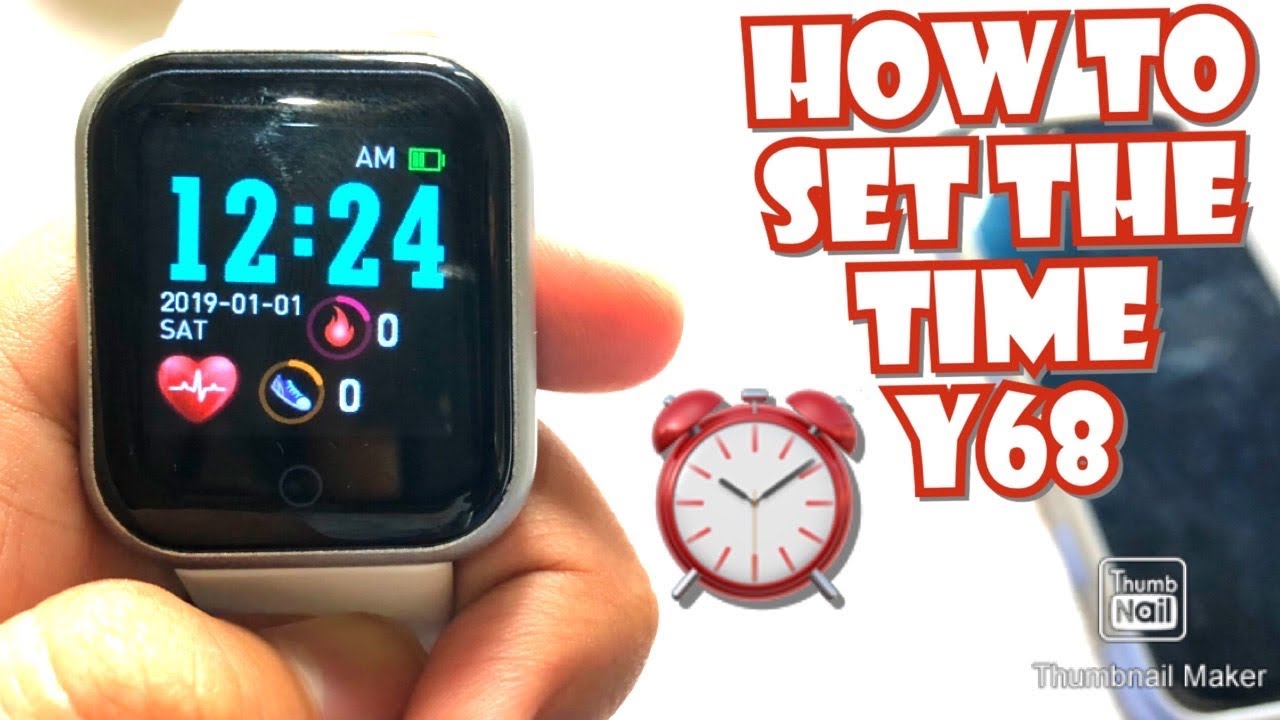
Smartwatches are like tiny computers on your wrist. They tell the time and much more. You can see messages, track steps, and even play games. But first, you need to set the time. It’s easy once you know how. Begin by turning on the smartwatch. Find the settings menu. This is where you change things like the time. Look for an option that says “Time” or “Date & Time”. Tap on it. Follow the instructions. Use the buttons or touchscreen to adjust the time. Make sure it’s correct. Now your smartwatch is ready to help you. Enjoy your new gadget!
Credit: m.youtube.com
Initial Setup Steps
Setting the time on a smartwatch is easy. First, find the Settings app on your smartwatch. Tap it to open. Look for Date & Time. This is where you change the time. Tap on Date & Time.
Choose Automatic if you want it to set the time for you. Your watch will use your phone’s time. If you want to set it yourself, choose Manual. You can now set the hours and minutes. Make sure to pick AM or PM correctly.
Press Save or OK to finish. Your smartwatch now shows the correct time. Check it to be sure it’s right. Remember these steps for next time.
Connecting To Your Smartphone
Turn on the smartwatch. Check if Bluetooth is activated. Go to your phone settings. Find Bluetooth settings. Tap on it. Look for your watch name. Click to pair. Wait for a message. It shows “Connected”. Now your devices are linked.
Open the app store on your phone. Search for your watch app. Download the app. Install it on your phone. Open the app. Follow the steps. Connect the app to your watch. Allow permissions if asked. Now the app is ready.
Syncing Time Automatically
Smartwatches can sync time using network settings. First, connect the watch to Wi-Fi or mobile data. This lets the watch talk to the network. Then, find the network settings on the watch. It might be in the settings menu. Choose the option to sync time automatically. This lets the watch get the time from the network. The time updates on its own. You don’t have to set it manually. Easy!
Another way to sync time is by using an app. First, install the smartwatch app on your phone. Open the app and connect it to your watch. This helps the watch and phone talk to each other. Look for the time sync option in the app settings. Click to sync time automatically. The app sends the right time to the watch. No manual setting needed. Simple!
Manual Time Adjustment
Find the settings menuon your smartwatch. Tap on it. Look for the time option. It may be under “Date & Time.” Open the time settings. You can now adjust the time.
Choose the manual settingfor time. Use the screen to set hours. Then set minutes. Make sure the AM or PMis correct. Press “save” to keep changes. Your watch will now show the correct time.
Troubleshooting Common Issues
Smartwatches sometimes face connection problemswith phones. Ensure Bluetooth is active on both devices. The watch and phone must stay close to each other. Restarting both devices can help fix connection issues. Make sure the smartwatch software is up-to-date. Check that the phone’s app is updated too. If problems persist, try unpairing and pairing the devices again.
Sometimes the smartwatch shows the wrong time. This can be confusing. First, check the time settings in the watch app. Ensure the watch is in the correct time zone. Sync the watch with your phone to correct the time. Make sure the watch battery is charged. A low battery may cause time errors. If it still shows the wrong time, resetting the watch might help.
Tips For Accurate Timekeeping
Smartwatches often need regular updates to keep time correctly. Make sure your watch is connected to the internet. This helps in receiving updates. Update your smartwatch software as often as possible. This keeps the time accurate. Some watches update time automatically. Check your settings to ensure this feature is active. Regular updates also improve security. Keep your watch running smoothly with these updates.
A smartwatch’s battery affects its timekeeping. Ensure your watch is charged regularly. A low battery can cause time issues. Good performance depends on a healthy battery. Avoid letting the battery go completely dead. This can harm the watch’s performance. Charge the watch using the correct charger. Use an official charger for best results. Good battery care ensures accurate timekeeping.
Credit: www.kentfaith.ca
Frequently Asked Questions
How Do I Change The Time On My Smartwatch?
To change the time, access the settings menu on your smartwatch. Select the “Date & Time” option. Choose to set the time manually or sync it with your smartphone. If syncing, ensure Bluetooth is enabled on both devices. Follow the on-screen instructions to complete the process.
Can I Set My Smartwatch Time Without A Phone?
Yes, you can set the time manually. Go to the settings menu on your smartwatch and select “Date & Time. ” Choose the manual option to adjust the time. Follow the prompts to set the desired time. No phone connection is required for this method.
Why Is My Smartwatch Time Incorrect?
Incorrect time settings may result from an outdated software version or connectivity issues. Ensure your smartwatch is synced with your smartphone. Check for any software updates and install them. If the problem persists, try restarting your smartwatch and re-syncing with your phone.
How Do I Sync My Smartwatch Time With My Phone?
To sync, enable Bluetooth on both your smartwatch and smartphone. Open the companion app on your phone. Navigate to the “Settings” or “Device” menu. Select “Sync Time” or a similar option. Follow the on-screen prompts to complete the synchronization process.
Conclusion
Setting the time on a smartwatch is simple and quick. Just follow the steps outlined in this guide. First, find the settings menu on your smartwatch. Then, select the time option and adjust it as needed. Remember to save your changes before exiting.
This ensures your watch displays the correct time. Regularly updating your smartwatch keeps it accurate. Explore its features, as each smartwatch might have unique settings. Now, you can enjoy your smartwatch without time worries. Happy timekeeping!

Finnian Delaney is a seasoned writer and editor specializing in technology and electronics. At ElectroDoz, he covers a wide range of topics, with a focus on MacBooks, laptops, fitness trackers, keyboards, and computer hardware. With a knack for making complex tech accessible, Finnian helps readers stay informed and confident when choosing their next device or upgrade.


