

How to Connect Epson Projector to Wifi: Easy Guide
Are you struggling to connect your Epson projector to WiFi? You’re not alone.
Many people face challenges when trying to set up their projectors wirelessly. But don’t worry—you’re in the right place. Imagine watching your favorite movie or giving a seamless presentation without a tangle of cables. The convenience of a wireless connection can transform your experience.
This guide will walk you through the process, step by step, ensuring a smooth and hassle-free setup. Ready to make your life easier and fully utilize your Epson projector’s capabilities? Let’s dive into it and get you connected in no time!
Credit: www.epson.co.nz
Choosing The Right Epson Projector
Check if the Epson projector has WiFi compatibility. Some projectors do not support WiFi. Read the manual or check online to see the features. Knowing the model number helps. Check for WiFi settings in the menu. If there is no WiFi option, it might not connect.
Projectors have many features. Some have built-in WiFi, while others need a dongle. Look for a menu with network settings. Brightness levels matter too. Wireless projectors often cost more. Check what features are most important. Choose wisely.
Setting Up The Projector
Open the box with care. Take out the projector, remote, and cables. Find the manual. Read it for guidance. Put the batteries in the remote. Plug in the power cable. Connect it to the projector. Turn on the projector. Watch the welcome screen. Follow the on-screen steps. Finish the initial setup.
Choose a flat surface. Place the projector there. Make sure it is stable. Point the lens toward the screen. Adjust the angle. Use the projector’s feet for this. Check the image alignment. Move the projector if needed. Keep it away from walls. This helps with airflow. Ensure nothing blocks the lens. This keeps the image clear.
Connecting To Wifi
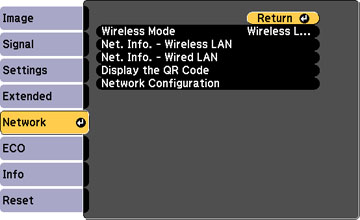
Press the menubutton on the remote. Use the arrow keys to navigate. Find the Networkoption. Select it by pressing enter.
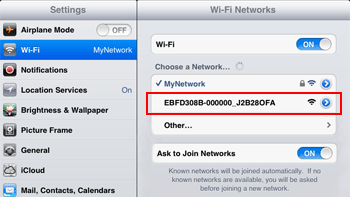
Choose Wireless Setup. A list of networks will appear. Pick your WiFinetwork from the list. Make sure the name is correct.
Enter the passwordfor your network. Use the remote to type. Check each character carefully. Press enter when done. Wait for the projector to connect.
Credit: www.benq.com
Troubleshooting Connection Issues
Connecting an Epson projector to WiFi can be simple with the right steps. First, ensure the projector’s wireless feature is enabled. Next, access the network settings and select your WiFi network. Enter the password carefully to establish a secure connection.
Checking Network Settings
Ensure the projectoris turned on. Open the settingsmenu. Find the networksettings option. Check if the Wifiis enabled. Confirm the networkname matches your home Wifi. Verify if the passwordis correct. Ensure your Wifi signal is strong. Move the projector closer to the router if needed.
Resolving Common Errors
Restart the projectorand router. This can fix many issues. Check for any updatesin projector settings. Sometimes, software needs updating. Make sure the networkis not overloaded. Disconnect some devices if needed. Reset the network settings and try again. Use the manual if you need help. Contact Epson support for persistent problems.
Using The Projector With Wifi
Connect your Epson projector to WiFi. Stream movies without cables. It’s easy and fun. Use WiFi settings on the projector. Open the menu and find the wireless option. Choose your home network. Type the password carefully. Wait for the connection. The screen shows when it’s ready.
Mobile apps make it simple to control the projector. Download the Epson app. Find it in the app store. Open the app and connect it to the projector. Follow the steps. The app helps manage the settings. Change volume or picture size with your phone. Enjoy movies or games from the couch. It’s easy and fun.
Maintaining A Stable Connection
Keep your projector close to the WiFi router. Walls and doors can block the signal. Make sure there are fewer things in the way. Place the router in a high spot if possible. Check if other devices are using a lot of WiFi bandwidth. This can slow things down. Turn off devices not in use. Restarting your router can also help. It clears up the connection.
Check if your projector has the latest firmware. This keeps the software updated. Old firmware can cause problems. Visit the Epson website for updates. Follow the steps to download and install. Make sure the projector is connected to power. Do not unplug it during the update. This can damage the device. Updates can fix bugs and improve performance.
Credit: files.support.epson.com
Frequently Asked Questions
How Do I Connect Epson Projector To Wifi?
To connect your Epson projector to wifi, navigate to the menu settings. Select Network and then Wireless LAN. Follow the on-screen instructions to connect to your wifi network. Ensure your projector and router are within range for a stable connection.
Why Is My Epson Projector Not Connecting To Wifi?
If your Epson projector isn’t connecting, check if the wifi network is active. Ensure the projector’s firmware is updated. Verify the wifi password is correct and check for any interference. Reset the projector’s network settings and try reconnecting.
Can I Connect Epson Projector To Mobile Hotspot?
Yes, you can connect your Epson projector to a mobile hotspot. Access the projector’s network settings and choose Wireless LAN. Select your mobile hotspot from the list and enter the password. This allows for a wireless connection using your phone’s data.
What Should I Do If Wifi Keeps Disconnecting?
If the wifi keeps disconnecting, check for interference from other devices. Ensure the projector is within range of the router. Update the projector’s firmware and router settings. Restart both devices to establish a stable connection.
Conclusion
Connecting your Epson projector to WiFi enhances your viewing experience. It allows wireless streaming and easy access to online content. Follow the steps outlined to ensure a smooth connection process. Double-check your settings and enjoy the convenience of wireless projection.
Your presentations and movie nights will be more enjoyable. Remember to keep your projector software updated. This ensures compatibility and prevents connectivity issues. Share your projector’s WiFi capabilities with friends and family. Everyone can experience seamless and wireless entertainment. Explore different settings to optimize your viewing experience.
Enjoy your Epson projector’s full potential.

Everett Ashford is an electrical engineer and expert in electronics reviews, tips, and troubleshooting. Specializing in audio and sound devices, including earbuds, AirPods, and headphones, he brings in-depth knowledge and practical advice to help consumers make informed decisions.


