How to Connect to a Wireless Projector: Easy Guide
Imagine setting up your laptop for a crucial presentation, only to face a tangled mess of cables. Frustrating, isn’t it?
But what if you could skip the clutter and connect seamlessly to a projector without those pesky wires? If you’ve been searching for a hassle-free way to share your screen, you’re in the right place. In this guide, you’ll discover how to connect to a wireless projector effortlessly, transforming how you present and share content.
Whether you’re in a conference room or a cozy classroom, this knowledge will empower you to focus on what truly matters: your presentation. So, let’s dive in and make your next connection smooth and stress-free.
Understanding Wireless Projectors
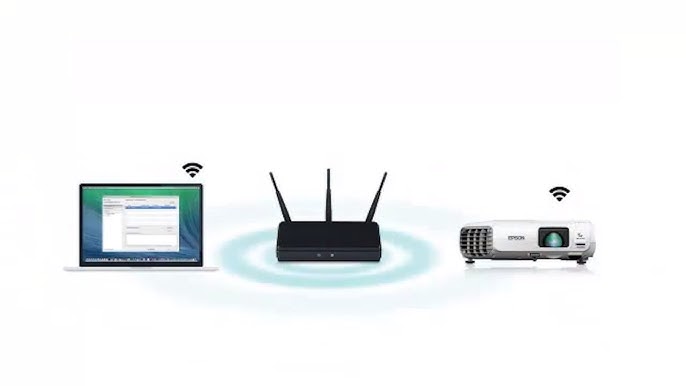
Wireless projectors show images without cables. They use Wi-Fior Bluetooth. This makes them easy to set up. You can connect them to computers, tablets, or phones. Make sure your device is compatible. Some projectors need special apps or software. Others connect directly. Always check the projector’s manual. It helps you know what to do. These projectors are great for meetings. Also useful in classrooms. They make presentations simple and neat. No wires on the floor. Just clear, big images on the screen.

Credit: www.seenebula.com
Benefits Of Wireless Projectors
Wireless projectors offer many advantages in classrooms and offices. They eliminate the need for messy cables. This makes the setup process faster and easier. You can move freely without being stuck to one spot. This helps in making presentations more engaging. Also, multiple devices can connect to a single projector. This allows for smooth transitions between different presenters.
Wireless projectors often support screen mirroring. This means you can project from laptops, tablets, or phones. The devices connect through Wi-Fi or Bluetooth. This feature is very useful in meetings and classrooms. It provides flexibility and convenience.
Checking Compatibility
Connecting to a wireless projector needs certain device requirements. Your device must have wireless capabilities. This means it should support Wi-Fi or Bluetooth. Check if your device has these features.
Operating system compatibility is crucial. Your device should run a supported operating system. Many projectors work with Windows, Mac, Android, and iOS. Always check the projector’s manual. It will list compatible systems.
Setting Up The Wireless Projector
Place the projectoron a flat surface. Ensure there is a clear path to the screen. Check the distance between the projector and the screen. This affects the image size. Avoid placing it too close or too far. Adjust the height if needed. Use books or stands. Make sure it is stable. Avoid movement during use.
Plug the power cableinto the socket. Ensure the plug fits snugly. Press the power button. Wait for the device to start. The light will blink initially. This shows it is warming up. Once steady, the projector is ready. Do not press buttons repeatedly. This might cause errors.
Connecting From A Windows Device
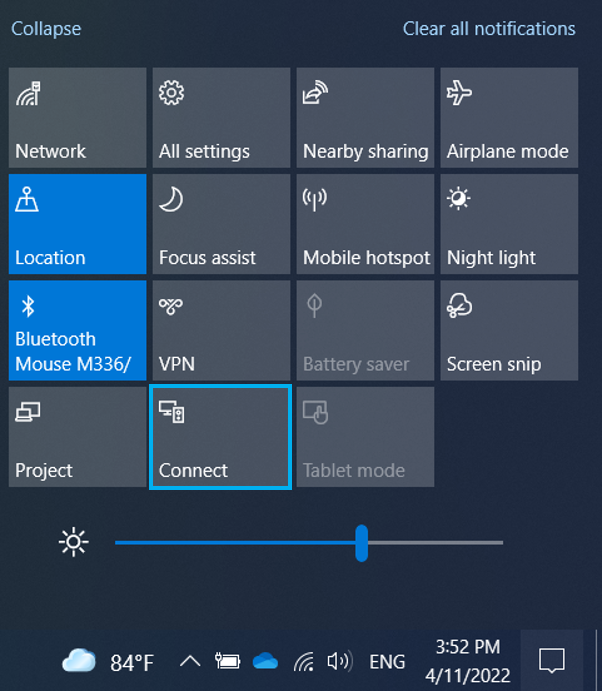
Windows devices have built-in tools to connect to projectors. First, make sure Wi-Fi is on. Open the Action Center by clicking the notification icon. Find and select the “Connect” option. Your device will search for nearby projectors. Click the name of your projector. Follow any instructions on the screen. It’s easy and quick.
Some users prefer third-party apps. These can offer extra features. Miracast and AirPlay are popular choices. Install the app on your device. Ensure your projector supports the app. Start the app and search for the projector. Connect by following the app’s steps. Make sure both devices are on the same network. Enjoy your presentation or movie.
Credit: www.youtube.com
Connecting From A Mac Device
Make sure your Mac and projector are on the same Wi-Fi network. Click on the AirPlay icon on your Mac. It looks like a rectangle with a triangle at the bottom. Choose the projector’s name from the list. You might need to enter a code. This code shows on the projector screen. Type it into your Mac. Your screen should now appear on the projector. This is a simple and quick way to connect.
Some apps help connect your Mac to a projector. Reflector and AirServer are popular choices. First, download and install the app on your Mac. Open the app and look for your projector’s name. Click on it to connect. These apps can offer more features. They might provide better control or image quality. Always check for app updates. Updates can fix bugs and improve performance.
Connecting From A Mobile Device
Start by enabling Wi-Fi on your iOS device. Open the Settings app. Choose the Wi-Fi option. Find and select the projector’s network. Enter any required passwords. Next, swipe up or down to open the Control Center. Tap Screen Mirroring. Choose your projector from the list. Wait for the connection to establish. Your iOS device should now display on the projector.
Begin by turning on Wi-Fi on your Android device. Go to Settings. Select Wi-Fi and connect to the projector’s network. Input passwords if needed. Go back to the home screen. Swipe down to open the Quick Settings panel. Tap Cast or Screen Cast. Select your projector from available devices. Wait a few seconds. Your Android screen should now be projected.
Troubleshooting Common Issues
Many users face challenges connecting to a wireless projector. First, check if the Wi-Fiis enabled on both the projector and the device. Ensure they are on the same network. Restart the device if the connection fails. Check for updates in your device’s software settings. The latest version often fixes bugs. Double-check if the projector supports your device’s connection type. Some projectors need specific apps. Download and install if necessary. Always ensure the correct input source is selected on the projector.
Sometimes, the projection qualityis not clear. Adjust the projector’s focus settings. Ensure the room is dark enough. Bright lights can affect the display. Check the resolution settings on your device. Higher resolution often improves clarity. Clean the projector lens gently with a soft cloth. Dust can blur images. Verify the placement of the projector. It’s better if it’s centered and aligned. Ensure no objects are blocking the projection path.
Best Practices For A Smooth Connection
Setting up network settings correctly helps in a smooth connection. Ensure your device is connected to the same Wi-Fi as the projector. Check if your Wi-Fi signal is strong. Weak signals cause interruptions. Adjust the router position to improve signal. Use less crowded Wi-Fi channels to avoid interference. Turn off other devices if needed. This ensures better bandwidth for your projector.
Updating the software regularly is important. New updates fix bugs and improve performance. Check for updates on your device. Also, check updates for the projector. Keeping both updated ensures they communicate well. Updates often add new features. These features can help with connectivity. Make sure to update whenever prompted.
Credit: www.benq.com
Frequently Asked Questions
How Do I Connect My Laptop To A Wireless Projector?
To connect your laptop to a wireless projector, ensure both devices support wireless connectivity. Enable Wi-Fi on your laptop, select the projector from available devices, and follow the on-screen instructions. Use screen mirroring or casting features, such as Miracast or AirPlay, depending on your laptop’s operating system.
Can I Use My Phone To Connect Wirelessly?
Yes, you can connect your phone to a wireless projector. Ensure your phone and projector support wireless connectivity. Use screen mirroring or casting apps, like Google Cast or AirPlay. Connect both devices to the same Wi-Fi network. Follow the app’s instructions to project your phone’s screen.
What If My Projector Lacks Built-in Wireless?
If your projector lacks built-in wireless, use a wireless adapter. Plug the adapter into the projector’s HDMI port. Connect the adapter to your Wi-Fi network. Follow the adapter’s instructions to mirror your device’s screen. Ensure your device supports screen mirroring or casting for seamless connectivity.
Are There Security Concerns With Wireless Projectors?
Yes, there are security concerns with wireless projectors. Unsecured connections may lead to unauthorized access. Use secure networks and passwords to protect your data. Keep your projector’s firmware updated. Disable wireless connections when not in use. Consider using a Virtual Private Network (VPN) for added security.
Conclusion
Connecting to a wireless projector can be simple. Follow steps for your device. Check compatibility and settings. Use the right app or software. Ensure strong Wi-Fi signal for smooth operation. Troubleshoot if issues arise. Consult manuals or online guides. Practice makes perfect.
With patience, you’ll connect easily every time. Enjoy sharing presentations and videos wirelessly. Enhance meetings and classrooms with this tech. Wireless projectors offer flexibility and convenience. Embrace the future of presentations with ease. Now, you’re ready to connect and project without hassle.
Share your experiences and tips with others. Happy projecting!

Everett Ashford is an electrical engineer and expert in electronics reviews, tips, and troubleshooting. Specializing in audio and sound devices, including earbuds, AirPods, and headphones, he brings in-depth knowledge and practical advice to help consumers make informed decisions.