How Do I Screenshot on My Dell Laptop: Easy Guide
Have you ever found yourself needing to capture what’s on your Dell laptop screen but aren’t quite sure how to do it? Whether it’s a funny meme, an important email, or a crucial piece of information, knowing how to take a screenshot quickly can be incredibly useful.
You might be thinking that it’s just a simple task, but with different models and software, it can sometimes feel like a puzzle. Don’t worry—you’re not alone, and this guide is here to help you. Imagine the relief of being able to snap that image in an instant, without any hassle or confusion.
Picture yourself sharing that information with friends or colleagues, or saving it for later with just a few clicks. This article is designed to equip you with the knowledge you need to make taking screenshots on your Dell laptop a breeze. Dive in, and discover simple methods that will empower you to capture your screen effortlessly. Your path to mastering screenshots starts here, and once you know how, you’ll wonder how you ever managed without it.
Methods For Taking Screenshots
Press the PrtScnkey on your keyboard. It captures the whole screen. Open a program like Paint. Paste the screenshot there. Save the image file. It’s quick and easy!
The Snipping Toolis built into Windows. Open it from the Start menu. Select “New” to start a capture. Drag the mouse to select an area. Save the snip when done. It’s very handy!
Snip & Sketchis a modern tool. Open it from the Start menu. Click “New” for a screenshot. Select the area you want. You can edit the capture. Save it when ready.
Capturing Full Screen
Press the PrtScnbutton on your keyboard. This button copies the screen. Open Paintor a similar program. Paste the image there. Save it to your computer.
Press the Windows Keyand PrtScn together. The screen will dim for a second. Your screenshot is saved automatically. Find it in the Screenshotsfolder. Check it in the Pictures library.
Capturing Active Window
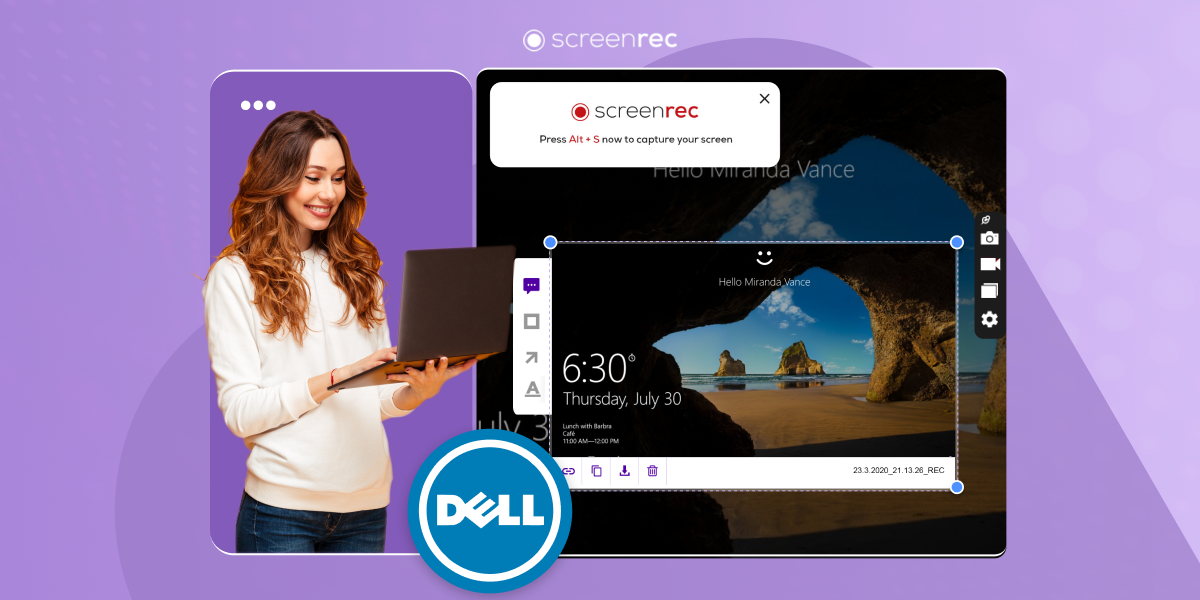
Press Alt + PrtScnto capture the active window. This command copies the image. It captures only the active window. The rest of the screen is not included. It is an easy way to capture what you need.
The screenshot is now in the clipboard. Open an app to paste it. Use Ctrl + Vto paste. You can paste in Paint or Word. Now, save your image file. It is simple and quick. Screenshots help in many tasks.
Credit: screenrec.com
Using Snipping Tool
First, open the Start menu on your Dell laptop. Find the Snipping Tool by typing its name. Click on it to open. It’s easy to find and use. This tool helps take screenshots fast. Locate it in the Windows Accessories folder. It works well for capturing any part of the screen.
Choose from four snip modes. Free-form Snip lets you draw any shape. Rectangular Snip captures a square or rectangle. Window Snip grabs a specific window. Full-screen Snip takes the whole screen. Each mode serves different needs. Select the best one for your task. Easy to switch between modes.
Snip & Sketch Application
First, press the Windows keyon your keyboard. Type Snip & Sketchin the search box. Click on the app when it appears. The app will open quickly. You are ready to take a screenshot.
After taking a screenshot, it shows in the app. You can use the pen toolto draw on it. The eraser toolhelps remove mistakes. Use the ruler toolfor straight lines. To share the screenshot, click on the share icon. Choose where you want to send it.

Credit: www.youtube.com
Screenshot With Dell Mobile Connect
Capturing screenshots on a Dell laptop is simple with Dell Mobile Connect. Open the app and select the screen you want to capture. Click the screenshot option to save your image instantly.
Setting Up The App
Download the Dell Mobile Connect appfrom the Microsoft Store. Make sure your laptop is running a supported version of Windows. Install the app on your mobile device too. Look for it in the Apple App Store or Google Play Store.
Open the app on your laptop. Follow the instructions to set it up. It might ask for permissions. Allow them for a smooth experience.
Syncing With Mobile Devices
Open the app on your phone. Turn on Bluetooth on your laptop. Pair your phone with the laptop. Follow on-screen instructions.
After syncing, you can see your phone screen on your laptop. Use the app to take screenshots. Save them directly to your laptop. It’s easy and fast.
Troubleshooting Common Issues
Keys Not Respondingcan be frustrating. First, check if the keys are stuck. Dirt or debris might block them. Clean the keyboard gently. Use a soft cloth. Try pressing the keys again. Still not working? Restart your laptop. Sometimes, this fixes the problem. If the issue persists, update the keyboard driver. Drivers help your keyboard work properly. Find the driver in Device Manager. Follow the steps there. If nothing helps, consider professional help.
Software Conflictscan cause screenshot problems. Conflicting software disrupts functions. Check your installed programs. Some programs can interfere. Disable them one by one. See if screenshots work after disabling. Antivirus software sometimes causes issues. Temporarily turn it off. Test the screenshot feature. If successful, change antivirus settings. Allow screenshot functions. Update all software regularly. Updates fix many problems. Keep your laptop secure and efficient.

Credit: www.youtube.com
Frequently Asked Questions
How To Take A Screenshot On Dell Laptop?
To take a screenshot on a Dell laptop, press the “PrtSc” (Print Screen) key. This captures the entire screen. Open an image editor, like Paint, and paste the screenshot using “Ctrl + V”. Save the file in your desired format.
Can I Screenshot Only The Active Window?
Yes, you can. Press “Alt + PrtSc” to capture only the active window on your Dell laptop. This copies the window to the clipboard. Paste it into an image editor like Paint using “Ctrl + V”. Save it in your preferred format.
Where Do Screenshots Go On Dell Laptops?
Screenshots are saved to the clipboard first. Open an image editor like Paint and paste them using “Ctrl + V”. You can then save the screenshot to your desired location on your Dell laptop.
Is There A Shortcut For Screenshots On Dell?
Yes, use “Windows + Shift + S” for a built-in snipping tool. This lets you select the area you want to capture. The screenshot is copied to the clipboard. Paste it in an editor and save.
Conclusion
Capturing a screenshot on a Dell laptop is simple and quick. You can use keyboard shortcuts for efficiency. The “PrtSc” button is your friend. Just press it and capture the entire screen. Need only a specific window? Use “Alt + PrtSc”.
For more control, try the Snipping Tool. It offers flexible options. Choose what suits your needs best. Now, you can easily share or save your screenshots. Practice these steps. You’ll get better over time. Screenshots are a useful tool. Keep them handy for future tasks.

Finnian Delaney is a seasoned writer and editor specializing in technology and electronics. At ElectroDoz, he covers a wide range of topics, with a focus on MacBooks, laptops, fitness trackers, keyboards, and computer hardware. With a knack for making complex tech accessible, Finnian helps readers stay informed and confident when choosing their next device or upgrade.