How Do You Close Windows on a MacBook: Quick Guide
Are you new to using a MacBook and finding it a bit tricky to close windows? You’re not alone.
Switching from another operating system to macOS can be a bit confusing at first. But don’t worry; mastering this simple task can significantly enhance your user experience. Imagine the satisfaction of seamlessly managing your workspace, keeping things neat and organized with just a few clicks.
In this guide, we’ll walk you through the easy steps to close windows on your MacBook. This small yet crucial skill will help you navigate your device more efficiently and boost your productivity. Let’s get started on making your MacBook experience smoother and more enjoyable!
Closing Windows With Keyboard Shortcuts
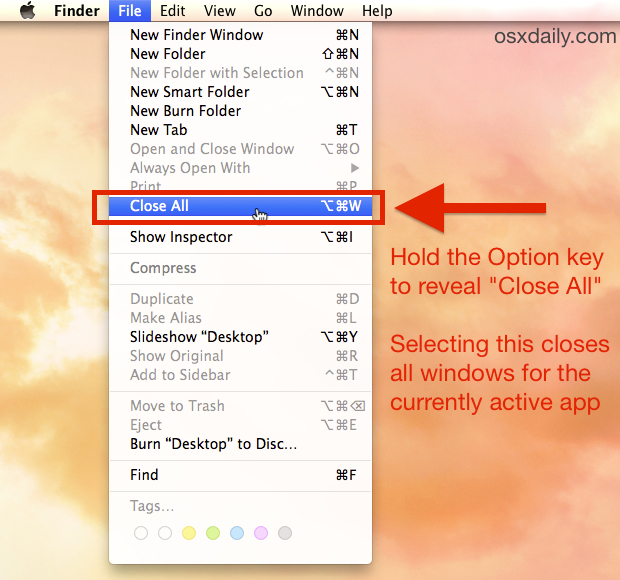
Keyboard shortcuts make closing windows on a MacBook simple. You can press Command (⌘) + Wto close the current window. This works for most apps. If you want to close all windows, press Command (⌘) + Option (⌥) + W. This will shut all open windows in the app.
For closing the entire app, use Command (⌘) + Q. This will close the app and all its windows. Get used to these shortcuts to save time. They help you work faster on your MacBook.
Using The Red Close Button
The red close button is on the top left. It looks like a red circle. Clicking this button closes the window. This button is easy to find.It is very simple to use. Many people use it to close windows. It saves time and effort. Every Macbook user should know this trick.Some apps ask before closing. Be sure to save your work. This is important to remember. Closing windows keeps your screen tidy. It is a good habit to have.
Closing Multiple Windows
Mission Control is a handy tool on a Macbook. It shows all open windows at once. To open it, swipe up with three fingers. You can also press the F3 key. This makes it easy to find your window. Click on a window to make it active. To close it, press Command + W. This action closes the selected window.
App Exposé helps see all windows of one app. Swipe down with three fingers. This gesture shows all windows of the app in use. Click any window to bring it to the front. Close it with Command + W. App Exposé is useful for managing many windows. It keeps your workspace tidy and organized.
Credit: www.businessinsider.com
Force Closing Unresponsive Windows
Sometimes, windows on a MacBook don’t respond. This can be frustrating. Use the Force Quit tool to fix this. First, click the Apple logo. It’s in the top left corner. Choose “Force Quit” from the menu. A new window will open. Here, find the app that’s not working. Click on it. Then, hit the “Force Quit” button. This will close the unresponsive window. Be careful. This action will not save your work. Always try to save work often. It helps avoid losing data.
Another way is using the keyboard. Press Command, Option, and Escape keys. This will open the Force Quit window. Choose the app and click “Force Quit”. Both methods work well. They help keep your Mac running smoothly.
Managing Tabs In Web Browsers
Sometimes, tabs get messy. Closing individual tabs is easy on a MacBook. Look at the top of your browser. Find the tab you want to close. Click the small “X” on the tab. This removes the tab. Your browser will stay open. You can also press Command + W. This keyboard shortcut closes the tab you are on. Remember, this is for just one tab. Other tabs will stay open.
Want to close everything? You can close all tabs at once. On a MacBook, click the red circle at the top left of the browser. This will close the browser and all tabs. You can also use Command + Q. This quits the browser completely. No tabs will be open after this. Make sure to save your work before closing. You don’t want to lose important stuff.
Credit: osxdaily.com
Customizing Window Closing Options
Shortcuts make closing windows easy on a Macbook. You can change these shortcuts in settings. Go to the menu bar. Click on “System Preferences”. Then, choose “Keyboard”. Here, you can see shortcut options. Find “App Shortcuts” and select it. You can add a new shortcut. Choose the app and set your shortcut. It’s simple and quick.
Some tools help with closing windows. Third-party tools offer more options. They can make tasks faster. One tool is “BetterTouchTool”. It allows custom gestures. Another tool is “Spectacle”. This tool helps with window management. They are easy to download and use. These tools can be found online. Always check reviews before downloading. This ensures the tool is safe.

Credit: www.youtube.com
Frequently Asked Questions
How To Close Windows On A Macbook?
To close a window on a MacBook, click the red “X” button in the top-left corner. Alternatively, use the keyboard shortcut Command (⌘) + W. This closes the active window efficiently and is helpful for quickly managing multiple windows.
Can You Close Apps With Keyboard Shortcuts?
Yes, you can close apps using keyboard shortcuts. Press Command (⌘) + Q to quit an app entirely. This shortcut helps in quickly closing apps without manually clicking through the menu.
What Is The Shortcut For Minimizing Windows?
To minimize a window, use the keyboard shortcut Command (⌘) + M. This action sends the window to the Dock, keeping it accessible for later use. Minimizing is great for reducing screen clutter.
How Do You Close Multiple Windows At Once?
To close multiple windows at once, use the Option key with Command (⌘) + W. This closes all windows of the active app. It’s useful for quickly closing all open windows in a single app.
Conclusion
Closing windows on a MacBook is straightforward. Just use these simple steps. Click the red “X” button to close any window. Keyboard shortcuts help too. Press “Command + W” to close active windows quickly. Managing open windows on a MacBook is easy with these tips.
Practice makes perfect, and soon you’ll do it without thinking. Remember, closing windows can keep your workspace tidy. Stay organized and enjoy a smooth MacBook experience. Keep exploring and learning new tricks. Your MacBook skills will improve over time. Happy browsing!

Finnian Delaney is a seasoned writer and editor specializing in technology and electronics. At ElectroDoz, he covers a wide range of topics, with a focus on MacBooks, laptops, fitness trackers, keyboards, and computer hardware. With a knack for making complex tech accessible, Finnian helps readers stay informed and confident when choosing their next device or upgrade.