How to Connect Airpods 4: Effortless Guide
Imagine you’re eager to immerse yourself in the crisp sound quality of your brand-new AirPods 4. But first, you need to connect them seamlessly to your device.
You might think it’s a daunting task, but it’s easier than you think. In this guide, we’ll walk you through each step with clarity and simplicity, ensuring you feel confident in getting your AirPods 4 up and running. With just a few clicks and taps, you’ll be ready to enjoy your favorite tunes, podcasts, or calls like never before.
Stick with us, and you’ll discover the effortless magic of connecting your AirPods 4. Plus, we’ll share some insider tips to enhance your listening experience. Ready to dive in? Let’s get started!
Credit: support.apple.com
Device Compatibility
Airpods 4 work best with iPhones and iPads. Make sure your device has the latest iOS update. Use the Bluetooth settings to connect your Airpods. Open the case near your device and follow the screen instructions. Your device will show Airpods in the Bluetooth list.
Airpods can also connect to Android phones. Use the Bluetooth settings to pair them. Open the Airpods case and press the button until the light flashes. Select Airpods from the available devices list. Your Android phone will pair with the Airpods.
Many devices support Bluetooth connections. This includes laptops and tablets. Use their Bluetooth settings to connect. Open the Airpods case and press the button to make them discoverable. Choose Airpods from the list. These steps should connect Airpods to any Bluetooth device.
Initial Setup
First, make sure your AirPods are fully charged. Place them in the charging case. Check the battery level by opening the case near your iPhone. A popup will show the charge status. If the battery is low, connect the case to a power source. Use the included cable for the best results. Let them charge for a few hours for the first time. This ensures your AirPods are ready to use.
Turn on Bluetooth on your device. Go to Settings and find Bluetooth. Make sure the switch is green. This means Bluetooth is on. Now, open the AirPods case near your device. Wait for the popup message. Press Connect to pair the AirPods. They will connect automatically from now on. Enjoy your music or calls wirelessly.
Pairing With Iphone
AirPods 4 connect easily. Open the case near your iPhone. A pop-up will appear. Tap “Connect” on the screen. The AirPods are now linked. No settings needed. Enjoy your music right away. Simple steps make pairing fast. Anyone can do it.
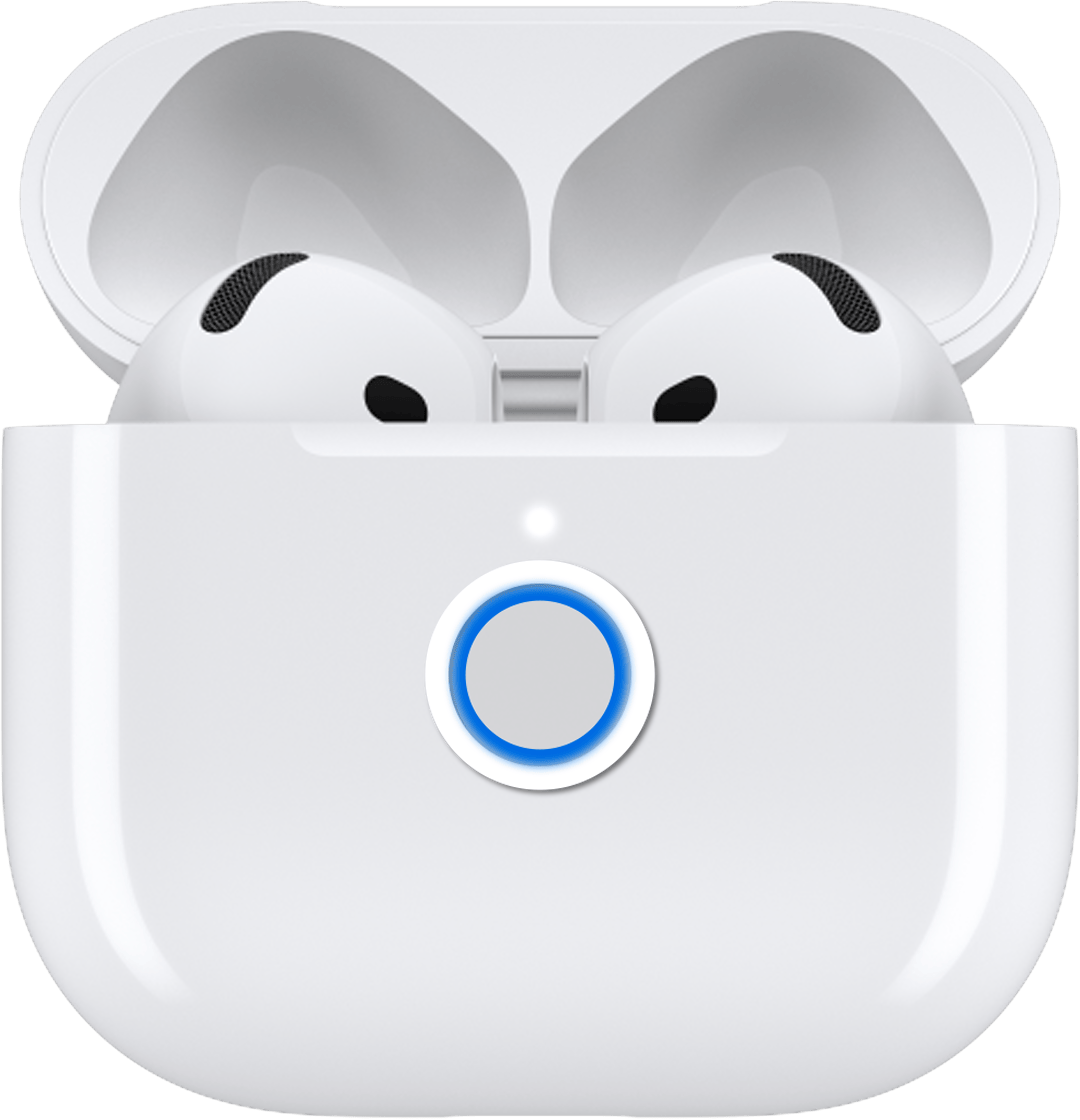
Sometimes automatic pairing doesn’t work. You can pair manually. Go to your iPhone’s settings. Find “Bluetooth” and turn it on. Open the AirPods case. Press the button on the back. Hold it until the light blinks white. Your AirPods will show in Bluetooth devices. Tap to connect them. The light will turn green. Your AirPods are now ready. Manual pairing helps when automatic fails.
Connecting To Android
To connect AirPods 4 to an Android phone, first open the phone’s Settings. Find and tap on Bluetooth. Make sure it is turned on. Next, open the AirPods case. Press and hold the button on the back of the case. Wait until the light starts flashing. This means the AirPods are in pairing mode.
On your phone, look for AirPods in the list of available devices. Tap on AirPods to connect. If it asks for a code, enter 0000. Now, your AirPods should be connected to the Android phone.
Sometimes, AirPods might not connect. First, make sure Bluetooth is enabledon your phone. Check if the AirPods have enough battery. Restart your phone and try again. If issues continue, try resetting the AirPods. Hold the button on the case for 15 seconds. Then try connecting again. If problems persist, consult your phone’s user manual.
Using With Macbook
Open System Preferenceson your MacBook. Find the Bluetoothoption. Click it to open. Ensure Bluetooth is on. Place your AirPods near the MacBook. Wait for AirPods to appear in the list. Select your AirPods from the list. Click Connect. Your AirPods will connect to the MacBook. Ready for use.
Go to System Preferencesagain. Choose Soundoption. You will see a list of devices. Select your AirPods for audio output. This sets AirPods as main sound device. Check if sound works. Play a video or song. Listen through AirPods. Adjust volume using controls. Enjoy clear sound through your AirPods.

Credit: www.youtube.com
Pairing With Windows Pc
First, open the Bluetooth settings on your Windows PC. Click on the Start menu, then select Settings. Find the Devices option and click it. Now, you can see the Bluetooth & other devices tab. Make sure the Bluetooth is turned on. If it’s off, switch it on by clicking the toggle button. This step is crucial for pairing.
Next, it’s time to select your AirPods as the audio device. In the Bluetooth settings window, click on Add Bluetooth or other device. Choose the Bluetooth option from the list. Open the AirPods case and press the setup button on the back. This will make the AirPods discoverable. Wait for your PC to find the AirPods. When they appear, click on them to connect. Now, enjoy your audio experience.
Switching Between Devices
AirPods 4 can switch devices automatically. This feature is easy to use. No need to change settings. Just use your devices as usual. The AirPods detect which device you are using. They switch to that device quickly. You can listen to music or take calls without hassle. The process is seamless and smooth. Your AirPods are smart. They know what you need.
Sometimes you need to select your device manually. Open the Bluetooth settings on your device. Find your AirPods in the list. Tap to connect them. It’s quick and simple. Now you can use your AirPods with this device. Remember to disconnect them when done. This helps to save battery. Manual selection is useful if automatic switching doesn’t work. It’s a handy option.
Troubleshooting Common Issues
Connection drops can be frustrating. First, check your device. It must have Bluetooth turned on. Next, ensure AirPods are charged. Sometimes, low battery causes drops. Another tip is resetting AirPods. Hold the button on the case until it flashes. Finally, keep your device close. Walls and other objects can block signals.
Sound issues might arise due to dirt. Clean your AirPods gently. Use a soft, dry cloth. Avoid water or wet wipes. Check Bluetooth settings. Ensure no other devices interfere. Adjust volume settings on your device. High volume might distort sound. If issues persist, update firmware. This improves performance.
Battery draining quickly? Turn off unnecessary features. Disable automatic ear detection if not needed. Keep your AirPods in the case when not in use. This helps save battery. Avoid using AirPods in extreme temperatures. Hot or cold weather drains battery fast. Regular charging keeps them ready.
Maintaining Airpods
Connecting AirPods 4 is straightforward. Open the charging case near your device. Follow on-screen instructions to pair. Ensure Bluetooth is enabled for seamless connectivity.
Cleaning Tips
Keep AirPods clean for best sound. Use a soft, dry cloth. Avoid water and cleaning sprays. Clean the mesh with a dry cotton swab. Don’t use sharp objects. They can harm the mesh. Check the case regularly. Dirt can block charging. Use a dry cloth to clean it. Don’t forget the charging port. Dust can stop charging.
Battery Care
Battery health is important. Charge AirPods often but not always full. Avoid extreme temperatures. Heat can hurt the battery. Store them in the case when not in use. This keeps them safe and charged. Use the original charger. Other chargers might harm the battery. Check battery status in your device settings. This helps you know when to charge.

Credit: support.apple.com
Frequently Asked Questions
How Do I Pair Airpods 4 With My Iphone?
To pair AirPods 4 with your iPhone, ensure Bluetooth is enabled. Open the AirPods case near your device. Follow the on-screen instructions to connect. If prompted, press the button on the back of the case to complete pairing.
Can Airpods 4 Connect To Android Phones?
Yes, AirPods 4 can connect to Android phones. Enable Bluetooth on your Android device. Open the AirPods case, press the button on the back, and select AirPods from the list of available devices.
How Do I Reset Airpods 4?
To reset AirPods 4, place them in the case. Hold the button on the back until the light flashes amber. This indicates a reset. Reconnect them to your device after resetting.
What Should I Do If Airpods 4 Won’t Connect?
If AirPods 4 won’t connect, try restarting your device. Ensure Bluetooth is enabled and AirPods are charged. Reset the AirPods and attempt to pair again. If issues persist, consult Apple Support.
Conclusion
Connecting AirPods 4 is simple and quick. Just follow the steps outlined. Ensure your device’s Bluetooth is on. Then, open the case near your device. Wait for the pop-up to appear. Tap “Connect” when it shows up. Your AirPods are now ready to use.
Enjoy clear sound and easy access. Troubleshooting is easy if problems arise. Check Bluetooth settings or restart devices. Now, you’re set to enjoy seamless listening. Feel the convenience of wireless audio anytime, anywhere. Happy listening with your AirPods 4!

Everett Ashford is an electrical engineer and expert in electronics reviews, tips, and troubleshooting. Specializing in audio and sound devices, including earbuds, AirPods, and headphones, he brings in-depth knowledge and practical advice to help consumers make informed decisions.