
How to See Airpod Case Battery: Easy Steps Guide
Have you ever wondered just how much juice is left in your AirPod case? Knowing the battery status can save you from the frustration of finding your AirPods dead when you need them most.
Imagine being able to check the battery with just a glance, ensuring your earbuds are always ready to go. You’ll learn a simple, effective way to keep tabs on your AirPod case battery. Whether you’re gearing up for a long commute or a workout session, understanding this nifty trick will empower you to stay connected without interruptions.
Dive in to discover how you can make the most out of your AirPods by mastering battery management. Your seamless listening experience is just a few steps away!

Credit: www.youtube.com
Checking Battery On Iphone
The Battery Widget shows your AirPods battery. First, swipe right on your home screen. Look for the Battery Widget. If not visible, add it. Tap Edit at the bottom. Find the Battery Widget in the list. Tap the green plus button. Now, you can see Airpod battery levels. Easy and quick.
The Control Center helps check battery levels. Swipe down from the top right. Look for the AirPods icon. It shows battery status. Check both AirPods and the case. Very handy. Always know your battery level. Keep your AirPods charged.

Credit: arerofast.com
Checking Battery On Ipad
Open your iPad and go to the home screen. Swipe right on the screen. You will see the Today View. Here, look for the Battery Widget. This widget shows battery levels. If it’s not there, scroll to the bottom. Tap on Edit. Find the battery widget and tap the green plus icon. Now, you can see the AirPod case battery easily.
Go to your iPad’s home screen. Swipe down from the top right corner. This opens the Control Center. Look for the battery icon. It shows the AirPods and case battery status. If you don’t see it, check the settings. You can add the battery to Control Center for quick access.
Checking Battery On Mac
Open the Bluetooth menu on your Mac. Click on the Bluetooth icon at the top right corner. Find your AirPods in the list. Click on them to see more details. The battery level of the AirPods and the case will show here. This is simple and quick.
Open Finder on your Mac. Connect your AirPods to your Mac. Click on the AirPods icon in Finder. You will see the battery percentage. Both AirPods and case battery will be visible. This way is easy and clear.
Checking Battery Without Apple Device
Discovering the battery level of your AirPod case without an Apple device is simple. Use the small LED light on the case. This light indicates the charge status: green for charged and amber for less charge.
Using Airpods Led Indicator
The AirPods case has a small LED light. This light shows battery status. When the case is closed, look at the LED light. The light is near the charging port. It can be green, amber, or red.
Interpreting Led Colors
Green means the battery is full or almost full. Amber shows that the battery is charging or not fully charged. Red means the battery is very low. If the light does not turn on, the battery might be dead.
Knowing these colors helps you check your battery. You don’t need an Apple device to see it. Just look at the LED light and understand the color. This is easy and quick. Always check the LED before using your AirPods.
Troubleshooting Battery Issues
Resetting your AirPods can solve many battery problems. First, put your AirPods in the case. Then, close the lid and wait for 30 seconds. Open the lid again. Press and hold the setup button on the back of the case. Hold it for 15 seconds. The light on the case should flash. This means your AirPods are resetting. After resetting, reconnect them to your device. Check if the battery issue is fixed.
Software updates fix many battery issues. Make sure your device has the latest software. Go to your device settings. Tap on General. Then, tap on Software Update. If there’s an update, install it. Keeping software up to date helps your AirPods work better. It can improve battery life too.
Credit: www.rd.com
Tips For Maintaining Battery Health
Always charge your Airpod case with the right cable. Using the wrong cable can harm the battery. Unplug the case once it is fully charged. Overcharging can make the battery weak. Try to charge your Airpod case before it dies. This keeps the battery strong.
Keep your Airpod case away from hot places. Heat can hurt the battery. Cold places are bad too. Cold can make your battery die fast. Store the case in cool places. A room with normal temperature is best. Avoid leaving the case in the car. It can get too hot or cold there.
Frequently Asked Questions
How To Check Airpod Case Battery?
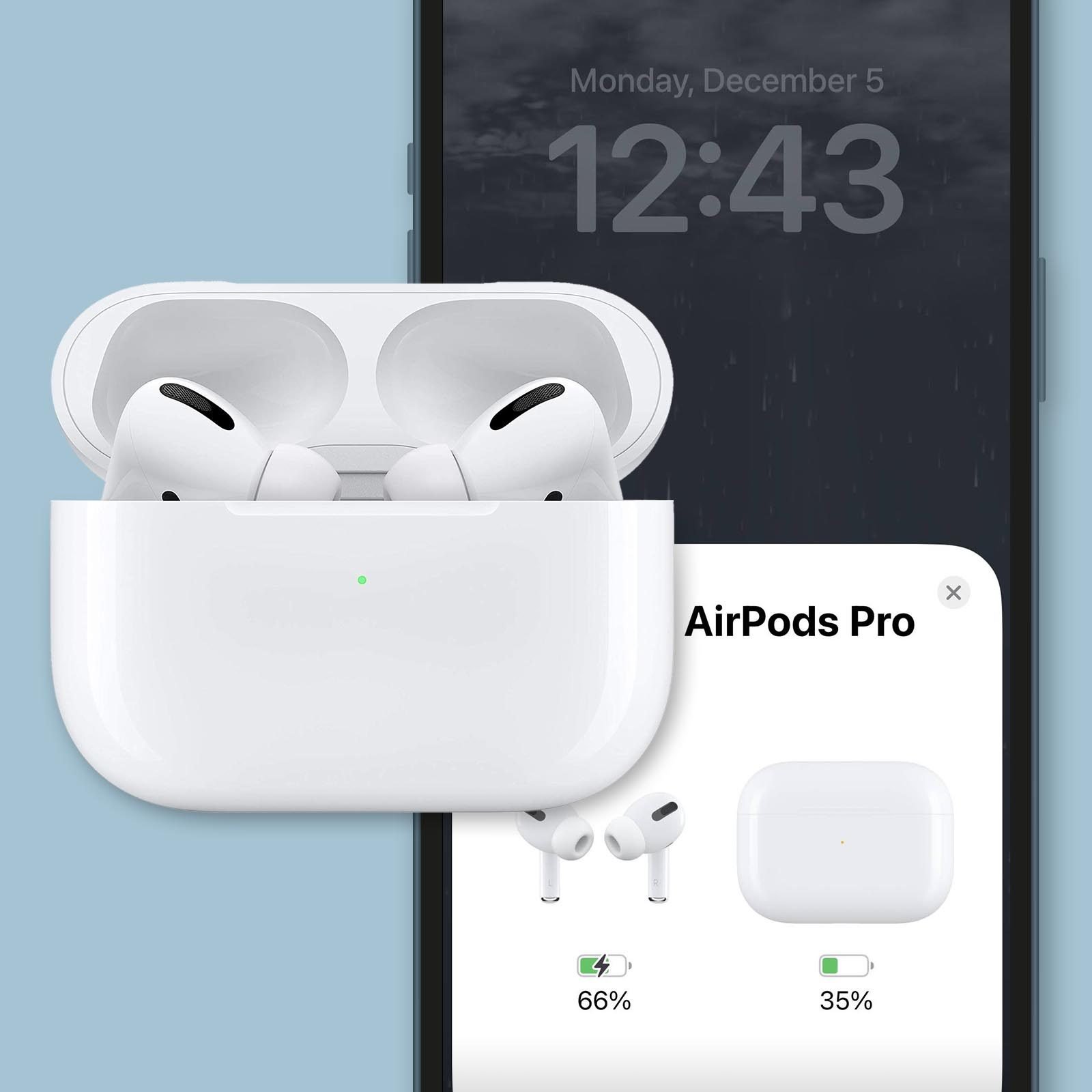
You can check your AirPod case battery through your iPhone. Open the AirPods case near your phone. A pop-up will display the battery percentage. Alternatively, use the “Battery” widget on iOS to view the battery status of the case and AirPods.
Can I See Airpod Case Battery On Android?
Yes, you can check AirPod case battery on Android. Download third-party apps like AirBattery or Assistant Trigger. These apps show battery levels of both AirPods and the case. Ensure Bluetooth is enabled and paired with your device for accurate readings.
Why Is My Airpod Case Battery Not Showing?
If your AirPod case battery isn’t showing, check Bluetooth connectivity. Ensure your AirPods are properly connected to your device. Restart your phone and AirPods if necessary. Update your device’s software to the latest version for better compatibility with AirPods.
Does Airpod Case Battery Affect Performance?
The AirPod case battery doesn’t directly affect performance. However, a low battery can prevent charging AirPods fully. Ensure your case is adequately charged to keep your AirPods ready for use. Regularly monitor battery levels to maintain optimal performance.
Conclusion
Checking your AirPod case battery is simple and useful. It helps you know when to charge. You can check it on your iPhone or iPad. Just open the case lid near your device. The battery status pops up on the screen.
Or, you can ask Siri to tell you. Easy, right? This ensures your AirPods are always ready. No surprises with low battery. Keep enjoying your music or calls without interruption. Knowing your battery level saves time and worry. Stay connected and enjoy seamless listening.

Everett Ashford is an electrical engineer and expert in electronics reviews, tips, and troubleshooting. Specializing in audio and sound devices, including earbuds, AirPods, and headphones, he brings in-depth knowledge and practical advice to help consumers make informed decisions.