
How to Hook Up a Fire Stick to a TV: Easy Setup Guide
Are you excited to stream your favorite shows and movies but feeling a bit unsure about setting up your Fire Stick? You’re not alone.
Many people find themselves scratching their heads when it’s time to connect their new device to the TV. But don’t worry—this guide will make the process easy and stress-free for you. Imagine sitting back on your couch, popcorn in hand, enjoying a seamless streaming experience.
Sounds great, right? Keep reading, and you’ll have your Fire Stick up and running in no time. Let’s get you connected and ready to dive into a world of entertainment.
Choosing The Right Fire Stick
Fire Sticks come in different models. The basic one is called Fire Stick Lite. It is good for most TVs. There is also the Fire Stick 4K. This is better for TVs with 4K resolution. The Fire Stick 4K Max is the fastest. It works well with new TVs. Each model has its own features. Choose the one that fits your needs.
Make sure your TV has an HDMI port. Fire Stick needs this port to connect. Most modern TVs have it. Check if your TV can handle the resolutionof the Fire Stick. Some old TVs may not work well with 4K models. Always check the TV’s user guide for compatibility.
Credit: www.youtube.com
Unboxing Your Fire Stick
The Fire Stick box is small. Inside, you find several items. First, the Fire Stick itself. It is rectangular and black. Next, there is a remote control. It helps you navigate and select. You also get an HDMI extender cable. This helps if your TV space is tight. A USB cable and power adapter are included too. They keep the Fire Stick powered. Lastly, there are two AAA batteries. These go inside the remote.
Ensure all items are in the box. Check each one carefully. Look for the Fire Stick and remote. Don’t forget the HDMI extender. The USB cable and adapter should be there. Make sure the AAA batteries are present. If anything is missing, contact the seller. It’s important to have everything. Without all pieces, setup is hard.
Connecting The Fire Stick
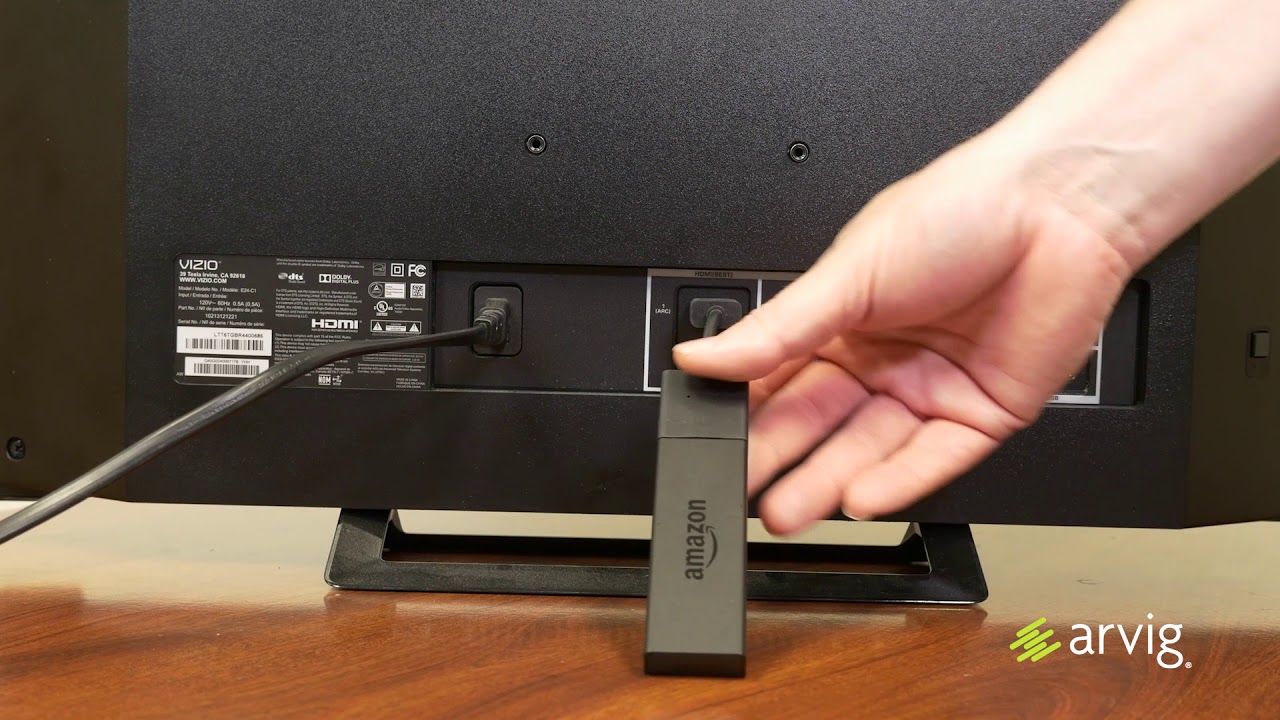
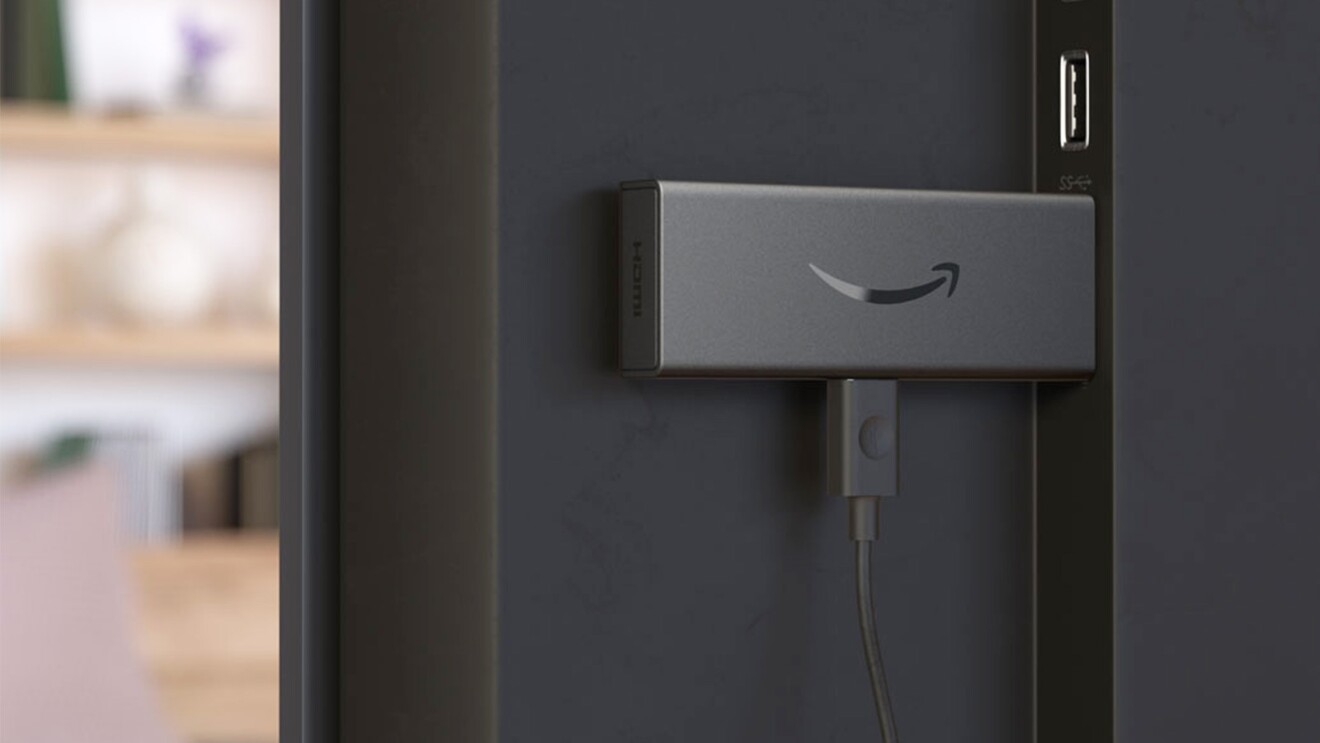
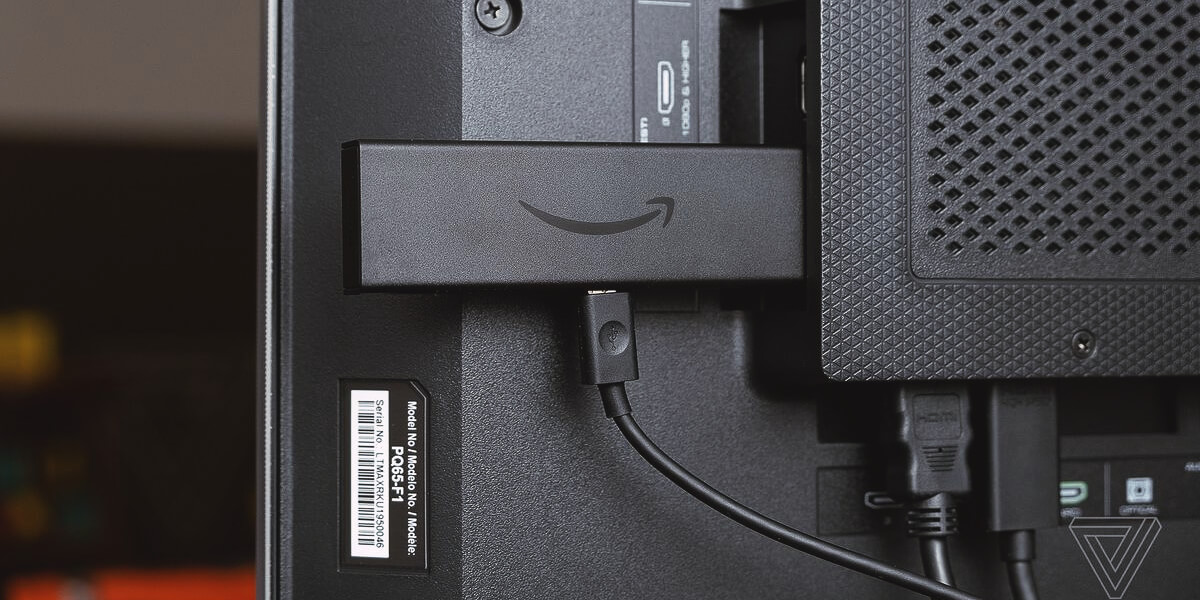
First, find the HDMI port on your TV. It is usually on the side or back. Take the Fire Stick and insert it gently into the HDMI port. Make sure it fits snugly. The Fire Stick should be stable in the port. If it is loose, check the connection again.
Connect the power adapter to the Fire Stick. The other end goes into a wall socket. Ensure the socket is working. The Fire Stick needs power to work. Once plugged in, wait a few seconds. Look for a light on the Fire Stick. This means it’s getting power and ready to use.
Setting Up The Remote
First, find the back cover of the remote. Slide it off gently. Look for the battery compartment. Insert two AAA batteries. Make sure the positive and negative ends match the symbols. Put the cover back on. Your remote is ready!
Turn on your TV. Plug in the Fire Stick. Wait for the screen to show. Press and hold the Home button on the remote. Hold it for 10 seconds. A message will appear on the TV. It will say the remote is paired. You can now control your Fire Stick with the remote.
Configuring Your Fire Stick
Plug the Fire Stick into your TV’s HDMI port. Use the remote to turn on the TV. Select the correct HDMI input. A setup screen will appear. Follow the on-screen instructions. Choose your Wi-Fi network from the list. Enter your Wi-Fi password. Press connect. Your Fire Stick will connect to Wi-Fi. This step is very important. Without Wi-Fi, the Fire Stick won’t work.
The next step is to sign in. Use your Amazon account for this. On the screen, enter your Amazon login details. Use the remote to type your email and password. Hit the sign-in button. Your Fire Stick will now link to your account. This allows access to apps and services. If you don’t have an account, create one. It’s free and easy. Follow the on-screen prompts.
Credit: www.aboutamazon.com
Downloading Essential Apps
Streaming Servicesbring movies and shows to your TV. First, explore apps like Netflix, Hulu, and Disney+. These are popular choices. Open the app store on your Fire Stick. Search for each app by name. Click to download and install. You might need an account for each service. Enter your details to sign in. Then, start watching your favorite shows. Choose the app with shows you love.
Utility Applicationshelp your Fire Stick work better. Consider downloading a VPN app. It keeps your information safe. Many people use apps like NordVPN or ExpressVPN. Another useful app is a file manager. It helps you find things on your Fire Stick. ES File Explorer is a good choice. These apps improve your experience. Find them in the app store. Download and open for easy use.
Troubleshooting Common Issues
Connecting a Fire Stick to your TV can sometimes be tricky. Ensure the HDMI port is correctly chosen. Check the power source and cable connections for stability.
No Signal On Tv
Check if the Fire Stick is properly inserted into the HDMI port. Ensure the TV is on the right HDMI input channel. Sometimes, a loose connection can cause no signal. Try using a different HDMI port. Also, check if the Fire Stick’s power source is stable. Restart the device if needed.
Remote Not Responding
Make sure the remote has fresh batteries. Sometimes, the remote might lose connection. Try re-pairing it with the Fire Stick. Hold the Home button for 10 seconds to reconnect. Ensure there are no obstacles between the remote and the device. Finally, restart the Fire Stick to see if it helps.
Credit: www.halooffliesrecords.com
Enhancing Your Fire Stick Experience
Plug your Fire Stick into the HDMI port on your TV for seamless streaming. Use the included power adapter to connect it to a power source. Follow on-screen instructions to set up your device and enjoy endless entertainment options.
Adding Accessories
Many accessories can improve your Fire Stick fun. Think about getting a remote cover. It protects the remote and makes it easy to hold. HDMI extenders help when the stick doesn’t fit. They make sure the stick connects well. Bluetooth speakers can make sound better. They pair easily with the Fire Stick. USB adapters let you add keyboards or extra storage. You can store more apps and movies. Ethernet adapters help if Wi-Fi is slow. They give a faster internet connection. Each accessory helps in a special way.
Exploring Advanced Settings
Advanced settings can change how you use the Fire Stick. Picture settings let you change brightness and color. Sound settings adjust the volume levels. Network settings show Wi-Fi info and connections. Parental controls keep kids safe. They block bad content. Developer options are for tech lovers. They let you test apps. These settings help make the Fire Stick work just right.
Frequently Asked Questions
How Do I Connect My Fire Stick To My Tv?
To connect your Fire Stick, plug it into your TV’s HDMI port. Connect the USB power cable to the Fire Stick and plug it into a power source. Use your TV remote to switch to the correct HDMI input. Follow on-screen instructions to set up the device.
Can I Use A Fire Stick On Any Tv?
You can use a Fire Stick on any TV with an HDMI port. The TV should also have an available USB port for power or use the included power adapter. Ensure your TV supports the resolution of the Fire Stick for optimal performance.
What Input Should My Tv Be On For Fire Stick?
Your TV should be on the HDMI input where the Fire Stick is connected. Use your TV remote to switch to the correct HDMI input. This will allow you to see the Fire Stick’s interface and access its features.
How Do I Set Up My Fire Stick Remote?
To set up your Fire Stick remote, insert the included batteries. The remote should automatically pair with the Fire Stick. If not, hold the Home button for 10 seconds to pair manually. Follow on-screen instructions to complete the setup process.
Conclusion
Connecting your Fire Stick to your TV is simple. Follow these steps to enjoy streaming. Plug your device into the HDMI port. Connect to Wi-Fi. Launch your favorite apps. Explore endless entertainment options. Watch movies, shows, and more. Don’t forget to use the remote for easy navigation.
Enjoy your streaming experience. Troubleshoot any issues promptly. Remember, your TV is now smarter. Happy streaming with your Fire Stick!

Everett Ashford is an electrical engineer and expert in electronics reviews, tips, and troubleshooting. Specializing in audio and sound devices, including earbuds, AirPods, and headphones, he brings in-depth knowledge and practical advice to help consumers make informed decisions.