How to Clean My Mac Keyboard: Easy Steps & Tips
Have you ever looked down at your Mac keyboard and wondered how it got so dirty? Dust, crumbs, and fingerprints can sneak up on you, leaving your keyboard looking less than pristine.
Not only does a dirty keyboard look unappealing, but it can also affect your typing experience and even your Mac’s performance over time. Imagine the satisfaction of seeing a spotless keyboard every time you sit down to work. This guide will show you how easy it is to clean your Mac keyboard, giving you a fresh start and possibly extending the life of your device.
Dive in, and discover the simple steps to restore your keyboard to its original glory, making your typing experience as smooth as possible.
Credit: www.youtube.com
Gather Necessary Tools
Begin with a soft, clean cloth. A microfiber clothworks best. Have a small brush ready, like a paintbrush. You will also need some isopropyl alcohol. Make sure it is 70% or less. Grab some cotton swabs too. They help in tight spots. Keep canned air for blowing dust away. Finally, gather some paper towels. They are handy for messes.
Wear gloves to protect your hands. Choose gloves that fit well. Latex or nitrilegloves work best. Use eye protection if needed. This keeps you safe from any splashes. Make sure you are in a well-ventilated area. Fresh air is important. Keep windows open if possible. Safety is key when cleaning. Always be careful with cleaning products.

Credit: support.apple.com
Prepare Your Mac For Cleaning
First, make sure to shut downyour Mac. This will help keep it safe. After shutting down, unplug all cables. Your Mac needs to be free from power.
Take out any external accessorieslike a mouse or USB drives. This ensures nothing gets damaged. Place them aside carefully. Now, your Mac is ready for cleaning.
Initial Dusting
A soft brushhelps to sweep away dust. It’s gentle on your keys. Make sure the brush is clean. Move the brush between the keys. Do it slowly and carefully. This way, you won’t scratch the keyboard. Dust can hide in small places. A brush can reach those spots easily.
Compressed air is in a can. It’s great for cleaning keyboards. Hold the can upright. Spray the air between the keys. The dust will fly away. Be careful not to spray for too long. The can may get cold. Short bursts of air work best. This keeps your keyboard clean and fresh.
Deep Cleaning Techniques
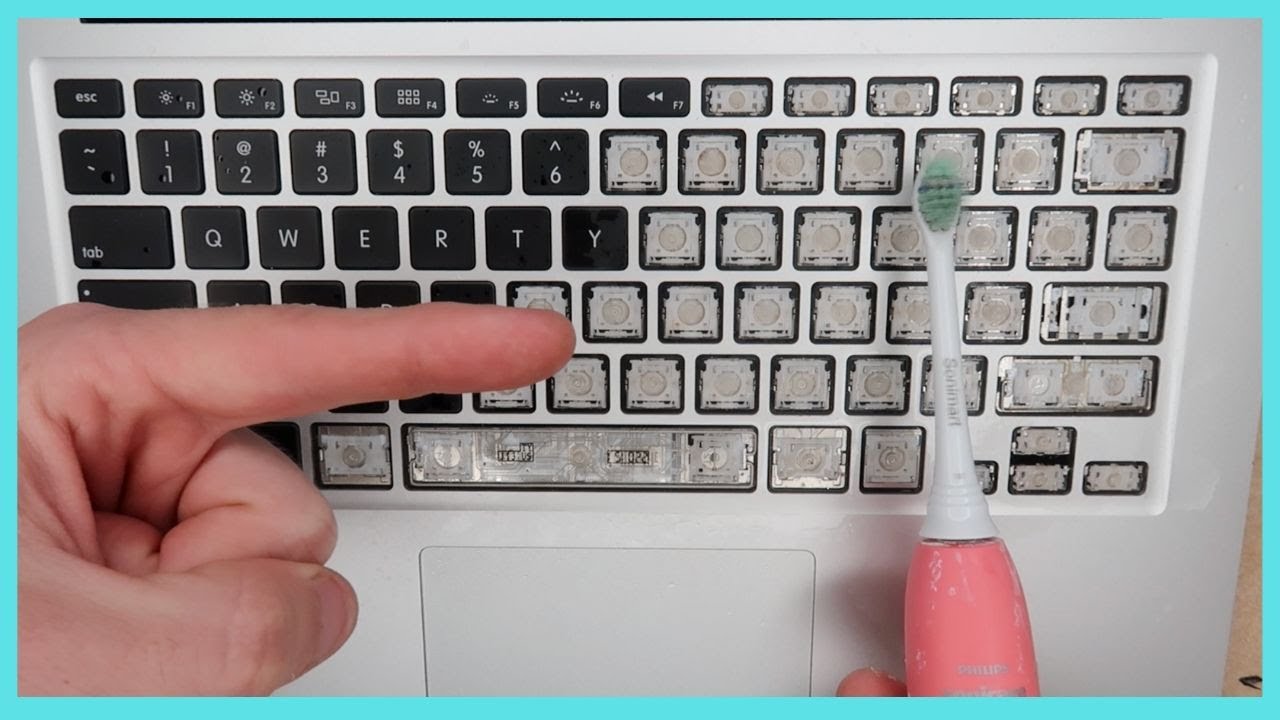
First, turn off your Mac. Use a keycap puller to remove keys gently. Be careful not to break the clips. Place the removed keys in a bowl of warm, soapy water. Let them soak for a few minutes. Rinse them well and dry with a soft cloth. This will help remove dust and dirt.
Use a small, soft brush to clean under the keys. A paintbrush or toothbrush works well. Dust and crumbs can hide under the keys. Gently brush them away. A can of compressed air can blow out tiny particles. Hold the can upright and spray in short bursts. Ensure the area is clean before placing keys back.
Disinfecting Your Keyboard
Cleaning solutions must be safe for keyboards. Alcohol-based wipes work well. They kill germs without harm. Diluted vinegar can also help. Mix it with water. Use a soft cloth to clean. Avoid strong chemicals. They might damage keys.
Too much liquid can ruin your keyboard. Use a damp cloth, not wet. Don’t spray cleaner directly on keys. Spray on cloth first. Unplug your keyboard before cleaning. This keeps it safe. Dry the keyboard well after cleaning. Moisture can cause problems.
Reassemble And Test
Carefully put the keys back on the Mac keyboard after cleaning. Ensure each key fits properly and functions smoothly. Test by typing to confirm all keys work as expected, ensuring a seamless experience.
Reattaching Keycaps
Place each keycap back on its spot. Press down gently. Hear a click? The key is attached correctly. Check the alignment. Is it straight? If not, adjust it. Repeat for every key.
Ensuring Functionality
Test each key by typing. Does every key respond quickly? If a key sticks, remove and reattach. Ensure no debris under keycaps. Try typing again. All keys should work smoothly.
Maintenance Tips
Dust and dirt can make keys sticky. Plan a cleaning day every month. Use a soft brush to wipe off dust. Compressed air can blow dirt from between keys. Microfiber cloth is good for wiping. Avoid using wet wipes. Moisture can damage the keyboard.
Keep food away from your Mac. Crumbs can get stuck in keys. Drink carefully near the keyboard. A spill can cause problems. Store your Mac in a clean space. Cover it when not in use. Protect it from dust and dirt.
Credit: www.reddit.com
Frequently Asked Questions
How Often Should I Clean My Mac Keyboard?
Cleaning your Mac keyboard every month is ideal to prevent dirt buildup. Regular cleaning helps maintain its functionality and appearance. If you use your Mac frequently or in dusty environments, consider cleaning it more often. Always ensure the keyboard is turned off before cleaning to avoid any mishaps.
What Tools Do I Need To Clean My Mac Keyboard?
Use a soft microfiber cloth, compressed air canister, and a mild cleaning solution. These tools are effective for removing dust and grime. Avoid using harsh chemicals that could damage the keyboard. A small brush can also help reach between the keys for more thorough cleaning.
Can I Use Water To Clean My Mac Keyboard?
Avoid using water directly on your Mac keyboard. Instead, dampen a microfiber cloth with a mild cleaning solution. Excessive moisture can damage the keyboard’s internal components. Ensure the cloth is only slightly damp, not wet, to safely clean the surface without causing harm.
How Do I Clean Sticky Keys On My Mac Keyboard?
For sticky keys, gently lift the key cap using a plastic tool. Clean underneath with a dry brush or cotton swab. If needed, use a small amount of isopropyl alcohol. Be cautious not to damage the key mechanisms. Once clean, snap the key cap back into place.
Conclusion
Regular cleaning keeps your Mac keyboard fresh and responsive. Dust, crumbs, and spills can cause problems. A clean keyboard improves typing experience and reduces errors. Simple tools like microfiber cloths and compressed air work wonders. Remember to disconnect your keyboard before cleaning.
Take care with liquids. Avoid harsh chemicals. A little effort makes a big difference. Routine maintenance saves time and money. Your Mac deserves the best care. Happy typing!

Finnian Delaney is a seasoned writer and editor specializing in technology and electronics. At ElectroDoz, he covers a wide range of topics, with a focus on MacBooks, laptops, fitness trackers, keyboards, and computer hardware. With a knack for making complex tech accessible, Finnian helps readers stay informed and confident when choosing their next device or upgrade.