How to Get Pictures from Camera to Phone: Effortless Guide
Have you ever captured a perfect moment with your camera, only to wonder how you can quickly get those beautiful pictures onto your phone? You’re not alone.
Every photographer, whether amateur or professional, faces this challenge. You want to share your photos on social media, show them to friends, or even use them for a project. But the process seems daunting, doesn’t it? This guide will walk you through simple steps to seamlessly transfer your images from camera to phone.
Imagine the satisfaction of effortlessly accessing your photos anytime, anywhere. Stick around, because by the end of this article, you’ll have all the tips and tricks to make this task a breeze. Your pictures deserve to be seen and shared, and it’s easier than you think. Let’s dive in!

Credit: www.youtube.com
Choosing The Right Connection Method
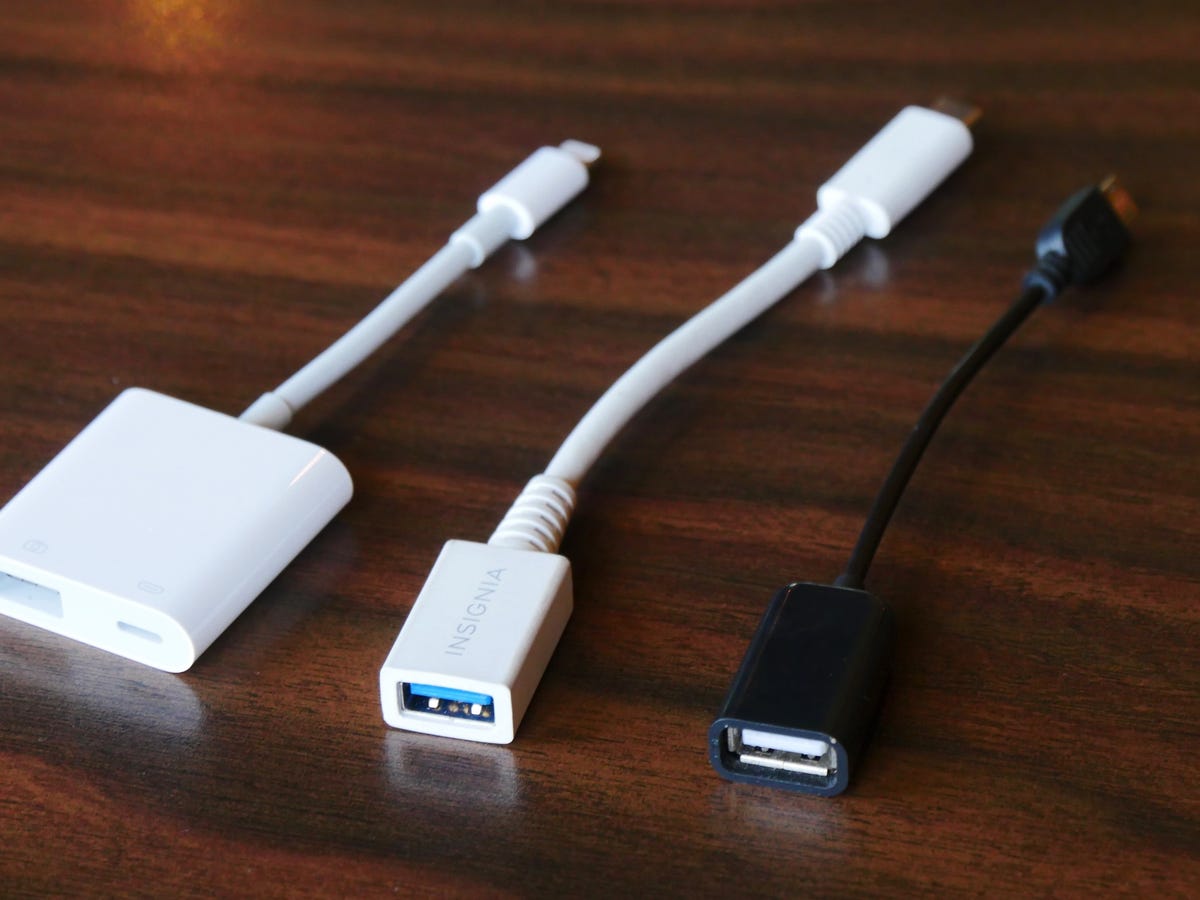
USB cables are a common way to transfer pictures. Most cameras come with one. Plug one end into the camera. Connect the other end to the phone. Data transfer will begin. This method is fast and easy. Some phones may need an adapter. Check if your phone supports USB OTG (On-The-Go). This allows easy file transfer.
Use Wi-Fi for a wireless transfer. Many modern cameras have built-in Wi-Fi. Open the camera’s Wi-Fi settings. Connect it to the phone. Use an app to move pictures. Bluetooth is another option. It is slower than Wi-Fi. But it works without apps. Cloud services like Google Photos can help. Upload pictures from the camera. Then access them on the phone. This needs internet access.
Using Usb Cable Transfer
Not all cameras connect with phones via USB cable. Check compatibility first. Some phones have different charging ports. Ensure your phone’s port matches the cable. Most modern devices support USB connections. Older devices may require special adapters. Research your model to confirm USB transfer capability.
Plug one end of the USB cable into your camera. Connect the other end to your phone. Your phone might prompt you to allow file transfer. Tap to approve. Open your phone’s file manager app. Look for a folder showing your camera’s name. Select photos to transfer. Tap and hold to select multiple photos. Press the copy or move option. Choose your phone’s storage location. Wait for the transfer to complete. Disconnect safely after transferring.
Transferring Via Wi-fi
Transferring pictures from your camera to your phone via Wi-Fi is simple. Connect both devices to the same network. Use the camera’s app to send photos directly to your phone. This method is quick and keeps your memories safe.
Camera’s Built-in Wi-fi
Most modern cameras have built-in Wi-Fifeatures. You can use these to transfer photos. First, turn on the Wi-Fi in your camera settings. Next, connect your phone to the camera’s Wi-Fi network. Some cameras need an app to transfer pictures. Download the app from your phone’s app store. Follow the app’s instructions. Now, select the photos you want. Tap the option to send them to your phone. This method is usually fast and easy. It saves time and cables.
Third-party Wi-fi Adapters
Older cameras might not have Wi-Fi. For these, use a third-party Wi-Fi adapter. These adapters plug into the camera. They create a Wi-Fi network. Connect your phone to this network. Some adapters need a special app. Install the app on your phone. Follow the instructions. Choose the photos you need. Send them to your phone quickly. Adapters are often small and portable. They make photo transfers simple for older cameras.
Bluetooth Transfer
First, open settings on your phone and camera. Find the Bluetooth option. Turn it on for both devices. Make sure both devices are close together. This helps them connect better. Check if Bluetooth is visible to other devices. This will make it easier to pair them.
On your phone, search for available devices. Look for your camera in the list. Tap on the camera name to pair. Your phone may ask for a code. Enter the code shown on the camera. Wait for a notification that the devices are paired. Once paired, you can start transferring photos.
Using Memory Card Readers
Memory card readerscome in different types. Some are small and portable. Others are larger with more features. The most common type is the USB reader. It connects to the phone easily. There are also multi-card readers. They can hold more than one card. These are good for photographers. Some readers have slots for microSD cards. Others have slots for SD cards. Make sure the reader works with your card type.
Connecting a memory card reader to your phone is simple. First, plug the reader into your phone. Next, insert the memory card. Your phone will show the photos. You can then move them to your phone. Wireless readersare also available. They use Bluetooth or Wi-Fi. These are handy for phones without USB ports. Always check your phone’s settings. Make sure it supports the reader.
Credit: www.cnet.com
Cloud Storage Solutions
Many people use cloud services for storing photos. These services keep your photos safe and easy to access. Google Photosis a popular choice. It offers free storage for photos with some limits. iCloudis great for Apple users. It syncs photos across all Apple devices. Dropboxis another option. It works with many devices and is user-friendly.
Syncing photos makes life easier. Photos move from your camera to the phone without effort. Google Photos can do this. It uploads photos automatically from your camera. iCloud also syncs photos fast. You just need to set it up once. Dropbox has a similar feature. It saves new photos automatically. This way, you always have your photos with you.
Apps For Seamless Transfer
Google Photosis a popular choice. It offers easy photo transfers. You can sync photos across devices. Another great app is Dropbox. It provides cloud storage options. Photos can be accessed from your phone. Adobe Lightroomis perfect for photographers. It allows editing and transferring pictures. All these apps help you organize photos. Choose the one that suits your needs.
First, download the app from the store. Open the app after installing. Create an account if needed. Some apps require login details. Follow the on-screen setup instructions. Connect your camera using Bluetooth or Wi-Fi. Enable permissions for access. Start transferring photos easily. Check settings for automatic syncing. Enjoy seamless photo transfers.

Credit: www.tiktok.com
Troubleshooting Common Issues
Transferring photos from your camera to your phone can be tricky. Use a USB cable or Wi-Fi connection to simplify the process. Check your camera’s settings for a seamless transfer.
Connection Problems
Connecting your camera to your phone can be tricky. First, check if Bluetooth or Wi-Fi is turned on. Some cameras need Wi-Fi to send photos. Others use Bluetooth. Ensure both devices are close to each other. Sometimes, restarting both devices helps. Also, check if your camera’s battery is charged. Low battery can cause connection issues. If your phone has a case, remove it. Cases sometimes block signals. Lastly, ensure your phone’s software is up-to-date. Older software might not connect well.
File Compatibility Concerns
Some phones don’t read all photo files. Cameras often save pictures in different formats. Common formats are JPEG and RAW. Most phones read JPEG easily. RAW files might need special apps. Check your phone’s app store for these apps. Some cameras let you change the format settings. Set your camera to save in JPEG if needed. You can also convert files on a computer. Then, transfer them to your phone. This ensures your phone reads all files.
Frequently Asked Questions
How Can I Transfer Photos Wirelessly?
You can transfer photos wirelessly using Bluetooth, Wi-Fi, or NFC. Ensure both devices are compatible and connected. Use apps like Google Photos or Dropbox for seamless transfer. These options provide convenience without cables.
What Cable Do I Need For Photo Transfer?
To transfer photos, use a USB cable compatible with your camera and phone. Connect both devices and select file transfer mode on your phone. Follow on-screen instructions to move images easily. Ensure your cable supports data transfer, not just charging.
Can I Use Cloud Services For Photo Transfer?
Yes, cloud services like Google Drive or iCloud simplify photo transfer. Upload images from your camera to the cloud using a computer. Access them on your phone through the respective app. This method is convenient and provides storage backup.
Are Photo Transfer Apps Effective?
Photo transfer apps like PhotoSync or Send Anywhere are effective and easy to use. Install the app on both devices and follow the setup instructions. These apps provide fast and secure photo transfers, often without the need for cables.
Conclusion
Transferring photos from your camera to your phone is simple. Follow the steps outlined above for a smooth process. Start by using a USB cable or a memory card reader. Consider using Wi-Fi or Bluetooth for wireless transfers. Explore apps that sync your camera with your phone effortlessly.
Regular practice makes it quicker each time. Enjoy your photos on the go without hassle. Share your moments with friends and family easily. Keep your memories accessible and organized on your phone. With these tips, photo transfers become part of your routine.
Happy snapping and sharing!

Callen Ridgeway is a senior writer at ElectroDoz, where he shares his expertise on the latest in drones, webcams, cameras, and a wide range of cutting-edge electronic devices. With a passion for exploring emerging tech and breaking it down into practical insights, Callen helps readers make smarter choices when it comes to gadgets and gear. When he’s not testing the newest electronics, he’s busy keeping up with the innovations shaping the future of consumer technology.