How Do I Connect My Reolink Camera to My Phone: Easy Guide
Are you wondering how to connect your Reolink camera to your phone? If you’re looking to keep an eye on your home or business no matter where you are, your smartphone can be the perfect companion to your Reolink camera.
This connection ensures you have peace of mind, knowing that you can monitor your space with just a few taps on your phone screen. Imagine the convenience of receiving instant alerts and accessing live footage right from your pocket. In this guide, we’ll walk you through the steps to make this connection seamless and stress-free.
Whether you’re a tech novice or a seasoned pro, you’ll find the process straightforward and rewarding. Keep reading to unlock the full potential of your Reolink camera and take control of your security like never before.
Reolink Camera Basics
Reolink cameras are easy to use. They come with high-quality video. This helps to see details clearly. Night vision is another feature. It allows seeing in the dark. Motion detection alerts when something moves. This keeps your home safe.
These cameras are weatherproof. They work in rain or snow. Two-way audio lets you talk through the camera. It’s like a phone call. You can check on things from far away. Easy setup makes them user-friendly.
Reolink cameras work with many devices. Android and iOS phones can connect easily. Tablets also work well. Use the Reolink app to control the camera. The app is free to download. It helps to see live video.
Reolink supports Wi-Fi and Ethernet connections. Choose what suits your needs. Cameras work with smart home systems too. This makes them versatile. Ensure your device supports the app. Check compatibility before buying.

Credit: www.reddit.com
Necessary Preparations
Setting up your Reolink camera with your phone involves a few straightforward steps. Start by downloading the Reolink app from your phone’s app store. Ensure your camera is connected to Wi-Fi or a network for seamless integration.
Required Equipment
Connecting your Reolink camera to your phone requires some items. You need a Reolink camera and a smartphone. Ensure your camera is charged and working properly. A stable internet connection is vital. The camera should have a Wi-Fi setup. Check if your phone has enough storage space.
App Installation
Begin by downloading the Reolink app on your phone. You can find it in the App Store or Google Play. Install the app following the on-screen instructions. Open the app once installed. Create an account if needed. Follow the steps to connect the camera. Ensure Bluetooth and Wi-Fi are on. The app will guide you through pairing your devices.
Connecting To Wi-fi
First, you need to access the Wi-Fi settings on your phone. Find the Reolink app and open it. Tap on the camera you want to connect. Then, go to the settings menu in the app. Look for the Wi-Fi option. Select your home Wi-Fi from the list. Make sure you enter the correct Wi-Fi password. Once connected, the camera will be online.
Ensure your Wi-Fi is on a 2.4GHz network. Reolink cameras do not support 5GHz. Check your router settings if needed. Move the camera closer to the router if there is a weak signal. It helps improve the connection strength. Also, ensure no large objects block the Wi-Fi signal. This can affect the connection quality.
Sometimes the camera may not connect. Restart the camera and try again. Check if the password is correct. Ensure the router is working well. Rebooting the router can also help. If the problem continues, update the app. Updates often fix bugs and improve performance. For persistent issues, contact Reolink support for help.
Pairing Camera With Phone
Start by downloading the Reolink app on your phone. Open the app. Click on Sign Up to create an account. Use your email and create a password. Ensure the email is valid. Verify the email after signing up. Complete the setup by logging in.
Ensure your camera is powered on. Open the Reolink app. Click on the Add Device option. Scan the QR code on the camera. Hold the phone steady while scanning. Wait for the app to detect the camera. Once found, click Connect. Follow any prompts to finish.
Adjusting Camera Settings
Setting up your Reolink camera is simple. Focus on two key areas: Video Qualityand Motion Detection. For video quality, choose between low, medium, or high settings. High settings give clear pictures but use more data. Low settings save data but are less clear. Adjust based on your needs.
The Motion Detectionsetting is important. It helps alert you to movement. Set the sensitivity to low, medium, or high. High sensitivity detects even small movements. Low sensitivity ignores small motions but saves battery. Find the right balance for your situation.
Credit: reolink.com
Accessing Live Feed
Reolink offers different ways to see your camera feed. You can watch it on the Reolink app. This app is available on both Android and iOS. It lets you see live video from your camera. You can also watch the feed on a web browser. This is useful if you are using a computer.
It is easy to see your camera feed from far away. Use the Reolink app on your phone. Make sure your camera is connected to the internet. Log into your Reolink account. Now, you can watch your camera from anywhere. This feature is helpful for keeping your home safe. You can check in anytime you want.
Maintaining Your Connection
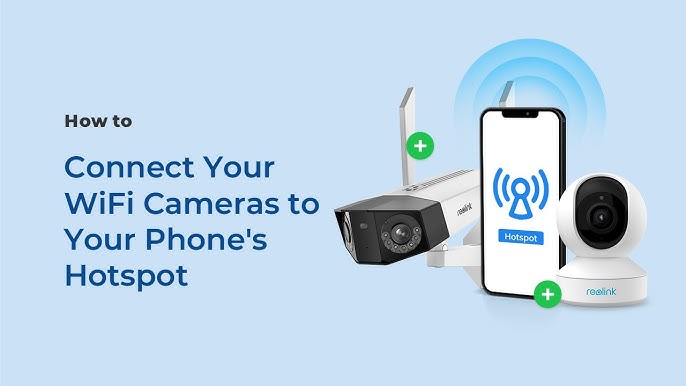
Connecting your Reolink camera to your phone is simple. Download the Reolink app and ensure your camera is powered. Follow the app’s prompts to sync your camera with your phone, enhancing your security with easy monitoring.
Software Updates
Ensure your Reolink camera is always updated. Updates fix bugsand improve performance. Regular updates help keep your camera secure. Use the Reolink app to check for new updates. Open the app and go to settings. Look for the update option. Download and install updates when available. This process is quick and easy. Keep your camera running smoothly with updates.
Regular Checks
Check your camera connection often. Make sure it stays connected to your phone. Look for any issuesin the app. Test the live view feature regularly. Ensure your Wi-Fi is working well. A strong signal is important. Sometimes, a weak signal causes problems. Move your camera closer to the router if needed. Regular checks help catch problems early.
Credit: www.youtube.com
Frequently Asked Questions
How Do I Set Up Reolink On My Phone?
To set up Reolink on your phone, download the Reolink app from your app store. Open the app and create an account or log in. Follow the on-screen instructions to add your camera. Ensure your camera and phone are on the same Wi-Fi network for seamless connection.
Can I View Reolink Camera Remotely On My Phone?
Yes, you can view your Reolink camera remotely using the Reolink app. Ensure your camera is online and connected to the app. Log into the app on your phone, and you can access your camera feed from anywhere, provided you have an internet connection.
Why Can’t My Phone Find My Reolink Camera?
If your phone can’t find your Reolink camera, ensure both devices are on the same Wi-Fi network. Check if the camera is powered on and connected to the network. Restarting your router and camera can resolve connectivity issues. If problems persist, consult Reolink support for further assistance.
Is My Reolink Camera Compatible With All Phones?
Reolink cameras are compatible with most Android and iOS devices. Ensure your phone’s operating system meets the app requirements. The app is regularly updated to support newer devices. Check the Reolink website for detailed compatibility information and ensure your device is supported before installation.
Conclusion
Connecting your Reolink camera to your phone is simple. Follow the steps closely. Ensure your phone and camera are on the same network. Use the Reolink app for easy setup. Scan the QR code on your camera. This helps the app recognize your device.
Test the connection after setup. Check video feed on your phone. Troubleshoot if issues arise. Refer to user manual for help. Enjoy peace of mind with remote camera access. Stay connected and secure with Reolink.

Callen Ridgeway is a senior writer at ElectroDoz, where he shares his expertise on the latest in drones, webcams, cameras, and a wide range of cutting-edge electronic devices. With a passion for exploring emerging tech and breaking it down into practical insights, Callen helps readers make smarter choices when it comes to gadgets and gear. When he’s not testing the newest electronics, he’s busy keeping up with the innovations shaping the future of consumer technology.