How to Turn off Mac With Keyboard: Quick Guide
Ever found yourself in a situation where your mouse or trackpad just won’t cooperate, and you’re left wondering how to turn off your Mac? We’ve all been there.
Imagine a scenario where you’re running late, your Mac is acting up, and you just need to power it down swiftly with just your keyboard. Sounds like a lifesaver, right? This guide is here to show you exactly how to do that.
By the time you finish reading, you’ll have mastered this handy trick, potentially saving yourself time and sparing some frustration. Dive in, and discover how easy it is to take control of your Mac with just a few key presses.

Credit: www.wikihow.com
Keyboard Shortcuts For Shutting Down
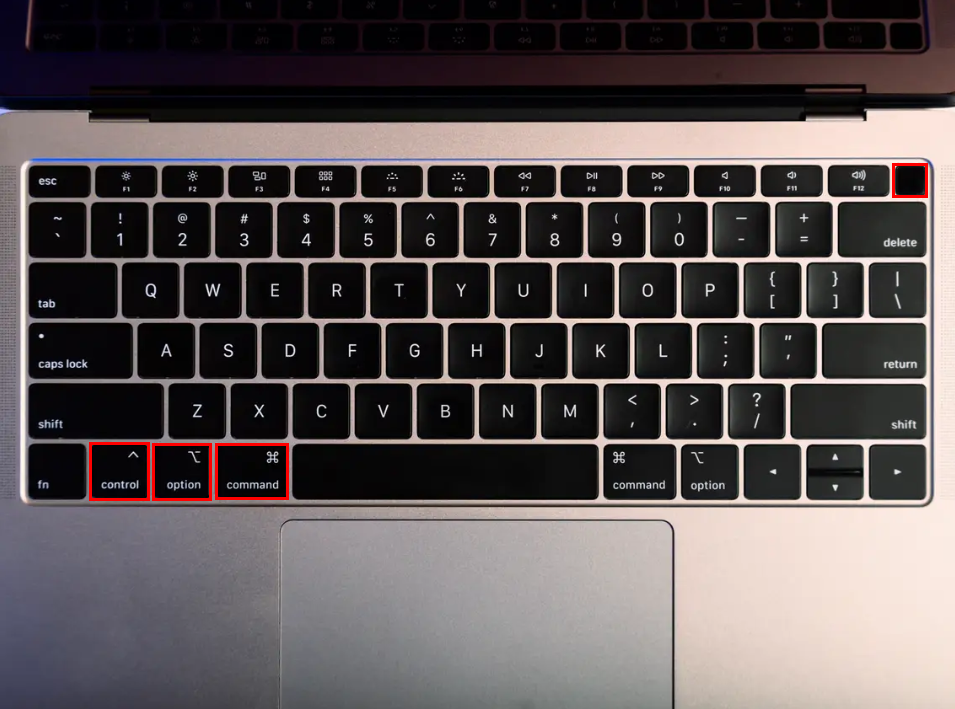
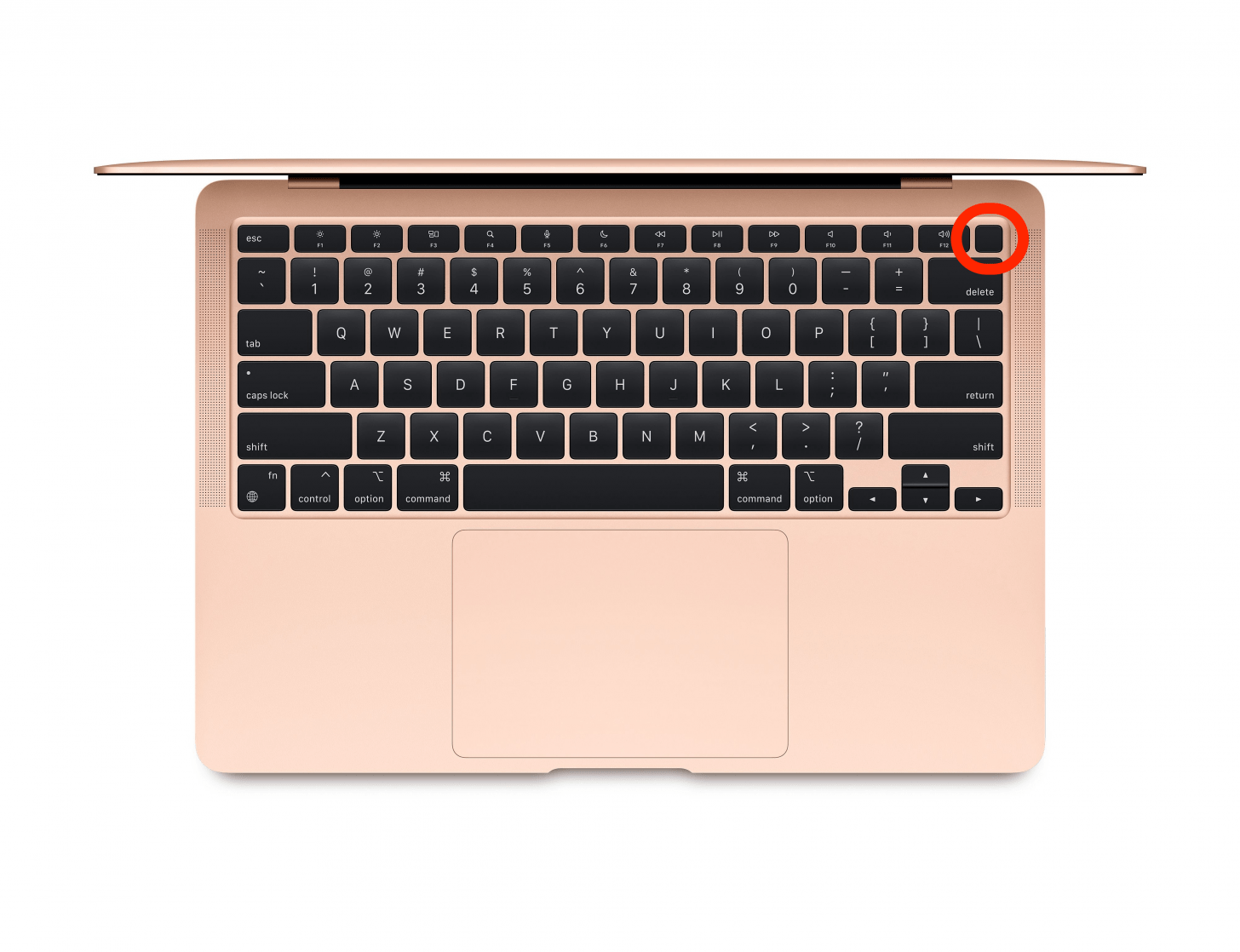
Turn off your Mac quickly with this shortcut. Press Control, Option, Command, and the Powerbutton together. This shuts down the Mac instantly.
Be careful! Unsaved work may be lost. Save your work first. This shortcut is simple and fast. Remember to press all keys at once. It works on most Mac computers.
Children can learn this too. Practice helps you remember. This method is handy in emergencies. Share it with friends and family. Help them learn the shortcut too.
Credit: www.alphr.com
Force Shutdown Methods
Sometimes your Mac may freeze. Press and hold the power button. This action forces the Mac to turn off. Hold it for 5-10 seconds. The screen will go dark. Your Mac is now off. Remember to save work first if possible.
This method is useful for turning off quickly. Press Control + Command + Eject keys together. Your Mac will shut down safely. This action does not save unsaved work. So, it’s best used in emergencies. Keep this shortcut in mind for future use.
Sleep Mode Alternatives
Pressing Control + Shift + Powerputs the Mac in sleep mode. This saves battery life. The screen turns off, but the Mac is still on. It’s like a nap for your computer. You can wake it up by pressing any key. This is a quick way to save energy.
The Command + Option + Powerkeys put the display to sleep. The Mac stays awake. Only the screen turns off. It’s useful for saving battery without turning off the Mac. You can start work again by pressing any key or moving the mouse. It’s easy and fast.
Troubleshooting Shutdown Issues
Easily turn off your Mac using keyboard shortcuts. Press and hold Control + Option + Command + Power. This simple method safely shuts down your computer without needing a mouse.
Addressing Non-responsive Macs
Sometimes, Macs do not shut down easily. This can be frustrating. To fix this, try a force shutdown. Press and hold the power button until the screen goes black. Wait a few seconds before restarting. If this doesn’t work, try a different method.
Safe Mode Restart
Safe mode can help with shutdown issues. Begin by turning off the Mac. Once off, press the Shift key and the power button together. Hold the Shift key until the login screen appears. Safe mode will check for problems.
After entering safe mode, restart your Mac normally. This might solve the shutdown problem. If the issue continues, it might be wise to consult an expert. Safe mode is a simple yet effective tool.
Benefits Of Keyboard Shutdown
Turning off your Mac with the keyboard is quick. No need to click around. It saves time and effort. Just a few keys, and it’s done. This method is swift and easy.
Using the keyboard for shutdown reduces wear on the power button. It helps keep your device in good shape. Physical buttons last longer. Less pressing means less damage.
Credit: www.iphonelife.com
Frequently Asked Questions
How Do I Shut Down My Mac With The Keyboard?
You can shut down your Mac by pressing Control + Option + Command + Power button. This key combination brings up a dialog box asking for confirmation to shut down. Confirm the action and your Mac will turn off.
Can I Use Keyboard Shortcuts To Turn Off My Mac?
Yes, keyboard shortcuts can be used to turn off your Mac. The shortcut Control + Option + Command + Power button initiates the shutdown process efficiently. This is a quick method to power off your device without using the mouse.
What Is The Fastest Way To Turn Off A Mac?
The fastest way to turn off a Mac is by using keyboard shortcuts. Press Control + Option + Command + Power button simultaneously. This method is quick and efficient, allowing you to shut down your device in seconds.
Are Keyboard Shortcuts Safe For Shutting Down Mac?
Yes, keyboard shortcuts are safe for shutting down your Mac. Using Control + Option + Command + Power button ensures a proper shutdown. This method is recommended by Apple for turning off your device securely.
Conclusion
Turning off your Mac with the keyboard is simple. No more reaching for the power button. Just use a few quick key combinations. This method saves time and effort. It’s especially useful when you are in a hurry. Try practicing the steps a few times.
Soon, it will become second nature. Remember, every Mac model might have slight differences. Always ensure you follow steps suitable for your version. With practice, you’ll manage your Mac effortlessly. A handy skill for everyday use.

Finnian Delaney is a seasoned writer and editor specializing in technology and electronics. At ElectroDoz, he covers a wide range of topics, with a focus on MacBooks, laptops, fitness trackers, keyboards, and computer hardware. With a knack for making complex tech accessible, Finnian helps readers stay informed and confident when choosing their next device or upgrade.