How to Clean Mac Air Keyboard: Expert Tips
Is your MacBook Air keyboard looking a bit worse for wear? Dust, crumbs, and fingerprints can easily make your sleek device feel less than pristine.
But fear not! You’re about to discover simple, effective methods to give your keyboard the clean it deserves. Imagine typing on keys that look and feel brand new, boosting your productivity and even your mood. In this guide, you’ll learn step-by-step how to clean your MacBook Air keyboard safely and efficiently.
Ready to transform your keyboard from grimy to gleaming? Let’s dive in and get those keys sparkling again!
Credit: www.youtube.com
Preparing The Workspace
Cleaning your Mac Air keyboard needs the right tools. Gather necessary tools like a soft brush, a can of compressed air, and a microfiber cloth. Ensure you have proper lighting to see every corner of the keyboard. Bright light helps spot dirt and dust easily.
Place your keyboard on a flat surface. Make sure it’s stable. Arrange your tools nearby for easy access. Good preparation makes cleaning simple and effective.
Credit: www.youtube.com
Safety Precautions
Always power off your Mac Air before cleaning. This is important for safety. It helps avoid accidental typing. Press the power button until the screen goes black. Now, your device is off. It is safe to clean now.
Unplug all cables from the Mac Air. This includes the charging cable. Also, disconnect USB devices. This step prevents electrical hazards. It also keeps cables safe from damage. Now, you are ready to clean.
Dust Removal Techniques
Hold the can of compressed airupright. Aim the nozzle at the keyboard. Keep it at an angle. Spray short bursts of air. Move from one side to the other. This helps in removing dust. Avoid shaking the can. This can release liquid. Protect your keyboard from damage.
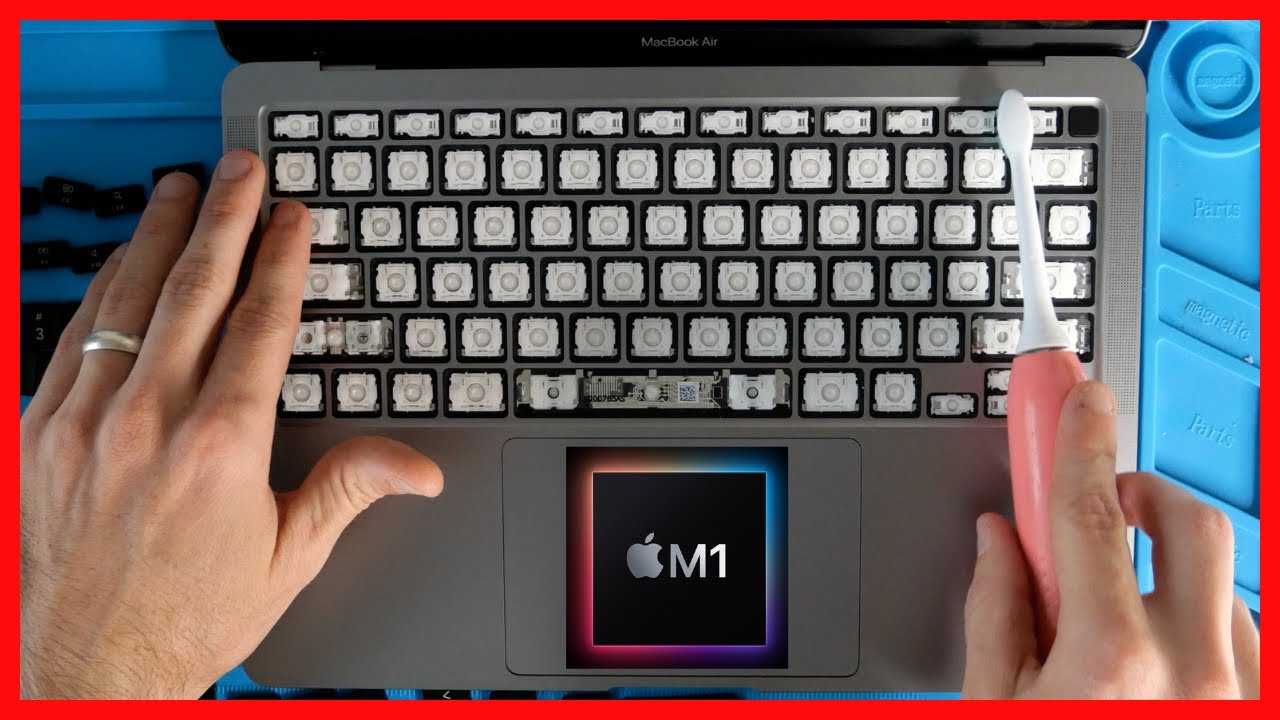
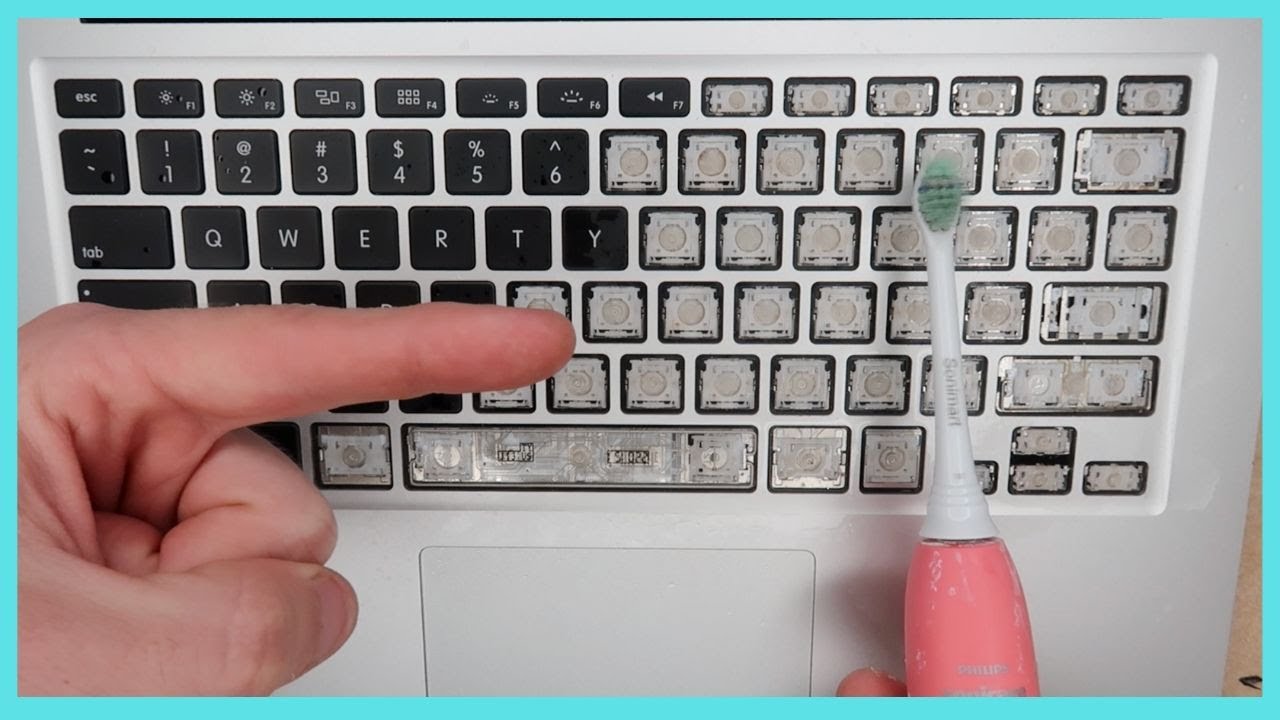
Use a soft bristle brushfor cleaning. Gently brush over the keys. Do this in one direction. This helps remove dirt and crumbs. Be gentle to avoid damage. Check under the keys too. Dust can hide there. Repeat if needed. Ensure all dirt is gone. Clean your brush after use.

Credit: support.apple.com
Cleaning The Keycaps
A microfiber clothis soft and gentle. It removes dust from the keyboard. First, turn off the Mac Air. This keeps it safe. Then, take the cloth and wipe each key. Do this slowly. Make sure no dust is left. It helps keep the keys clean and shiny.
Isopropyl alcohol cleans tough stains. Use a cotton swab for this. Dip the swab in alcohol. Squeeze out extra liquid. Gently rub it on the keys. This removes sticky spots. Be careful. Do not use too much alcohol. This keeps the keyboard dry and safe.
Addressing Stubborn Stains
Stubborn stains on a Mac Air keyboard can be tricky to handle. Start by turning off your device. Use a slightly damp cloth with mild soap, gently wiping each key. For deeper stains, a soft-bristle brush can help. Regular cleaning keeps your keyboard looking fresh and functioning well.
Homemade Cleaning Solutions
Vinegar and water make a great cleaning mix. Use equal parts of each. Soak a small cloth in it. Wring out the cloth so it is damp, not wet. Gently rub the keyboard surface. Baking soda paste helps with tough spots. Mix baking soda with water. Apply to stains with a soft brush. Let it sit for a few minutes. Wipe away with a damp cloth. Always avoid excess water. It can harm your Mac Air.
Commercial Keyboard Cleaners
Commercial cleaners are easy to find. Choose one safe for electronics. Follow the instructions on the label. Spray cleaner on a cloth. Do not spray directly on the keyboard. Gently wipe each key. Compressed air cans help remove dust. Use short bursts to clean between keys. Avoid harsh chemicals. They can damage your keyboard. Always read the product label first.
Reassembly And Testing
After cleaning, carefully reassemble the Mac Air keyboard. Ensure all keys are securely in place. Test each key to confirm proper function.
Reattach Keycaps
Place the keycaps back on the keyboard. Align each keycap with the small clips. Push gently until you hear a click. Ensure every keycap is firmly attached. Check all keys to make sure they are straight.
Conduct Functionality Check
Press each key to see if it works. Test by typing a few words. Ensure the keys don’t stick. If a key doesn’t work, check the attachment. Remove and fix any misaligned keycaps. Double-check all keys for smooth operation.
Maintenance Tips
Keeping your Mac Air keyboard clean is important. Dust and crumbs can harm it. Setting a regular cleaning schedule helps maintain its performance. Once a week is a good start. Use a soft brush or a can of compressed air. They can remove dust easily. Wipe keys gently with a damp cloth. Avoid using harsh chemicals. They can damage the keys. Sticky keys can be cleaned with a cotton swab. Dampen it with water or rubbing alcohol. Do not soak it. Make sure the keyboard is off while cleaning. This prevents accidental inputs.
Keyboard covers are very useful. They protect against spills and dust. Covers can be made of silicone or plastic. They fit well and are easy to clean. Remove and wash them often. Covers also prevent keys from wearing out. Choose covers that fit your keyboard model. Some may affect typing comfort. Test before buying. Covers are simple and effective. They keep your keyboard safe and clean.
Frequently Asked Questions
How Often Should I Clean My Mac Air Keyboard?
Cleaning your Mac Air keyboard every few months is ideal. Regular maintenance prevents dust and dirt buildup. If you notice sticky or unresponsive keys, clean them immediately. Always ensure your Mac is powered off before cleaning to avoid accidental damage.
Can I Use Water To Clean My Mac Air Keyboard?
Avoid using water directly on your Mac Air keyboard. Moisture can damage the internal components. Instead, use a slightly damp microfiber cloth. For stubborn grime, consider using a small amount of isopropyl alcohol. Always ensure the keyboard is completely dry before use.
What Tools Are Needed To Clean A Mac Air Keyboard?
You’ll need a microfiber cloth, compressed air, and isopropyl alcohol. These tools help remove dust, debris, and sticky residue. Avoid using harsh chemicals or abrasive materials. Regularly using these tools ensures your keyboard remains in optimal condition.
How Do I Deal With Stuck Keys On Mac Air?
For stuck keys, gently pry them up and clean underneath. Use compressed air to remove debris. If needed, use a small amount of isopropyl alcohol on a cloth to clean sticky residue. Always be gentle to avoid damaging the keys or their mechanism.
Conclusion
Cleaning your Mac Air keyboard keeps it working well. Dust and dirt can harm performance over time. Regular cleaning prevents sticky keys. Use gentle tools to avoid damage. Follow simple steps for safe cleaning. A clean keyboard feels better to type on.
It also looks nice and neat. Spend a few minutes on maintenance. Your keyboard will thank you. Enjoy smoother typing with a tidy device. Easy cleaning makes a big difference. Keep your Mac Air in top shape with care. Happy typing!

Finnian Delaney is a seasoned writer and editor specializing in technology and electronics. At ElectroDoz, he covers a wide range of topics, with a focus on MacBooks, laptops, fitness trackers, keyboards, and computer hardware. With a knack for making complex tech accessible, Finnian helps readers stay informed and confident when choosing their next device or upgrade.