How to Transfer Photos from Fujifilm Camera to Phone?
Have you ever captured stunning photos with your Fujifilm camera and wished you could instantly share them with friends or post them on social media? You’re not alone.
Many photography enthusiasts find themselves wondering how to efficiently transfer their treasured images from their camera to their phone. Imagine the ease of having your breathtaking shots at your fingertips, ready to be shared with the world. This guide is here to help you unlock that convenience and ensure your masterpieces don’t remain hidden in your camera.
Discover the simple steps to bridge the gap between your Fujifilm camera and your phone, making sharing your creativity effortless and exciting. Keep reading to transform your photo-sharing experience and never miss a chance to impress with your photographic skills.

Credit: www.youtube.com
Requirements
Make sure your Fujifilm camera supports Wi-Fi connectivity. Most modern models do. Check if your phone is Android or iOScompatible. Smartphones with recent OS versions work best. Older phones may have issues.
Download the Fujifilm Camera Remote appon your phone. This app is available on both Google Play Store and Apple App Store. Ensure the app is updated to the latest version. This helps in smooth transfers.
Credit: www.youtube.com
Connecting Camera To Phone
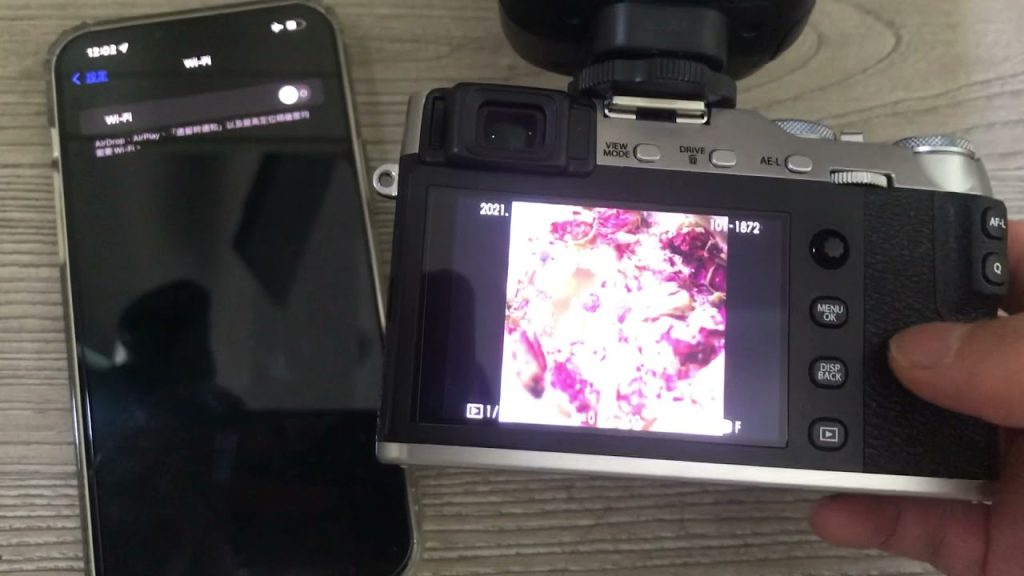
Turn on the Wi-Fifeature on your Fujifilm camera. Access the menu and select the Wi-Fioption. Connect your phone to the camera’s Wi-Fi network. Open the Fujifilm app on your phone. The app will find your camera. Tap to connect. You can now transfer photos.
Activate Bluetoothon your camera. Go to settings and choose Bluetooth. Pair your phone with the camera. Use the Fujifilm app to sync. Photos will transfer automatically. Make sure both devices stay close. This keeps the connection strong.
Using Fujifilm Camera Remote App
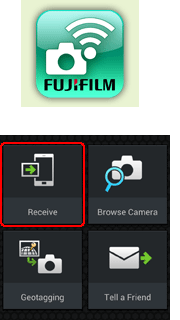
To start, find the Fujifilm Camera Remote App in your app store. Choose the right app for your phone, either iOS or Android. Download and install it on your device. Open the app after installing. Make sure your phone is charged and ready.
Turn on your Fujifilm camera. Enable the wireless communication option on the camera. Go back to the app on your phone. Choose your camera model from the list. Wait for the connection to complete. Now your camera and phone are linked. You can start transferring photos.
Credit: app.fujifilm-dsc.com
Transferring Photos
Turn on your Fujifilm camera. Connect it to your phone using Wi-Fi. Open the camera’s app on your phone. Go to the gallery on the app. Browse through your photos. Tap on the ones you want. Make sure you select all your favorites.
After selecting, find the transfer button. Tap it to start. Keep your phone close to the camera. Wait for the transfer to finish. Check your phone’s gallery for the photos. If they are not there, try again.
Troubleshooting
Transferring photos from a Fujifilm camera to a phone can be simple. Use the Fujifilm Camera Remote app for wireless transfer. Connect your camera to the app, then select and download photos directly to your phone.
Connection Issues
Sometimes, the camera does not connect to the phone. Check if both devices have Bluetooth and Wi-Fi turned on. Ensure they are close to each other. Restart the camera and phone. Update the app on your phone. Check for software updates on your camera. Always use the correct app for your camera model. Turn off other devices that use Bluetooth or Wi-Fi nearby. This helps avoid interference.
Transfer Failures
Photos may not transfer due to low battery. Charge the camera and phone fully. Photos transfer best with strong signals. Move to a place with good Wi-Fi. Check if the app has permission to access your photos. Enable permissions in your phone settings. Large photo files can fail to transfer. Transfer smaller files first. Clear cache on the app for better performance. Restart the app if it freezes.
Tips For Efficient Transfers
Transferring photos from your Fujifilm camera to your phone can be simple. Use the Fujifilm Camera Remote app for easy wireless transfers. Ensure your camera’s Wi-Fi is activated, and follow prompts to connect both devices seamlessly.
Batch Transfer
Transfer many photosat once. Group them into one batch. It saves time. Select all photos you want. Click on the transfer option. Wait for the process to complete. Watch your phone storage carefully. Make sure there’s enough space. Batch transferscan be fast and smooth. Avoid transferring one photo at a time. It takes longer. Use Wi-Fi for faster speed. Bluetooth works too, but it’s slower. Check the camera settings first. Make sure everything is set right. You can move photos quickly and easily.
Optimizing Settings
Check your camera settings. Make sure they are right. Turn on Wi-Fi or Bluetooth. Choose the best transfer mode. Settings affect transfer speed.Select high-speed mode if available. Use the latest software version. Update your camera and phone. Updates fix bugs and improve performance. Transfer settingscan speed things up. Ensure your phone is ready. Open the right app to receive photos. Close other apps for better performance.
Alternative Methods
Transferring photos from a Fujifilm camera to a phone can be done through alternative methods. Utilize a card reader or connect wirelessly using the Fujifilm Camera Remote app. These options offer flexibility and ease for photo transfers.
Using Memory Card
Transferring photos can be easy with a memory card. Remove the card from your Fujifilm camera. Place it in the phone’s memory slotif available. If not, use a memory card reader that connects to your phone. After inserting the card, open the file manager on your phone. Find the memory card folder. Browse through your photos. Select and copy them to your phone. This method is quick and does not need internet.
Cloud Storage Options
Using cloud storageis another option. Upload your Fujifilm photos to a cloud service like Google Drive or Dropbox. Make sure your camera connects to a computer first. Once uploaded, access the cloud service app on your phone. Download the photos you need. Cloud storage keeps your photos safe. You can access them anytime, anywhere. Just ensure you have internet access.
Frequently Asked Questions
How Do I Connect My Fujifilm Camera To My Phone?
To connect your Fujifilm camera to your phone, use the Fujifilm Camera Remote app. Ensure your camera’s Bluetooth and Wi-Fi are enabled. Pair the devices through the app by following on-screen instructions. This will allow easy photo transfer and remote control features.
Can I Transfer Photos Via Wi-fi?
Yes, you can transfer photos via Wi-Fi. Connect your Fujifilm camera to your phone using the Fujifilm Camera Remote app. Once connected, you can transfer photos directly from the camera to your phone wirelessly. Ensure both devices are on the same Wi-Fi network for a seamless transfer.
What App Do I Need For Photo Transfer?
You need the Fujifilm Camera Remote app for photo transfer. This app enables easy connection between your Fujifilm camera and phone. It allows you to transfer photos, control the camera remotely, and access various camera settings directly from your phone.
Are There Any Settings To Adjust On The Camera?
Yes, you must enable Bluetooth and Wi-Fi on your Fujifilm camera. Check the camera’s menu for wireless settings. Ensure both Bluetooth and Wi-Fi are activated. This allows a smooth connection with the Fujifilm Camera Remote app, facilitating photo transfers to your phone.
Conclusion
Transferring photos from your Fujifilm camera to your phone is simple. Follow the steps outlined above. Soon, your images will be on your phone, ready to share. This method saves time and keeps your memories safe. You no longer need a computer for transfers.
Enjoy the convenience and freedom. Share your photos with friends and family easily. Remember to keep your camera and phone connected. Happy photographing and sharing! With these tips, managing your photos is a breeze. Capture, transfer, and enjoy your moments effortlessly.

Callen Ridgeway is a senior writer at ElectroDoz, where he shares his expertise on the latest in drones, webcams, cameras, and a wide range of cutting-edge electronic devices. With a passion for exploring emerging tech and breaking it down into practical insights, Callen helps readers make smarter choices when it comes to gadgets and gear. When he’s not testing the newest electronics, he’s busy keeping up with the innovations shaping the future of consumer technology.