How to Download Photos from Camera to Phone: Quick Guide
Have you ever captured the perfect moment with your camera and immediately wanted to share it with friends or post it on social media? You’re not alone.
In this digital age, our phones have become a hub for capturing, storing, and sharing memories. But sometimes, transferring those stunning photos from your camera to your phone can feel like a daunting task. What if I told you that mastering this process could be quick and simple?
Imagine the freedom of effortlessly moving your breathtaking images to your phone, ready to be shared with the world. Keep reading to discover the easy steps that will transform your photo transfer woes into a smooth, streamlined experience. Your photos deserve to be seen, and you’re just a few steps away from making that happen.
Credit: www.cnet.com
Essential Tools
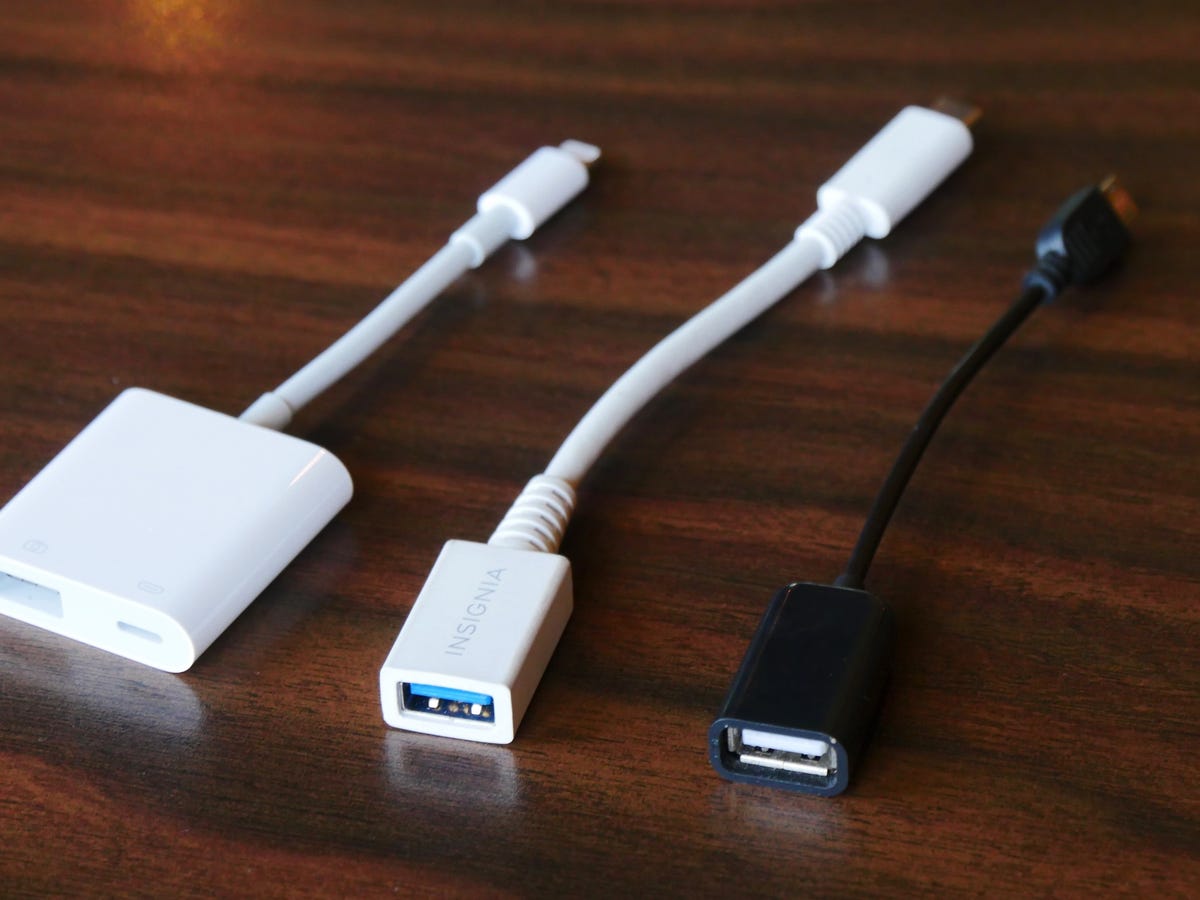
USB cables are common tools for photo transfer. They connect your camera to your phone. Choose a compatible cable for your devices. Some cameras need a micro USB, others use Type-C. Always check the ports on both devices. Connect the cable and open the file manager on your phone. You can now transfer photos easily.
Card readers make photo transfers quick. Insert your camera’s memory card into the reader. Plug the reader into your phone. Your phone should detect the card right away. Open the files and choose the photos to transfer. Card readers support many card types like SD and microSD. This option is handy if your camera uses memory cards.
Wireless apps are great for photo transfer without cables. Many cameras have built-in Wi-Fi or Bluetooth. Use apps like Canon Camera Connect or Nikon SnapBridge. These apps let you send photos directly to your phone. First, pair your camera with your phone. Open the app and select the photos to transfer. It’s simple and fast.
Credit: www.tiktok.com
Connecting With Usb Cable
The cable should fit your camera and phone. Check the ends of the cable. One side goes into the camera. The other side fits into the phone. USB cables come in different types. Look for USB Type-C, Micro USB, or Lightning cables. These are common. Each device has its own port. Make sure the cable matches the port.
Plug the cable into your camera. Connect the other end to your phone. Open the Photos app on your iOS device. Choose the Import option. Your device will show photos from the camera. Select the photos you want. Tap Import to save them to your phone.
Connect the cable to your camera and phone. Your phone should recognize the camera. Open the Gallery app. Tap Import or Transfer Photos. Select the photos you want to download. Press Import to transfer them to your phone.
Using Memory Card Reader
Memory card readershelp move photos to phones easily. Choose a compatible card readerfor your camera’s memory card. There are many types: SD, microSD, and others. Ensure it matches your card type. Check your phone’s port type too. Some use USB-C, others use Lightning.
Selecting A Compatible Card Reader
Find a reader that fits your card and phone. Some readers work with both Android and iOS. Compatibility is key. Look for quality brands. They ensure faster transfers and fewer errors.
Transferring Photos To Ios
Connect the card reader to your iPhone. Open the Photos app. Tap “Import” to see photos on the card. Choose photos to save. Tap “Import Selected.” Photos will transfer to your phone. Remove the card reader after the transfer. Check your phone for all the photos.
Transferring Photos To Android
Plug the card reader into your Android phone. Open the Files app. Your photos will show up. Select the photos you want. Tap “Copy” or “Move” to save them. Choose the folder you prefer. Photos will move quickly. Unplug the card reader when done. Ensure all photos are saved.
Wireless Transfer Methods
Bluetooth is a simple way to move photos. Turn on Bluetoothon both devices. Pair your phone and camera. Choose the photos you want to send. Confirm the transfer. Photos will move wirelessly to your phone. It’s easy and quick. No cables needed.
Wi-Fi Direct is faster than Bluetooth. Connect your phone to the camera’s Wi-Fi. Open the camera’s app on your phone. Select the photos you want. Tap to transfer. Photos arrive on your phone in seconds. It’s a fast way to share pictures.
Many apps help with photo transfers. Install a transfer app on your phone. Connect your camera to the app. Choose photos to move. Tap to start the transfer. Apps make it easy to send many photos at once. Photos move quickly to your phone.
Popular Transfer Apps
Google Photos is a great choice for saving pictures. It works on most phones. You can easily upload photos from your camera. Share them with friends or keep them safe. The app is free, but you need a Google account. It also organizes your photos by date and place. This makes finding pictures easy.
Dropbox is another easy way to move photos. You can store photos and files online. It is simple to use and works on different devices. Create a folder and upload your photos. Access them anytime, anywhere. You need an account, but it is free for basic use. Share photos with others if you want.
Apple AirDrop is perfect for Apple devices. It moves photos fast between iPhones and Macs. You need to turn on Bluetooth and Wi-Fi. Select the photos and choose a nearby device. Transfer is quick and simple. No cables or Internet needed. It is a secure way to share pictures.
Troubleshooting Tips
Connection problems can stop photo transfers. Check if the camera and phone are connected. Restart both devices to solve connection issues. Use a different cable if needed.
Photos may not open if formats don’t match. Convert photos to a format your phone can read. Use free apps to convert files. Check your phone settings to see compatible formats.
Low storage can block downloads. Delete old files to free up space. Move photos to cloud storage or a computer. Regularly check storage space before downloading new photos.
Maintaining Photo Quality
Compression can make photos lose their sharpness. Blurry and pixelated images are common. To keep photos clear, avoid compressing them. Use apps or software that do not compress images. Quality matters for memories. Keep them as they are.
Original formats help keep photo details intact. JPEG and RAW files are common choices. Transfer photos in the same format. This helps to keep colors and details perfect. Original files show the scene as it was. Preserve your photos by using these formats.
Credit: www.youtube.com
Frequently Asked Questions
How Do I Transfer Photos From My Camera To My Phone?
To transfer photos, use a USB cable or Wi-Fi connection. Connect your camera to the phone and select the photos. Alternatively, use a camera app with Wi-Fi capability. You can also remove the SD card and use a card reader with your phone.
Can I Use Bluetooth For Photo Transfer?
Yes, Bluetooth can be used if both devices support it. Enable Bluetooth on your camera and phone. Pair the devices and select the photos to transfer. This method is slower but eliminates the need for cables or Wi-Fi.
What Apps Help With Photo Transfer?
Several apps can facilitate photo transfer. Some popular ones include Google Photos, Dropbox, and specific camera brand apps. These apps offer seamless photo transfer via Wi-Fi or cloud services. Choose an app compatible with your camera and phone for the best experience.
Is An Sd Card Reader Necessary?
An SD card reader is not always necessary but can be useful. It allows direct photo transfer from the camera’s SD card to your phone. This method is fast and convenient, especially if your phone supports external storage. Ensure compatibility before purchasing a card reader.
Conclusion
Transferring photos from your camera to your phone is simple. Use cables or wireless options, depending on your device. Apps can also help in managing transfers smoothly. Each method is efficient, saving time and effort. Choose what suits your needs best.
Keep your photos organized on your phone. Enjoy sharing them with friends and family. Remember, regular transfers prevent memory overload on your camera. Happy photo sharing!

Callen Ridgeway is a senior writer at ElectroDoz, where he shares his expertise on the latest in drones, webcams, cameras, and a wide range of cutting-edge electronic devices. With a passion for exploring emerging tech and breaking it down into practical insights, Callen helps readers make smarter choices when it comes to gadgets and gear. When he’s not testing the newest electronics, he’s busy keeping up with the innovations shaping the future of consumer technology.